


















Customer Management
In the customer portal, a Customer shows as an organization. Its members are the Contacts in the Contacts table of the Customer. Every member can see their organization in the portal. Additionally, Customer managers can also invite people, change roles and change the logo, when your administrator allows it in the Portal Settings.
The portal page is the customer's view of the Contacts tab on the Customer page in the agent portal. A change on one shows on the other.
| In the portal | In Helpdesk |
|---|---|
| Organization | A Customer (HD Customer) |
| Member | A Contact in the Customer's Contacts table |
| Manager | A Contact row with Is Manager checked |
| Owner | The Primary Contact of the Customer |
| Invitation | A User Invitation for the Contact's email |
Roles
| Role in the portal | Who | What they can do |
|---|---|---|
| Owner | The Primary Contact of the Customer. | Same as a manager. The role of the owner cannot be changed. |
| Manager | Contacts with Is Manager checked. Helpdesk gives their user the HD Customer Manager role. | See every ticket of the Customer. Manage members when Portal Settings allows it. |
| Member | All other Contacts of the Customer. Their user has the HD Customer role. | See their own tickets. See the member list of the organization. |
A Contact can be a manager of one Customer and a member of another.
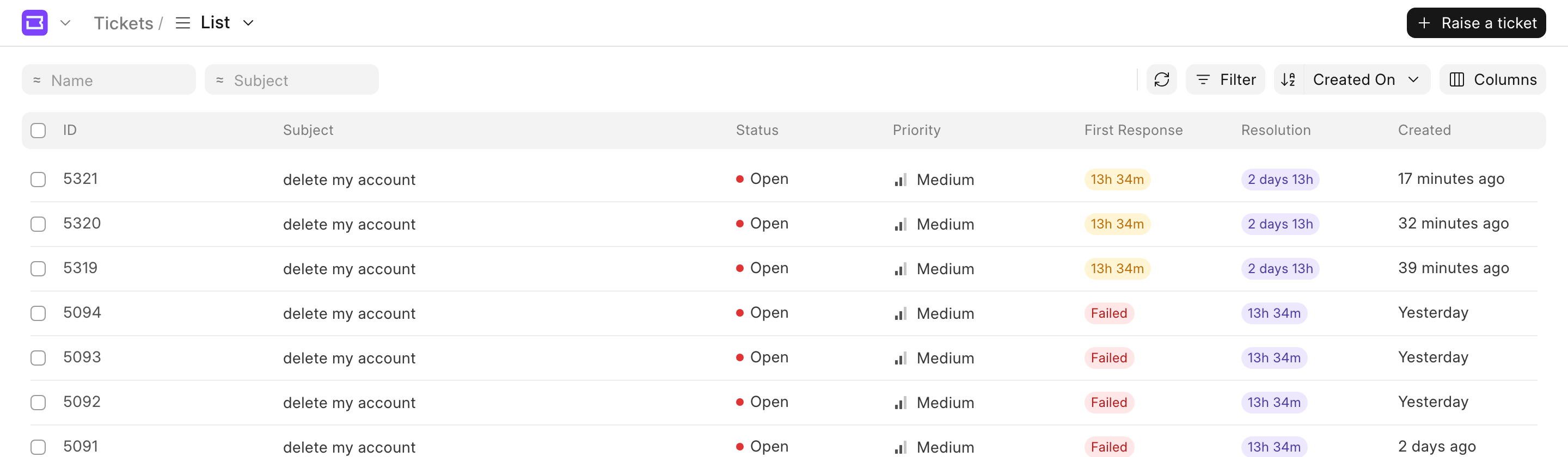 My tickets for a member: only their own ticket
Agents make a Contact a manager on the Contacts tab of the Customer page. See Managing Contacts under a Customer. Managers can also do it in the portal, when Allow organization management is on.
Portal Settings
Portal Settings control what customers and visitors can do in the customer portal. The switches are fields of HD Settings. System Managers and Agent Managers can change them. In Desk, they are on the Portal tab of HD Settings, except Allow signup, which is in Website Settings.
- In the agent portal, click your brand name at the top left, then Settings.
- Click Portal Settings.
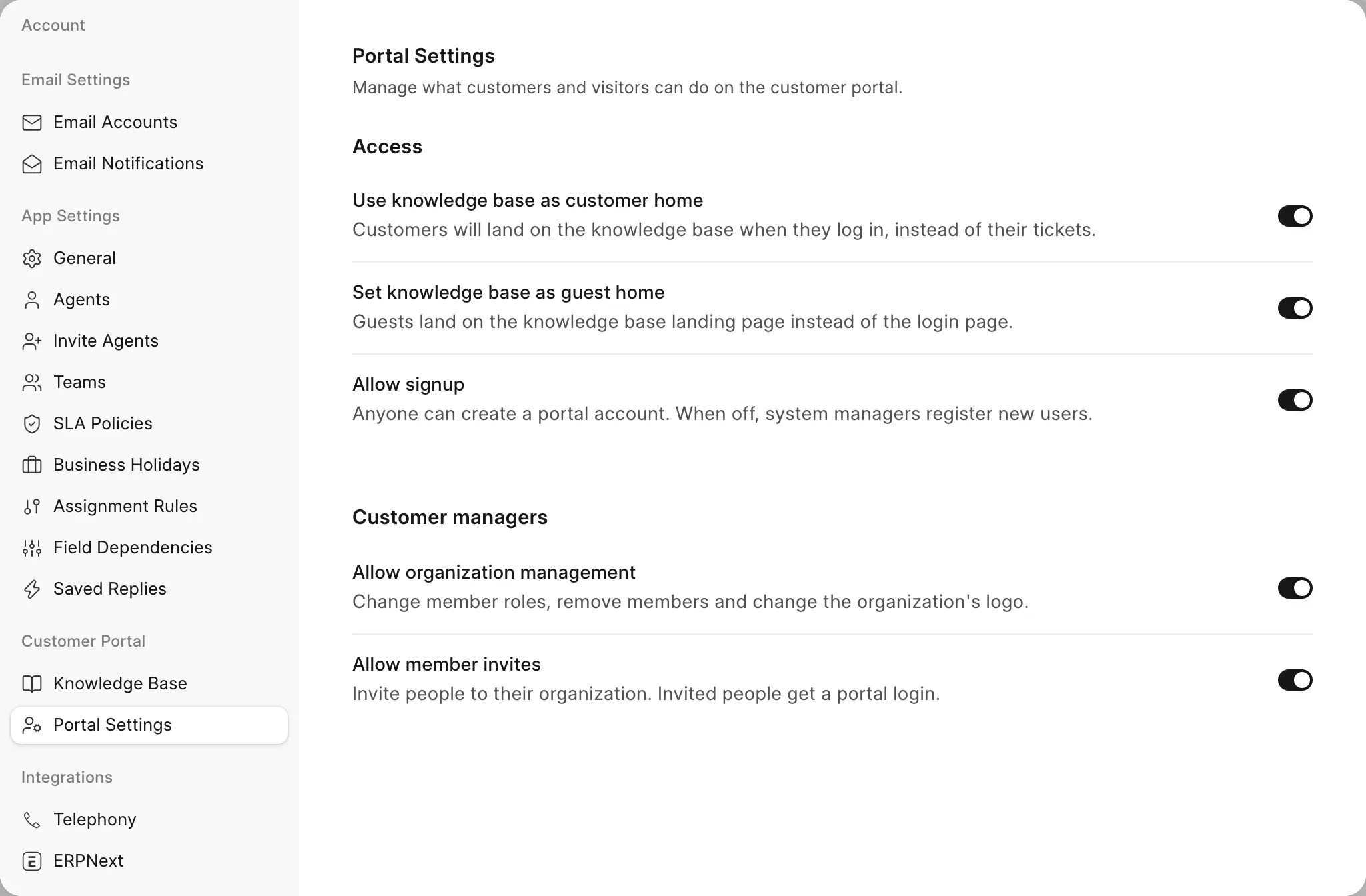
Access
| Setting | Field | What it does | Default |
|---|---|---|---|
| Use knowledge base as customer home | prefer_knowledge_base in HD Settings |
Customers land on the knowledge base when they log in or open the site. When it is off, they land on their tickets. | On for new sites |
| Set knowledge base as guest home | knowledge_base_home_page_for_guests in HD Settings |
Visitors who are not logged in land on the knowledge base when they open your site's address, instead of the login page. Helpdesk sets the Home Page in Website Settings. It shows only when Make knowledge base public is on. HD Settings refuses to turn it on while the knowledge base is private. | Off |
| Allow signup | Disable Signup in Website Settings, inverted | Anyone can create a portal account. When it is off, a System Manager must create the accounts. This switch shows only to users who can change Website Settings. | On |
Customer managers
| Setting | Field in HD Settings | What it does | Default |
|---|---|---|---|
| Allow organization management | allow_customer_managers_to_manage_organization |
Managers change Is Manager on the Contacts of their Customer, remove Contacts from it, and change its logo. Managers also need this setting to invite someone as a manager. | Off |
| Allow member invites | allow_customer_managers_to_invite |
Managers invite people to their organization. Each invited person gets a Contact on the Customer and a portal login. | Off |
Use knowledge base as customer home sets the home page of the HD Customer and HD Customer Manager roles. If you set a different home page on these roles by hand, Helpdesk keeps it.
The same tab is in the customer portal, under Settings → Portal Settings, for users who can change it.
Your Organization in the Portal
- In the customer portal, open the account menu and click Settings. Settings is not available on a phone.
- Click Manage Organization. If you manage none of your organizations, this item is View Organization.
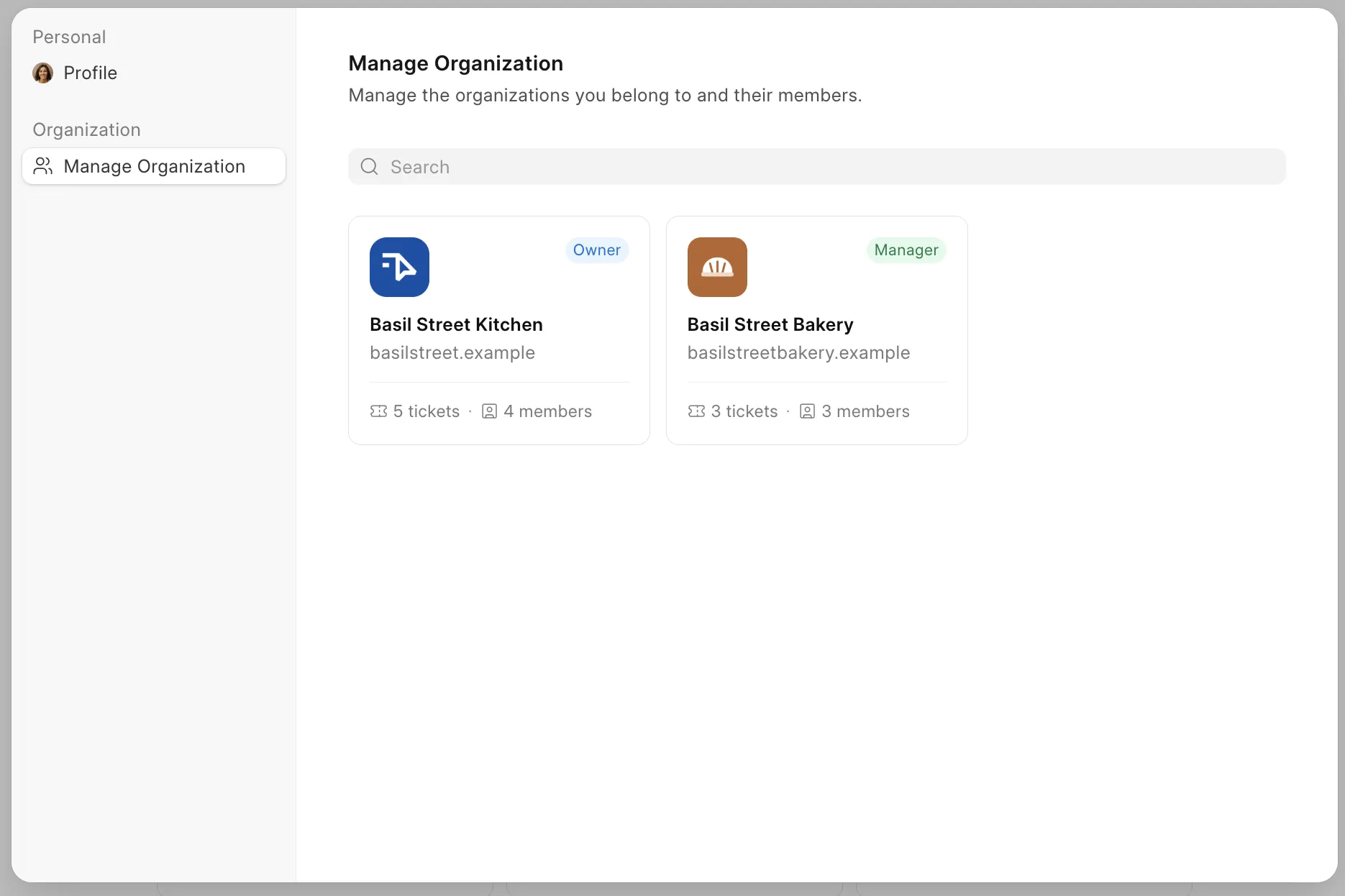
The page shows the Email ID, the Domain and the Country of the Customer, when they are set.
The Members tab lists the Contacts of the Customer, with their role. Use Search and the role filter to find people. The role filter has All, Manager, Member, and Invited when managers see the pending invitations. Managers also see Last seen. When Allow member invites is on, managers also see the pending invitations.
The Tickets tab lists the latest tickets of the Customer that you can see. These are the HD Ticket records with this Customer in the Customer field. Use Search to find a ticket by its subject. Click Load More to show more tickets. Click a ticket to open it.
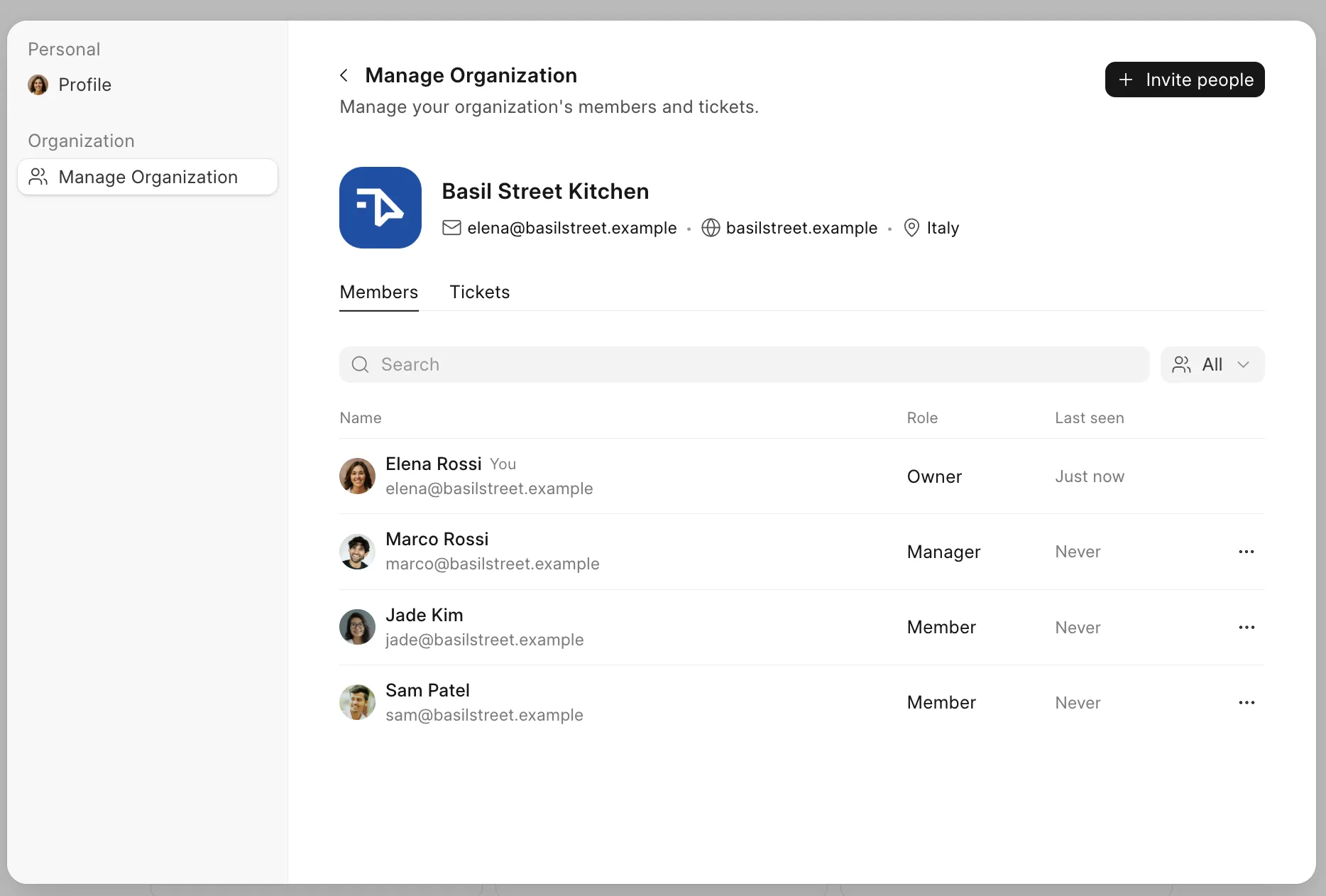
If your Contact is in more than one Customer, the portal first shows a list of your organizations, with your role, the number of members and the number of tickets that you can see. Use Search to find one. Click one to open it.
Invite People
You need the Manager or Owner role, and Allow member invites must be on.
- Click Invite people.
- In Invite by email, type one or more email addresses. Separate them with commas.
- Select a Role. A Member can raise tickets and see their own tickets. A Manager can see tickets raised by everyone in the organization.
- Click Send Invites.
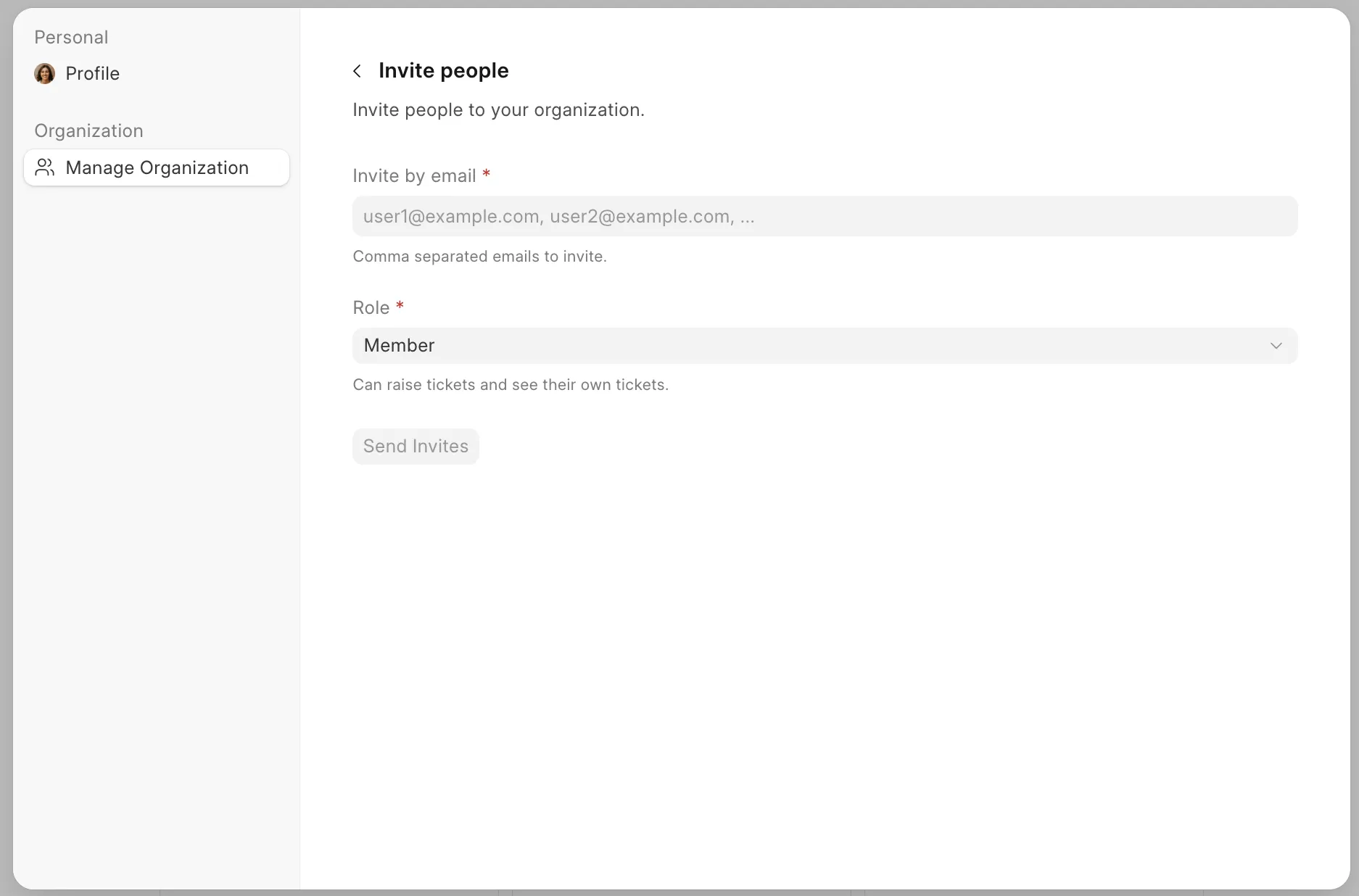 send invites as per role
Invite a colleague, then cancel the invitation
Helpdesk adds each person to the Contacts table of the Customer and emails them a User Invitation. A person without a password sets one, then the customer portal opens. Until they accept, the member list shows the invitation as Pending. An invitation expires after 3 days. This is the same invitation that agents send with Invite on the Customer page.
To cancel an invitation, click the X on its row, then Cancel invitation. The link in the email stops working, and Helpdesk emails the person that the invitation was cancelled.
Change a Member's Role
You need the Manager or Owner role, and Allow organization management must be on.
- Click ⋯ on the member's row.
- Click Change role, then Manager or Member.
- Click Confirm.
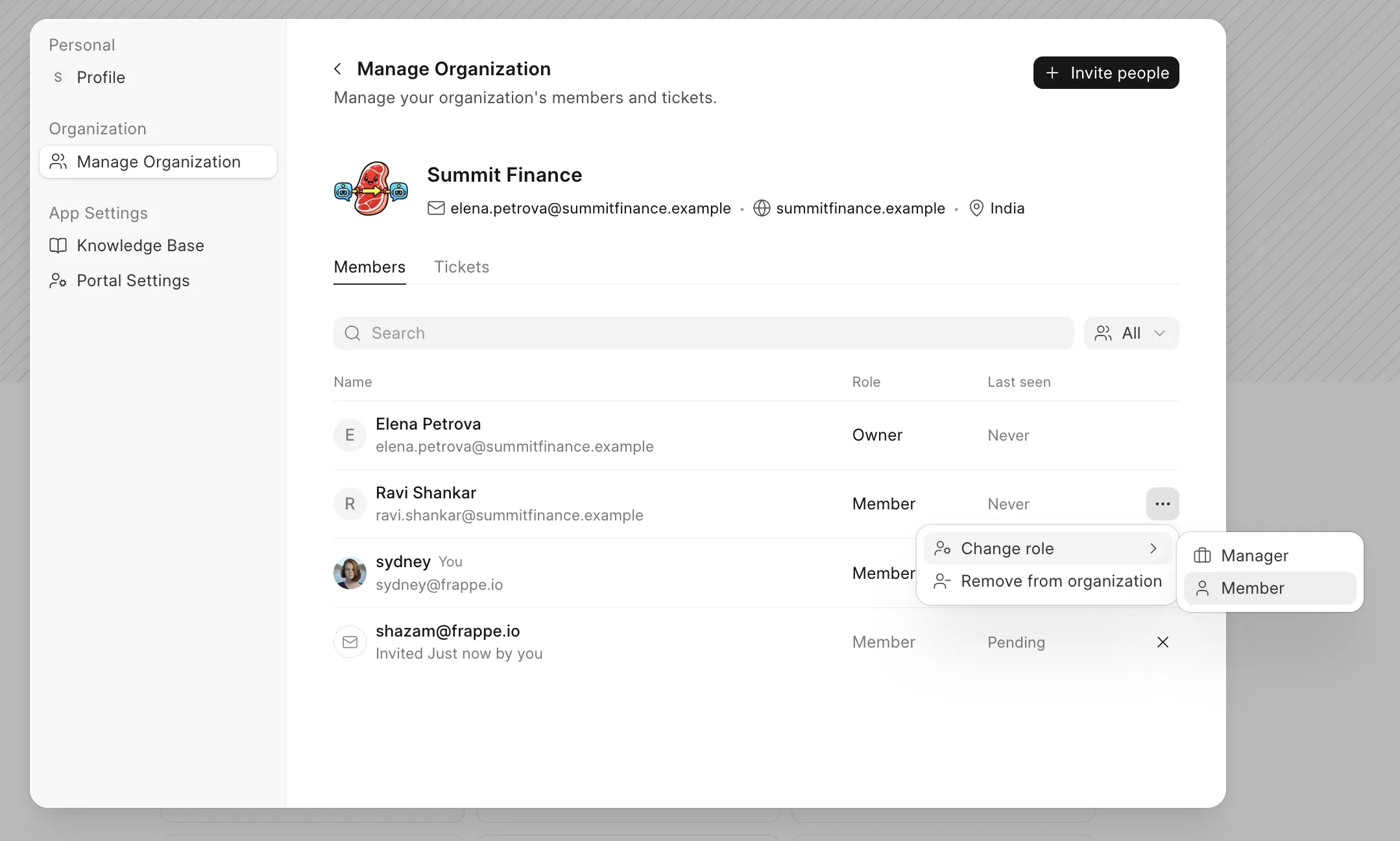
Helpdesk sets Is Manager on the Contact's row of the Customer. A new manager gets access to the tickets of everyone in the organization. A former manager sees only their own tickets from then on. You cannot change your own role or the role of the owner.
Remove a Member
You need the Manager or Owner role, and Allow organization management must be on.
- Click ⋯ on the member's row.
- Click Remove from organization.
- Click Remove.
Helpdesk removes the Contact from the Contacts table of the Customer. The person loses access to the tickets of the Customer. The Contact and their own tickets stay. You cannot remove yourself or the owner.
Change the Logo
You need the Manager or Owner role, and Allow organization management must be on. Click the logo next to the organization name to upload or change it. To remove it, hover over the logo and click the X. The logo is the Image of the Customer, so agents see it on the Customer page too. Logos are public files.
Good to Know
- Customer managers change their Customer only through the portal. They cannot edit or delete the HD Customer record in Desk or through the REST API since they have no access to it.
- When a setting is off, the portal hides its buttons. If someone calls the API directly, Helpdesk refuses with an error such as "You are not permitted to invite members".
- Agent Managers can manage every Customer through the API, also Customers that they are not a Contact of. The same Portal Settings switches apply to them.