

















ERPNext Integration
Frappe Helpdesk can stay in sync with ERPNext so that your customer records are never out of date.
Prerequisites
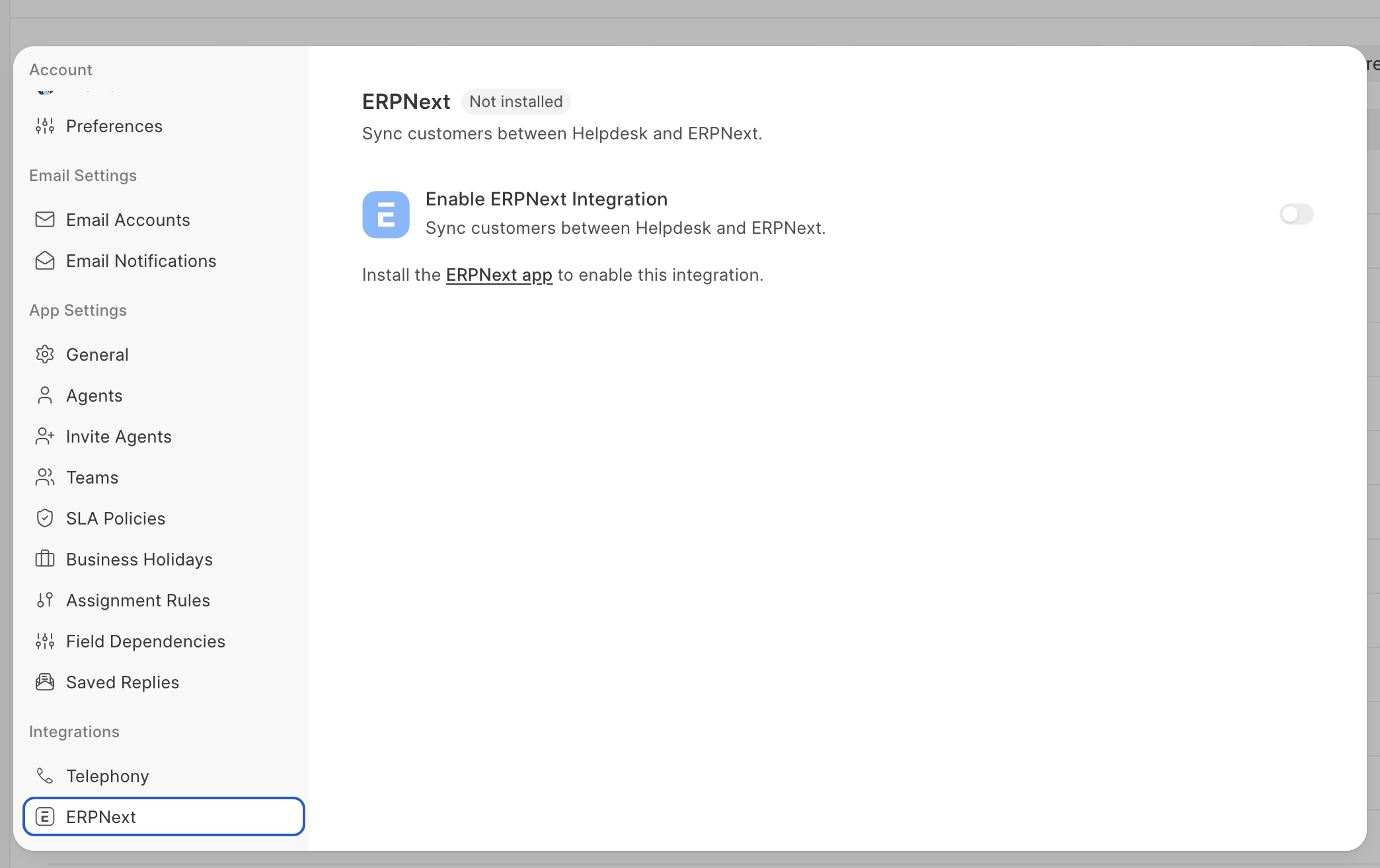
ERPNext must be installed on the same Frappe bench as Helpdesk. If ERPNext is not installed on your site, the UI will look like this.
Enabling the Integration
- Open Helpdesk and go to Settings → Integrations → ERPNext
- Toggle Enable ERPNext Integration on.
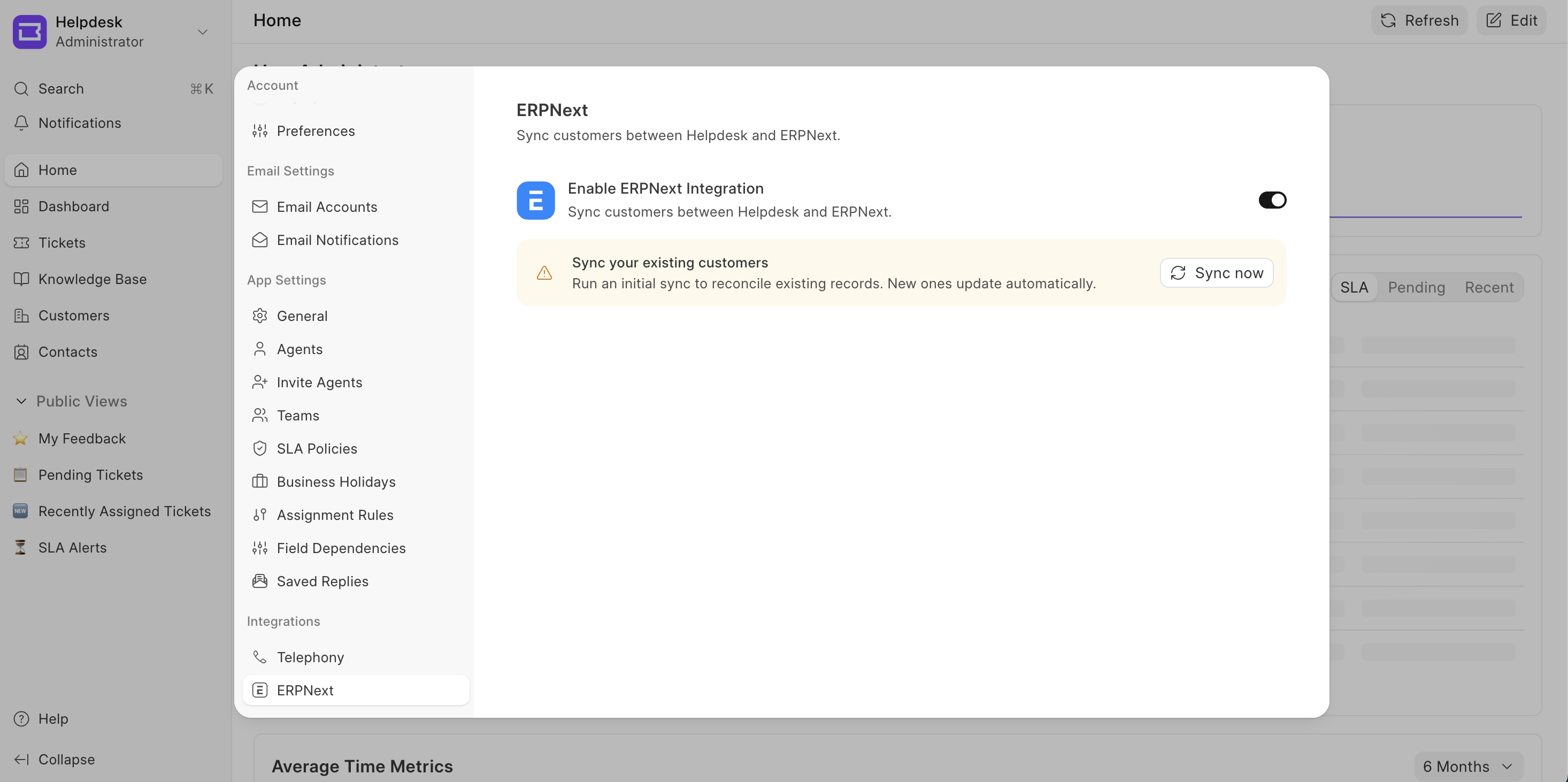
Once enabled, you will see this banner at the bottom, and a "Sync Now" button
The same button will also be visible in ERPNext HD Settings doctype.
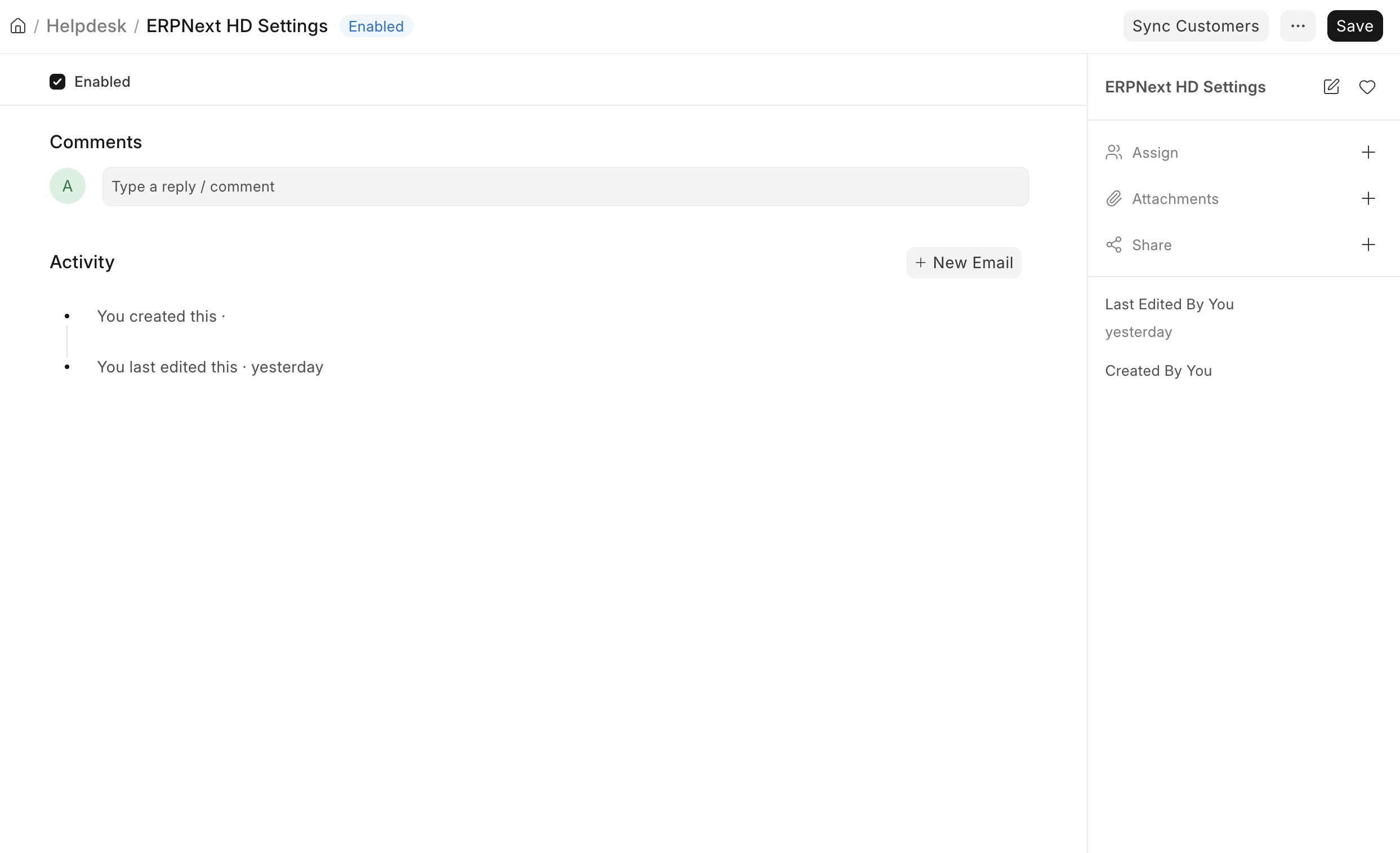
When either of these buttons is clicked, the syncing process begins.
It takes from a few minutes to a few hours depending upon the size of your master data.
How is the master data synced?
The bulk sync performs a union merge:
- ERPNext customers not in Helpdesk are added to Helpdesk.
- Helpdesk customers not in ERPNext are added to ERPNext.
- Customers that already exist by name on both sides are linked without creating duplicates. After a successful bulk sync, every customer will exist in both systems and will be linked bidirectionally.
Once the syncing is done
- If a Customer is created in Helpdesk, the same record is created in ERPNext Customer (if installed) automatically.
- If a Customer is created in ERPNext, the same record is created in Helpdesk's Customer (if installed) automatically.
- All the User Perms will also be synced.
- All the documents that were shared will also be synced together.
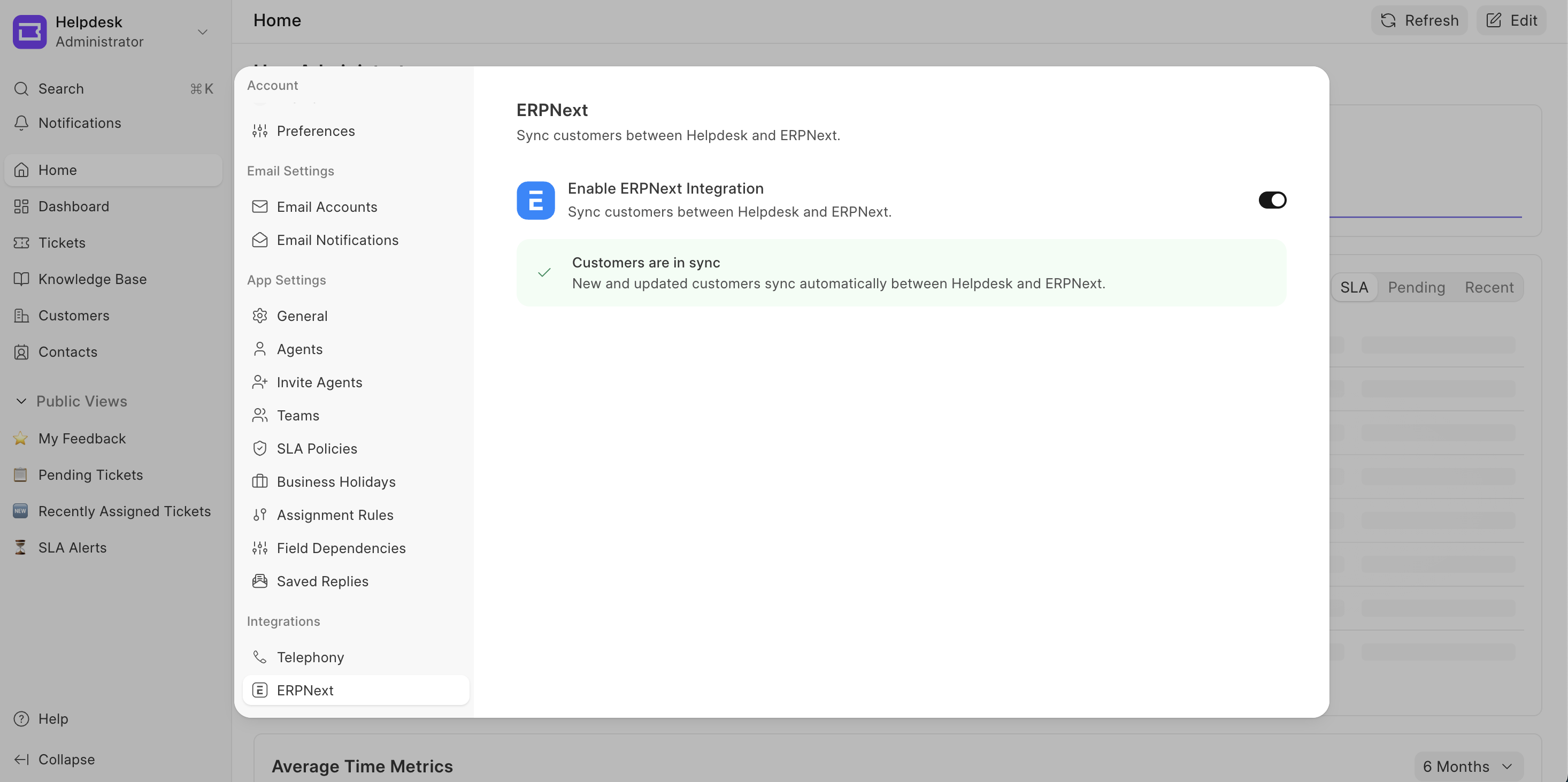
This is how the UI will look in Settings of the Helpdesk Portal:
Disabling the Integration
Toggle Enable ERPNext Integration off in Settings → General.
Existing records are preserved. No further changes will be mirrored until the integration is re-enabled.
[!WARNING]
To sync the two doctypes, the user needs to have "write" permissions in both Customer & HD Customer DocType