


















Saved replies in Frappe Helpdesk are pre-written replies that support agents can use to respond to common customer inquiries quickly and consistently. These templates help streamline communication, ensuring that customers receive prompt and accurate information.
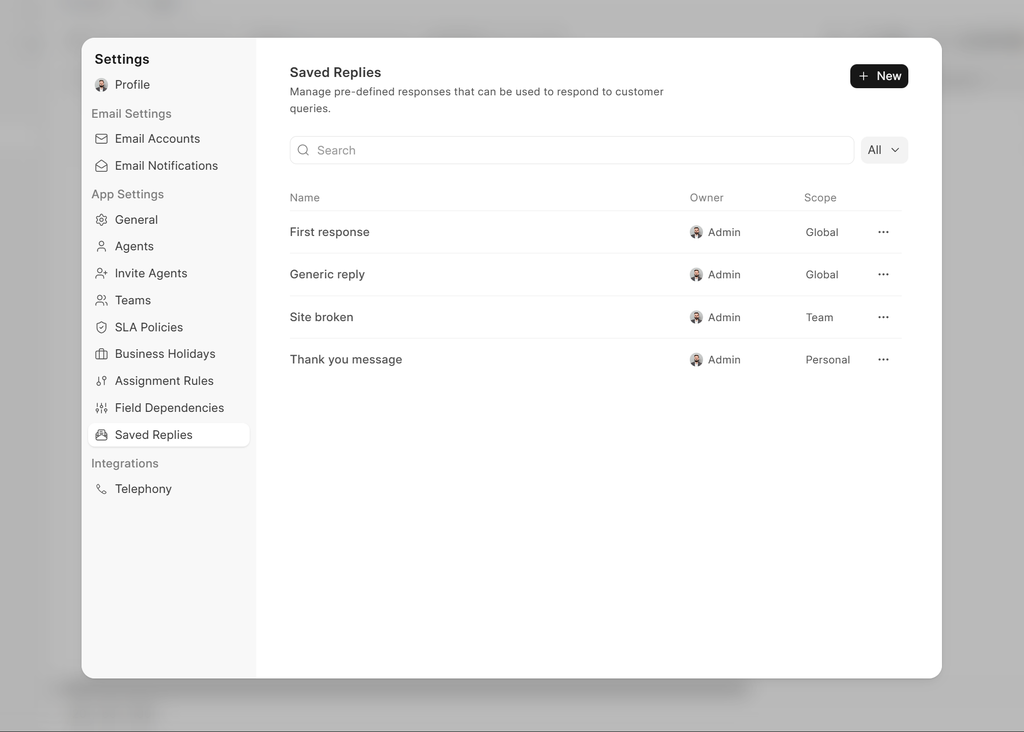
Key Features of Saved Replies
-
Pre-Written Templates: Saved replies are ready-made templates for common questions and issues, saving agents time when replying to frequently asked questions.
-
Dynamic fields: Saved replies supports dynamic field using jinja templates. For dynamic fields here are all the fields available
Ticket - All ticket fields including any custom field that you may have added
User - email, first_name, middle_name, last_name, full_name, username, user_image, phone, location, bio, mobile_no
Here are some examples:
1. First Response
Hello {{ contact }},

We are sorry for the inconvenience, we will get back to you soon.

Regards,
{{ full_name }}
2.Refund Confirmation
Example for custom field in HD Ticket doctype e.g
order_numberHi {{ contact }}, Your refund for order {{ order_number }} has been processed. It may take 3–5 business days to appear in your account, depending on your bank. Let us know if you need anything else! Warm regards, {{full_name}} -
Customization: While saved replies are pre-written, they can be customized to suit the specific context of a customer inquiry, allowing for a personal touch.
-
Easy Access: Agents can easily access and insert saved replies into their replies from within the helpdesk interface, improving efficiency.
-
Consistency: Ensures that all customers receive consistent and accurate information, maintaining a high standard of support.
-
Bulk Actions: Useful for sending similar information to multiple customers simultaneously, particularly during incidents affecting multiple users.
-
Actions: A saved reply can also update the ticket for you, for example set the status, assign an agent or add a tag, when the reply is sent.
Scope Feature
The Scope feature allows you to control the visibility and accessibility of saved replies across your support team. Each saved reply can be configured with one of three scope levels, providing granular control over who can access and use specific templates.
Scope Types
-
Global
- Visible to all agents
- Ideal for company-wide templates that every support agent should have access to
- Examples: Standard greetings, company policies, general troubleshooting steps
- Can be disabled system-wide using the HD Settings option (see Settings below)
-
Team
- Visible to members of specific teams only
- You can assign a saved reply to one or more teams
- Perfect for department-specific or team-specific responses
- Examples: Technical support templates for the Tech Team, billing templates for the Finance Team
- Behavior changes based on the "Restrict Tickets by Agent Group" setting
-
Personal
- Visible only to the owner (creator) of the saved reply
- Ideal for individual agent preferences and frequently used custom responses
- Other agents cannot view or use personal saved replies
Visibility Rules Summary
| Scope | Owner | Same Team Members | Other Agents | Admins |
|---|---|---|---|---|
| Global | ✅ | ✅ | ✅ | ✅ |
| Team | ✅ | ✅ (when restricted) | ❌ (when restricted) | ✅ |
| Personal | ✅ | ❌ | ❌ | ✅ |
[!NOTE]
System Managers and Agent Managers always have full access to all saved replies regardless of scope settings.
Disable Saved Replies Global Scope
To disable global scope for saved replies, go to settings modal from top left corner and click on settings or from desk go to HD Settings. Enable Restrict tickets by team, Disable global scope for saved replies will appear below it, enable it and save.
Actions
Most replies come with follow-up work. An escalation reply usually also moves the ticket to another team, a resolution reply closes it, a first response bumps the priority. Actions let you attach that work to the saved reply itself, so the agent writes the reply once and the ticket is updated for them.
Actions run after the reply email is sent, on the ticket the reply was sent from.
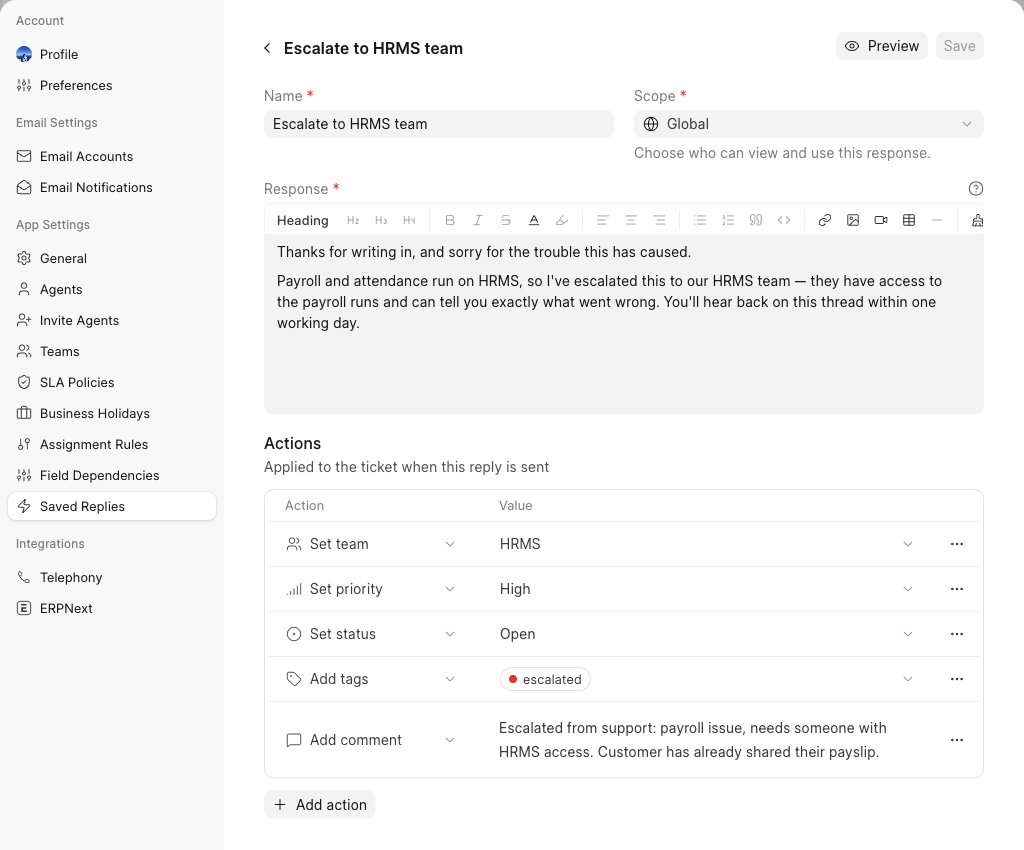
Available Actions
| Action | What it does | Value |
|---|---|---|
| Set status | Sets the ticket status | An enabled ticket status |
| Set priority | Sets the ticket priority | An enabled priority |
| Set team | Moves the ticket to another team | An enabled team |
| Set ticket type | Sets the ticket type | An enabled ticket type |
| Assign agent | Assigns the ticket to a specific agent | An active agent |
| Assign to me | Assigns the ticket to whoever sends the reply | No value needed |
| Add tags | Adds one or more tags to the ticket | Tags, new ones are created if they do not exist |
| Remove tags | Removes one or more tags from the ticket | Tags |
| Add comment | Adds an internal comment to the ticket | Rich text, visible to agents only |
Rules
- A saved reply can use only one assignment action, either Assign agent or Assign to me.
- The same action with the same value cannot be added twice.
- The same tag cannot be added and removed in one reply.
Adding Actions to a Saved Reply
- Go to the Saved Replies section in the settings modal and open a saved reply, or create a new one.
- Scroll to the Actions table below the message.
- Click Add action, pick an action from the dropdown, then pick its value.
- Use the row menu on the right to delete a row.
- Save the saved reply.
Using Actions While Replying
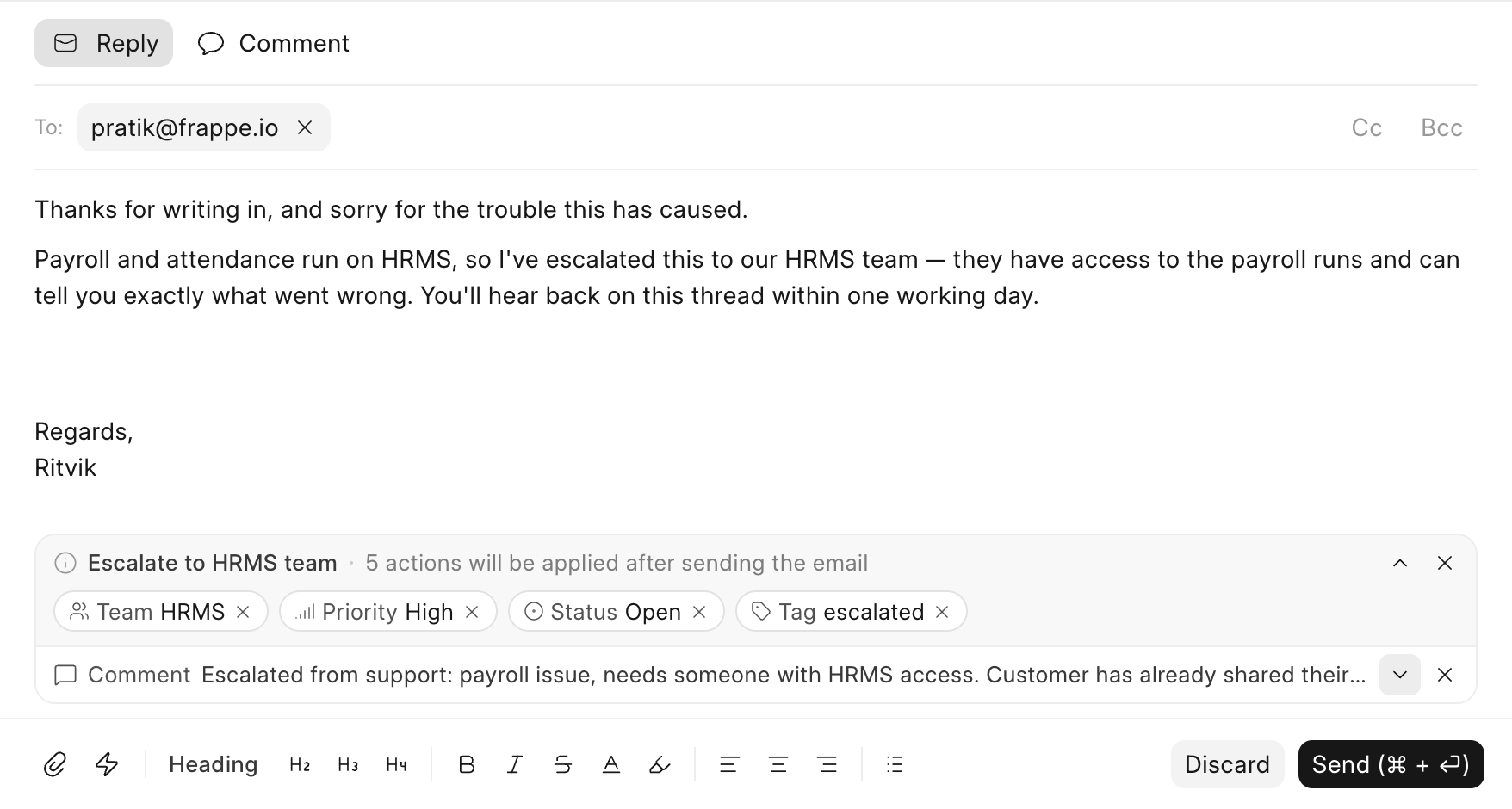
- Insert the saved reply in the reply editor as usual.
- Its actions appear in a strip above the editor, showing the reply name and how many actions are staged.
- Expand the strip to review the actions. You can change a value, remove a single action, or clear all of them before sending. A comment action can be edited inline, and whatever is in the editor at send time is what gets added.
- Send the reply. The actions are applied to the ticket right after the email goes out, and the ticket refreshes with the changes.
[!NOTE]
Actions are applied with the permissions of the agent sending the reply. An agent who cannot edit the ticket cannot apply actions to it either.
When an Action Cannot Be Applied
Targets change over time, a team gets disabled, an agent is deactivated, a ticket type is removed. Helpdesk handles this quietly instead of blocking the reply:
- Actions whose target no longer exists are dropped when the saved reply is inserted, so an agent never stages one that is bound to fail.
- Anything that turns invalid between insert and send is skipped at apply time and reported in a notification, the rest still apply.
- If applying the batch fails altogether, an error notification offers a Retry. The email itself is already sent and is never affected.
Use Cases for Saved Replies
- Common Queries: Quickly respond to frequently asked questions about products, services, policies, or procedures.
- Troubleshooting Steps: Provide step-by-step instructions for resolving common technical issues.
- Acknowledgments: Send quick acknowledgments of receipt for new support tickets or inquiries.
- Follow-Up: Send follow-up messages to customers, ensuring they have all the information they need and checking on the status of their issue.
- General Information: Share general information, such as office hours, contact details, or links to the Knowledge Base.
- Escalations: Move a ticket to the right team, raise its priority and drop an internal note, all from one reply.
Benefits of Saved Replies
- Efficiency: Significantly reduces the time agents spend composing responses, allowing them to handle more tickets in less time.
- Consistency: Maintains uniformity in responses, ensuring that all customers receive the same high-quality information.
- Accuracy: Minimizes the risk of errors or omissions in replies, as the responses are pre-approved and standardized.
- Speed: Enhances response times, leading to quicker resolutions and improved customer satisfaction.
- Training: Serves as a training tool for new agents, providing them with examples of appropriate responses.
- Fewer missed steps: Actions make sure the ticket is updated the same way every time a given reply is sent.
How to Use Saved Replies in Frappe Helpdesk
-
Creating Saved Replies:
- Navigate to the Saved Replies section in the settings modal.
- Click on "New Saved Reply" and enter a descriptive title.
- Write the pre-written message in the content section, including any placeholders for customization.
- Optionally, add actions that should update the ticket when this reply is sent.
-
Using Saved Replies:
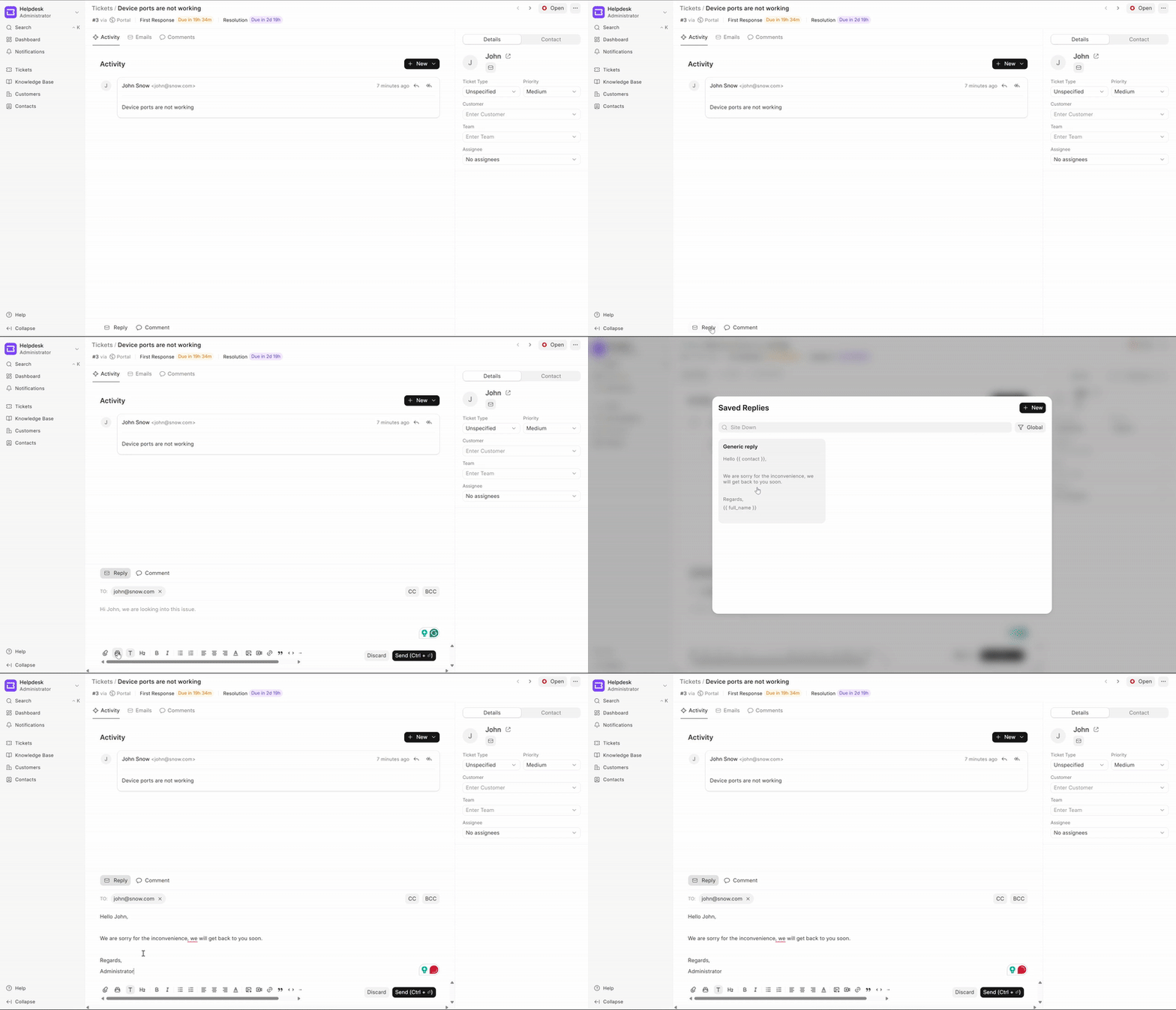
- When replying to a ticket, click on the saved reply icon in the reply editor.
- Select the appropriate saved reply from the list.
- Customize the message if needed to address the specific context of the inquiry.
- Review the staged actions, if the reply has any.
- Send the response to the customer.
By utilizing saved replies, Frappe Helpdesk can enhance the efficiency and effectiveness of support operations, ensuring that customers receive prompt, accurate, and consistent information.