


















Customizing Knowledge Base
These settings help you to customize the look and feel of the knowledge base as well as
Open the settings in one of two places:
- In the agent portal, click your brand name at the top left, then Settings → Knowledge Base.
- In the customer portal, open the account menu, then Settings → Knowledge Base. Settings does not show on a phone.
Both places show the same form. It has three sections: Access, Customize home page and Header.
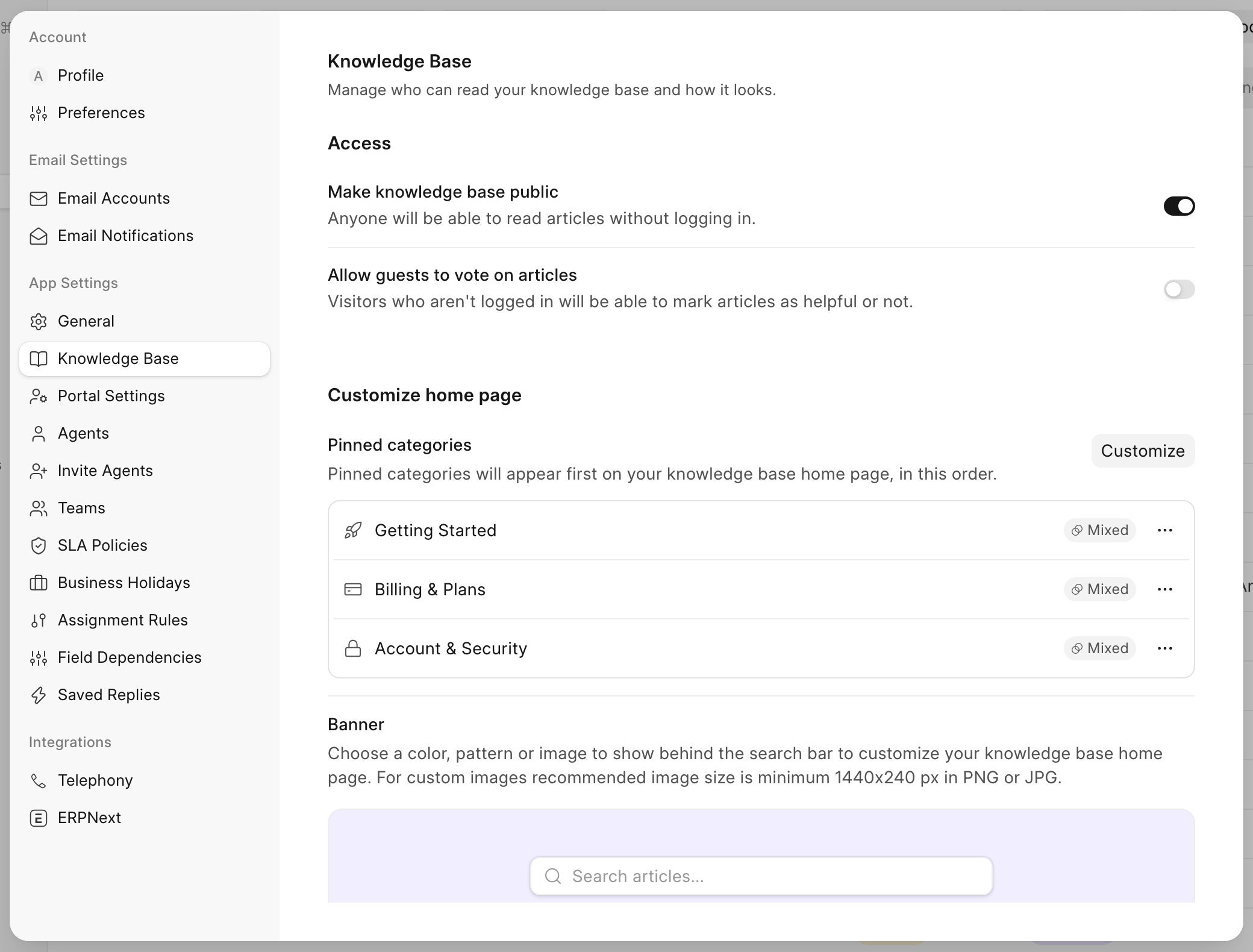 Settings → Knowledge Base
| Setting | Saved in |
|---|---|
| Make knowledge base public | public_knowledge_base in HD Settings |
| Allow guests to vote on articles | allow_anonymous_article_voting in HD Settings |
| Pinned categories | pinned and pinned_order in each HD Article Category |
| Banner | banner_preset and banner_image in HD Settings |
| Show Raise a ticket button | hide_raise_ticket_button in HD Settings, inverted |
| Quick links | The HD Form Script called "Knowledge Base Quick Links" |
The three switches save as soon as you change them. Pinned categories save when you click Save in the Customize dialog. The banner and the quick links wait for you to click Save at the top of the form. Save and Preview show there only while you have unsaved changes. While you have unsaved changes, the settings do not close. If you change to another tab, Helpdesk asks you to confirm, and then discards the changes.
Customer portal pages that are open get the new settings without a reload.
If done correctly, this is how the landing page for your customers would look.
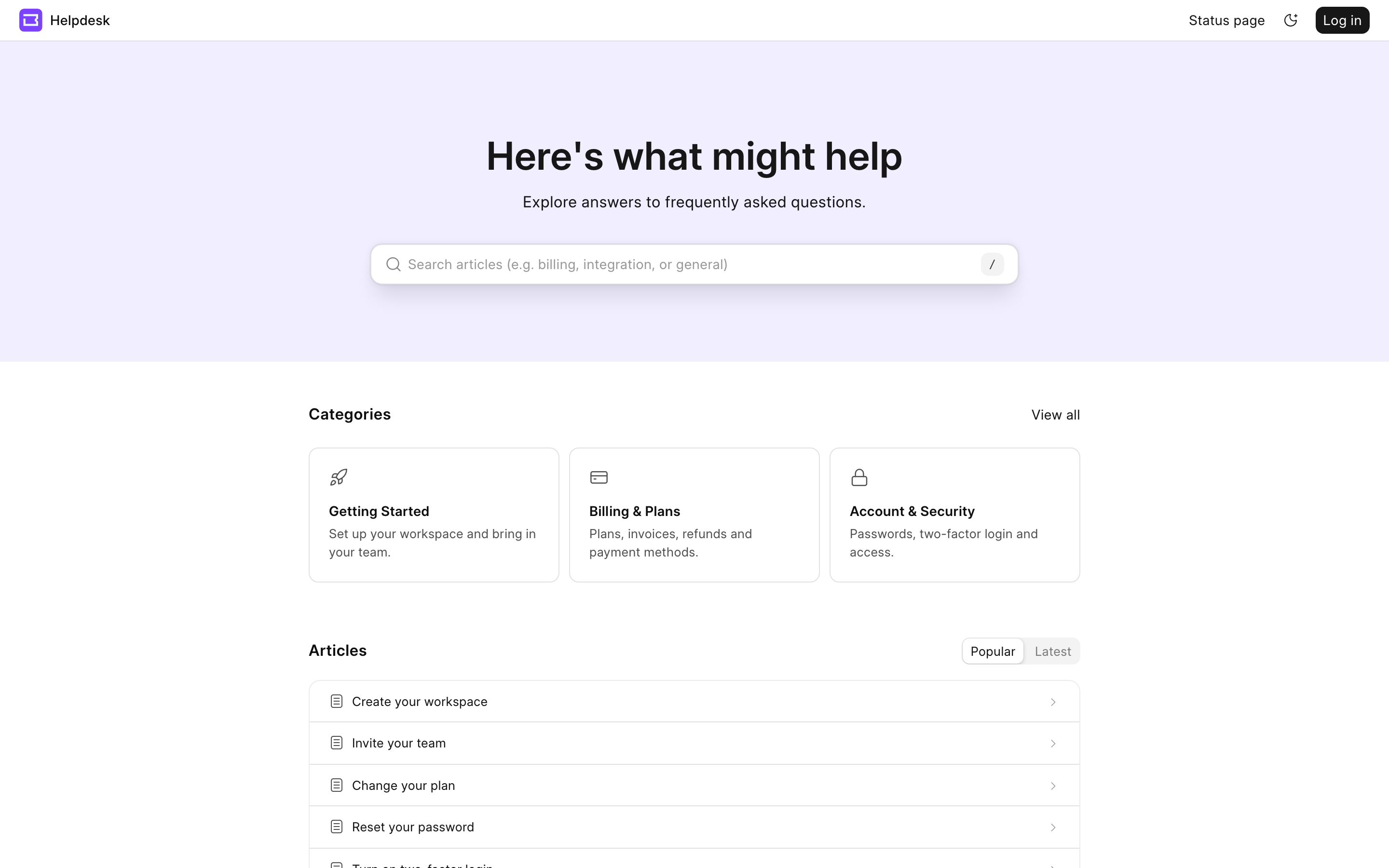 Home page for a visitor who is not logged in
Access
Make Knowledge Base Public
To make a knowledge base public click on this switch to change its visibility
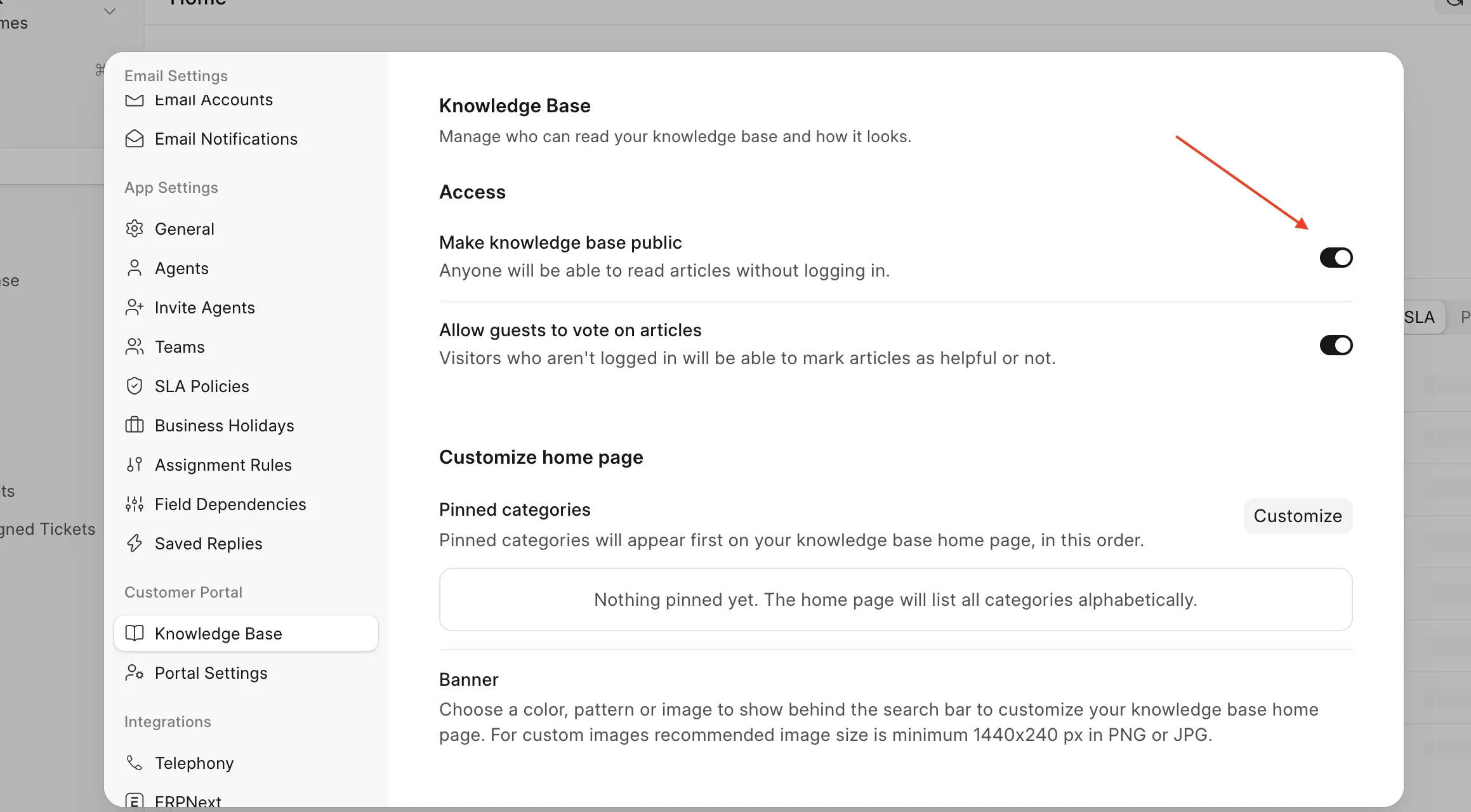
When this switch is off, a visitor who is not logged in goes to the login page. When it is on, anyone on the internet can read Public articles without logging in. Visitors see a Log in button in the header so that they can sign up and continue their journey on the knowledge base.
Turning on this switch does not change any article. Only articles with the Visibility Public become readable by visitors who are not logged in. To change the access of articles, see Knowledge Base.The switch is off by default.
Allow Guests to Vote on Articles
When this switch is on, visitors who are not logged in can mark an article as helpful or not helpful. Each vote is an HD Article Feedback record. A reader can change their vote up to 5 times an hour on one article. Helpdesk tells one visitor from another with a browser cookie. The cookie is set only when the visitor votes. When this switch is off, visitors do not see the feedback buttons.
The switch is off by default. You can turn it on only when the knowledge base is public. If the knowledge base is private, the switch turns back off and Helpdesk shows "Knowledge base must be public". In Desk, HD Settings refuses to save the change.
Customize Home Page
Pinned Categories
When you pin categories, the knowledge base home page shows only the pinned categories, in the order you set. Readers click View all to open the All categories page. When no category is pinned, the home page shows all categories in alphabetical order.
- Click Customize.
- To pin a category, click its pin icon. To unpin it, click the icon again. You can also drag a category between Pinned and Not pinned.
- Drag the pinned categories into the order you want. On a touch screen, press and hold a category before you drag it.
- Click Save.
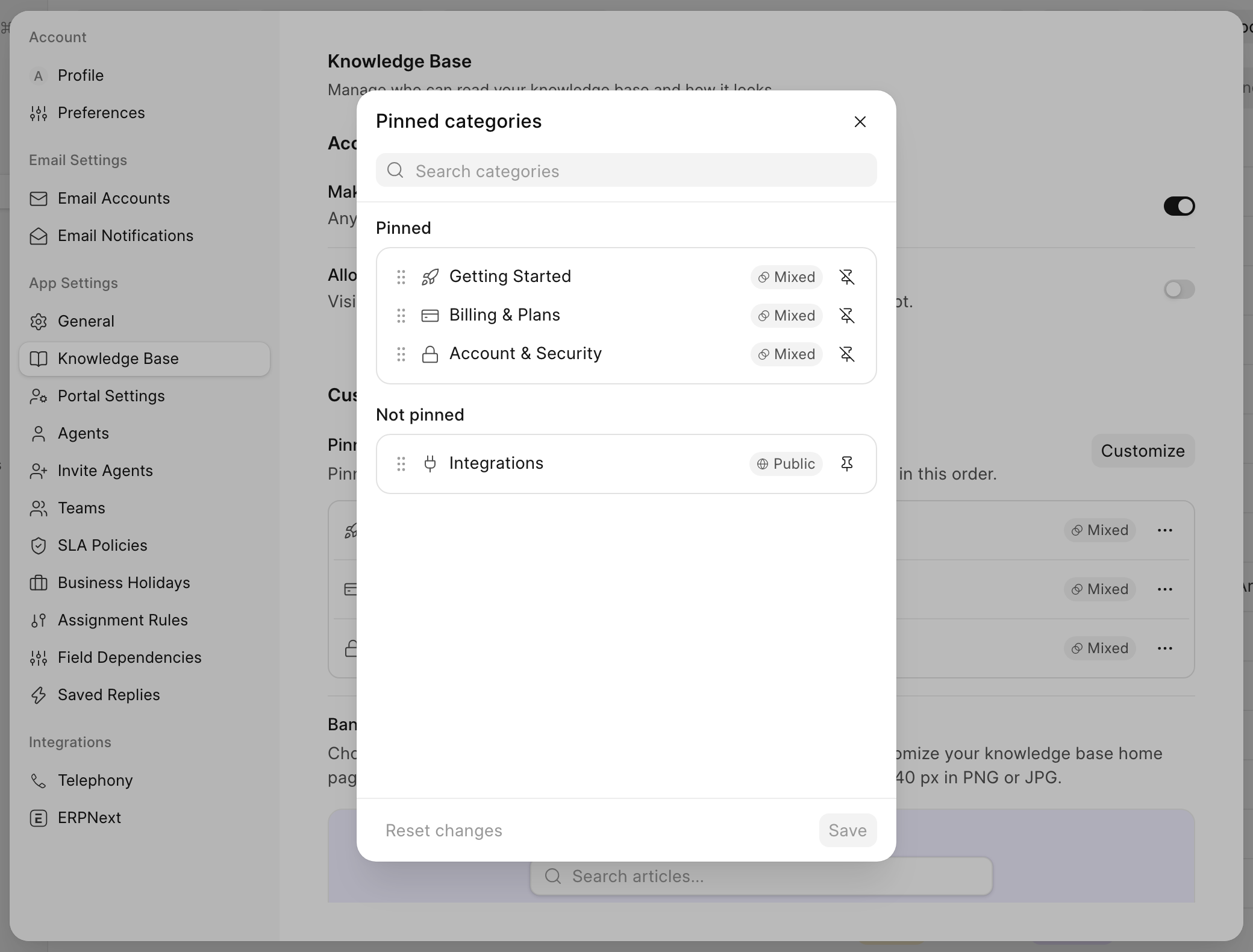 Pinned categories
Each category shows the Visibility of its articles: Public or Customers. It shows Mixed when its articles have different access. Drafts count too. A category whose articles are all Private is not in the list, because customers cannot see it. If such a category is already pinned, it stays in the list so that you can unpin it.
You can also use the ⋯ menu of a pinned category to Move up, Move down or Unpin it for faster navigation for changes.
The number of categories on the home page changes the layout:
| Categories on the home page | Layout |
|---|---|
| 1 | The home page shows the articles of that category directly. If you pinned it and other categories exist, it shows up to 5 articles and a View all categories button. If it is the only category, it shows all its articles. |
| 2 | Two columns. |
| 3 or more | A grid of three columns on large screens. |
Banner
The banner shows behind the search bar on the knowledge base home page. Select None, a pattern (Lines) or a color (Gray, Blue, Violet). The default is Lines. You can also click Upload image to use your own image. Use an image of at least 1440 × 240 pixels, for example a PNG or JPG file. After an upload, the button changes to Replace image. The banner must be an uploaded file: HD Settings refuses a link to an image on another site, because every visitor loads it.
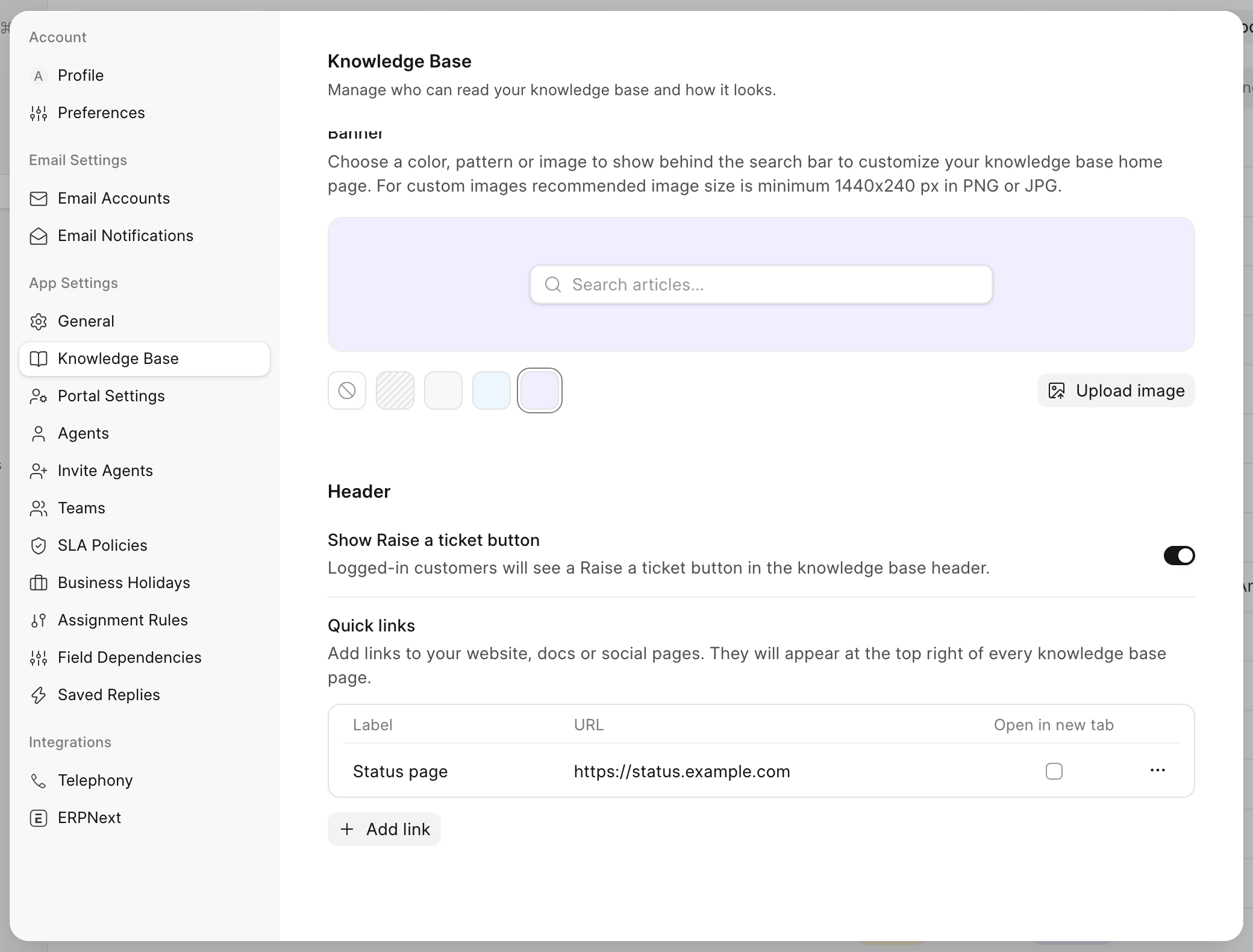 Banner, the Raise a ticket switch and quick links
An image takes priority over a color. To remove the image, click the X on the image swatch. If the image is the current banner, the banner changes to None. Click Save to keep the change. Banner images are public files, because visitors who are not logged in also load them.
Header
Show Raise a Ticket Button
When this switch is on, logged-in users see a Raise a ticket button at the top right of every knowledge base page. The button opens the new ticket form. Agents see it too. Visitors who are not logged in do not.
The switch is on by default, also on sites that upgraded from an older version.
Quick Links
Quick links show at the top right of every knowledge base page. Use them for your website, your documentation or your social pages.
- Click Add link. The button is disabled while a row has no label or no URL.
- Enter a Label, for example "Contact sales".
- Enter a URL. Use a web address, a
mailto:link, or a path that starts with/. - To open the link in a new tab, select Open in new tab.
- Click Save.
Links to GitHub, YouTube, X, LinkedIn, Discord, Slack, Facebook, Instagram and Reddit show as icons. On a phone, text links move into the logo menu.
Helpdesk saves the quick links as an HD Form Script called "Knowledge Base Quick Links". Each save writes the whole script again, so do not change this script by hand. Use your own form script for custom code.
Preview Your Changes
After you change the banner or the quick links, click Preview. The knowledge base home page opens in a new tab with your unsaved changes. In the preview, the quick links show without the links from other form scripts.
Closing the preview tab does not discard your changes. Click Save to keep them. To discard them, leave the Knowledge Base tab and confirm.
Add Custom Buttons and Links with a Form Script
An HD Form Script with Apply to knowledge base turned on runs on every knowledge base page, for every reader. It also runs for visitors who are not logged in when the knowledge base is public. Use it to add buttons and links to the header.
- In Desk, open HD Form Script and click Add HD Form Script.
- Turn on Apply to knowledge base and Enabled.
- Write a
setupFormfunction that returnsactions,links, or both.
function setupForm() {
  return {
    links: [
      { label: "Status page", url: "https://status.example.com", open_in_new_tab: true },
    ],
    actions: [
      {
        label: "Contact sales",
        onClick: () => window.open("https://example.com/contact", "_blank"),
      },
    ],
  };
}
actions use the same format as Custom Actions. On small screens, the buttons move into the ⋯ menu. A link shows only when it has a label and a URL that is a web address, a mailto: link or a path that starts with /. If a script fails, the page shows "A form script on this page failed to run".
FAQ
Why does the home page show every category?
No category is pinned, or no pinned category has an article that the reader can read. Pin a category that has a published article with the right access.
Why does a pinned category not show on the home page?
A category shows only when it has a published article that the reader can read. Publish an article in the category, or check the access of its articles.
Why can I not pin a category?
All articles in the category are Private. Customers cannot see a Private category, so it is not in the Customize list. Change the access of an article in the category to Customers or Public.