


















Understanding the customer portal
The customer portal is where your customers read the knowledge base, raise tickets and follow your replies. It lives at /help on your site. Helpdesk builds the portal with the Frappe Studio app which is now available via the latest version of framework.
The portal shows the same records that agents work with in the agent portal:
| In the portal | In Helpdesk |
|---|---|
| Customer, the person who logs in | A Contact with a user that has the HD Customer or HD Customer Manager role |
| Organization | A Customer. See Customer Organizations. |
| Ticket | An HD Ticket, with the Contact in its Contact field |
| Article and category | An HD Article and its HD Article Category. See Knowledge Base. |
| First Response and Resolution | The response_by and resolution_by times that the Service Level Agreement sets on the ticket |
| New ticket form fields | The fields of the Default ticket template |
Navigating to the customer portal
- Customers land on the portal by default when they log in. They land on the knowledge base home page, which has the search, or on their tickets in cases where the setting 'Use knowledge base as home' is turned off. See Customer Organizations to know more.
- Agents click their brand name at the top left of the agent portal, then Customer portal.
Click the logo at the top left of any portal page to open the account menu. It has Home, My tickets, Settings and Log out. Agents also see Agent portal. Inside the knowledge base pages, the top right of the header has the theme button, which switches between the light and the dark theme. Logged-in users also see Raise a ticket there, when Show Raise a ticket button is on in Knowledge Base Settings.
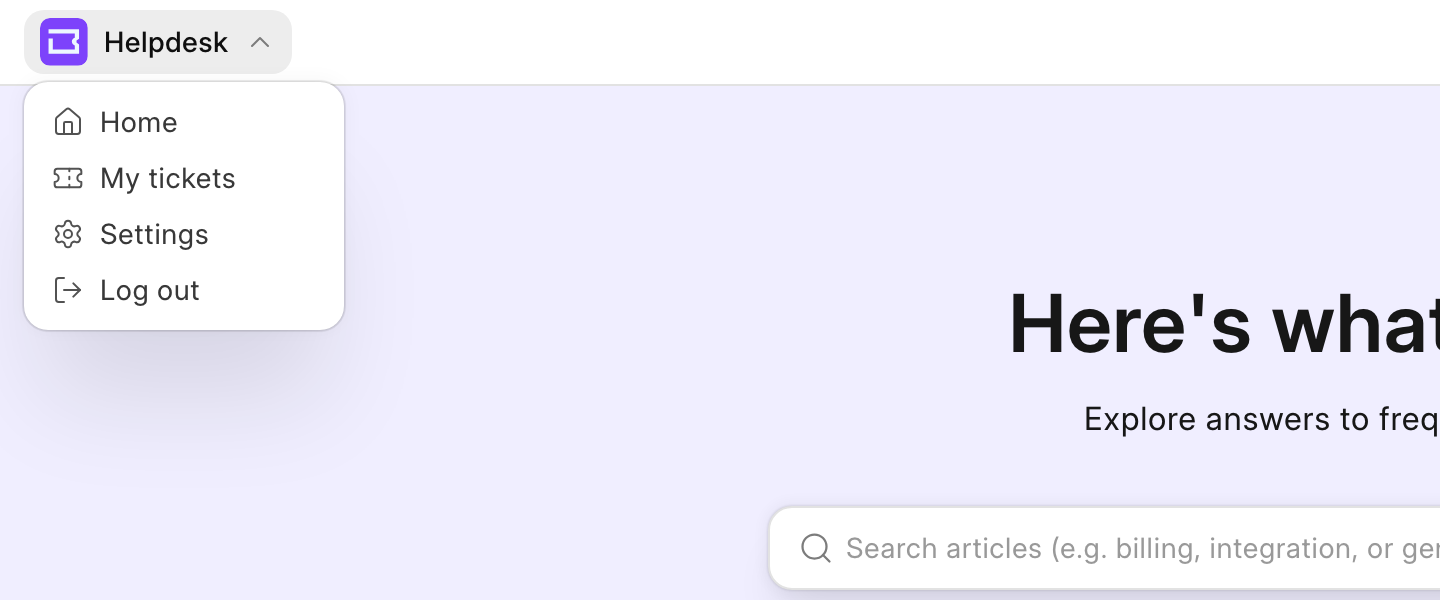 Account menu
| Page | Address |
|---|---|
| Knowledge base home | /help |
| All categories | /help/categories |
| One category | /help/category/<category> |
| One article | /help/articles/<article> |
| My tickets | /help/my-tickets |
| New ticket | /help/my-tickets/new |
| One ticket | /help/my-tickets/<ticket> |
Read the Knowledge Base
Home Page
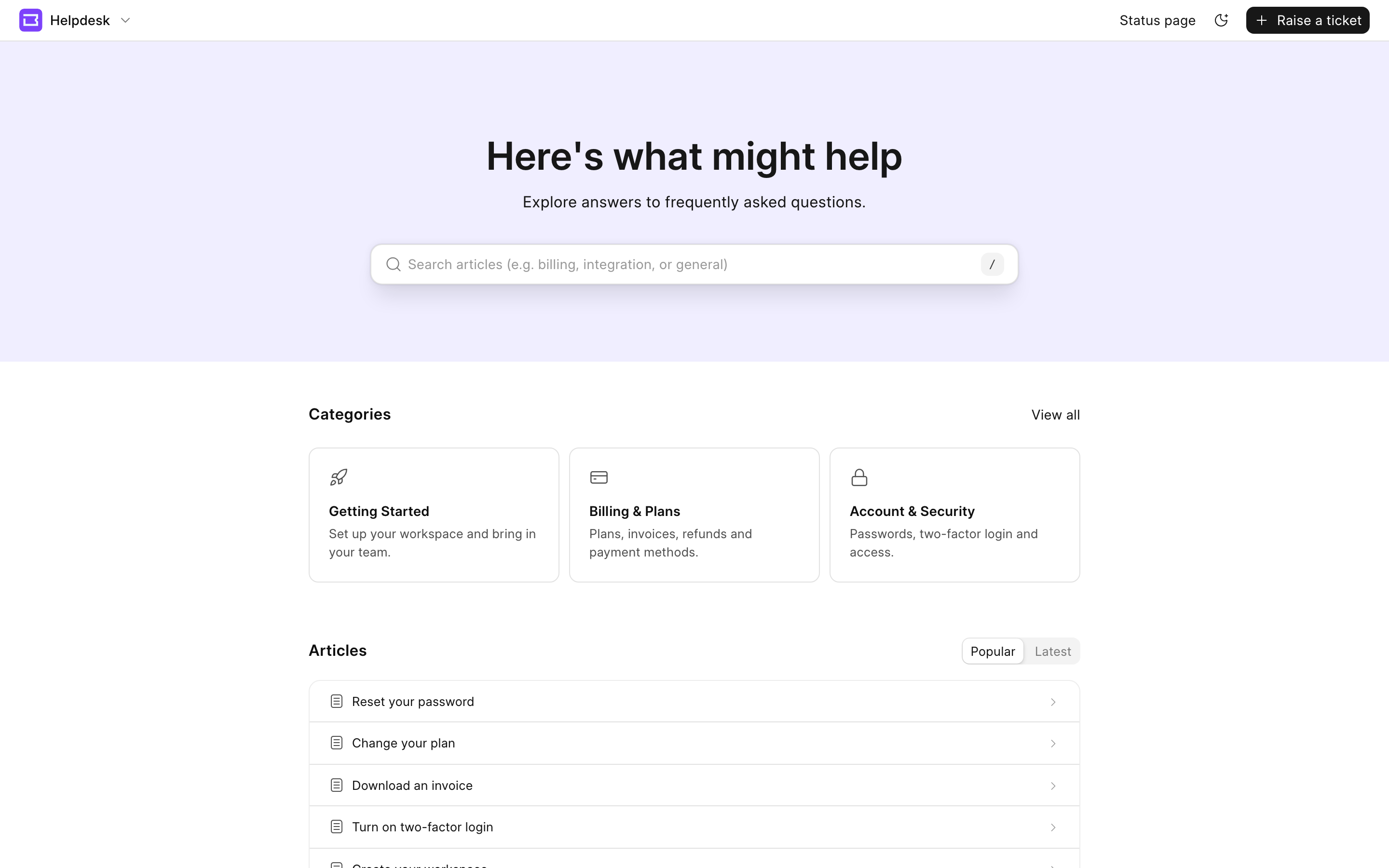 Knowledge base home page
The home page has a search bar, the pinned categories, and the five most popular or latest articles. The list shows Popular first, by the number of views. Click Latest to show the articles published last. When some categories are hidden because others are pinned, click View all to open the All categories page. When the home page has only one category, it lists its articles. If you pinned it and other categories exist, it lists up to 5 articles and a View all categories button. If it is the only category, it lists up to 100 articles. To change the banner, the pinned categories and the links at the top right, see Knowledge Base Settings.
When the reader can read no article, the home page shows "How can we help?" with Raise a ticket and View my tickets instead of the search bar and the categories. Visitors who are not logged in do not see Log in on this page.
Search
Press / on the home page to go to the search bar. Results show when you type three or more characters. The search bar shows up to six results. Each result shows the title, the category and a part of the article text, with your words highlighted.
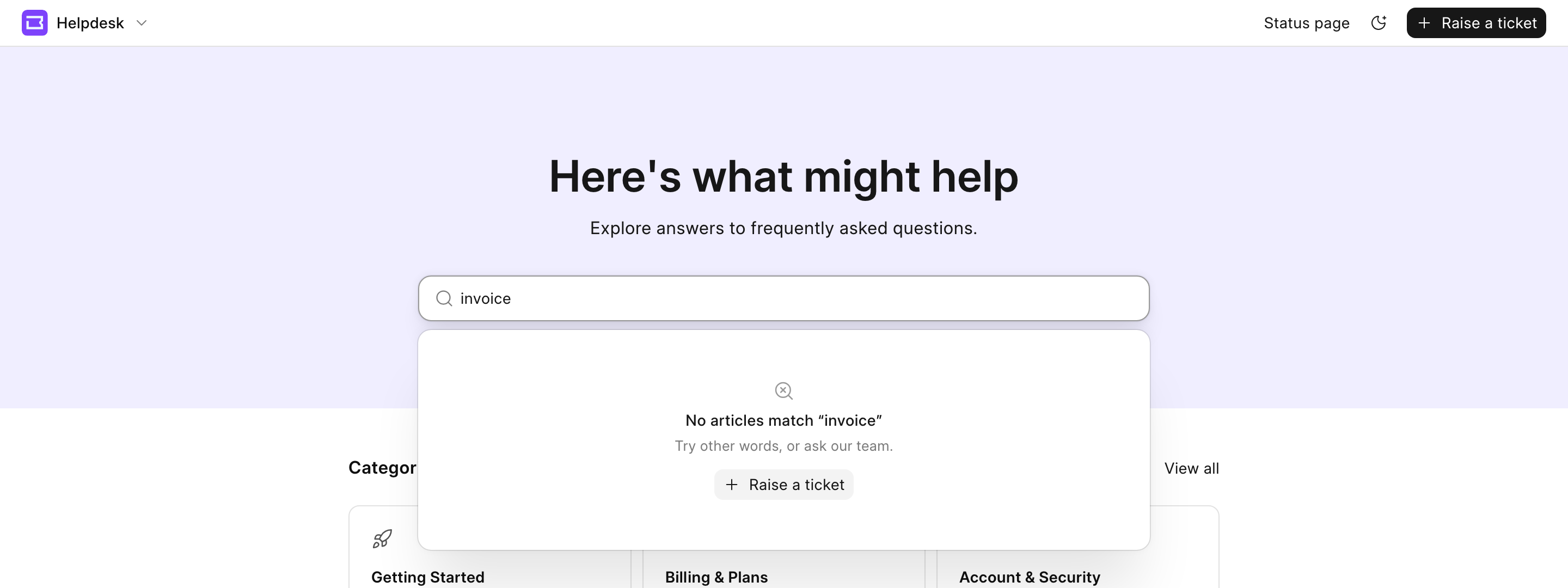 Search results
- Use the ↑ and ↓ keys to move through the results, and Enter to open one. Press Esc to close the results.
- When the search bar is empty, it shows the last three articles that you opened in this browser. Click the X on a row to remove it.
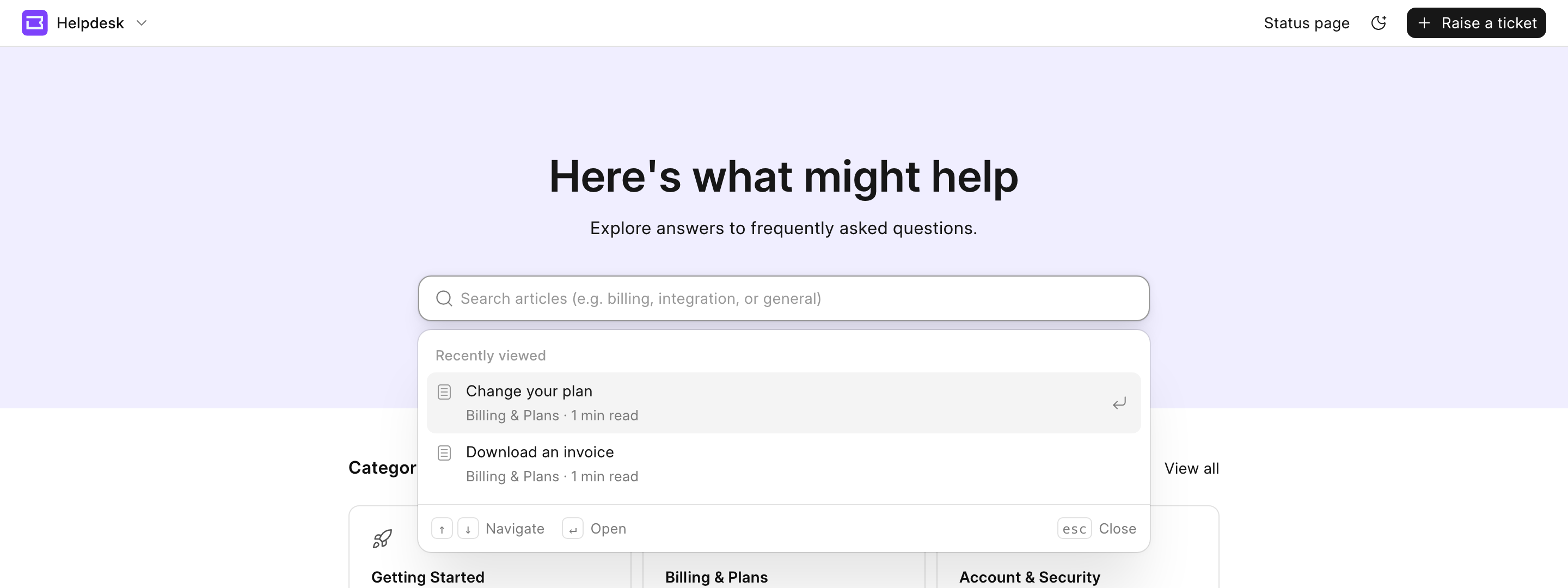 Recently viewed articles
When no article matches, the results say "No articles match" with your words. Click Raise a ticket there. The new ticket form opens with the search words as the subject. Visitors who are not logged in must log in first to raise a new ticket.
Search needs RediSearch on the Redis cache server. Without it, every search shows no results. So ensure that Redisearch is up and running so that the correct articles show up for suggestions while your customers are searching for an answer.
Categories
The All categories page at /help/categories shows every category that you can read. Type in Search categories to filter the categories by name and description. On a phone, this page also has the Articles bar, which opens Browse articles.
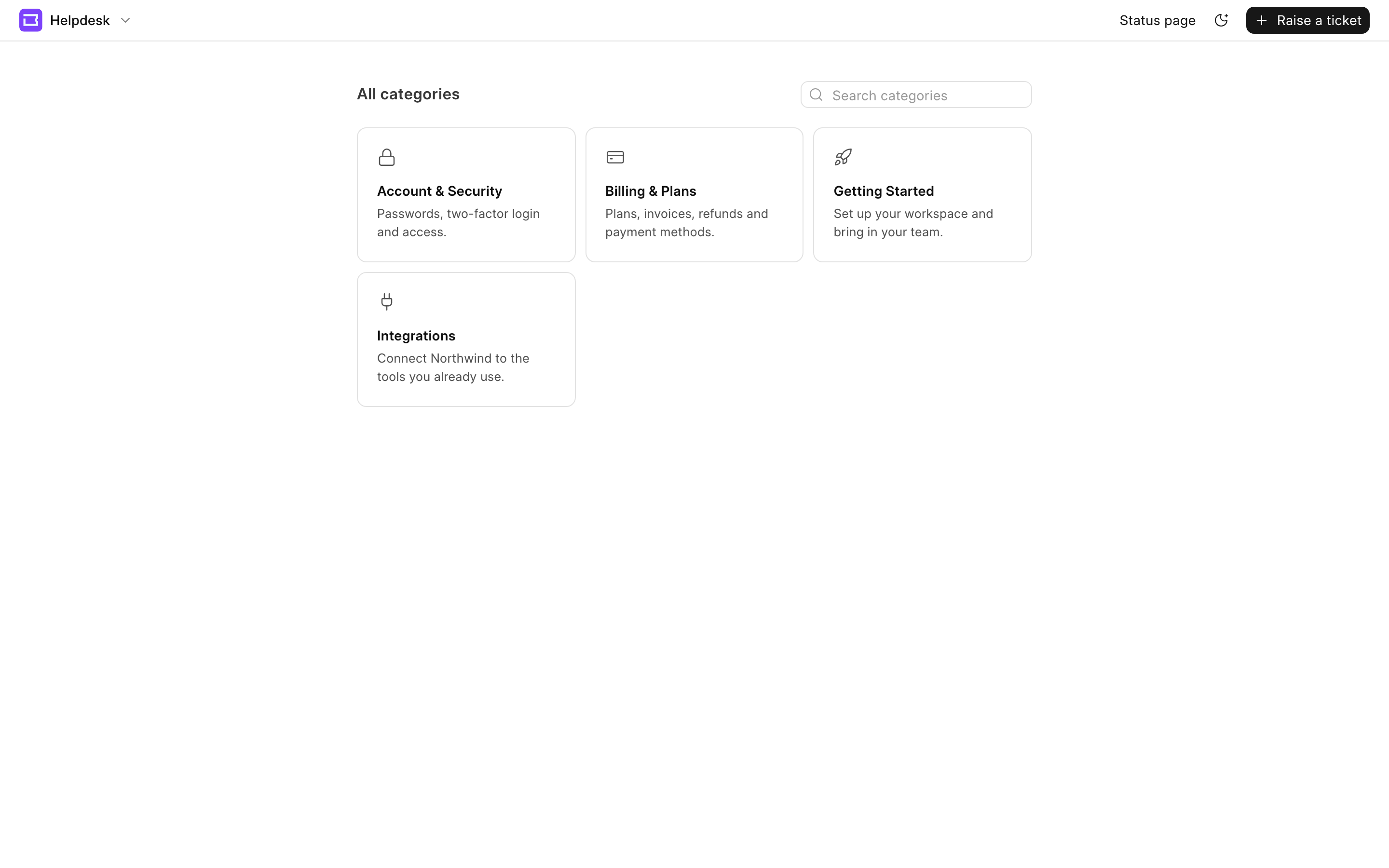 All categories
A category page shows the description of the category, its authors and up to 100 of its articles, the newest first. Each article shows the start of its first paragraph under the title.
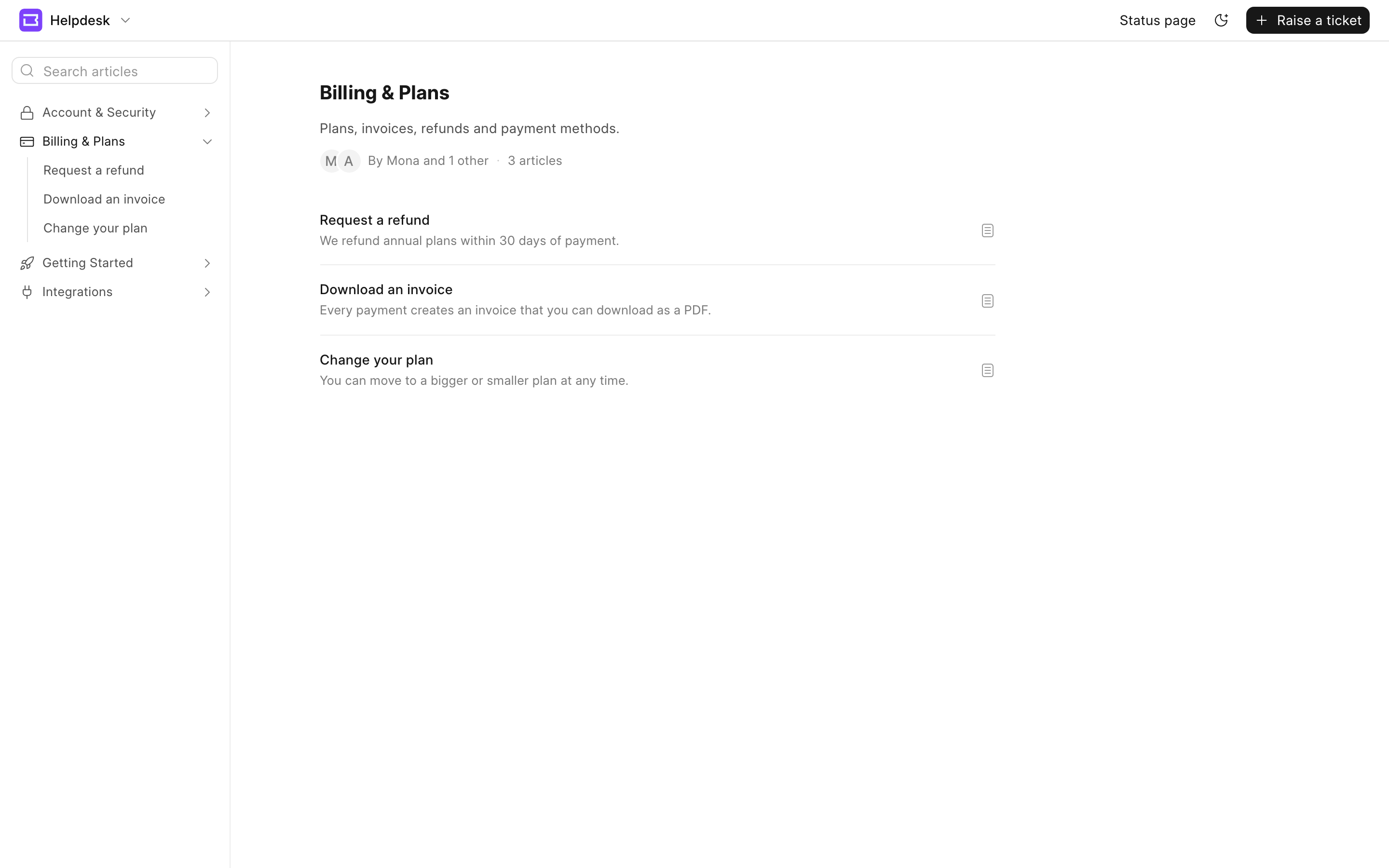 Category page
The left sidebar lists every category and its articles. Type inside Search articles at the top of the sidebar to filter and navigate amongst the articles published.
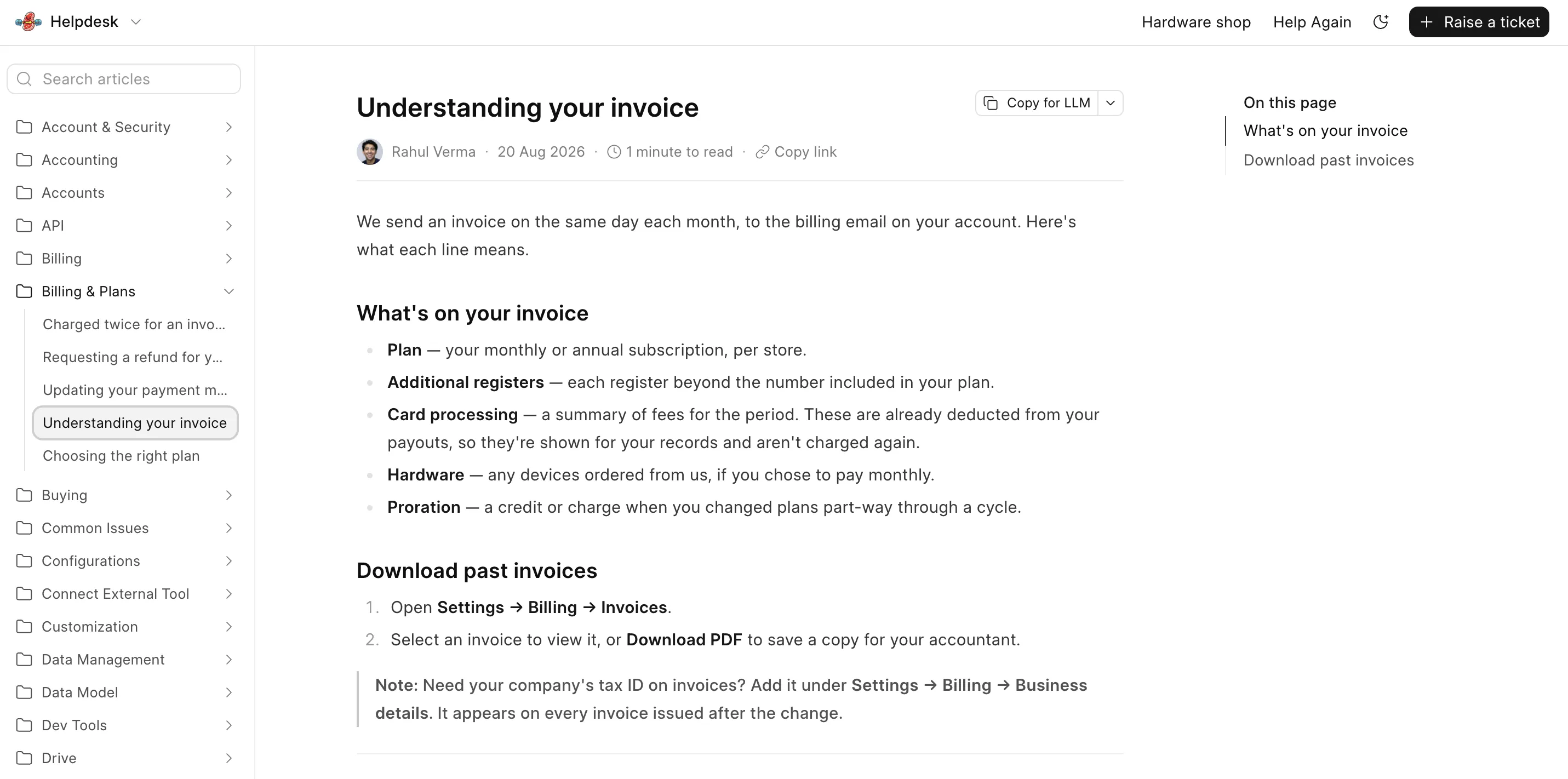
An article page shows:
- The author, the date and the reading time. Click Copy link to copy the link to the article.
- On this page, a list of the headings in the article. The list shows when the article has two or more headings. Click a heading to go to it.
- Was this article helpful? Click the thumbs up or the thumbs down button. Click the same button again to take back your vote. Logged-in customers also get a link to raise a ticket. Visitors who are not logged in see this section only when guest voting is on.
- Related articles, up to five other articles from the same category.
Search, read an article and vote
Copy for LLM copies the article as Markdown, so that you can paste it into an AI assistant. The arrow next to it has more options:
- Copy as Markdown
- View as Markdown
- Open in ChatGPT and Open in Claude. These show only for Public articles when the knowledge base is public, because the assistant must be able to open the article.
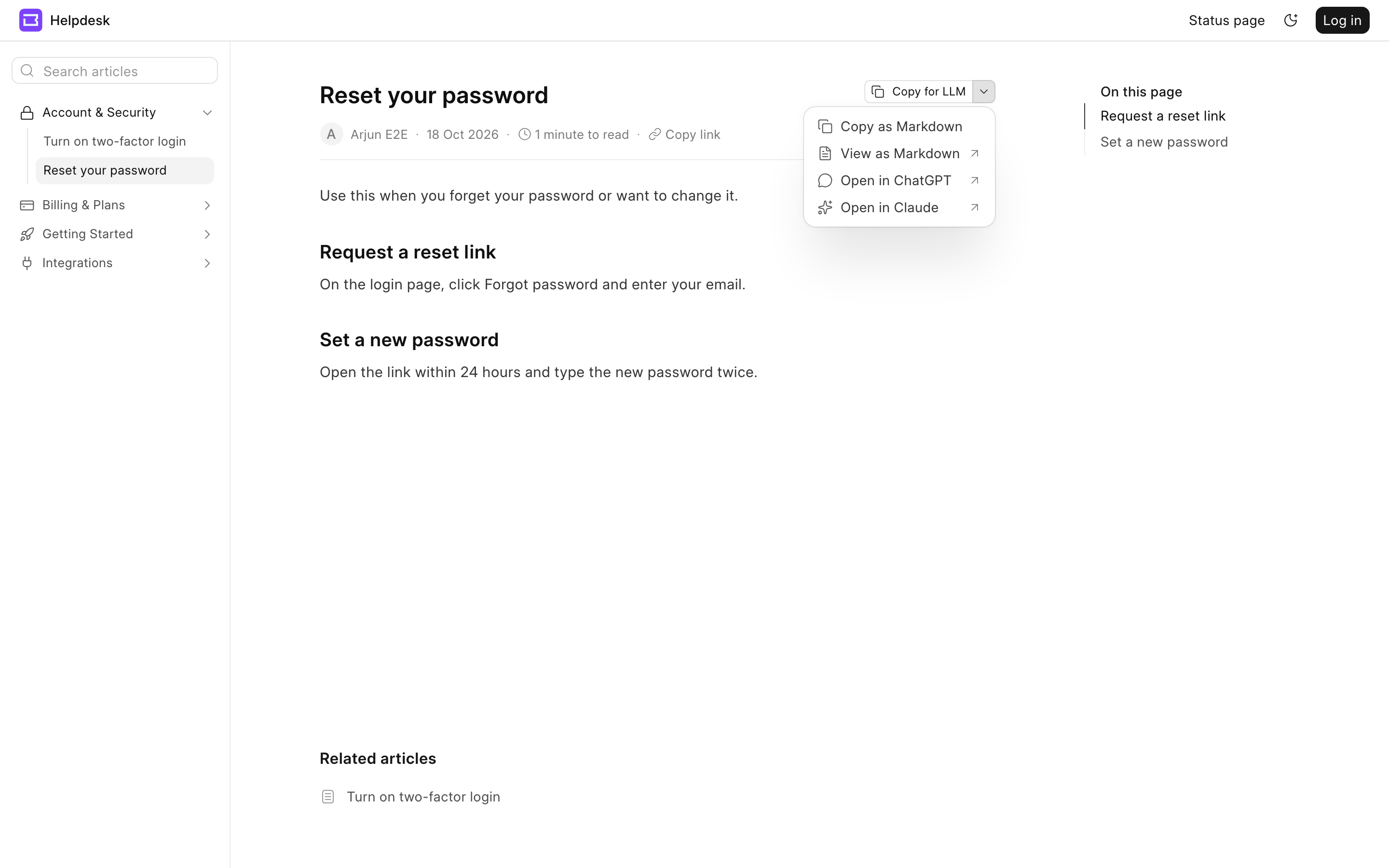 Copy for LLM options
Follow Your Tickets
My Tickets
Open My tickets from the account menu in the dropdown. A customer sees the tickets they may have raised as well as other tickets belonging to your organization if they have the necessary roles. i.e. A customer manager sees every ticket from the Customers that they manage.
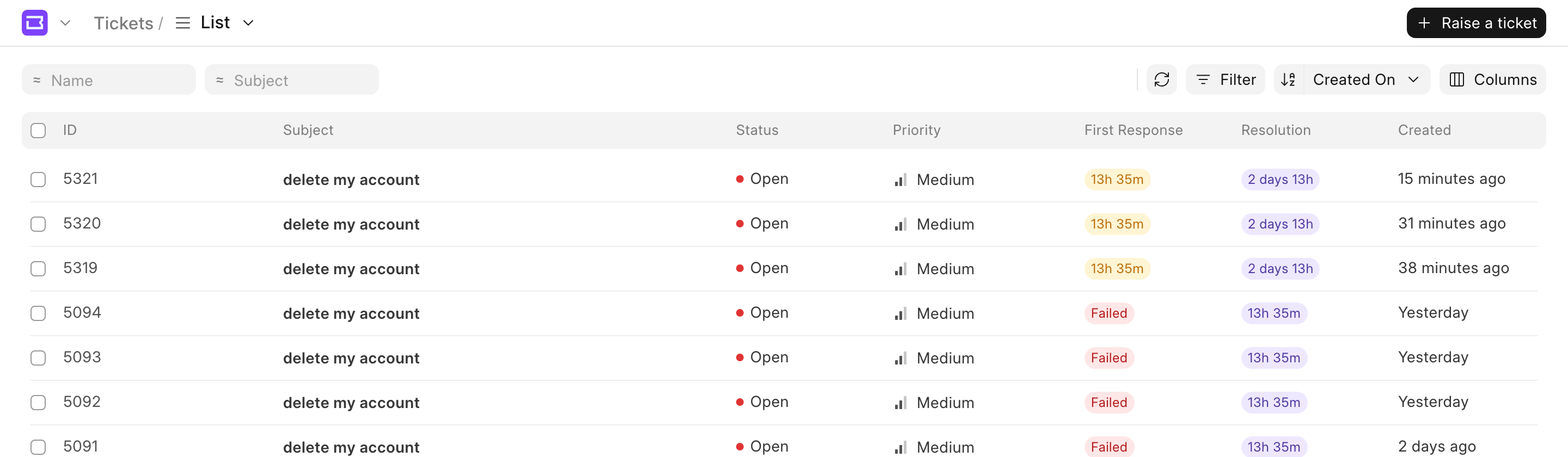 My tickets
- The list shows ID, Subject, Status, Priority, First Response, Resolution and Created. Click Columns to add or remove columns, for example Customer, Type, Team, Contact or Rating.
- A subject shows in bold until you open the ticket.
- First Response and Resolution show the time left on the SLA. They show Fulfilled when the target was met, and Failed when the due time passed. Resolution shows Paused while the ticket waits for your reply.
- Use the boxes at the top, Filter and the sort button to find tickets.
- If your Contact is in more than one Customer, select the organizations at the top of the list.
Save a View
A view saves the filters, the sort order and the columns on screen. Helpdesk saves it as an HD View that only you can see. See Custom Views.
- Set the filters, the sort order and the columns.
- Click List at the top, then Create View.
- Enter a Name and click Create.
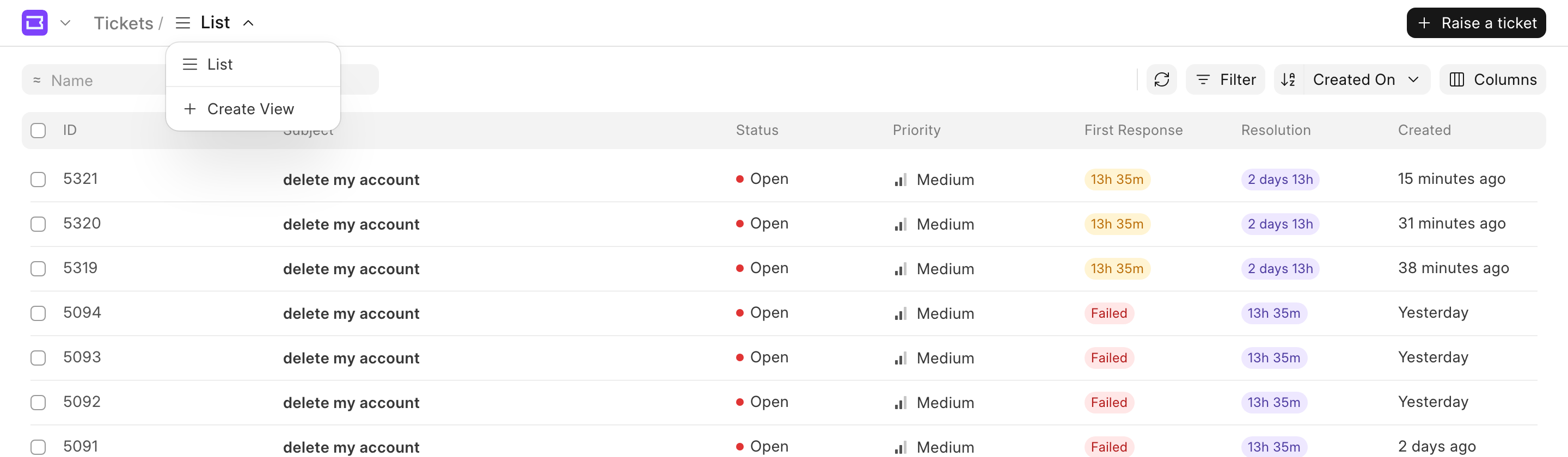 Views
Views
To rename or delete a view, open the view menu and use Rename or Delete. The address of the list includes the open view, so you can share a link to it with yourself on another device.
Export Tickets
- Select tickets with the checkboxes.
- Click Export in the selection bar.
- Select Excel or CSV. To export every ticket in the list, select Export all and the number of tickets. The file has the columns that the list shows.
- Click Download.
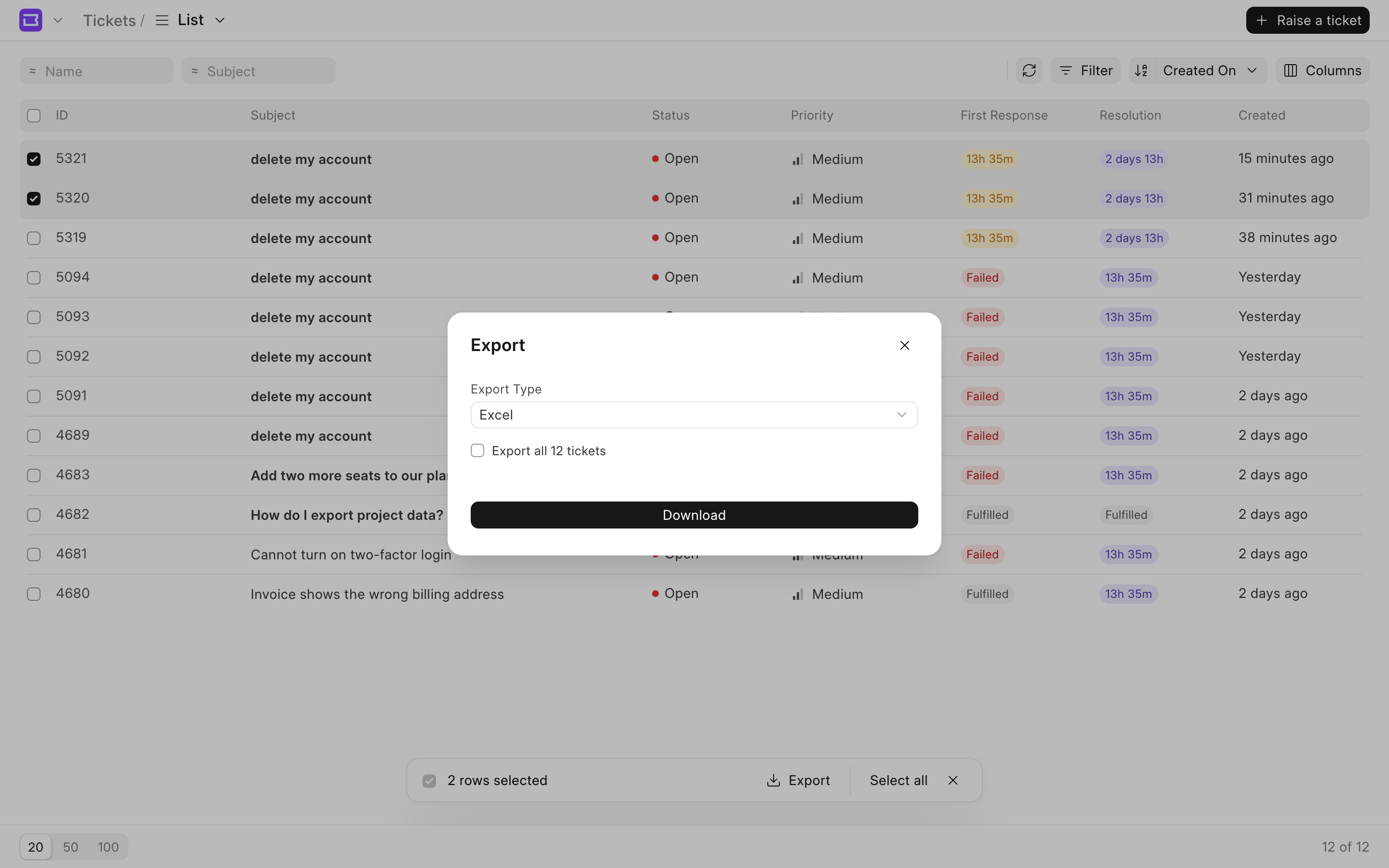 Export tickets
Raise a Ticket
- Click Raise a ticket at the top right of My tickets or of a knowledge base page.
- Enter a Subject, up to 140 characters.
- Describe the issue in Description. The description is required.
- Fill in the other fields, if your support team added any to the Default ticket template.
- To attach files, drag them into Attachments, paste them, or click to browse. Each file shows its upload progress. To stop an upload, click Cancel upload.
- Click Create ticket. The button is disabled until all files finish uploading.
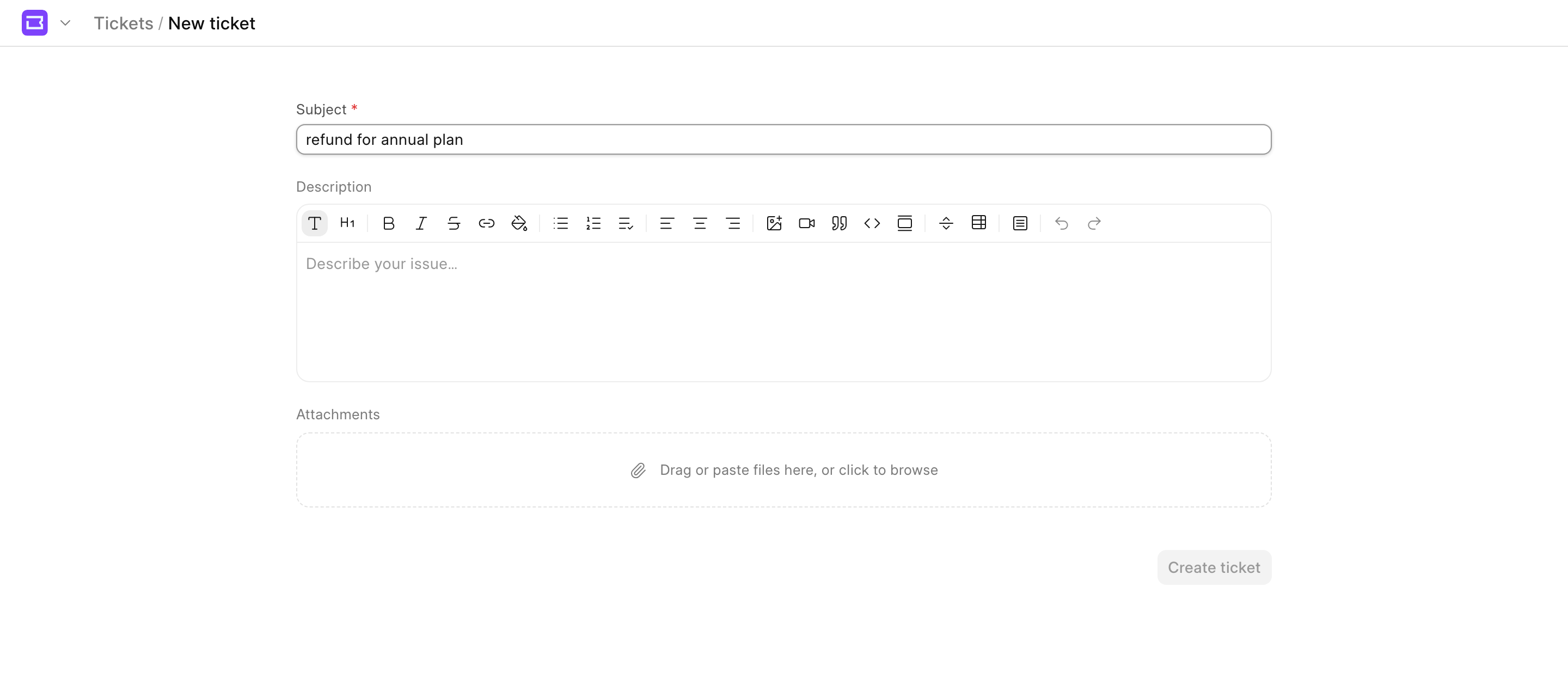 New ticket
When the subject has three or more characters, up to three matching articles show under it. Hover over an article to see it, or open it.
If your Contact is in more than one Customer, select the Customer that the ticket is for. This field is required when Auto-set customer from contact is on in HD Settings. It is on by default.
Work on a Ticket
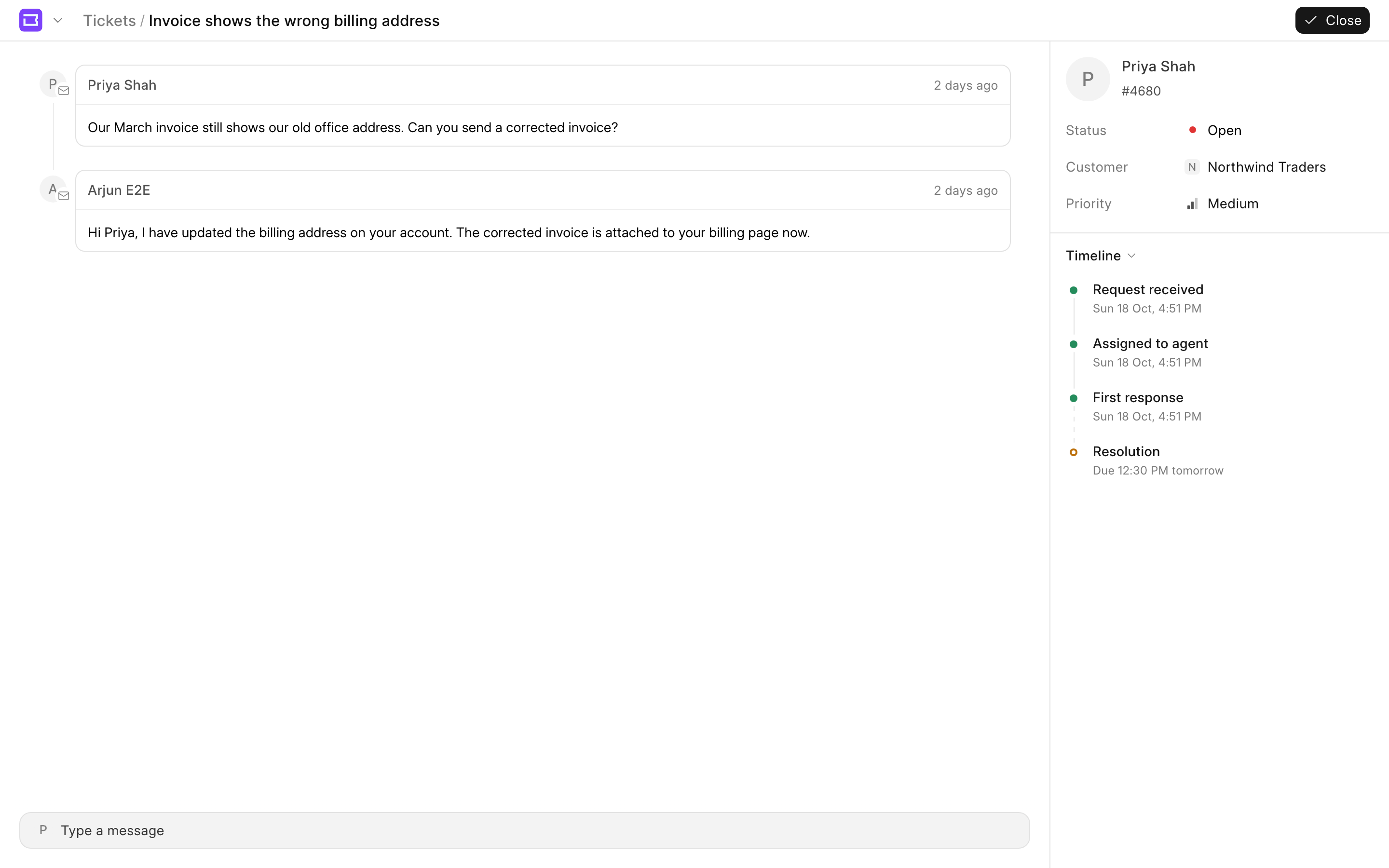 Ticket page
The ticket page shows the conversation on the left and the ticket details on the right. Type in Type a message at the bottom and click Send to reply. You can attach files to a reply. If you leave a reply unsent and open another ticket, the reply waits for you when you come back, until you reload the page.
Ticket Timeline
The Timeline section shows where the ticket is:
| Step | What it shows |
|---|---|
| Request received | The date you raised the ticket. |
| Assigned to agent | The date an agent got the ticket. Before that, the step is Awaiting assignment, with Pending since and the time. |
| First response | Due and the time, or Overdue by and the delay, from the response_by time of the SLA. After the reply, the date of the reply. When the reply was late, the date shows how late, for example "2 hours late". |
| Resolution | Due or Overdue by until the ticket is resolved, from the resolution_by time of the SLA. Then the date of the resolution, and how late it was. |
| Closed | The date the ticket was closed. SLA failed shows before the date when the resolution was late. |
A step shows in red when the SLA was missed. While the ticket waits for your reply, the next step shows On hold. Steps without an SLA show no due time. When a ticket is closed before a step happens, the step shows Skipped.
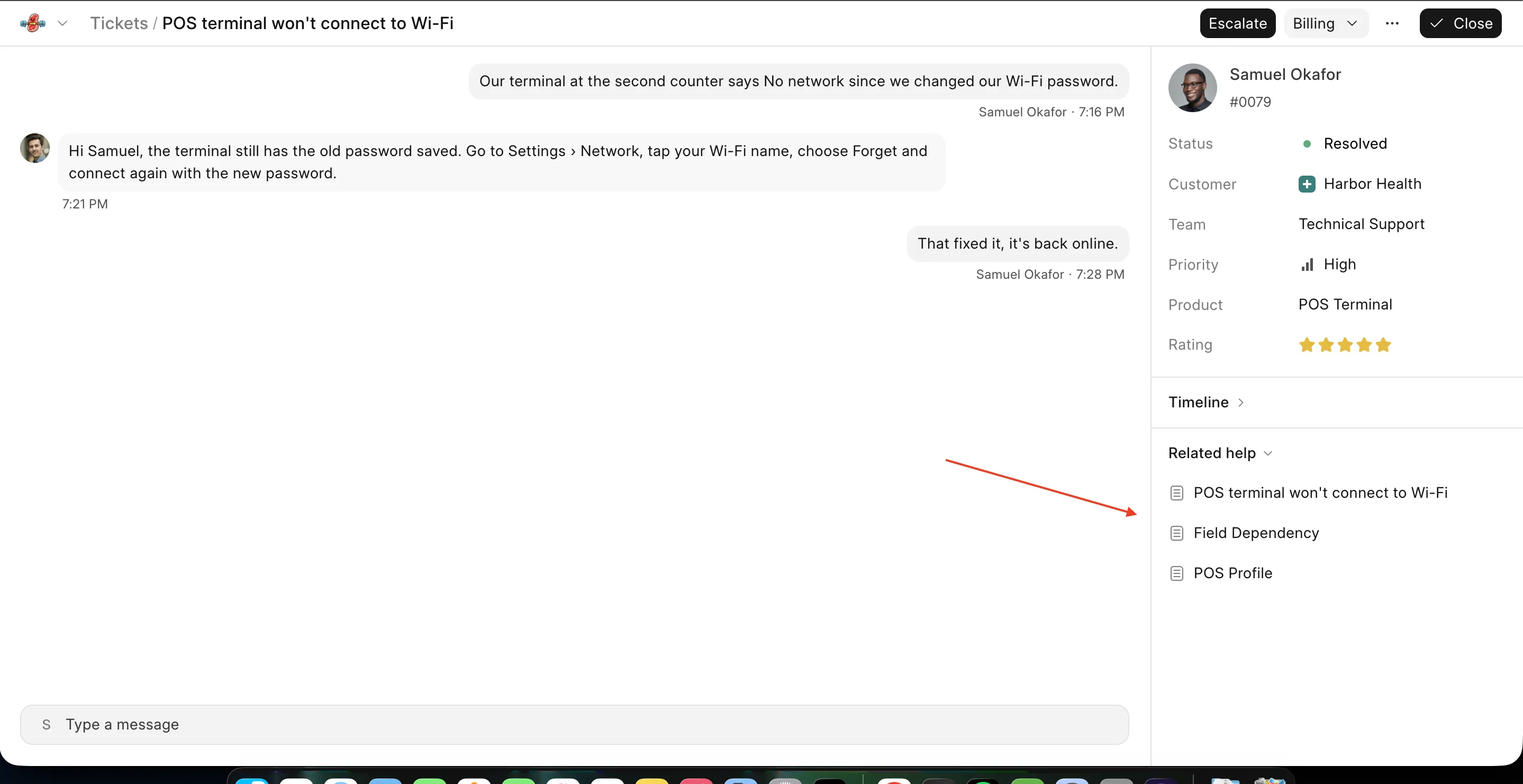
Related help under the timeline lists up to three articles that match the subject.
If your support team turned on the outside working hours notice, a ticket raised outside working hours shows a banner. The banner tells you when to expect a reply. It shows while it is still outside working hours and no agent has replied. Click X to hide it for the day.
Close a Ticket
- Click Close at the top right.
- Click Close in the confirmation.
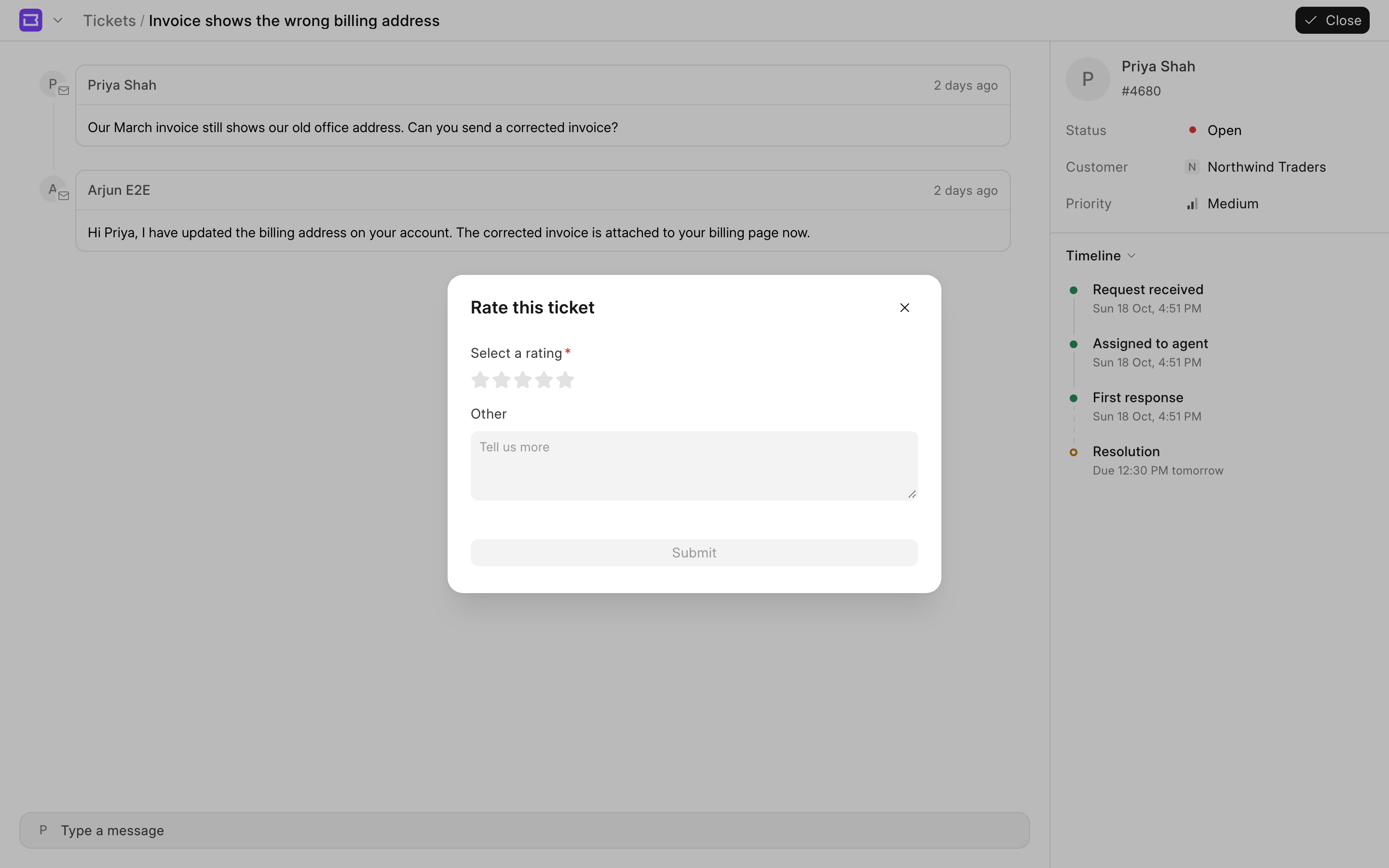 Close ticket
If your support team requires feedback and an agent has replied, Close opens Rate this ticket instead. Select a rating and an option, add a comment if you want, and click Submit.
After a ticket is closed or rated, you cannot reply to it. Click Raise a ticket at the top right to start a new one. You cannot change a rating after you give it.
Chat Layout
The conversation shows as a timeline by default. To show it as a chat, go to Settings → Profile and set Conversation layout to Chat. Helpdesk remembers this choice in your browser.
In the chat, messages from customers show on the right, and messages from agents on the left with the agent's photo. Each message shows the time under it, and the sender for messages from other people. A line with Today, Yesterday or the date separates the days. Ticket events, such as a change of status, show as small labels between the messages. Images show in the message. Other attachments show as file chips. Click Load older messages at the top to see earlier messages.
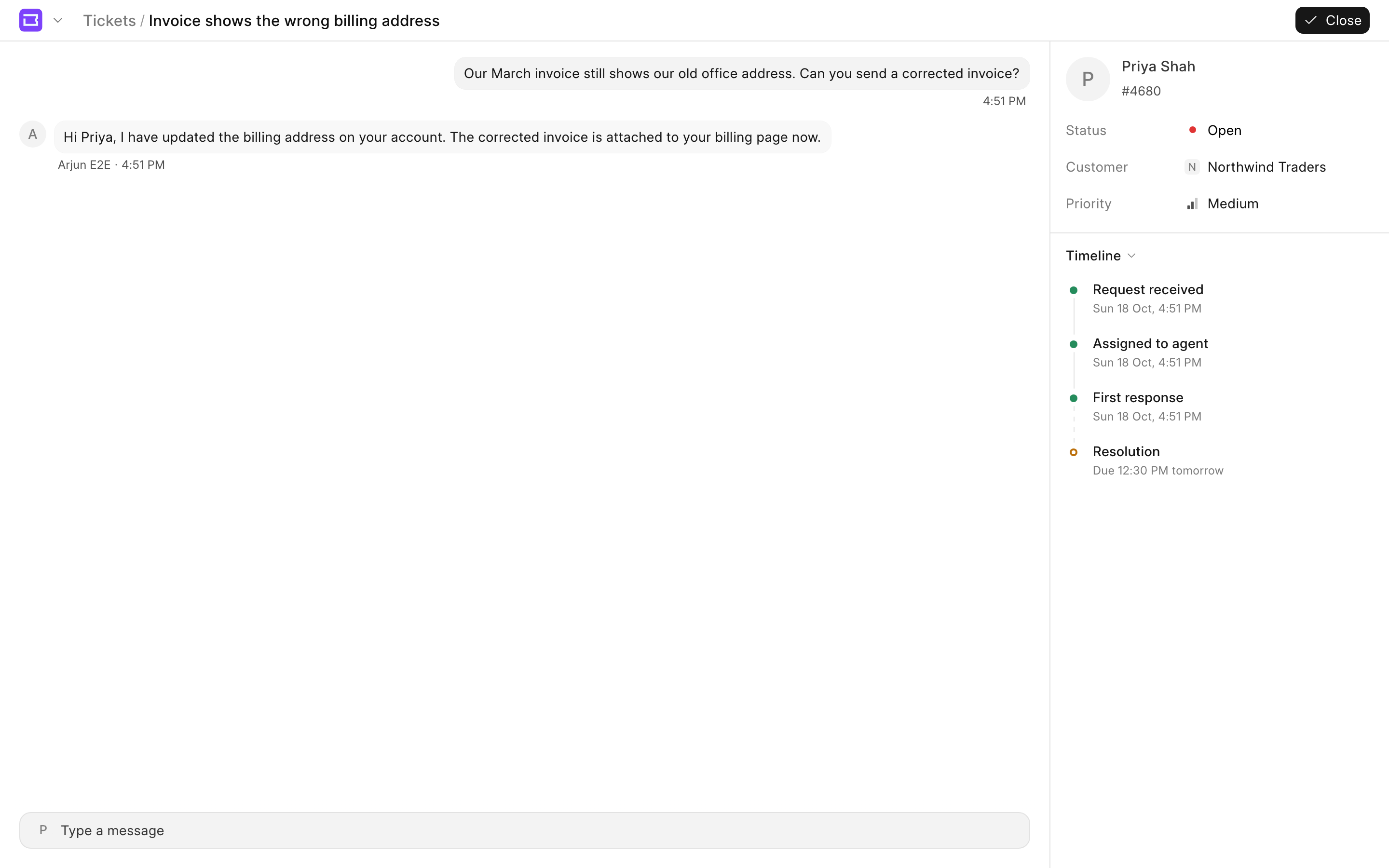 Chat layout
Your Profile
Open the account menu and click Settings. Settings are not available on a phone.
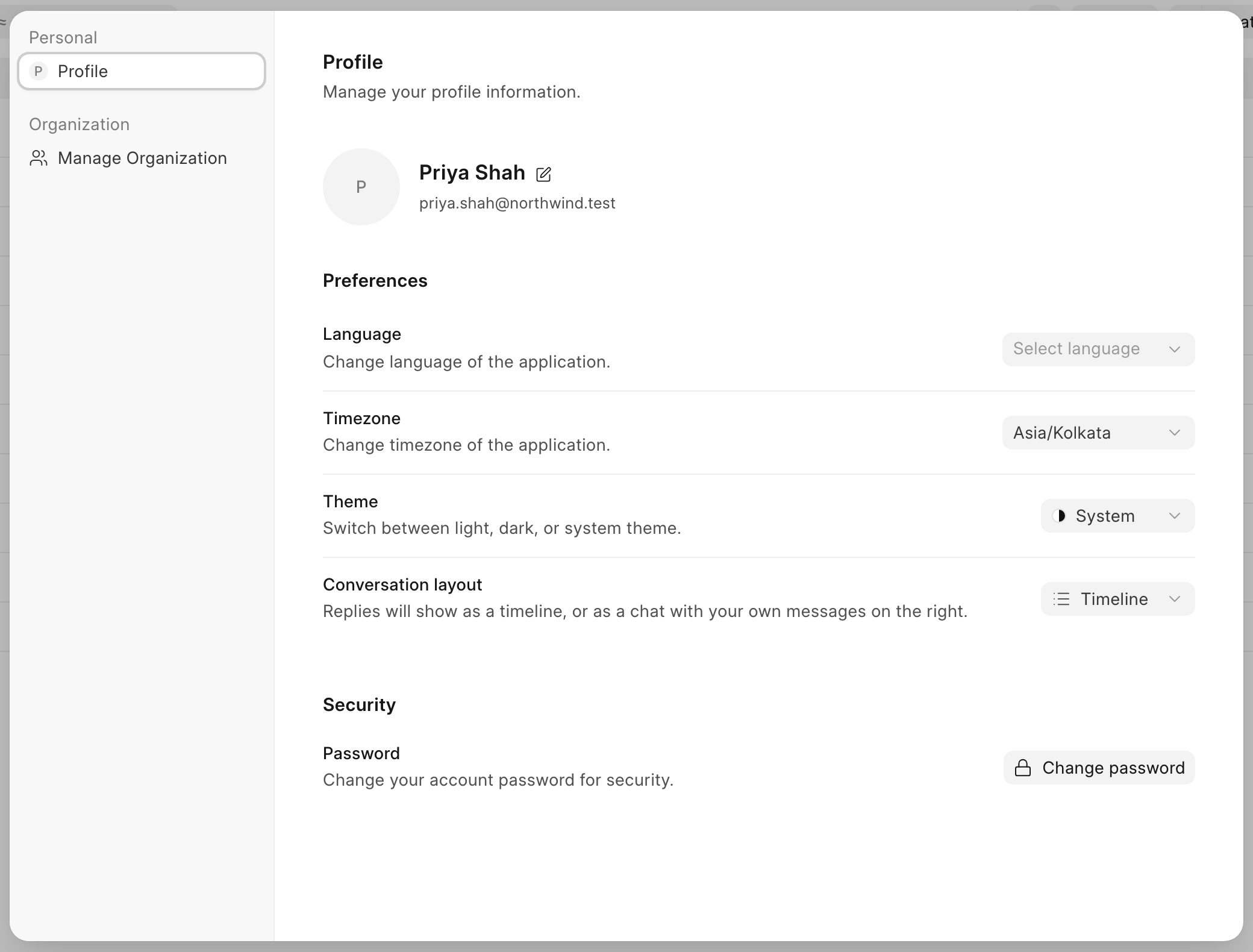 Settings → Profile
Your profile is your User record.
- Click the pencil next to your name to change it. Click the photo to upload or change it. To remove it, hover over the photo and click the X. Photos are public files.
- Under Preferences, set your Language, Timezone, Theme and Conversation layout.
- Under Security, click Change password to set a new password. A password needs at least 8 characters, with lowercase and uppercase letters, a number and a symbol.
If your Contact is in a Customer, the settings also show your organization. See Customer Organizations.
Good to Know
- To add fields to the new ticket form, see Field Dependency. To choose which fields customers can see and edit, see Ticket Field Visibility.
- HD Form Scripts with Apply to customer portal run on the ticket page. Scripts with Apply on new page, and Apply to customer portal off, run on the new ticket form.