


















Attendance
The HR team at the Nova Industries Pune branch is closing October attendance before payroll runs. Two gaps remain. Arjun Pawar worked from home on Friday, 30 October 2026, so the gate device has no punch for him. Meera Kapoor's new badge was not registered on the device until 26 October, so the week of 19 to 23 October is empty for her even though she worked every day.
Nova calculates payroll working days from attendance and treats unmarked days as Absent. Left as they are, those six days reduce both salary slips for days that were worked.
An Attendance record states, for one employee and one date, whether they were Present, Absent, On Leave, on a Half Day or working from home. Most records are created automatically from check-ins, leave and requests. HR creates the rest by hand: one record at a time, or a range of days for one employee with Mark Attendance. Each record is submitted, so it counts in reports and payroll.
Before you begin
- The employee has an Employee record with the status Active and a Date of Joining. Attendance cannot be marked before the joining date or for an Inactive employee.
- A Shift Type is needed only if the employee works shifts or you use Auto Attendance.
- A Holiday List is needed if you want holidays skipped when you mark a range of days.
Create an Attendance
This example records Arjun Pawar's day of work from home.
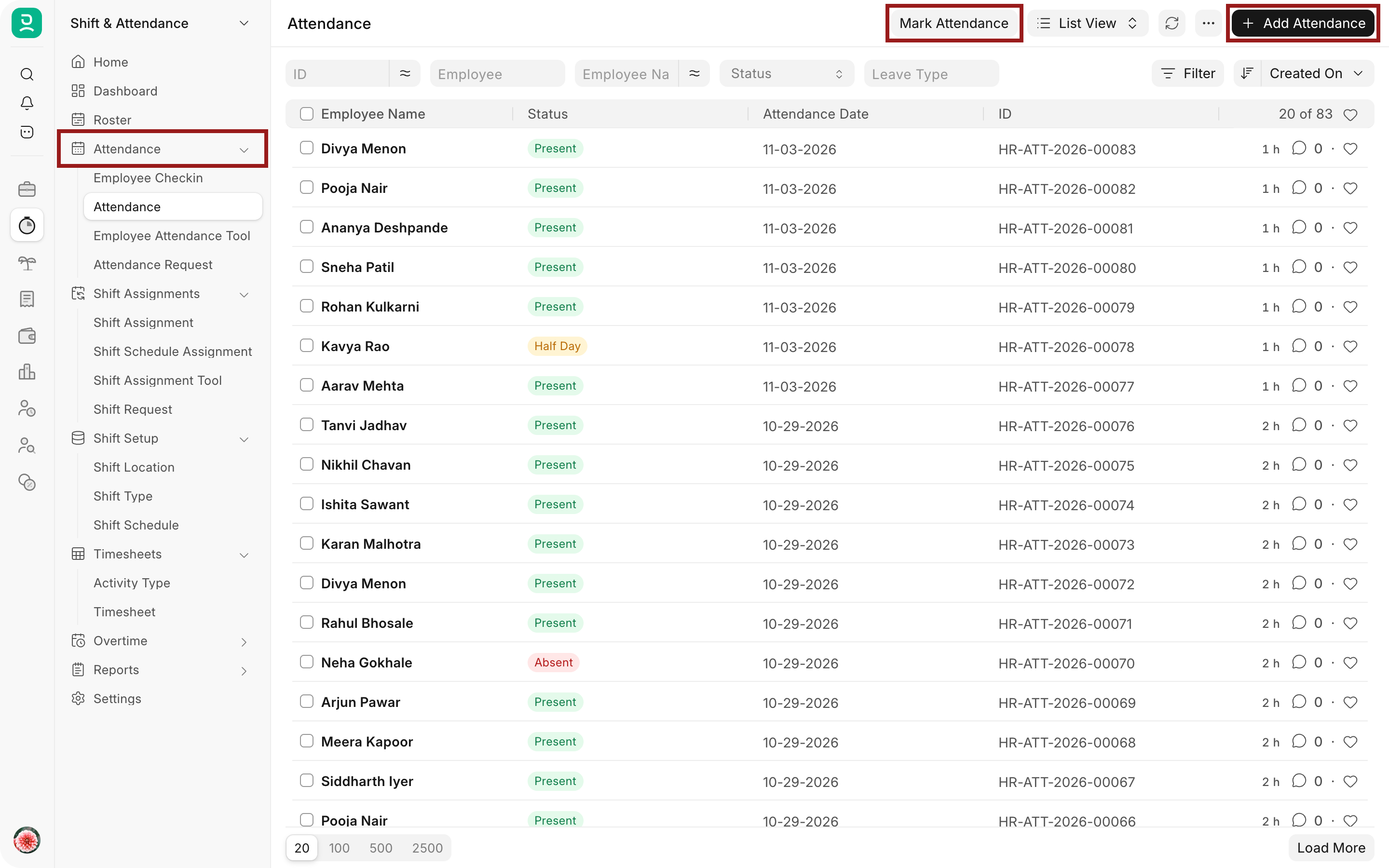
- Open the Shift & Attendance workspace and select Attendance. The list shows every record with its status. Select Add Attendance.
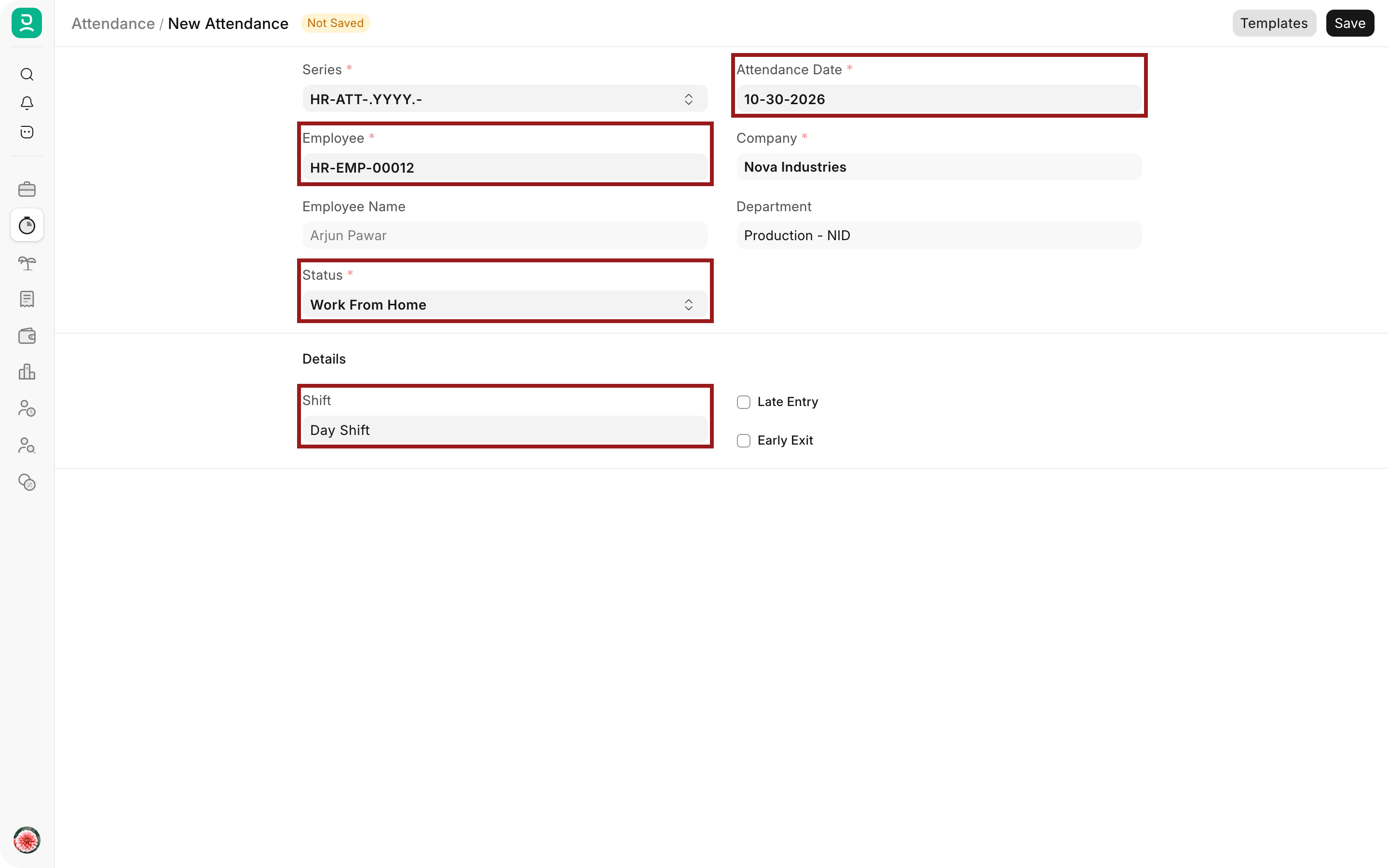
- Select the Employee, for example Arjun Pawar. Employee Name, Company and Department fill in.
- Set Attendance Date to 30 October 2026. It defaults to today.
- Select the Status, here Work From Home. For On Leave or Half Day, also select the Leave Type; for Half Day, set Status for Other Half.
- Check Shift. Frappe HR fills it from the employee's active Shift Assignment or Default Shift when you choose the employee and date, here Day Shift. Tick Late Entry or Early Exit if they apply.
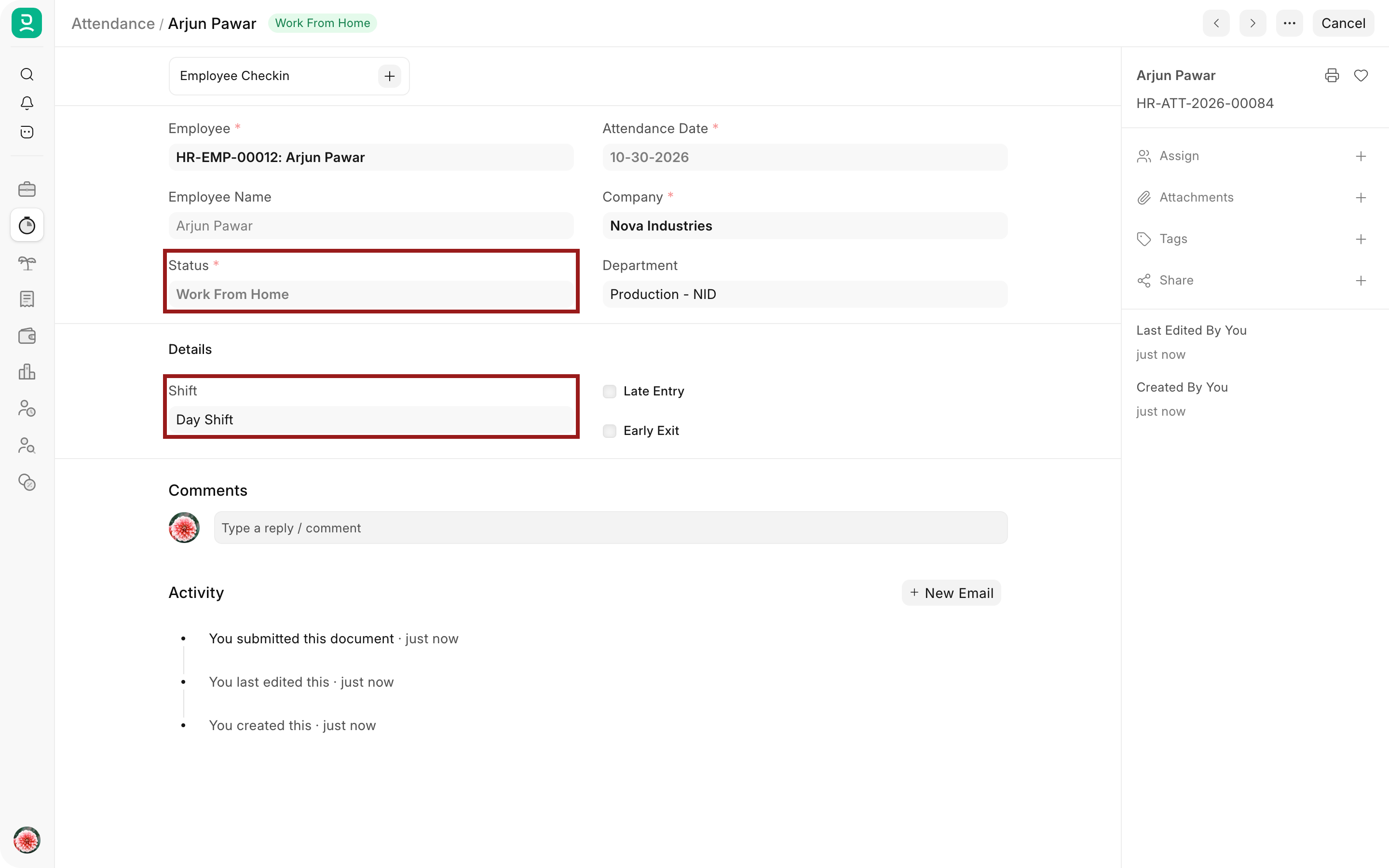
- Select Save, then Submit and confirm. The record shows the status Work From Home and now counts for payroll.
The steps in a short recording:
Mark a range of days for one employee
Use this to fill a week or a month of missing attendance, as for Meera Kapoor's week of 19 to 23 October.
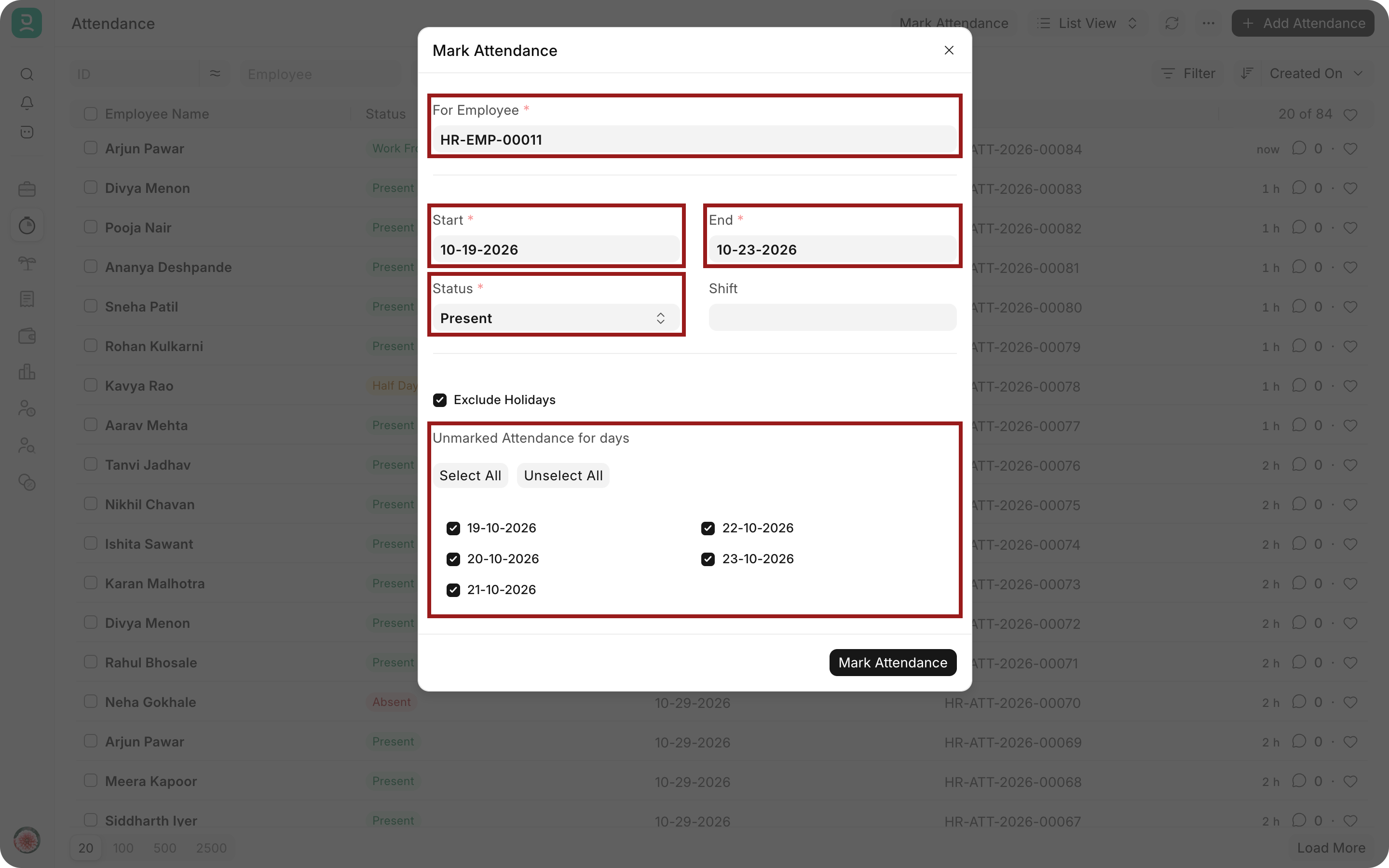
- In the Attendance list, select Mark Attendance.
- Select For Employee, here Meera Kapoor. Start defaults to the first day of the current month and End to today; change them to 19 and 23 October 2026.
- Select the Status (Present, Absent, Half Day or Work From Home), optionally a Shift, and tick Exclude Holidays.
- Check Unmarked Attendance for days. It lists only dates in the range that have no attendance yet, all ticked, and leaves out days before the Date of Joining or after the Relieving Date. Untick any day to skip.
- Select Mark Attendance and confirm. Frappe HR creates and submits one record per ticked day. With more than 10 days, it runs in the background and shows a link to the job; a day that fails, for example as a duplicate, is skipped without stopping the others.
Filter the list by the employee to check the result. Meera now has five Present records for 19 to 23 October.
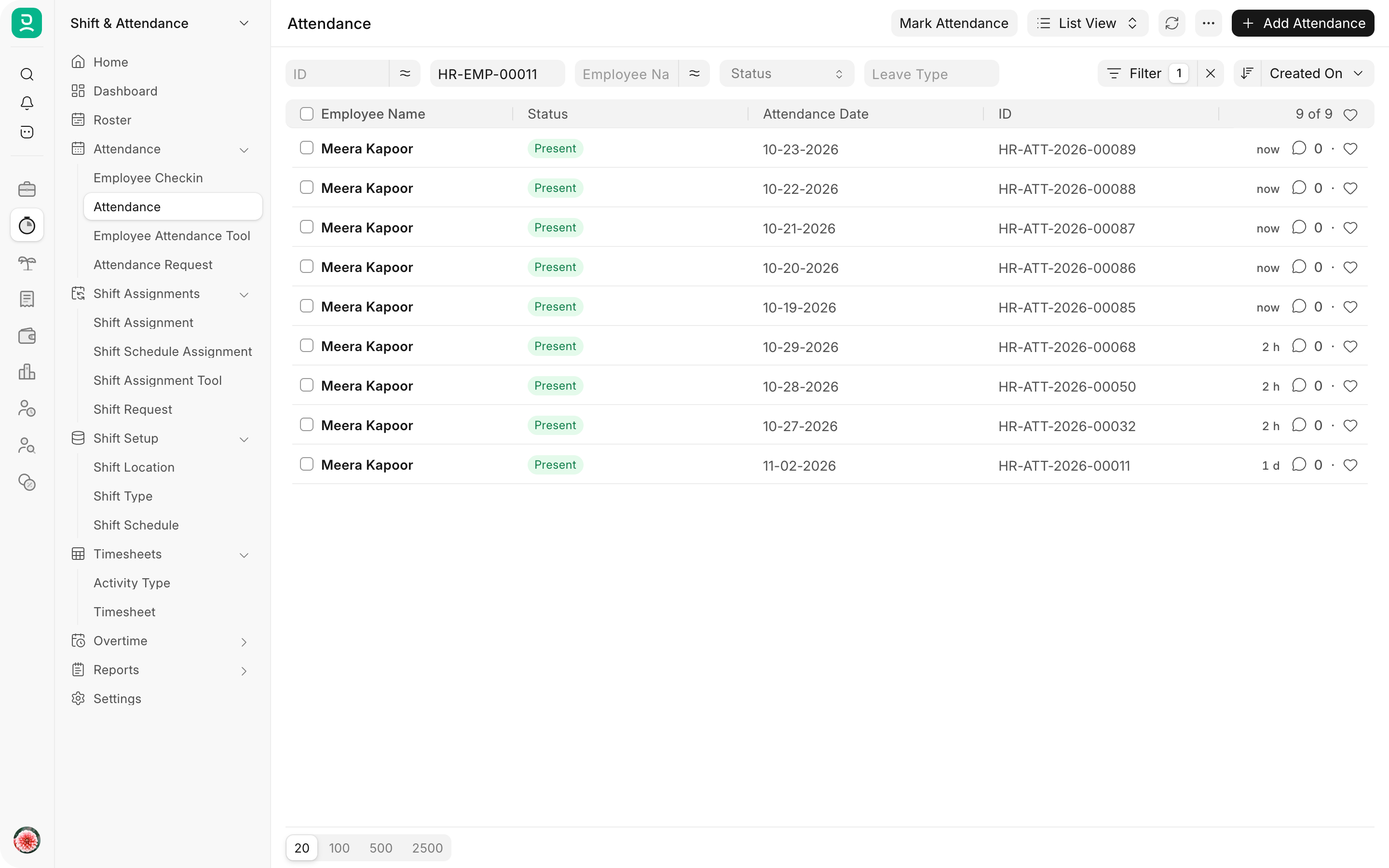
The same steps in a recording:
To mark one date for many employees, use the Employee Attendance Tool. To load a spreadsheet, see Upload Attendance.
Other ways attendance is created
| Source | What it creates |
|---|---|
| Auto Attendance | A submitted record per employee and shift from Employee Checkin logs, with Working Hours, In Time, Out Time, Late Entry and Early Exit. It also marks Absent for working days without logs. |
| Attendance Request | A record per requested day, or an update to an existing one. The Attendance Request field links back. |
| Leave Application | On Leave or Half Day records when the leave is approved and submitted. The Leave Application field links back. |
Status
| Status | Meaning |
|---|---|
| Present | The employee worked the full day. |
| Absent | The employee did not work and has no approved leave. |
| On Leave | An approved Leave Application covers the date. |
| Half Day | The employee worked, or was on leave, for half the day. Status for Other Half records the other half. |
| Work From Home | The employee worked remotely. |
In the list, Present and Work From Home are green, Absent and On Leave are red, and Half Day is orange.
Leave Type and Leave Application
Leave Type is mandatory when the status is On Leave or Half Day. When the record is saved, Frappe HR looks for an approved, submitted Leave Application that covers the date. If one exists, it fills Leave Type and Leave Application and sets the status to Half Day when the date is the leave's half-day date, otherwise to On Leave. Kavya Rao's record for 2 November 2026 shows the result of a half-day Casual Leave, with the other half Present.
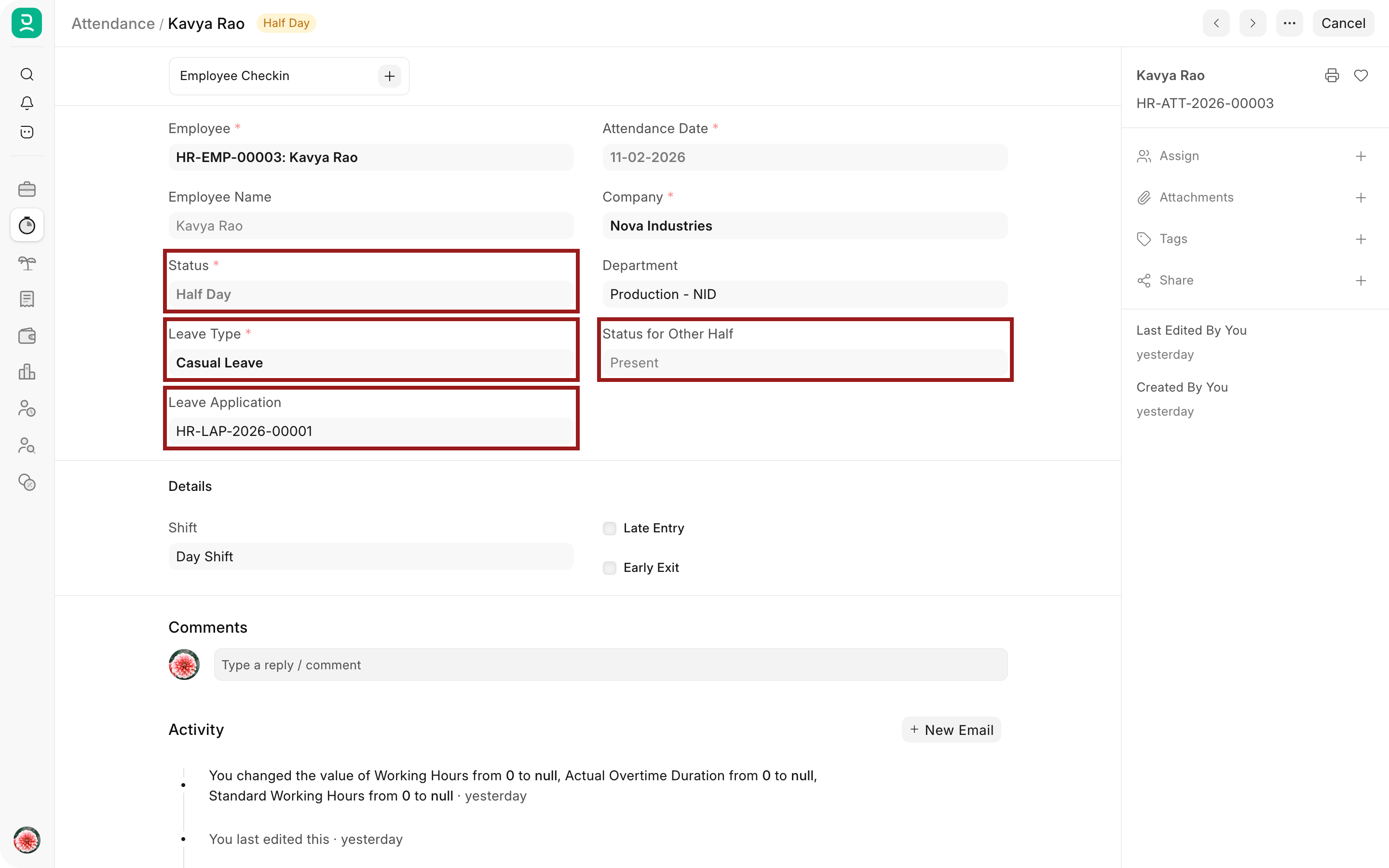
If the status is On Leave or Half Day and no leave exists, Frappe HR sets Status for Other Half to Absent and shows a warning. For any other status, it clears Leave Type and Leave Application.
Shift, timings and overtime
Shift links to a Shift Type. In Time and Out Time appear when a shift is set; they are read-only and come from the check-ins, as does Working Hours. An employee can have more than one record on a date only for different shifts whose timings do not overlap.
The Overtime section appears only on Present records created by Auto Attendance for a shift with Allow Overtime enabled. It shows the Overtime Type, Standard Working Hours and Actual Overtime Duration, which overtime calculations use.
Correct an attendance record
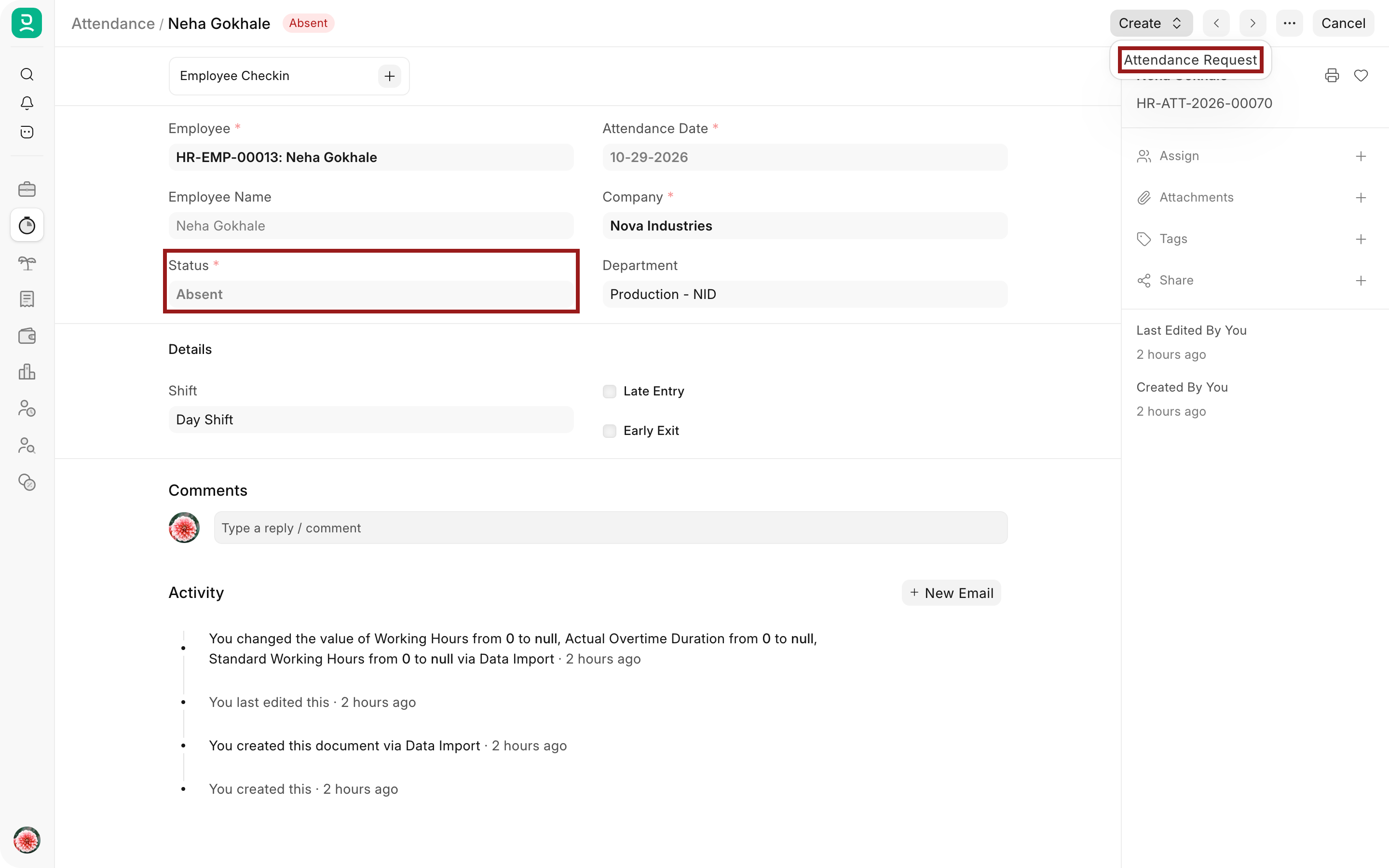
A submitted record cannot be edited. Select Cancel, then Amend, correct the record and submit it again. On a submitted Absent record, Create, Attendance Request starts a request for that date, so that the employee or HR records why the day should count.
Troubleshooting
Attendance date can not be less than the employee's joining date
The date is before the Date of Joining on the Employee record. Check both dates and correct the wrong one.
Transactions cannot be created for an Inactive Employee
The Employee status is Inactive. Set it back to Active if the employee still works, or leave the day without attendance.
Attendance for employee is already marked for the date
A draft or submitted record exists for the same date and shift, or for a shift with overlapping timings. Open the linked record and correct it, or cancel it first. Cancelled records do not count.
Leave Type is required
The status is On Leave or Half Day. Select the Leave Type, or apply for leave first so that Frappe HR fills it.
A day is missing from Unmarked Attendance for days
The day already has attendance, is a holiday with Exclude Holidays ticked, or is outside the employee's joining and relieving dates.
Frequently asked questions
How does attendance affect salary?
When Calculate Payroll Working Days Based On is Attendance in Payroll Settings, each Salary Slip reduces the payment days for Absent days and for the absent half of Half Day records. Consider Unmarked Attendance As decides whether days without a record count as Present or Absent.
Why does the new record show a shift I did not select?
Frappe HR fills Shift from the employee's Shift Assignment or Default Shift for the date. Change it before saving if the employee worked another shift.
Can I mark attendance for future dates?
Frappe HR does not block future dates. Mark attendance after the day, so that leave approved in the meantime is reflected and no record has to be cancelled.