


















Upload Attendance
The biometric device at the Nova Industries Pune branch was offline from Tuesday, 27 October to Thursday, 29 October 2026. The Production supervisor kept a spreadsheet instead: one row for each of the 18 people in the department for each day, 54 rows in total, with three absences. HR now has to turn that spreadsheet into attendance before the payroll for October runs.
Typing 54 records by hand is slow, and the Employee Attendance Tool marks only one date at a time. If the rows are not entered, payroll counts those days as unmarked, and the salary slips are wrong for the whole department.
In Frappe HR you upload attendance in bulk with Data Import. You download an Attendance template, fill one row per employee per date, and upload the file. Data Import shows a preview, lets you fix invalid values before anything is saved, and then creates one Attendance record per row. With Submit After Import ticked, the records are submitted straight away and count in reports and payroll.
The separate Upload Attendance tool, with its Get Template and Upload buttons, is available only up to version 15. It was removed in version 16, and Data Import replaces it. The template columns and the result are the same.
Before you begin
- Each employee in the file has an active Employee record, and every date is on or after that employee's Date of Joining.
- The company, and the Shift Type if you use one, exist with exactly the names you will put in the file.
- You have the HR Manager or System Manager role, so that you can use Data Import and create and submit Attendance.
- Approved leave is already entered as a Leave Application. Leave creates its own attendance, so do not put those days in the file.
Prepare the attendance file
- Type Data Import in the search bar, open the Data Import list and create a new Data Import. The Config step opens.
- Set Document Type to Attendance and Import Type to Insert New Records. Tick Submit After Import so that the records are submitted, not left as drafts.
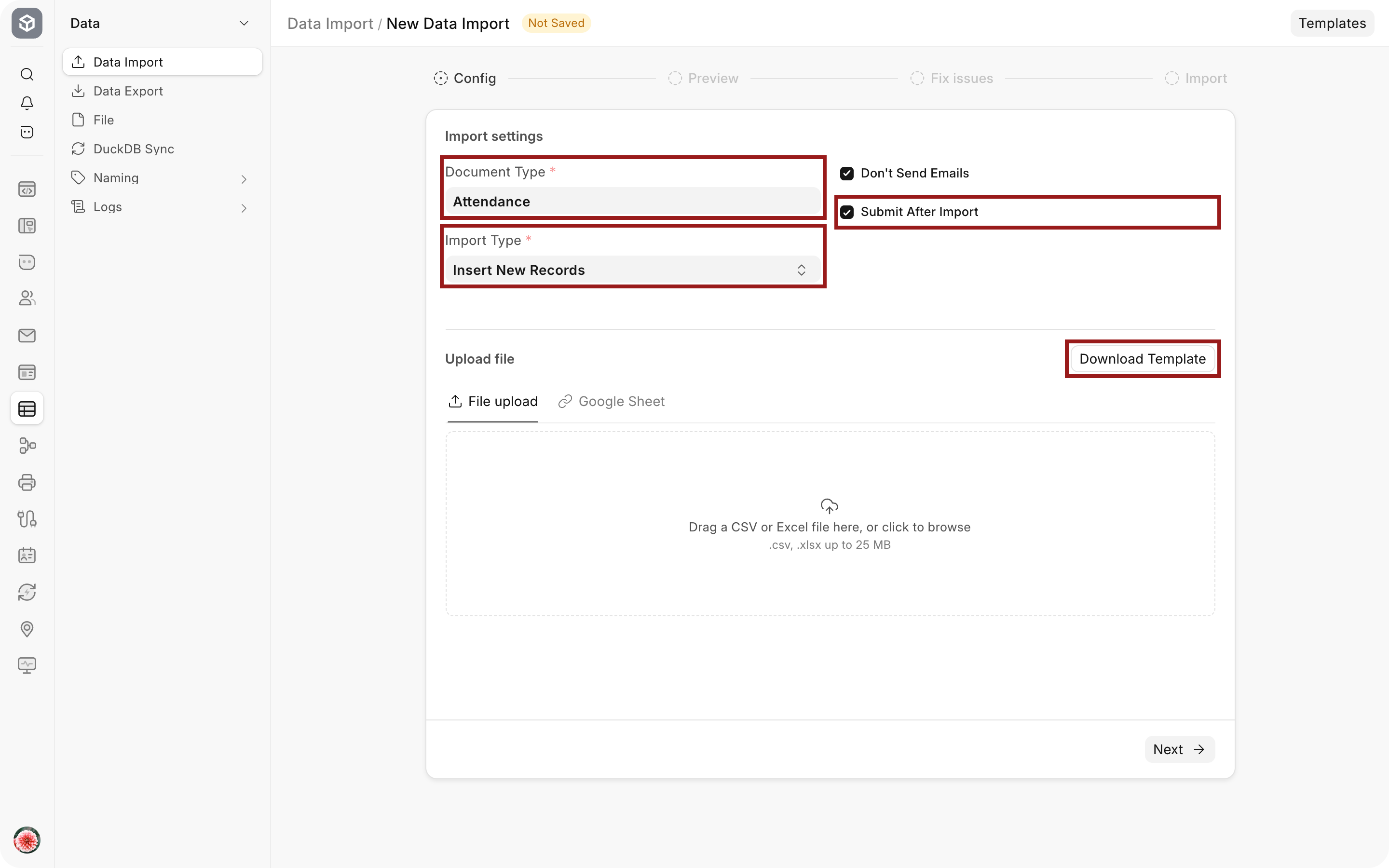
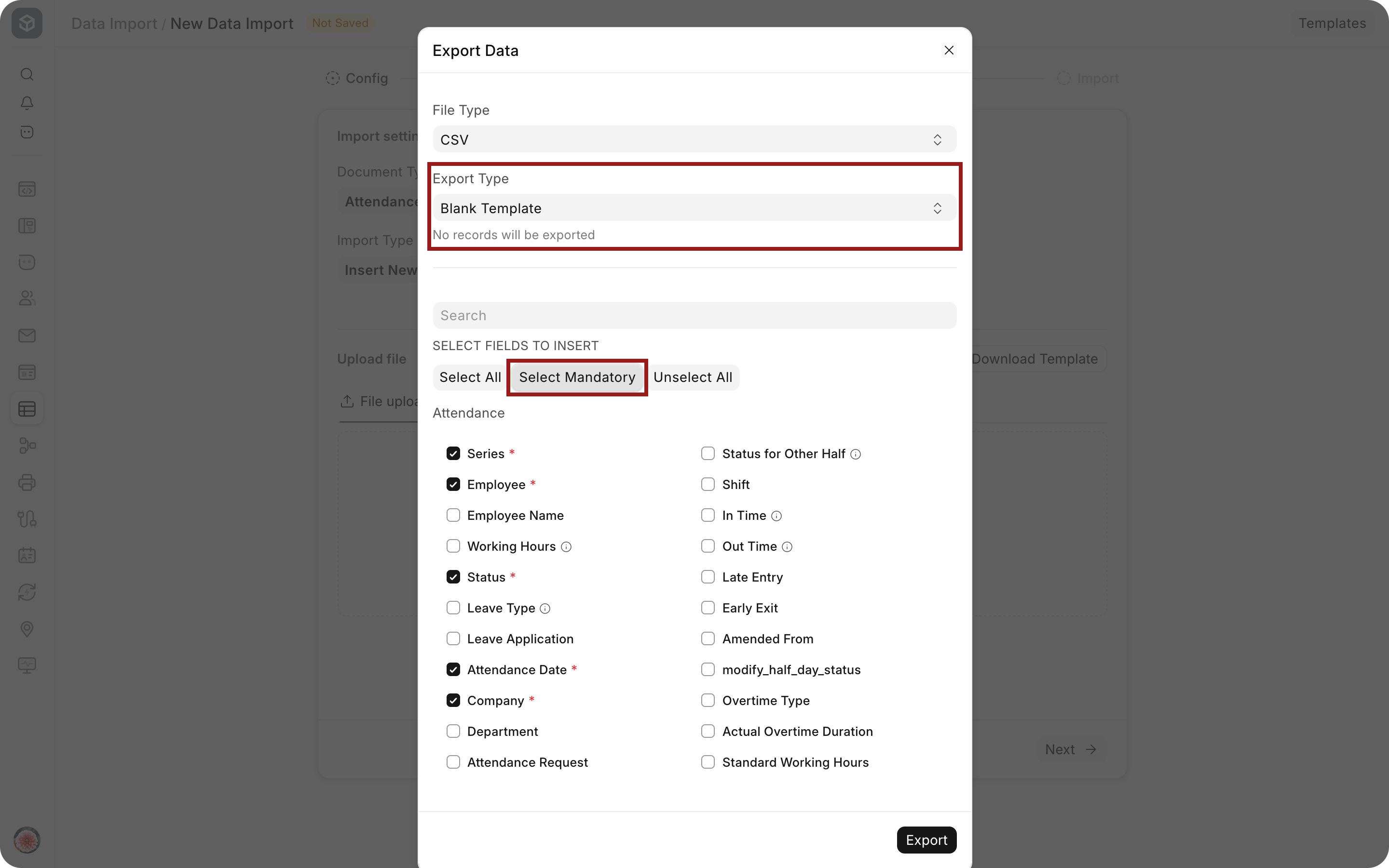
- Select Download Template. In the Export Data dialog, set File Type to CSV or Excel and Export Type to Blank Template. Select Select Mandatory, then tick any optional columns you need, such as Shift, Late Entry or Early Exit. Select Export to download the file.
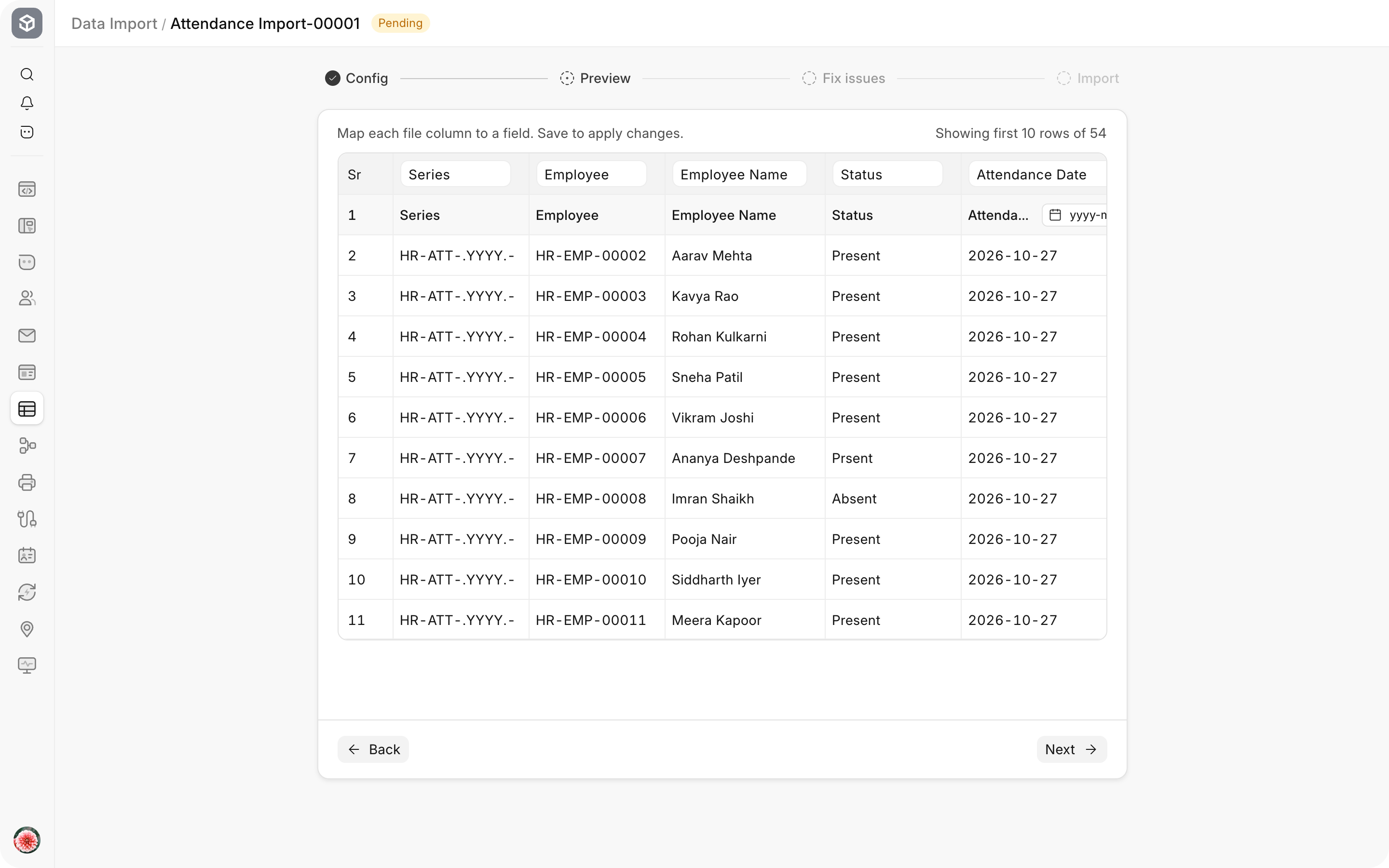
- Fill one row for each employee and date. The example file has 54 rows: 18 employees for each of the three days.
| Column | What to enter |
|---|---|
| Series | The naming series, usually HR-ATT-.YYYY.-. Use the same value on every row. |
| Employee | The employee ID, for example HR-EMP-00010. Employee Name is optional and only helps you read the file. |
| Status | Present, Absent, Half Day or Work From Home. The spelling must match exactly. |
| Attendance Date | The date of the attendance. Use one date format for the whole column, for example 2026-10-27. |
| Company | The company name, for example Nova Industries. |
| Shift (optional) | The shift name, for example Day Shift. Leave it empty if you do not use shifts. |
| Status for Other Half (optional) | Present or Absent, only on Half Day rows. |
Import the file
- Back in the Config step, drop the file on Upload file or select the area to browse, then select Next. You can also paste the link to a public Google Sheet on the Google Sheet tab.
- In the Preview step, check that each file column is mapped to the correct Attendance field and that the dates read correctly. The step shows the first 10 rows and the total, for example "Showing first 10 rows of 54". Select Next.
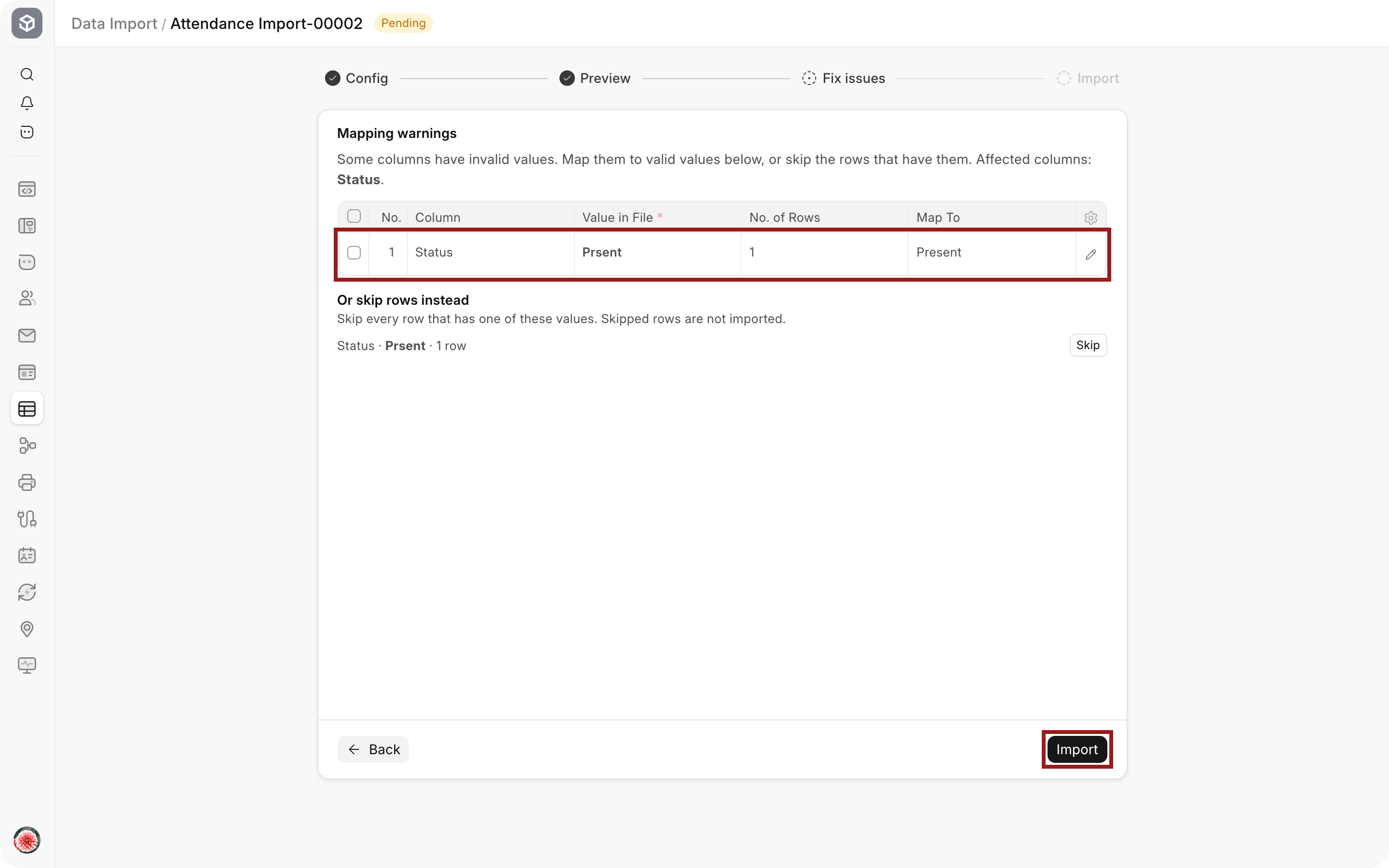
- The Fix issues step lists values that do not match a valid option. In the example, one row has the typo "Prsent" in Status. Set Map To to Present for that value, or select Skip to leave those rows out. Map or skip each listed value before you import.
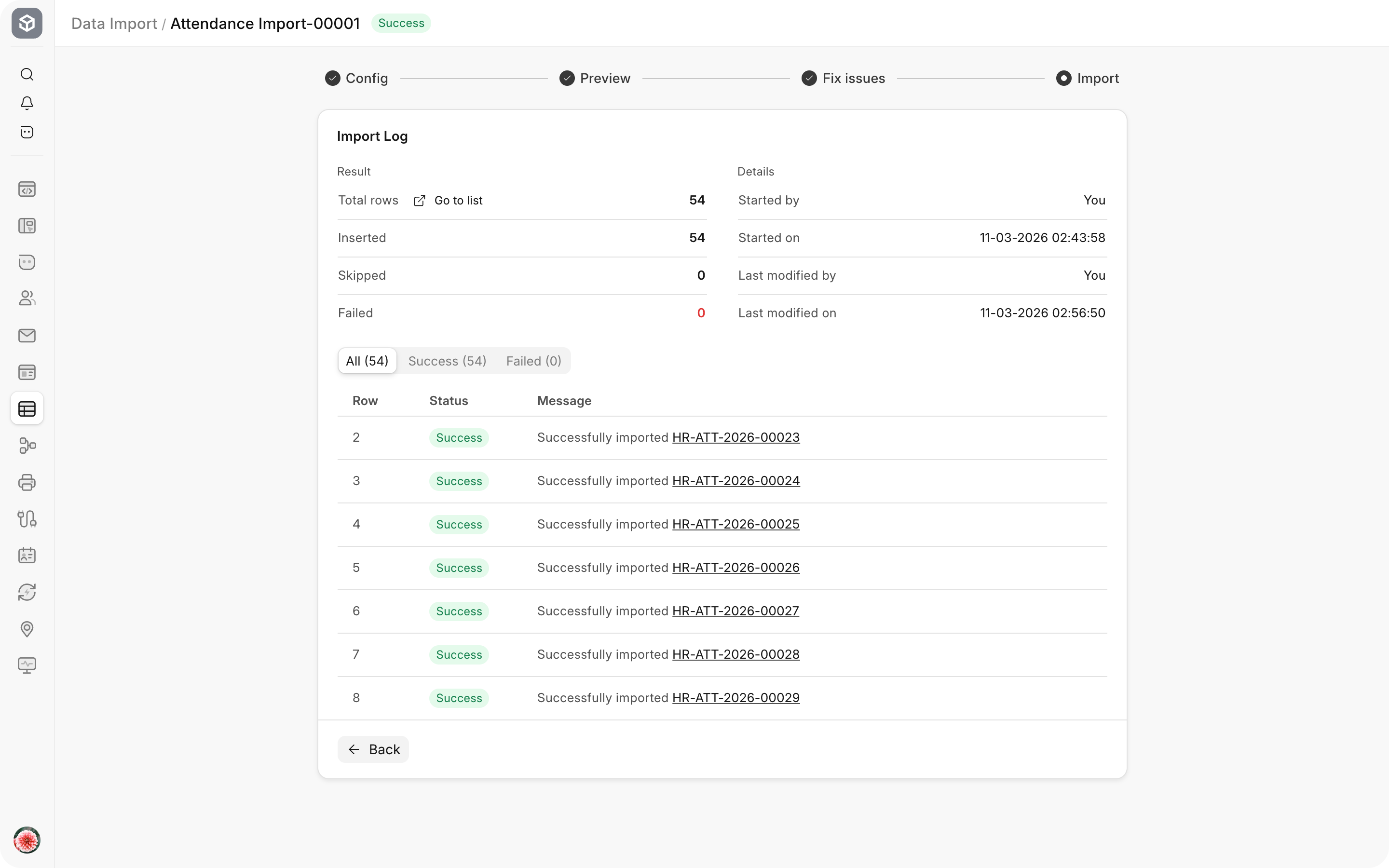
- Select Import. The import runs in the background. When it finishes, the Import Log shows the total rows and how many were inserted, skipped and failed, with a message and record link for each row. In the example, all 54 rows are inserted.
Check the imported attendance
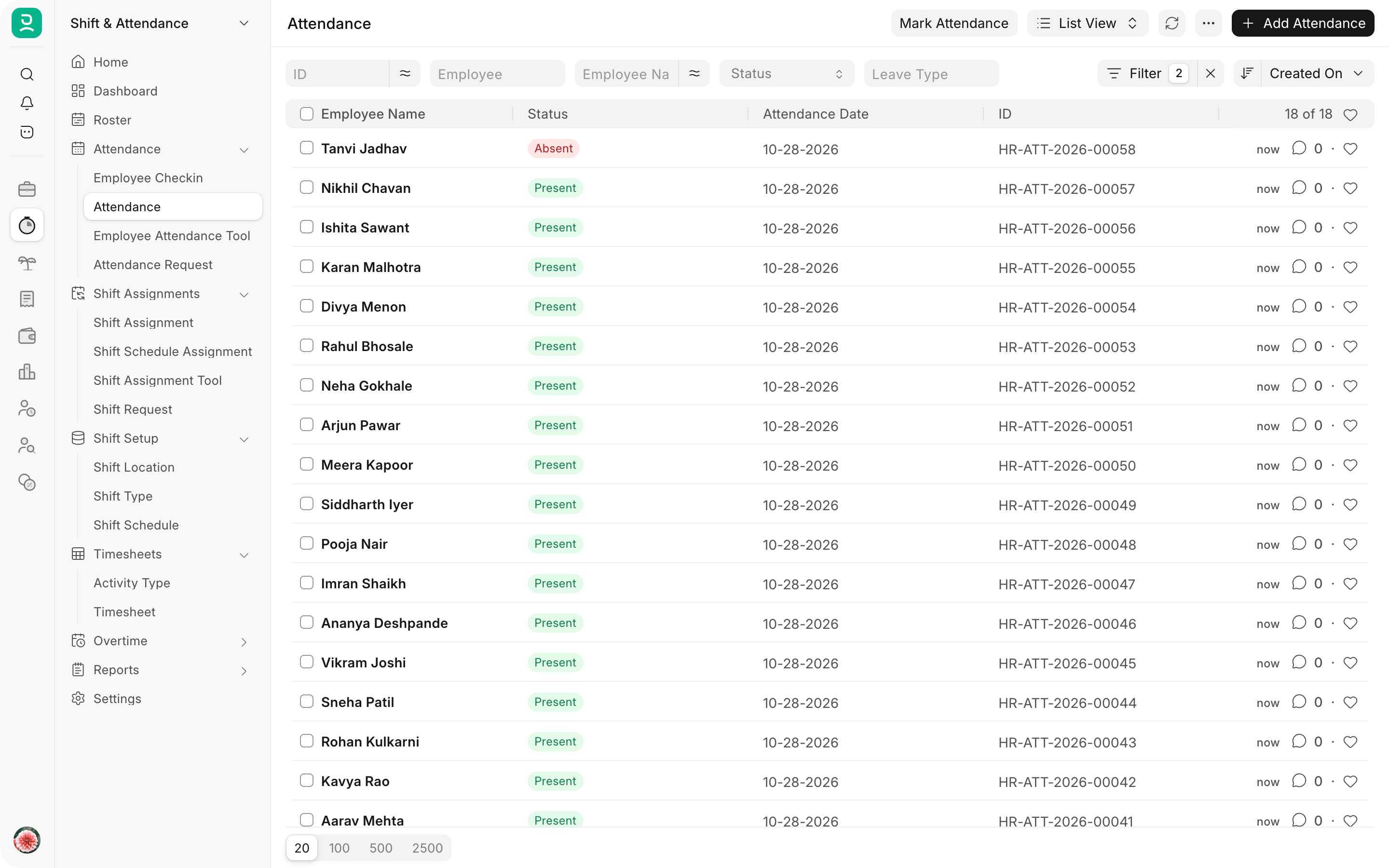
When the status is Success, every row created a submitted Attendance record. Open the Attendance list and filter by Company and Attendance Date to check one day. For 28 October 2026 the list shows the 18 Pune Production employees, 17 Present and Tanvi Jadhav Absent.
The records count from now on in attendance reports and in the payment days on each Salary Slip. If you left Submit After Import clear, the records are drafts. Select them in the Attendance list and use Actions, Submit to submit them together.
Troubleshooting
The import finished with Partial Success
Some rows failed and the others were imported. The Import step lists each failed row with its error. Download the failed rows, correct them, and import only those rows in a new Data Import. Do not import the whole file again, because the rows that succeeded would then fail as duplicates.
Attendance for employee is already marked for the date
The employee already has a submitted or draft Attendance record for that date, for example from the Employee Attendance Tool, an Attendance Request or Auto Attendance. Remove the row from the file, or cancel the existing record first if the file is correct.
Attendance date can not be less than the employee's joining date
The row is dated before the Date of Joining on the Employee record. Check the date in the file and the Date of Joining, and correct whichever is wrong.
The record was saved as On Leave or Half Day
An approved Leave Application covers the date, so Frappe HR sets the status from the leave instead of the file. This is expected. Leave days do not need a row in the file.
Dates are read wrongly in the Preview
The file mixes date formats, or uses a format that differs from your system date format. Use one format for the whole column, preferably year-month-day, and check the date format shown for the Attendance Date column in the Preview.
Frequently asked questions
Can I change existing attendance with an upload?
Submitted Attendance records cannot be edited by import. Cancel them first, or use an Attendance Request to change the status of specific days with a record of the reason.
Can I import check-in times instead of statuses?
Import the punches as Employee Checkin records instead, and let Auto Attendance work out the status from the shift timings.
Where do I find a past import?
Every import is saved in the Data Import list with its file, its status and its log. Open it to see which rows were created and which failed. See Data Import for the general options, such as Update Existing Records.