


















Why are salary slips not showing in the Frappe HR mobile app?
Employees open Salary in the Frappe HR mobile app and see "No salary slips found", an empty Select Payroll Period box, or only some months. The salary slips are submitted, and HR can see them in the desk. In most cases, the Employee role cannot read Payroll Period, or no Payroll Period covers the months of the missing slips.
What the employee sees
The employee opens the Salary tab in the Frappe HR mobile app.https://<your-site>/hrms). You see one of these:
- The Select Payroll Period box is empty, and the page shows
No salary slips found. - The box shows a period, but older months are not in the list. For example, the slips from February and March are missing.
- Some employees can see their slips, and others cannot.
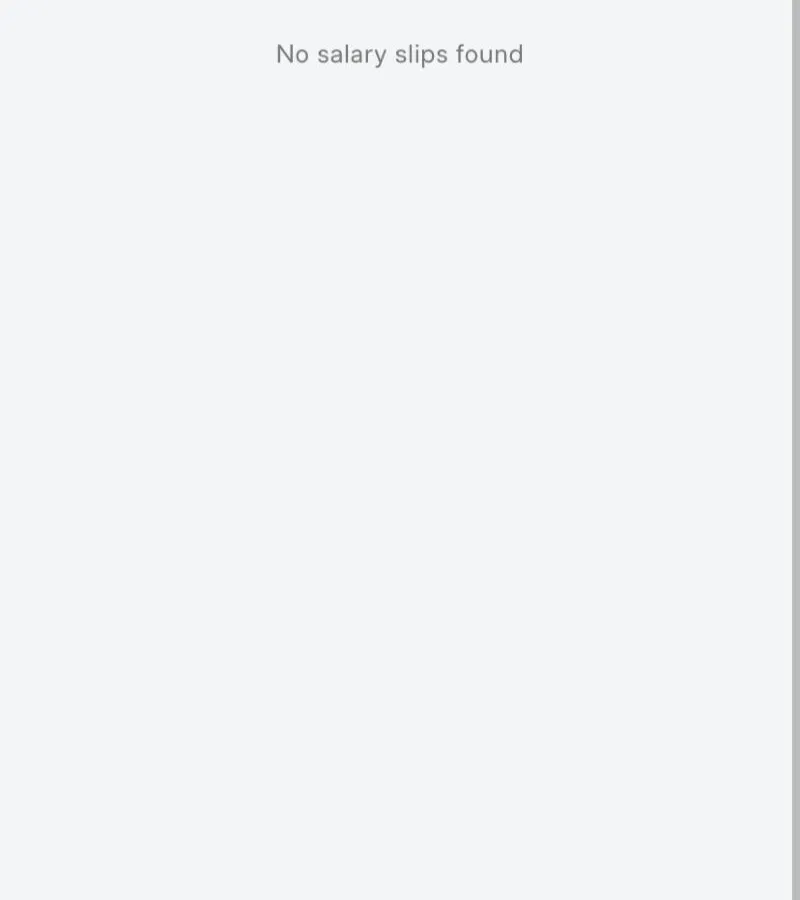
The app does not show an error. The request behind the page fails with this message:
Insufficient Permission for Payroll Period
Why this happens
The desk and the mobile app find salary slips in different ways:
- In the desk (
/app/salary-slip), you see every slip that you have permission to read. - The mobile app groups slips by Payroll Period (a date range, usually your financial year, for example 01-04-2026 to 31-03-2027). The app first loads the Payroll Periods of the employee's company into the Payroll Period box. Then it shows only the submitted slips whose start date is in the selected period.
So the employee sees no slips, or only some, if:
- The Employee role does not have Read permission on Payroll Period. The box stays empty, so the app shows no slips. Frappe HR gives this permission by default, but it is often removed when roles are changed.
- No Payroll Period covers some months. Slips outside every Payroll Period never appear.
- The Payroll Period is for a different company than the employee.
- The employee cannot read the Salary Slip. For example, Only If Creator is set on the Salary Slip permission for the Employee role.
For example, at Bluepeak Technologies Pvt Ltd, Arjun Reddy has submitted salary slips from February to September 2026. The company has one Payroll Period, Apr 2026 - Mar 2027. Arjun sees the slips from April to September only. February and March 2026 are not in any Payroll Period.
How to fix it
You need the System Manager role to change permissions, and the HR Manager role to create a Payroll Period.
Give the Employee role Read permission on Payroll Period
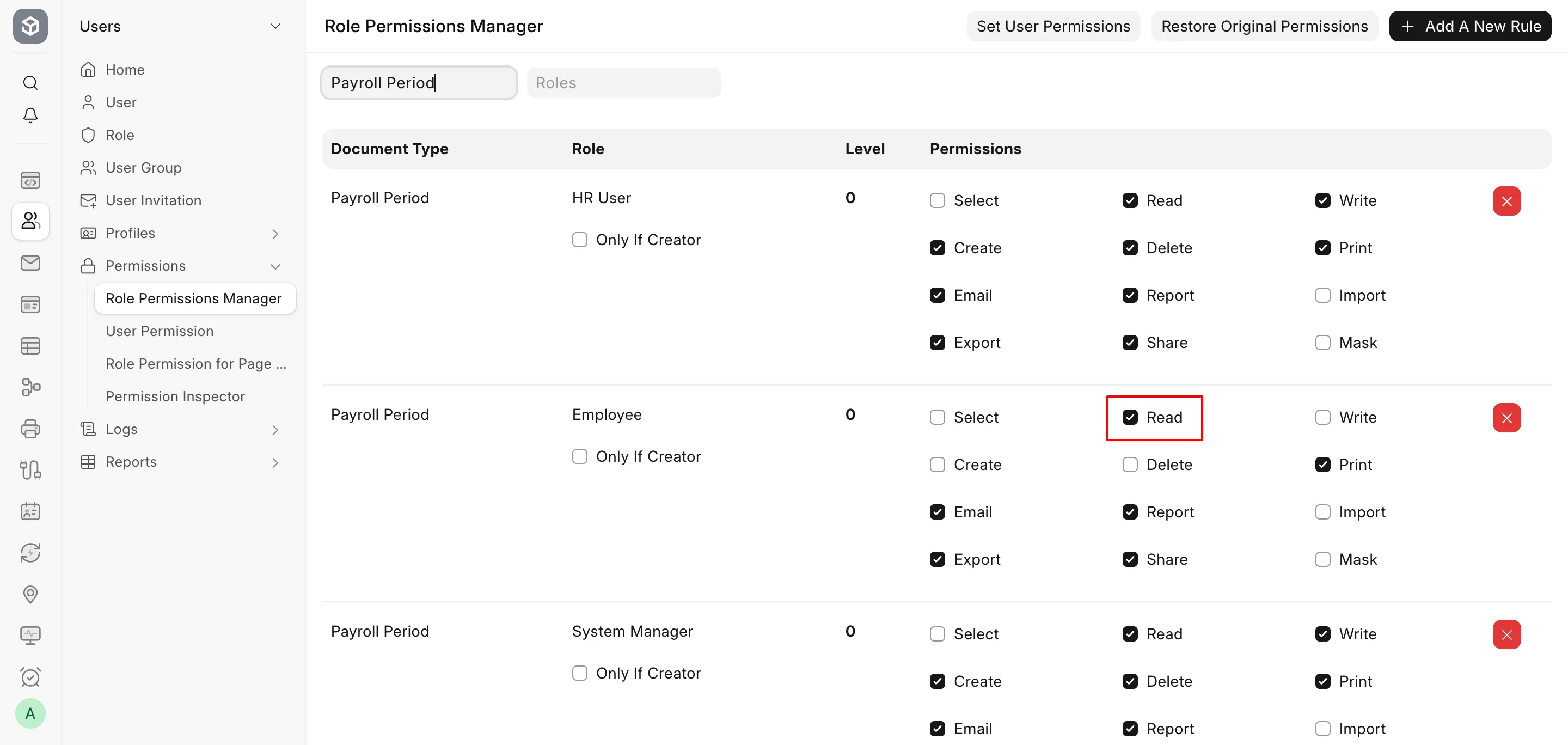
- In the search bar, type Role Permissions Manager and open it.
- In the Document Type filter, select Payroll Period.
- Find the row for the Employee role.
- If Read is cleared, select it. The change saves at once.
- If the Employee role has no row, click Add A New Rule. Select Payroll Period, the Employee role, and permission level 0, then click Add. Then select Read.
- Ask the employee to close the app and open it again.
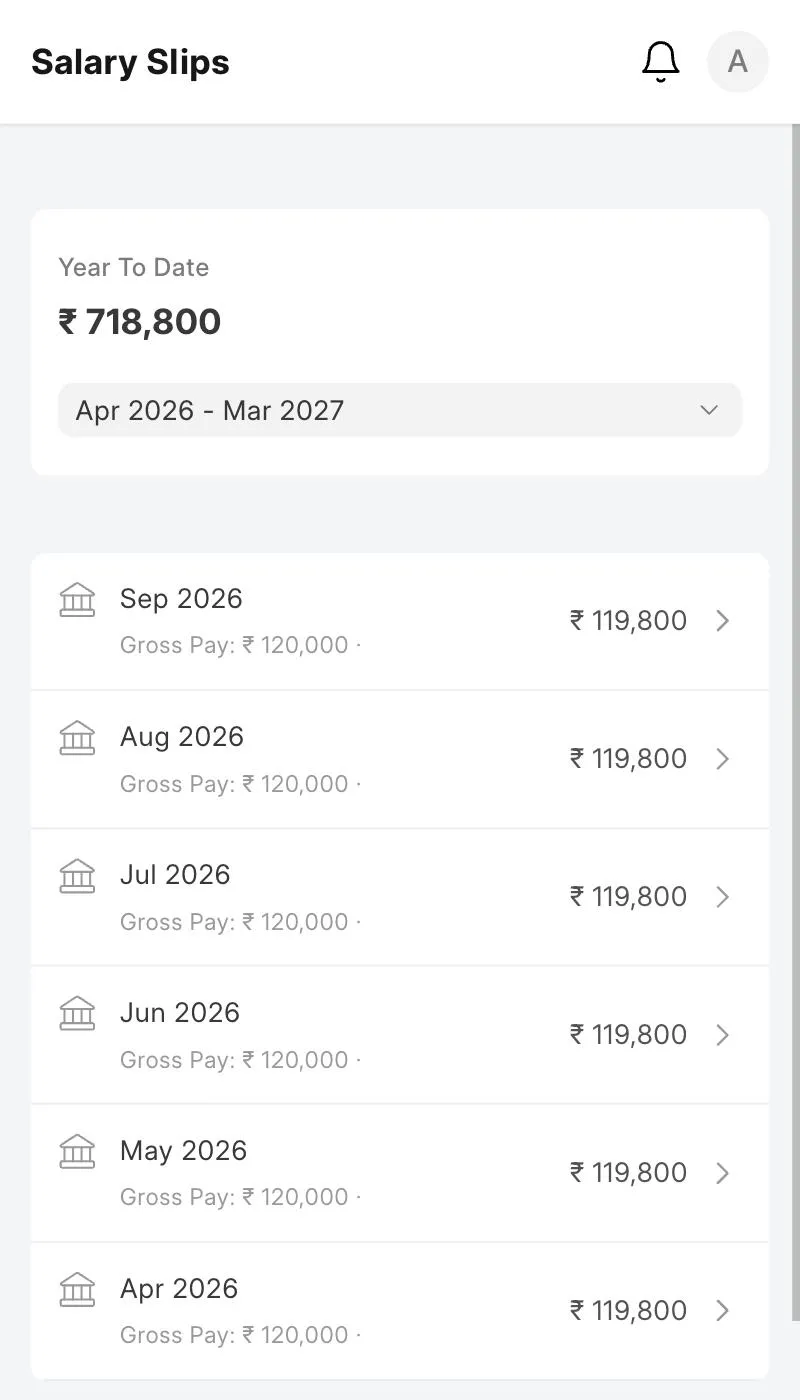
Create a Payroll Period for the missing months
Do this if the employee sees some slips, but not older or newer months.
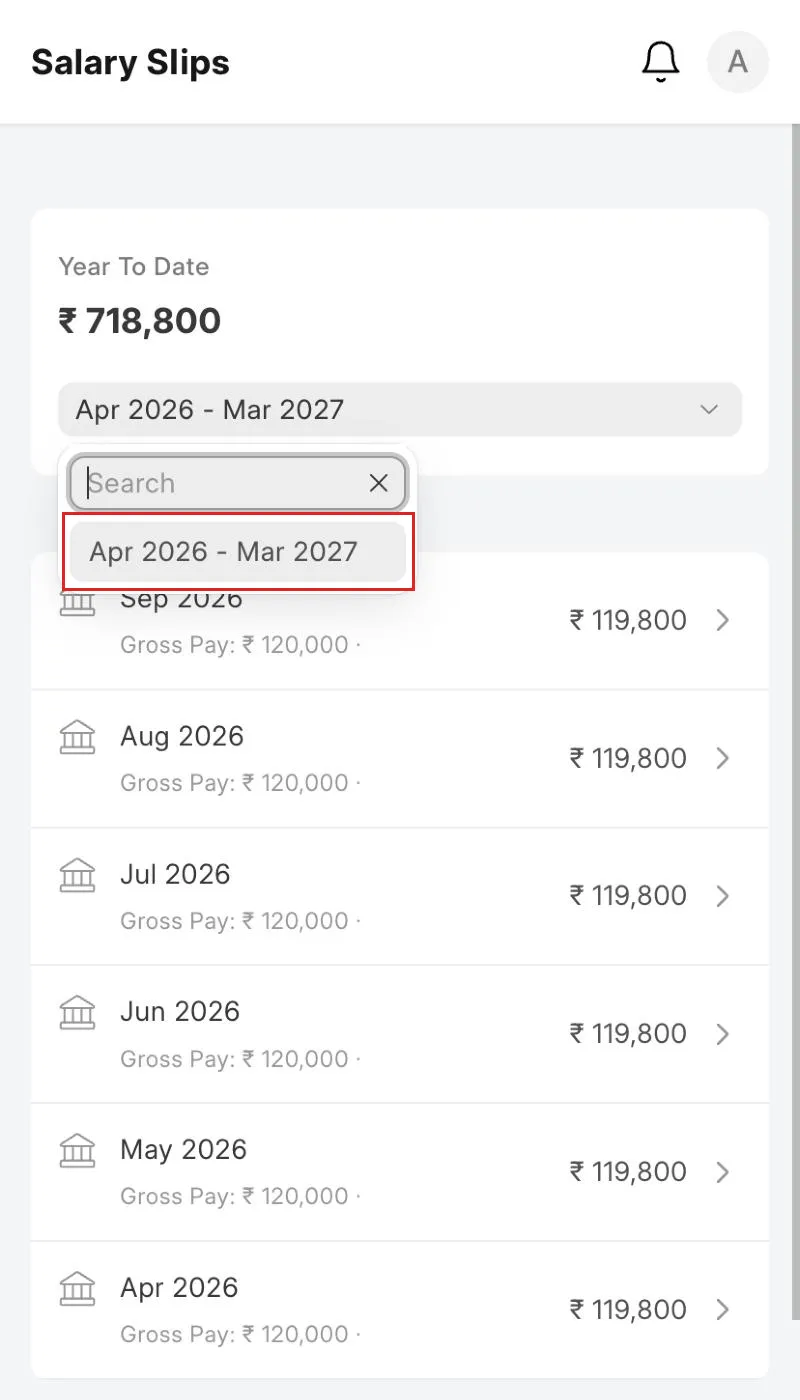
- In the mobile app, open the Payroll Period box and note the periods shown.
- In the desk, go to Payroll → Payroll Period.
- Click Add Payroll Period.
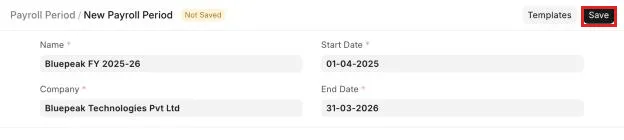
- In Name, type a name, for example
FY 2025-26. - In Company, select the employee's company.
- Set the Start Date and End Date so the period covers the missing months, for example, 01-04-2025 to 31-03-2026.
- Click Save.
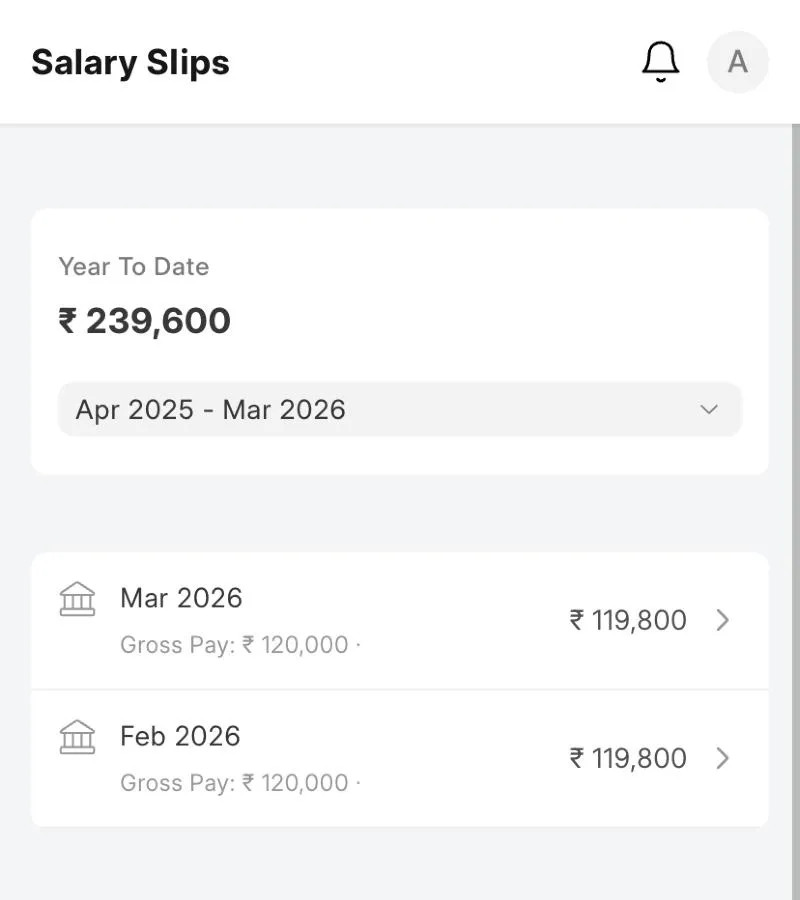
- In the mobile app, select the new period in the Payroll Period box. The older slips now appear.
If the site has more than one company, make sure each company has its own Payroll Periods.
If only some employees cannot see their slips
Check these for an employee who cannot see slips:
- Salary Slip permission. In Role Permissions Manager, select Salary Slip. In the Employee row, make sure Read is selected and Only If Creator is cleared. With Only If Creator, an employee sees only the slips that they created, which is none.
- User ID on the Employee. Open the Employee record and make sure User ID is the user the employee signs in with.
- Submitted slips. The app shows submitted slips only. A slip in Draft does not appear.
- Empty Link fields to Employee. If you added a custom field on Salary Slip that links to Employee, make sure it is filled, or remove it. User Permissions on Employee also apply to this field. If the field is empty, the employee cannot read the slip.
- Employee Self Service users. If the user's User Type is Employee Self Service, open User Type → Employee Self Service. In the document types table, add Payroll Period with Read, and save.
How to prevent it
- Before you change the permissions of the Employee role, note which document types the mobile app needs: Payroll Period and Salary Slip for salary slips.
- Create the Payroll Period for the new financial year before you run the first payroll of that year.