


















Employee Information
The Employee Information report is a Report Builder report on the Employee doctype. It lists employees with their joining date, branch, department, designation, status, employment type, manager and company email. You can add or remove columns, filter, sort, group and export it like any other report view.
To access the Employee Information report, go to:
Home > Tenure > Reports > Employee Information
1. Prerequisites
Before viewing the report, the following must exist:
- Employee
2. How to view the report
- Go to Employee Information. The report opens with all employees you have access to.
- Use the filter bar or the Filter button to narrow the list, for example by Company, Status or Department.
- Use Sort to change the order. The list remembers the sort you last used.
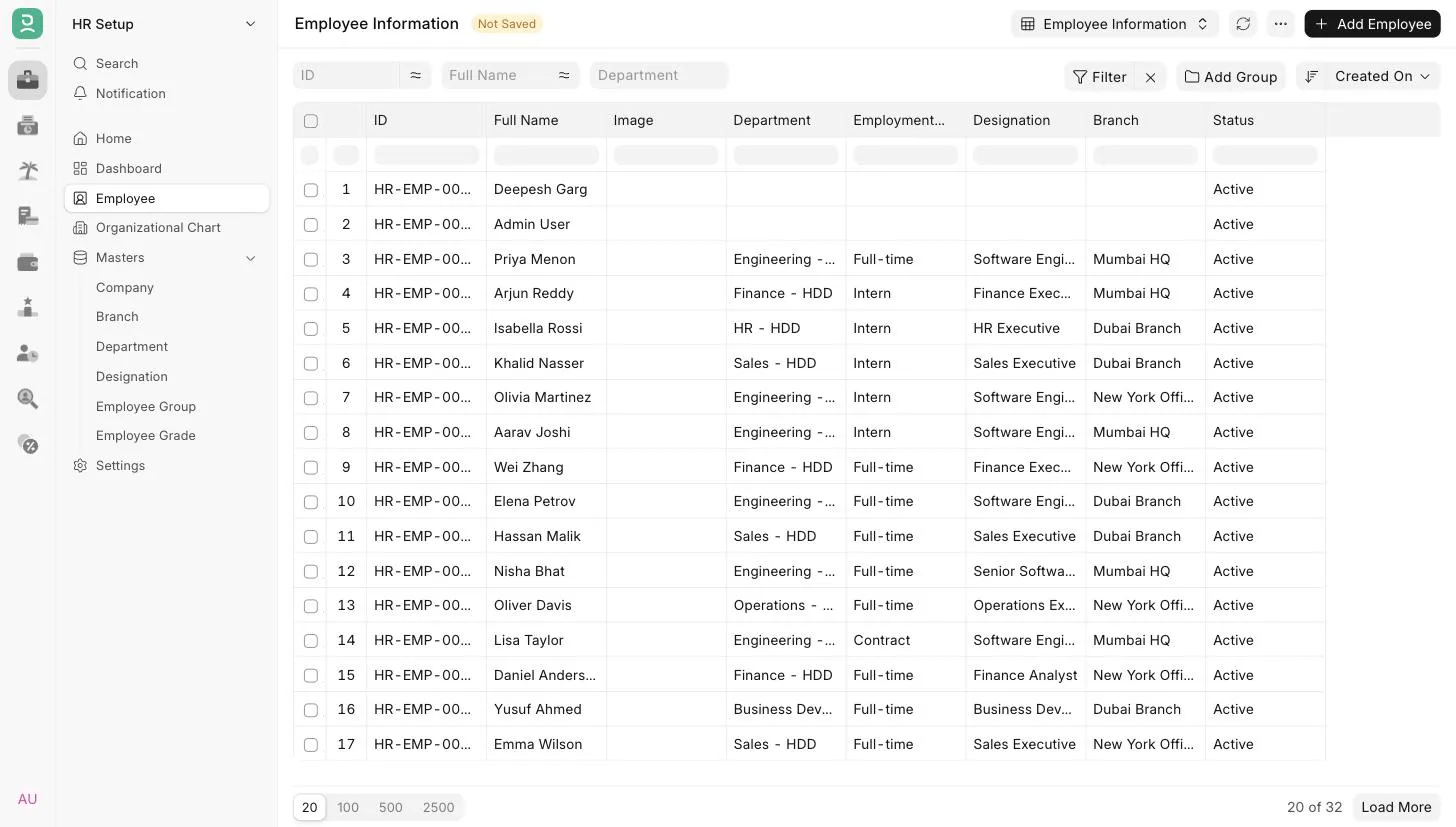
3. Default columns
| Column | Description |
|---|---|
| ID | Employee ID. |
| Employee Number | Employee number, if used. |
| Date of Joining | Date of joining. |
| Branch | Branch. |
| Department | Department. |
| Designation | Designation. |
| Gender | Gender. |
| Status | Active, Inactive, Suspended or Left. |
| Company | Company. |
| Employment Type | Employment type, such as Full-time or Intern. |
| Reports To | The employee's manager. |
| Company Email | Company email address. |
4. Changing columns
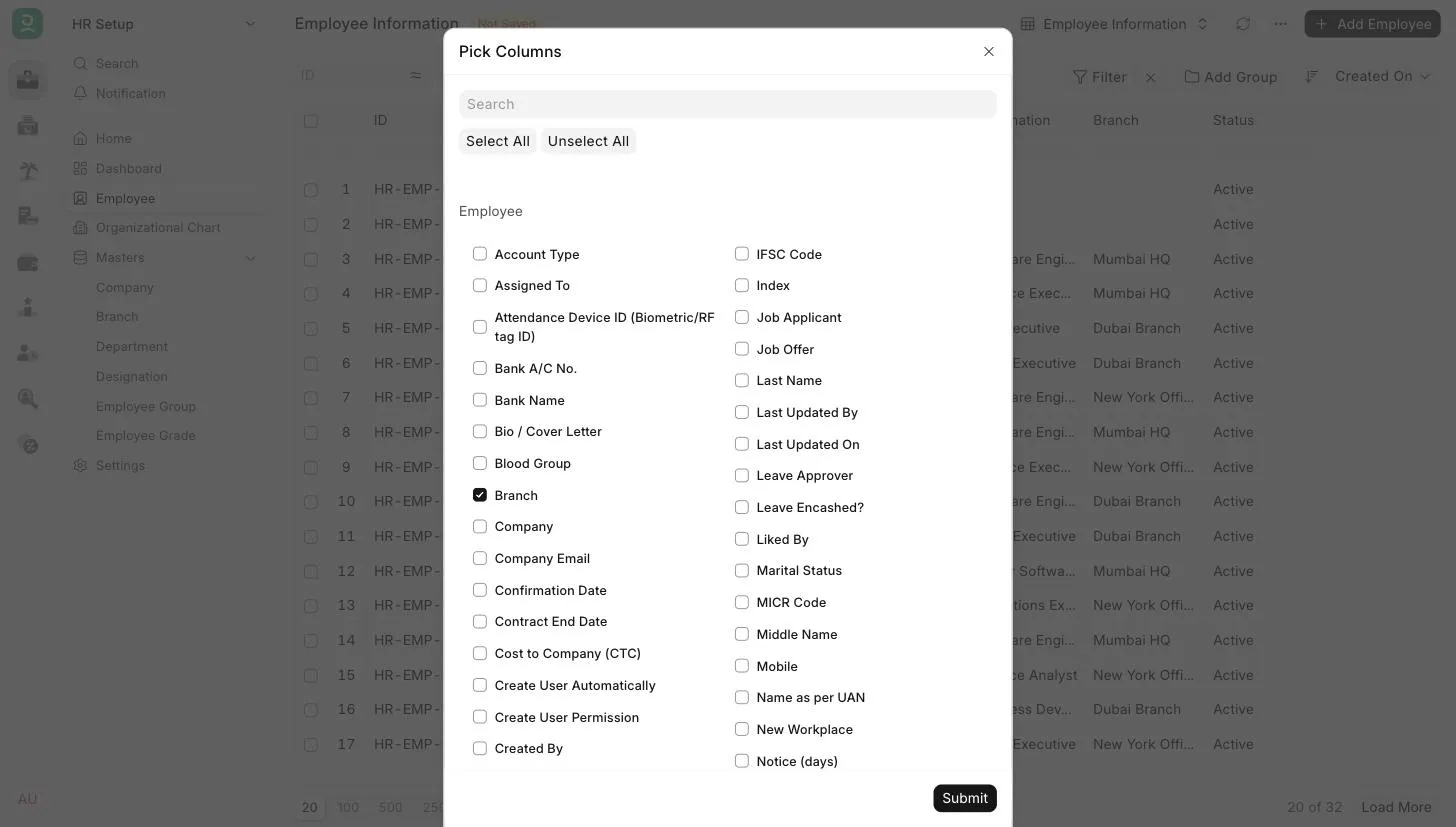
- From the Menu, select Pick Columns. To drop a column, use the dropdown on its header and select Remove Column.
- Select the Employee fields to add, such as Date of Birth, Cell Number or Grade. Fields from child tables of Employee, such as Education, can also be added.
- To keep the layout for later, use Save As and give the report a new name, so the standard Employee Information report stays unchanged.
5. Other options
- Group By: group rows by a field, such as Department, to see counts per group.
- Export: download the report as Excel or CSV from the Menu.
- Show Totals: add a totals row for numeric columns.
6. Access
The report is available to users with the HR User or HR Manager role. User permissions on Employee apply, so users with restricted access see only the employees they are permitted to see.
7. Related
Last updated 3 weeks ago
Was this helpful?