


















How to write a Formula and Condition for a Salary Component
A salary component can calculate its own amount with a Condition and a Formula. This page shows how to write them, with examples for a slab-based deduction and a seniority allowance, and how to fix a formula that gives an error name 'date_of_joinng' is not defined.
How formulas work
You can write the condition and the formula on the Salary Component, in the Condition & Formula tab, or on the component's row in a Salary Structure. When you set them on the component, every salary structure that you add the component to gets them. To copy a changed formula to the structures that already use the component, click Update Salary Structures → Sync Formula on the component. Use Sync Condition for the condition.
When Frappe HR makes a salary slip, it checks each row of the salary structure:
- If the row has a Condition, Frappe HR evaluates it. If the result is false, the component is left out of the salary slip.
- If Amount based on formula is on, Frappe HR evaluates the Formula. The result is the amount of the component.
Conditions and formulas are Python expressions. You write one expression, not a program, so there are no variables, loops, or return. Use == to compare. A single = is a syntax error.
What you can use in a formula
| What | How to write it | Example |
|---|---|---|
| Another salary component | Its Abbreviation, with the same capital letters | B * 0.4 (B is Basic) |
| The base and variable pay of the employee | base, variable (from the Salary Structure Assignment) |
base * 0.5 |
| A field of the Employee | Its field name, including custom fields | date_of_joining, grade, branch, employment_type |
| A field of the Salary Slip | Its field name | start_date, end_date, payment_days, total_working_days, leave_without_pay |
To find the field name of a field, open Customize Form for the Employee or Salary Slip and look at the Fieldname column.
You can use these functions: int, float, round, rounded, ceil, floor, getdate, date, get_first_day and get_last_day. You can use min and max from Frappe HR v16.12.0. On older versions, write a if a < b else b instead.
Example 1: Split the salary into components
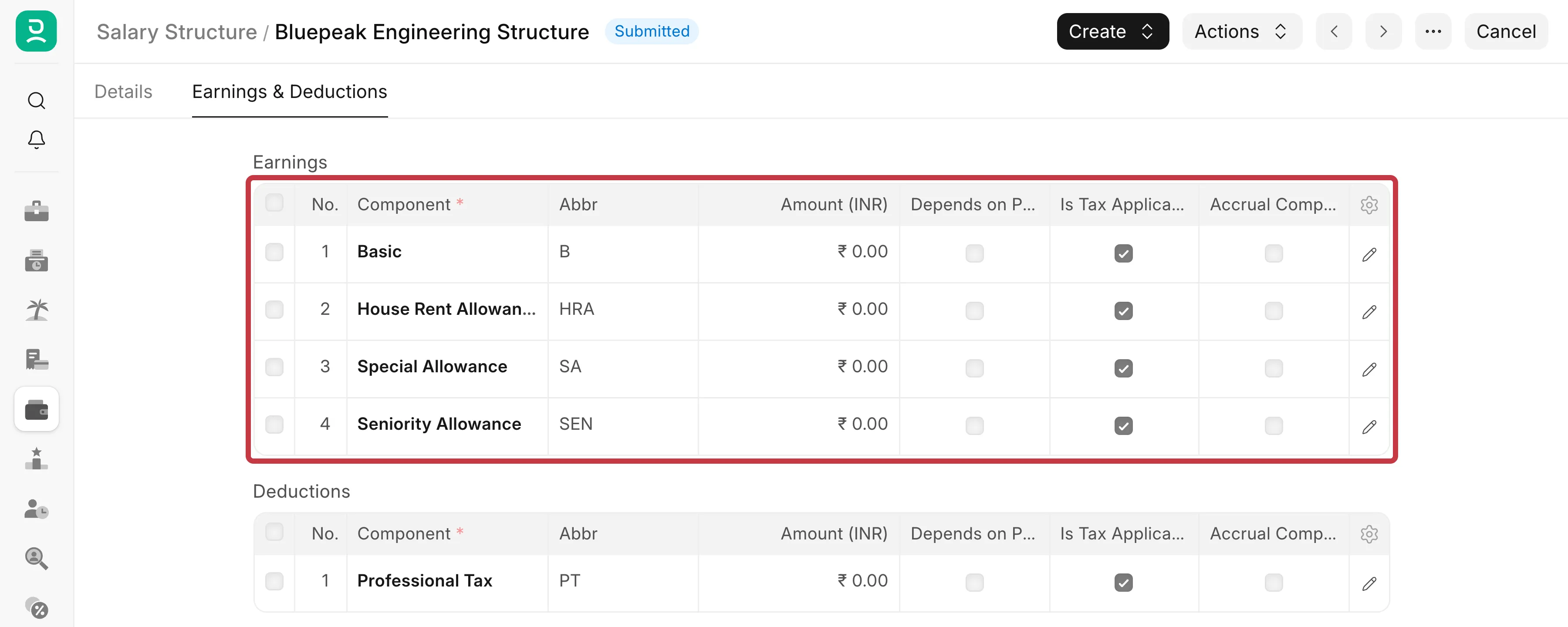
Bluepeak Technologies pays each employee a monthly amount, entered as Base in the Salary Structure Assignment. The salary structure splits it like this:
| Component | Abbreviation | Formula |
|---|---|---|
| Basic | B |
base * 0.5 |
| House Rent Allowance | HRA |
B * 0.4 |
| Special Allowance | SA |
base - B - HRA |
For a base of ₹1,10,000, Basic is ₹55,000, House Rent Allowance is ₹22,000, and Special Allowance is ₹33,000.
Keep a component below the components that its formula uses. Older versions calculate the rows from top to bottom. In those versions, a formula that uses a component lower in the table gets 0 for it.
Example 2: A slab-based deduction
A slab gives a fixed amount for each salary range. For example, Bluepeak deducts Professional Tax on the monthly base:
| Monthly base | Professional Tax |
|---|---|
| Up to ₹15,000 | 0 |
| ₹15,001 to ₹20,000 | 150 |
| More than ₹20,000 | 200 |
Write the formula of Professional Tax as one chain of if … else:
0 if base <= 15000 else 150 if base <= 20000 else 200
Frappe HR reads it from left to right and uses the first range that matches. Put the ranges in order, from the lowest to the highest. You can add more ranges in the same way: … else 250 if base <= 25000 else 300.
You can also add up one part for each range. Only the part whose condition is true counts, because a true comparison counts as 1 and a false one as 0:
(base > 15000 and base <= 20000) * 150 + (base > 20000) * 200
This form is longer, but it is easier to read when you have many ranges.
Use a formula for a fixed amount per range. For income tax, where a percentage applies to each part of the taxable income, use an Income Tax Slab and a component with Variable Based On Taxable Salary instead. See Salary Component.
Example 3: A seniority allowance
Bluepeak pays a seniority allowance to employees with 2 or more completed years of service. It is 2% of Basic for every 2 completed years, up to 52%.
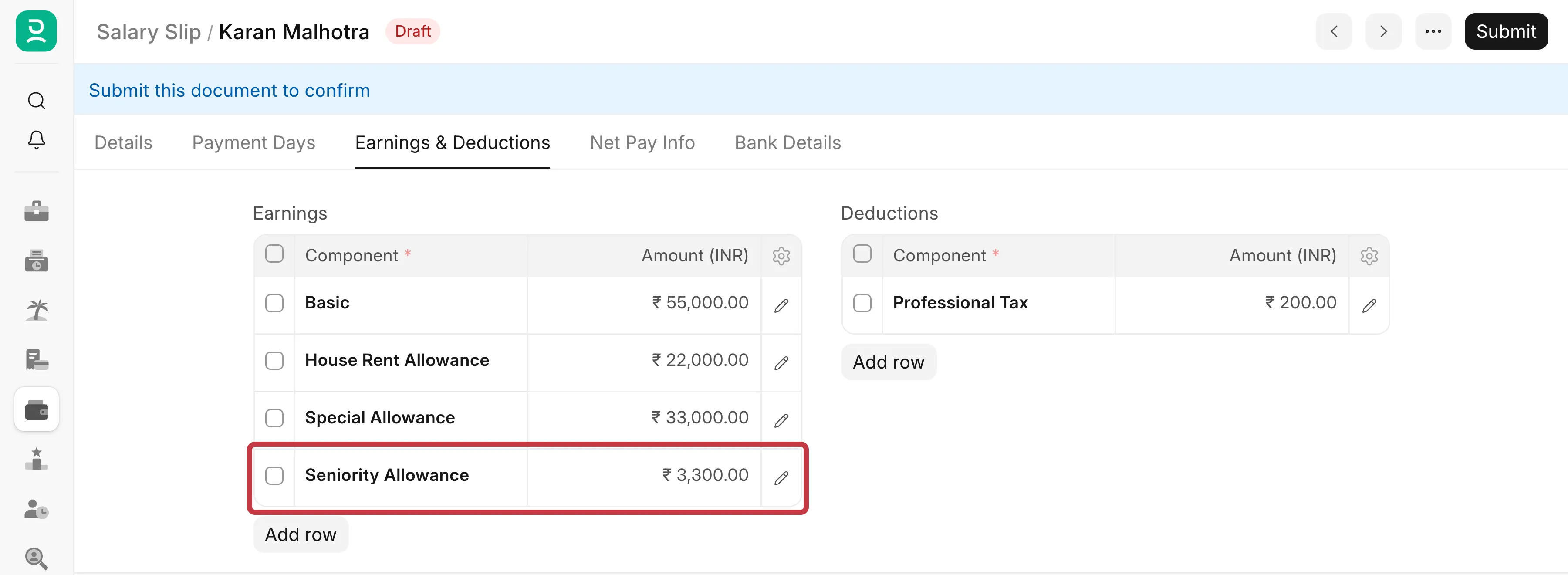
For example, Karan Malhotra joined on 15 July 2019. On 31 October 2026, he has 7 completed years. That is 3 blocks of 2 years, so his allowance is 6% of his Basic of ₹55,000, which is ₹3,300.
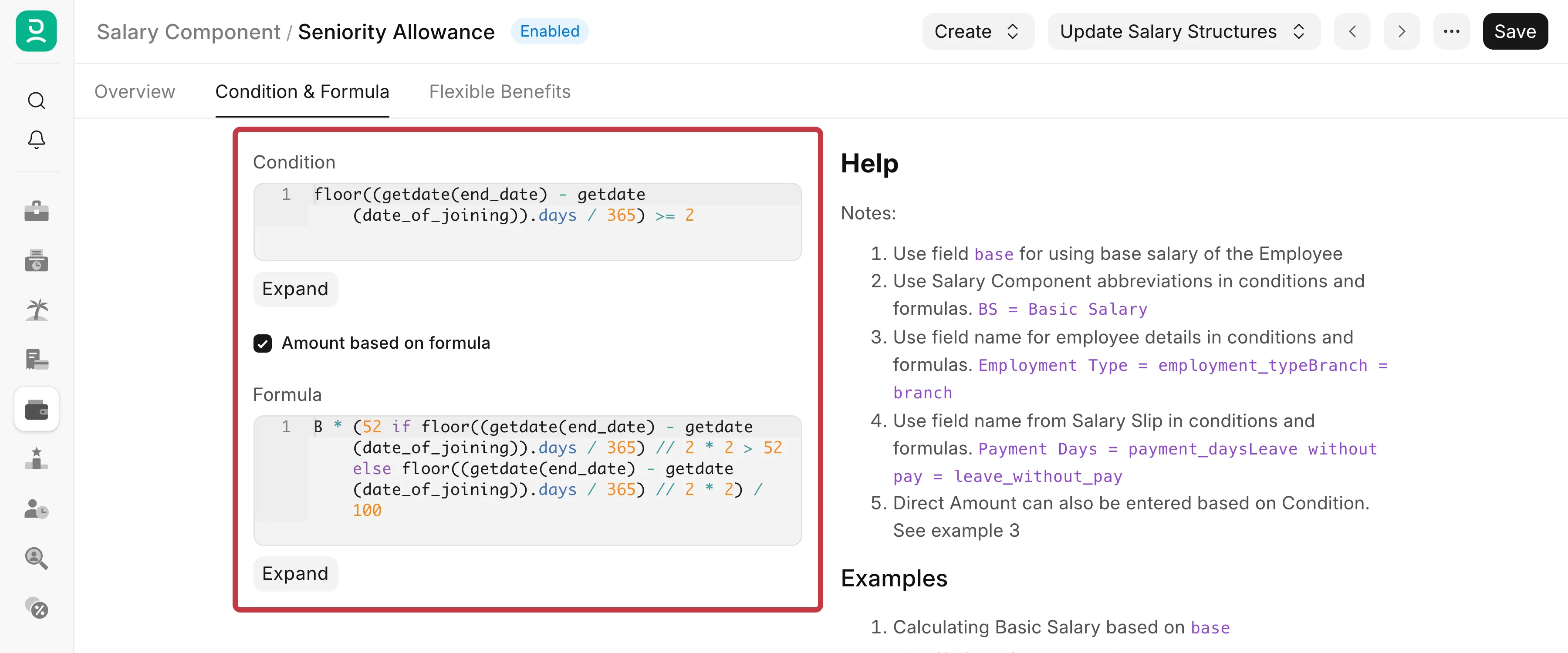
- Go to Payroll → Salary Component and create a component Seniority Allowance, with the abbreviation
SENand the type Earning. - In the Accounts table, add your company and the salary expense account.
- Open the Condition & Formula tab.
- In Condition, enter:
floor((getdate(end_date) - getdate(date_of_joining)).days / 365) >= 2
- Turn on Amount based on formula.
- In Formula, enter:
B * (52 if floor((getdate(end_date) - getdate(date_of_joining)).days / 365) // 2 * 2 > 52 else floor((getdate(end_date) - getdate(date_of_joining)).days / 365) // 2 * 2) / 100
7. Click Save.
8. Add Seniority Allowance to the earnings of the salary structure, below Basic.
The parts of the formula:
getdate(end_date) - getdate(date_of_joining)is the time between the date of joining and the last day of the salary slip..daysgives it in days.floor(… / 365)gives the completed years. For Karan, 2,665 days give 7 years.// 2 * 2rounds down to a multiple of 2: 7 becomes 6. This is the percentage.52 if … > 52 else …stops the percentage at 52.B * … / 100applies the percentage to Basic.
Use end_date, not getdate() without a date. getdate() gives today's date. A salary slip for an earlier month, made or saved again later, would then use the wrong number of years.
The salary slip of Karan for October 2026 now shows the allowance:
If the formula gives an error or 0
Name error
When you save a salary slip, you see:
Error while evaluating the Salary Structure Bluepeak Engineering Structure at row 4.
Error: name 'date_of_joinng' is not defined
Hint: This error can be due to missing or deleted field.
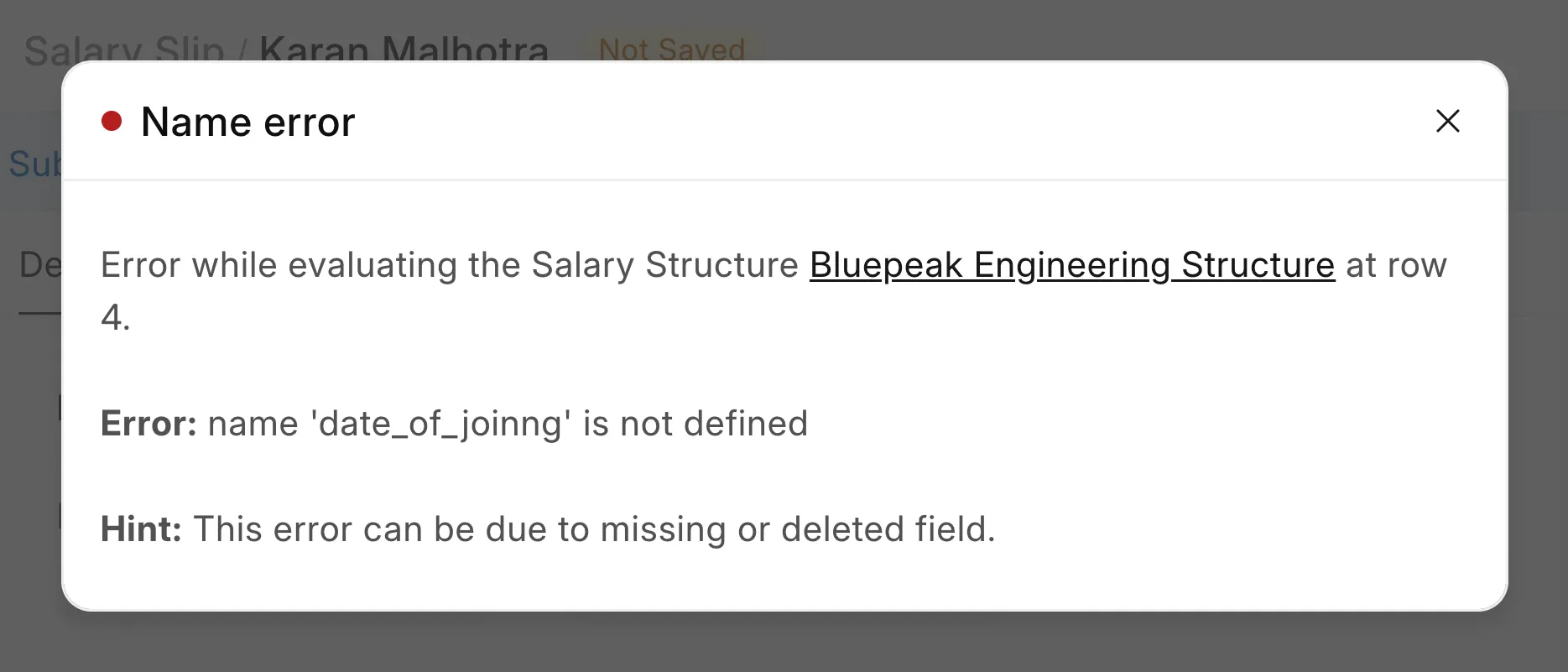
The formula uses a name that does not exist. Check the spelling and the capital letters of the field name or abbreviation. The row number tells you which row of the salary structure has the error. Here, date_of_joinng must be date_of_joining.
Syntax error
The formula is not a valid expression. Common causes are a missing bracket, = instead of ==, or a word such as and or else that is missing.
The component is missing from the salary slip
The condition is false for this employee, or the formula gives 0. Check the values the condition uses on the Employee and the Salary Structure Assignment.
The component is 0
- On older versions, the formula uses a component that is lower in the salary structure. Move that component up.
- The formula uses a component that is not in this salary structure. A component that is not in the structure counts as 0.
The change does not show on the salary slip
If you changed the formula on the Salary Component, click Update Salary Structures → Sync Formula. Then open the draft salary slip and save it again, so that it calculates again.