


















Why are Statistical Salary Components included in payroll accounting entries?
A statistical salary component shows in the payroll Journal Entry when you add it through an Additional Salary. The Payroll Entry posts every row of the submitted Salary Slips, and the Statistical Component option does not stop that. To keep the amount on the Salary Slip but out of the accounts, turn on Do Not Include in Accounting Entries.
You can see this problem in one of these ways:
- The accrual Journal Entry from the Payroll Entry debits an expense account for a non-cash or in-kind component (for example, a company car or accommodation).
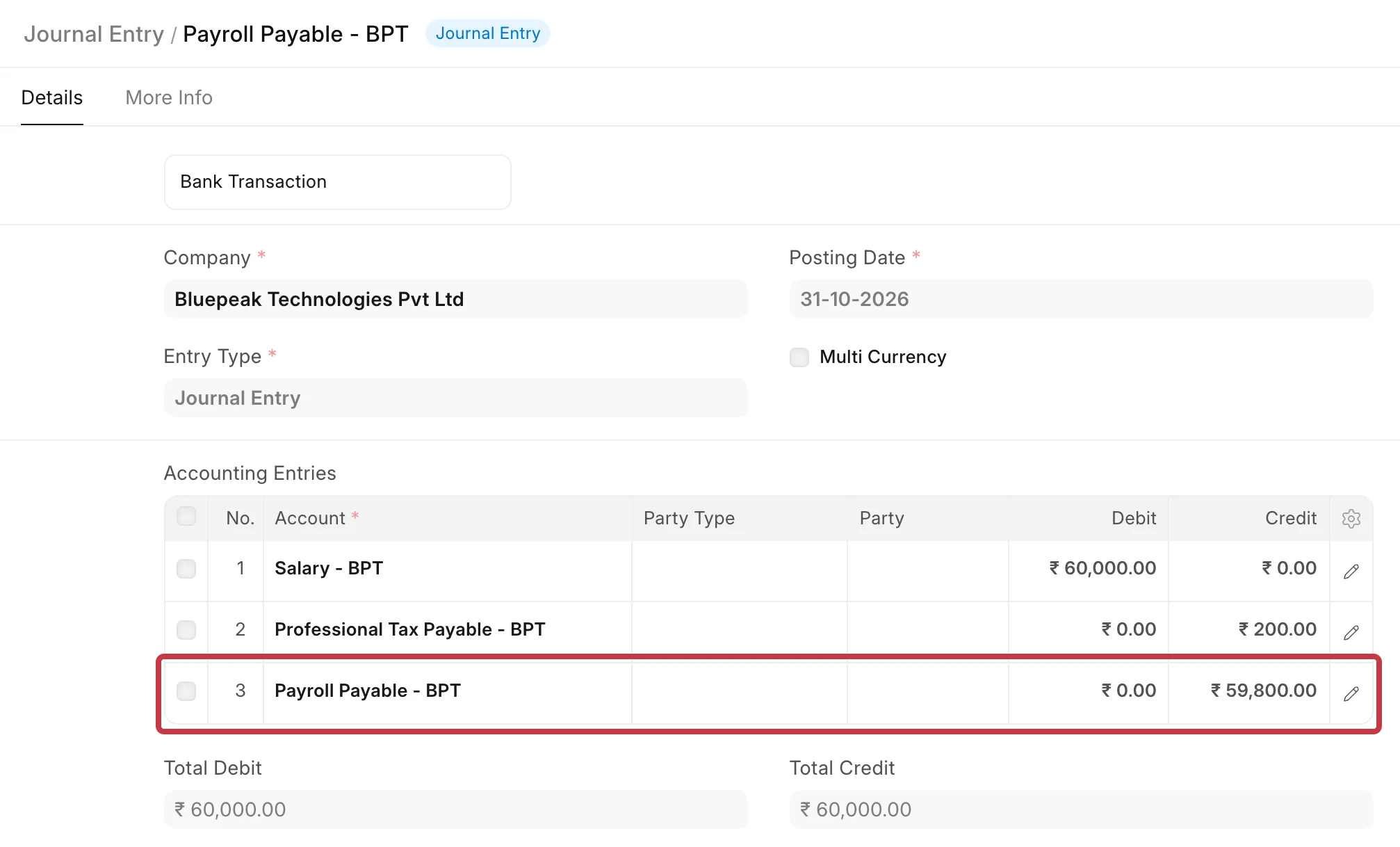
- The Payroll Payable credit in that Journal Entry is more than the total net pay in the Salary Register. After the bank entry, a balance stays in Payroll Payable.
- Salary Slip submission through the Payroll Entry stops with this error:
Please set account in Salary Component Company Car Usage
Example
Bluepeak Technologies gives Rahul Menon a company car. The company pays the car lease. Rahul gets no cash for it, but HR wants the value (₹8,500 a month) on his Salary Slip.
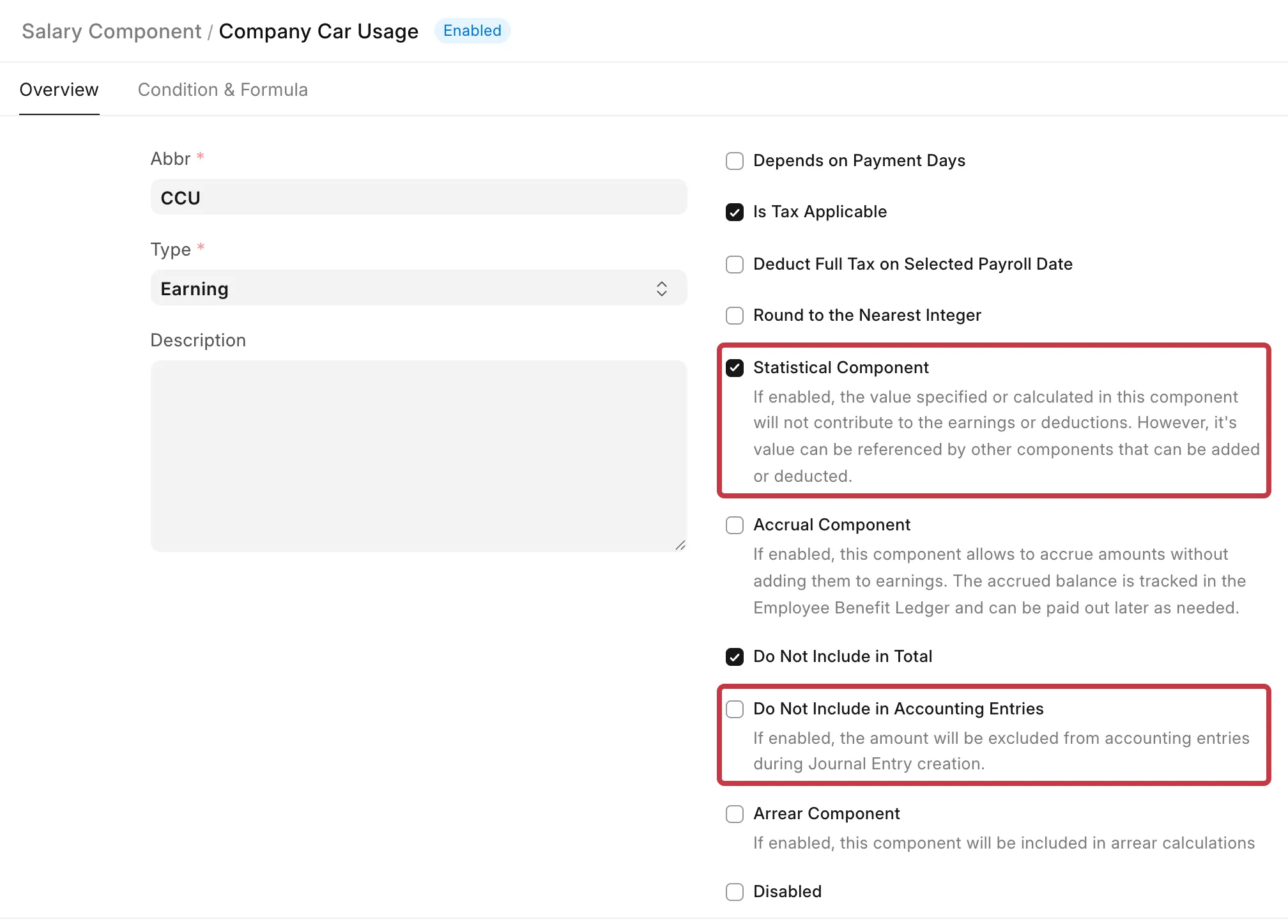
HR creates a Salary Component Company Car Usage with Statistical Component and Do Not Include in Total turned on. Do Not Include in Accounting Entries stays off.
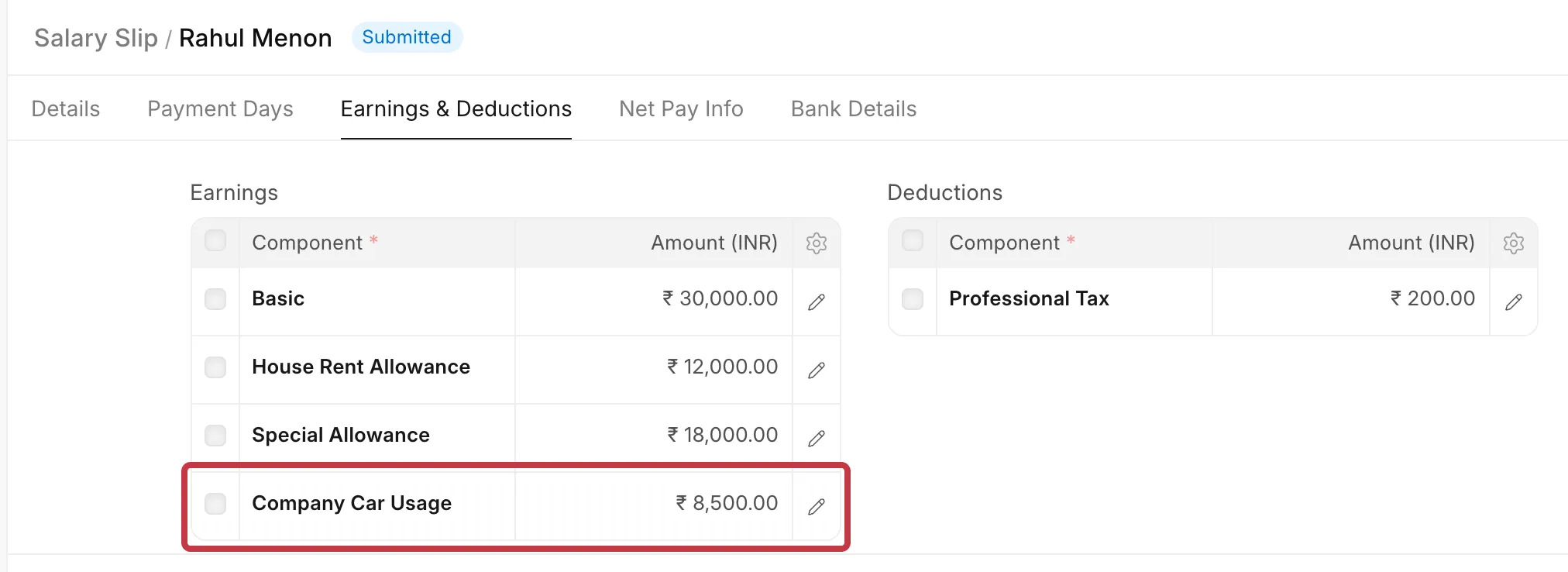
HR adds the ₹8,500 each month as an Additional Salary. The October Salary Slip shows the row, and the net pay is ₹59,800.
When the Salary Slips are submitted, the Payroll Entry makes this accrual Journal Entry. It debits ₹8,500 to Staff Welfare Expenses and credits ₹68,300 to Payroll Payable, but the net pay is ₹59,800.
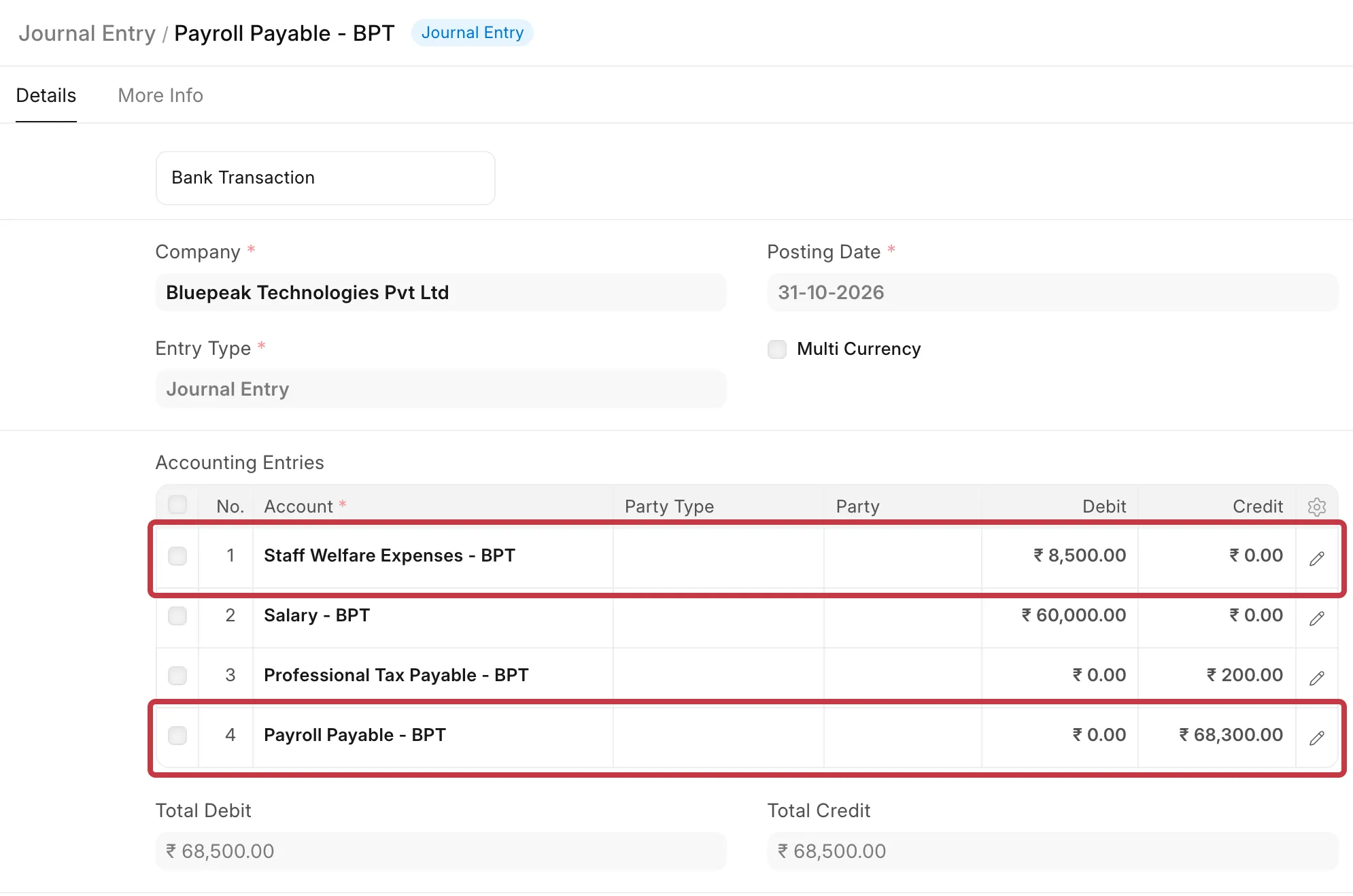
The bank entry pays only ₹59,800. ₹8,500 stays in Payroll Payable, and the expense is too high by the same amount.
How it works
Three options on the Salary Component decide where an amount goes:
| Option | What it does |
|---|---|
| Statistical Component | The amount is calculated only so that other components can use it in a formula (for example, a CTC value). A Salary Structure does not add a row for it to the Salary Slip. It has no Accounts table. |
| Do Not Include in Total | The row shows on the Salary Slip, but it is not added to gross pay or net pay. |
| Do Not Include in Accounting Entries | The amount is not posted in the accrual Journal Entry or in the bank entry. You can turn it on only when Do Not Include in Total is on. |
The Payroll Entry makes its Journal Entry from the rows on the submitted Salary Slips. It does not check Statistical Component. It leaves out a row only when Do Not Include in Total and Do Not Include in Accounting Entries are both on.
A statistical component in a Salary Structure never reaches the Journal Entry, because it never gets a row on the Salary Slip. However, an Additional Salary always adds a row. If that row has only Do Not Include in Total, the Payroll Entry posts it:
- If the component has an expense account, the amount is debited to that account and credited to Payroll Payable. The bank entry leaves out statistical components, so that part of Payroll Payable is never cleared.
- If the component has no account (a statistical component hides the Accounts table), the Payroll Entry stops with
Please set account in Salary Component <component>.
What you can do
Use the setup that matches what you want the component to do:
| You want the amount to | Statistical Component | Do Not Include in Total | Do Not Include in Accounting Entries |
|---|---|---|---|
| Show on the Salary Slip, not be paid, not be posted (perquisite, in-kind benefit) | Off | On | On |
| Show on the Salary Slip, not be paid, be posted to an expense account (for example, a cost the company pays to a third party) | Off | On | Off, and set an account |
| Be used only in formulas, not show on the Salary Slip | On | - | - |
For a statistical component that is used only in formulas, do not add it through an Additional Salary. Set it in the Salary Structure.
Change the component
- Go to Payroll → Salary Component and open the component, for example Company Car Usage.
- Turn off Statistical Component.
- Make sure Do Not Include in Total is on.
- Turn on Do Not Include in Accounting Entries.
- Click Save.
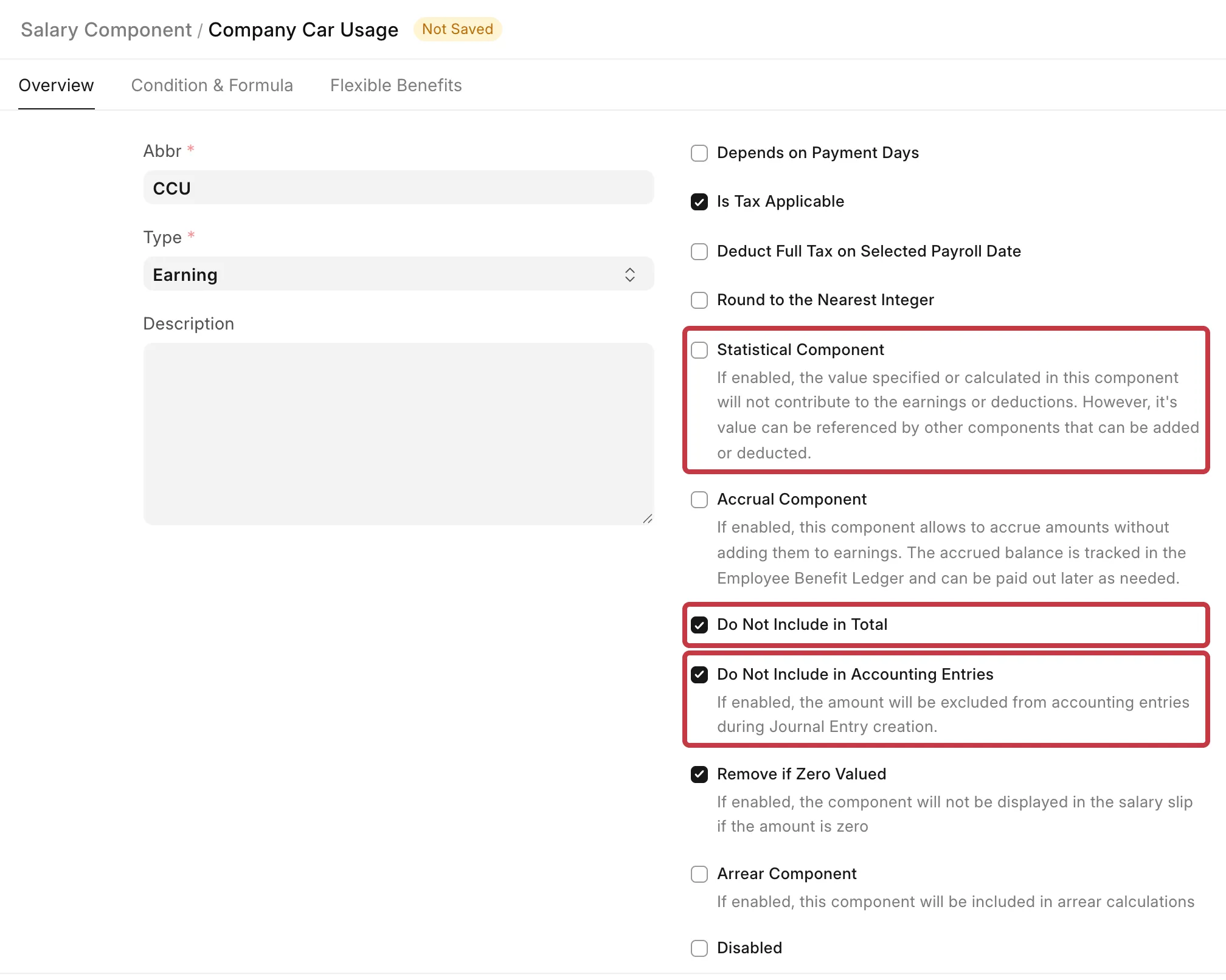
The Salary Slip copies these options from the component when it is made. So the change applies only to Salary Slips that you make after you save.
Correct a payroll that is already posted
- Cancel the Payroll Entry for that month. This deletes its Salary Slips and cancels its Journal Entries, the bank entry included. See How do I cancel or delete a Payroll Entry?
- Make a new Payroll Entry for the same period.
- Click Get Employees, then Create Salary Slips.
- Click Submit Salary Slip.
- Open the new accrual Journal Entry from the Payroll Entry's Connections.
The component still shows on the Salary Slip, but it is not in the Journal Entry. Payroll Payable is now equal to the net pay.
Version note
On Frappe HR v15 before v15.60.4, the Salary Slip did not copy Do Not Include in Accounting Entries from the component to a row added by an Additional Salary. On those versions, the amount is posted even with the option on. Update your site to v15.60.4 or later, or to v16, then make the Salary Slips again.