


















Why is a holiday or weekly off marked Absent?
Auto attendance marks an employee Absent on a holiday or weekly off when the holiday list it reads does not have that date. The Attendance shows the comment Employee was marked Absent due to missing Employee Checkins. This article explains which holiday list auto attendance uses, and how to correct the Absent records.
What you see
- The Monthly Attendance Sheet shows A on a Saturday, a Sunday, or a public holiday, instead of WO or H.
- The Attendance record has this comment:
Employee was marked Absent due to missing Employee Checkins.
- You delete or cancel the Absent records, and the next run of auto attendance creates them again.
- After you change the holiday list for the new year, weekly offs from last year become Absent.

Example
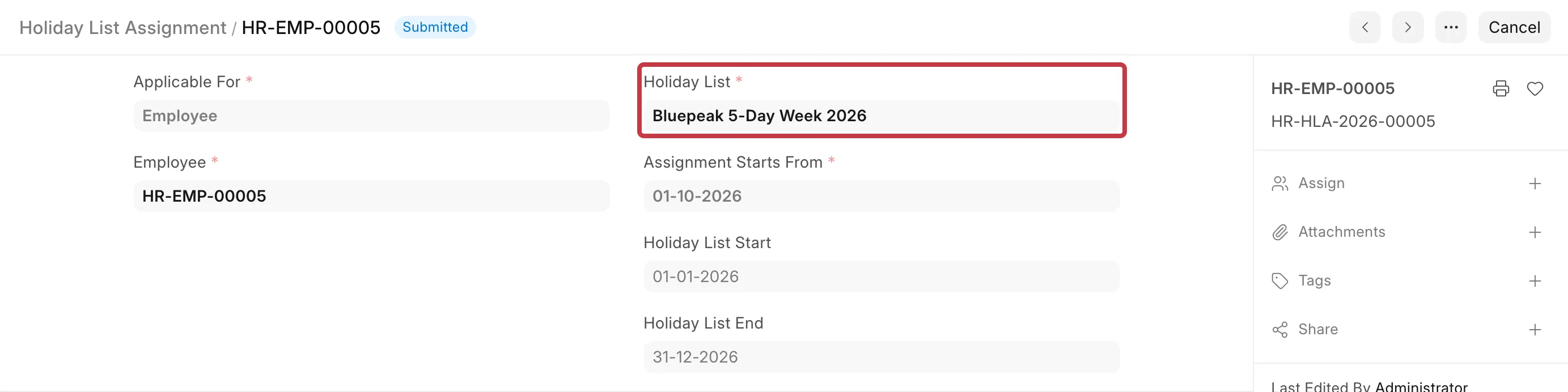
Bluepeak Technologies works a 5-day week. Ayesha Khan has a Holiday List Assignment for Bluepeak 5-Day Week 2026. This list has Saturday and Sunday as weekly off, and Gandhi Jayanti (2 October) and Dussehra (20 October) as holidays.
Her default shift is General Shift. Its Holiday List field is set to Bluepeak Sunday Off 2026, a list with Sundays only. Auto attendance uses the shift's list. So it marks her Absent on 2 October, on every Saturday, and on 20 October.
Why this happens
Auto attendance runs for each Shift Type that has Enable Auto Attendance on. For each employee on that shift, it finds the dates from Process Attendance After to Last Sync of Checkin that have no Attendance. It skips the dates that are in the holiday list. It marks every other date as Absent.
A weekly off is not a separate setting. It is a row in the holiday list, with Weekly Off checked. If the date is not in the holiday list that auto attendance reads, the system treats it as a working day.
Auto attendance takes the holiday list from the first of these that is set:
- The Holiday List field in the Shift Type. If this is set, it is used for all employees on the shift. The employee's own holiday list is ignored.
- The employee's holiday list:
- Version 16 and later: the submitted Holiday List Assignment for the employee, or for the company. Each assignment applies from its Assignment Starts From date. Past dates keep the list that applied on that date.
- Version 15: the Holiday List field in the Employee, or the Default Holiday List in the Company. Version 15 has no history. The current list is used for all dates, also past dates.
The common causes are:
- The Shift Type has a different holiday list. The shift's list has only Sundays, or it is for another branch, while the employee's list has the correct weekly offs.
- The holiday list does not include the date. For example, a public holiday was not added, or the list ends on 31 March and the date is in April.
- The holiday list was changed for a new year (version 15). The new list does not have last year's dates. Auto attendance checks again from Process Attendance After, and marks last year's weekly offs Absent.
- The holiday list was corrected after the Absent was marked. A correction does not change Attendance that already exists. You must cancel the old records.
How to fix it
1. Find the holiday list that auto attendance used
- Open the Attendance record that is Absent. Note the Shift.
- Go to Shift Type and open that shift.
- Look at the Holiday List field.
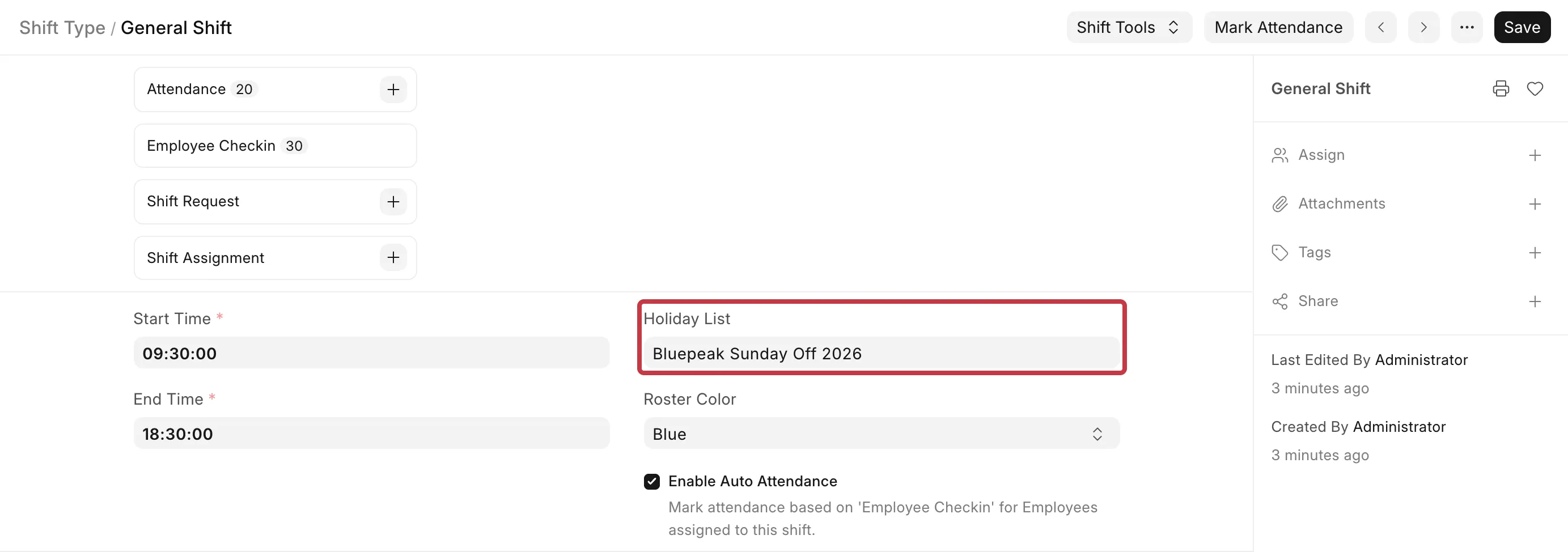
- If the field is empty, open the employee's holiday list. In version 16 and later, go to Holiday List Assignment and open the submitted assignment for the employee or the company. In version 15, open the Employee and look at Attendance & Leaves → Holiday List.
- Open that Holiday List. Make sure that the date is in the Holidays table.
2. Correct the holiday list
Do one of these:
- If all employees on the shift have the same holidays, add the missing dates to the shift's holiday list. In the Holiday List, under Add Weekly Holidays, select the Weekly Off day and click Add to Holidays. Add a public holiday as a row in the Holidays table. Click Save.
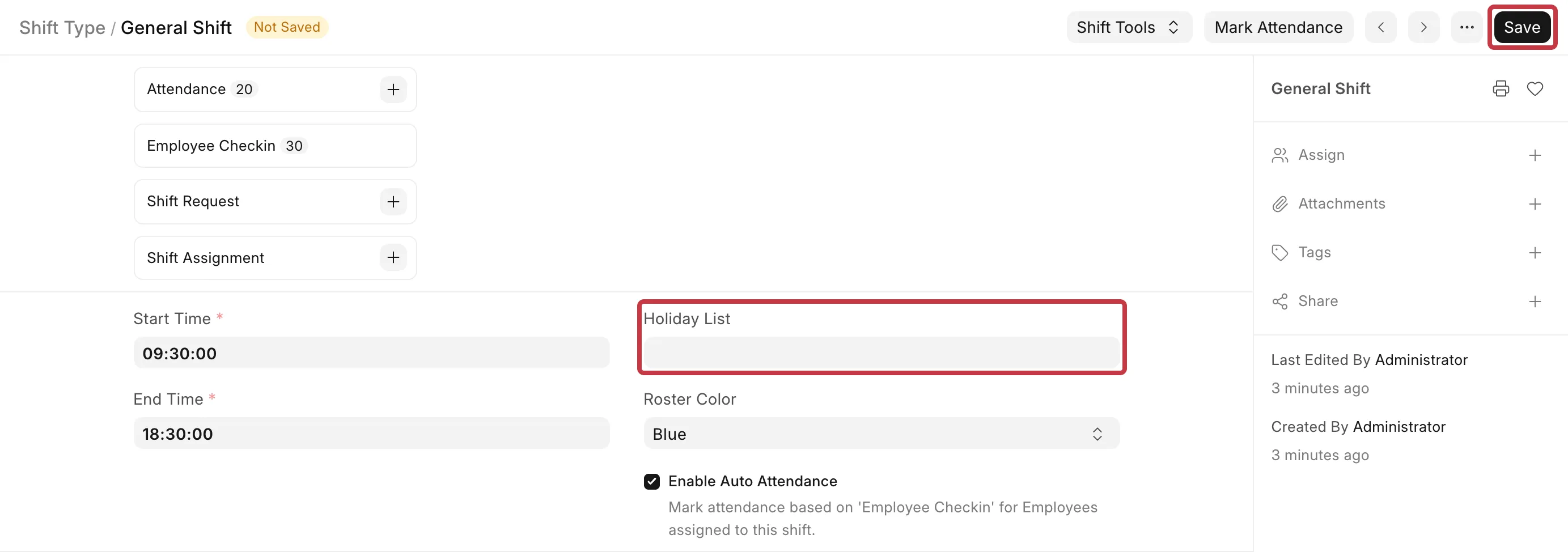
- If employees on the shift have different holidays, clear the Holiday List field in the Shift Type. Click Save. Auto attendance now uses each employee's own holiday list.
3. Cancel the wrong Absent records
- Go to the Attendance list.
- Filter by Employee and Status = Absent. Select the records on the holidays and weekly offs.
- Click Actions → Cancel, and confirm.
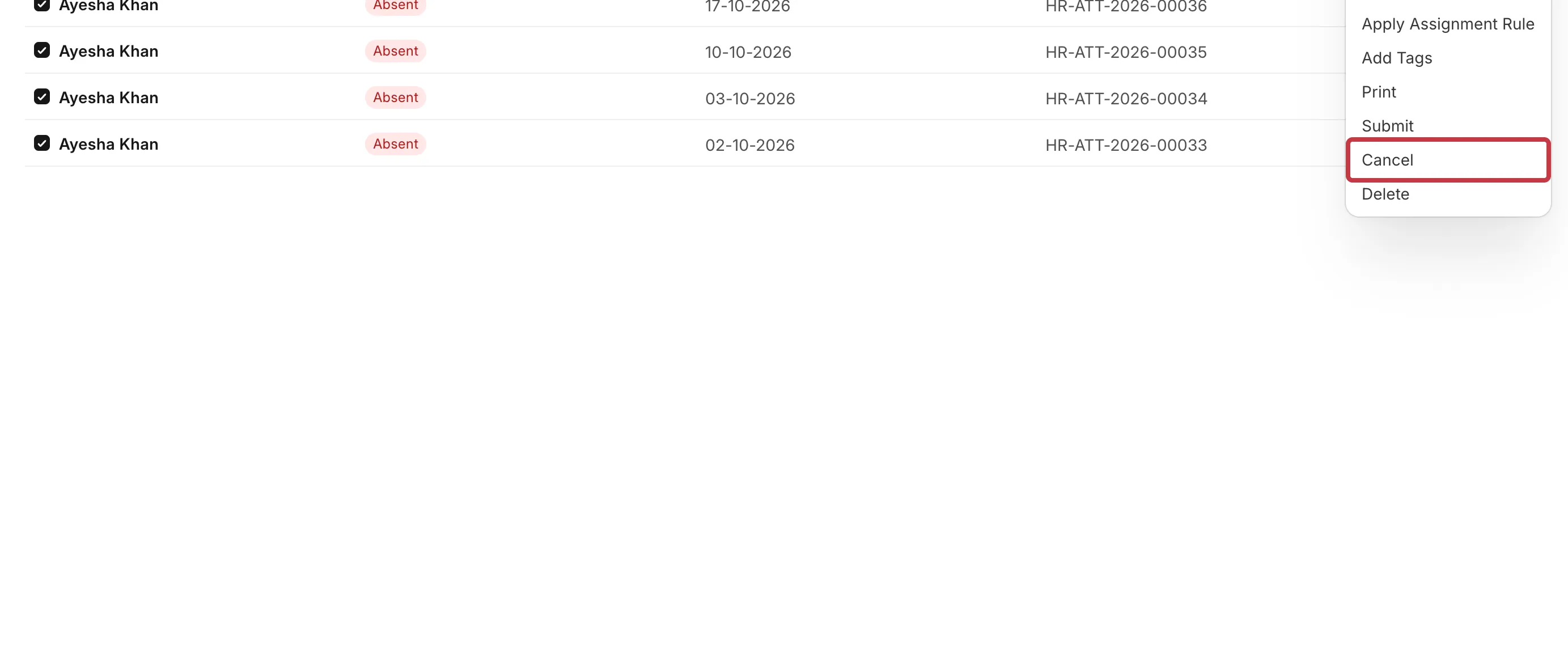
Make sure that you cancel only the wrong records. If you cancel an Absent on a working day, auto attendance marks it Absent again on the next run.
4. Mark attendance again
- Open the Shift Type.
- Click Mark Attendance. The message
Attendance has been marked as per employee check-ins.appears.

Auto attendance runs again with the corrected holiday list. It does not mark the holidays and weekly offs Absent. The Monthly Attendance Sheet now shows WO on weekly offs and H on holidays.

If the employee has a Salary Slip for the month, cancel it and create it again, so that the payment days are correct.
How to prevent it
- Leave the Holiday List in the Shift Type empty, unless every employee on the shift has the same holidays.
- Add the public holidays and the weekly offs for the full year before the year starts.
- Version 16 and later: for a new year, create a new Holiday List Assignment with Assignment Starts From set to the first day of the year. Do not change the old assignment.
- Version 15: before you change the holiday list for a new year, set Process Attendance After in each auto attendance Shift Type to the first day of the new year. Then auto attendance does not check last year again.