


















Why is the Leave Type list empty in a Leave Application?
When an employee creates a Leave Application, the Leave Type list can be empty or show only Leave Without Pay, even though leave types exist. Sometimes one leave type, for example, Privilege Leave, is missing, although the Leave Balance report shows a balance for it.
What you see
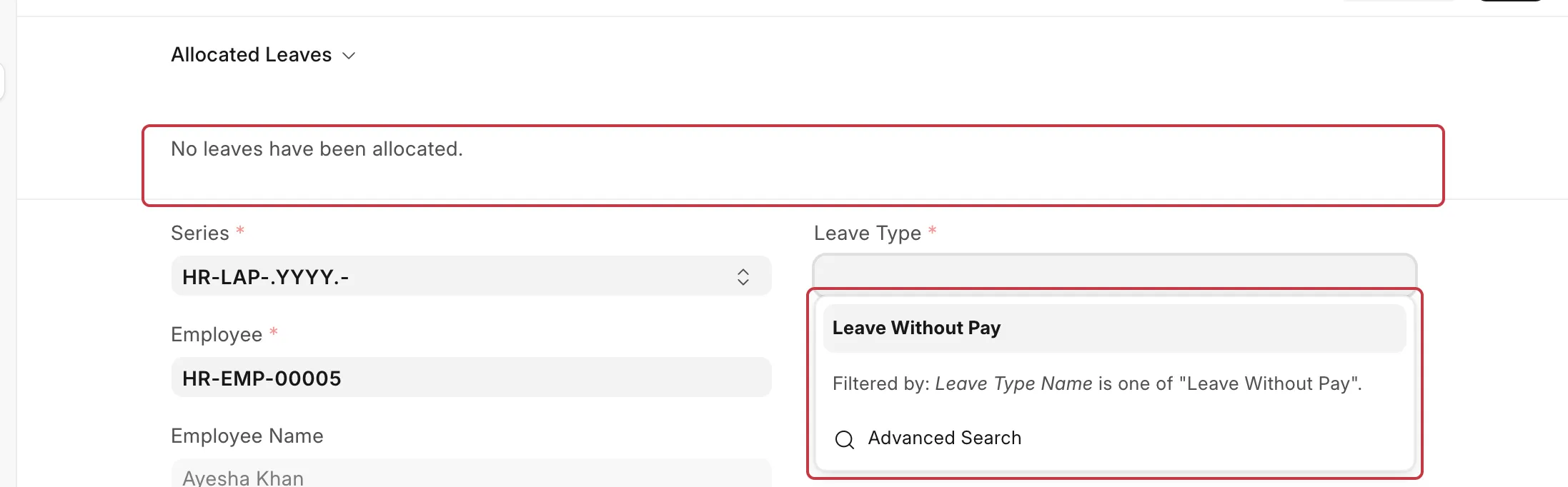
- The Leave Type dropdown shows no options, or only leave types marked Is Leave Without Pay.
- The Allocated Leaves section at the top of the form shows
No leaves have been allocated. - Below the options, the dropdown shows a filter that you cannot remove, for example:
Filtered by: Leave Type Name is one of "Leave Without Pay".
Why this happens
The Leave Type field does not show every leave type in the system. It shows only the leave types that the employee can apply for on that date:
- Leave types with a submitted Leave Allocation for the employee.
- The allocation period (From Date to To Date) must include the date of the leave. Frappe HR uses the From Date of the Leave Application. If From Date is empty, it uses the Posting Date (today).
- The allocation must not be expired.
- Leave types marked Is Leave Without Pay always show, because they need no allocation.
So a leave type is missing when the employee has no allocation for it, the allocation is still a Draft, or the allocation is for a different period.
For example, Ayesha Khan joins Bluepeak Technologies Pvt Ltd. The HR Manager creates a Leave Allocation of 12 days of Casual Leave for 2026, but does not submit it. When Ayesha opens a new Leave Application, she sees only Leave Without Pay.
How to fix it
Check the employee's Leave Allocation
You need the HR Manager or HR User role for these steps.
- Go to Leaves → Leave Allocations → Leave Allocation.
- Filter the list by the Employee.
- Open the allocation for the missing leave type. If there is none, create one. Select the Employee and Leave Type, and enter New Leaves Allocated.
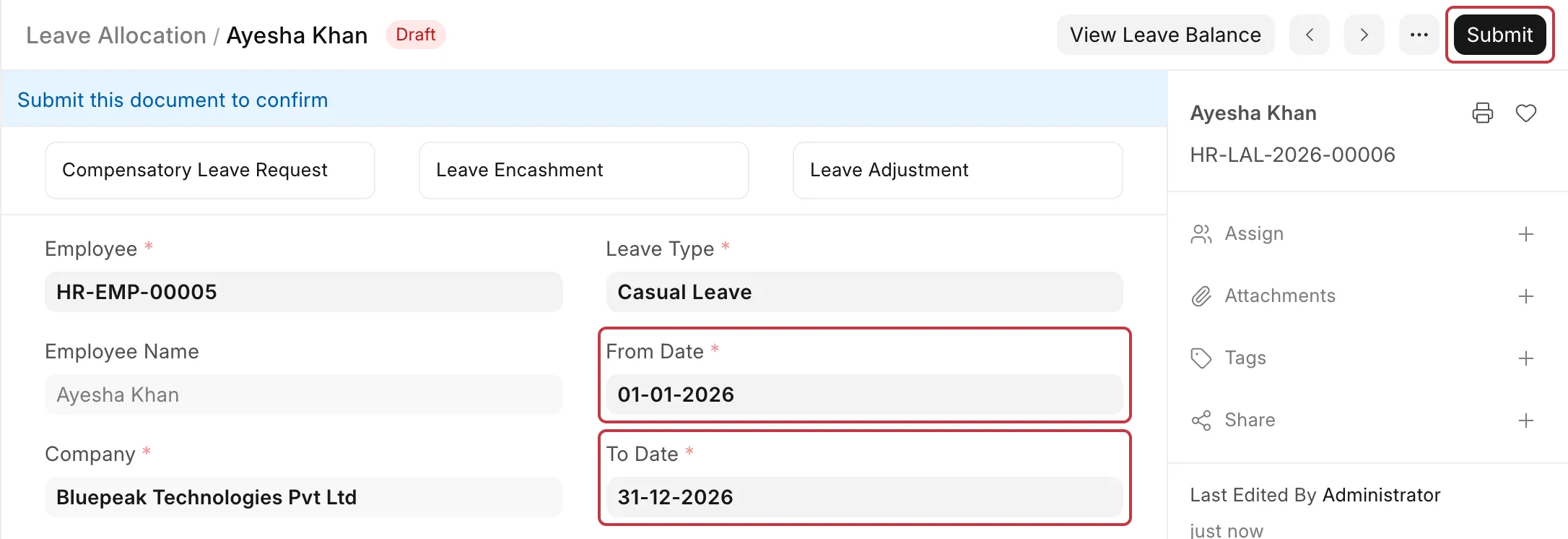
- Make sure the From Date and To Date include the dates the employee wants leave for.
- If the status is Draft, click Submit, then click Yes to confirm.
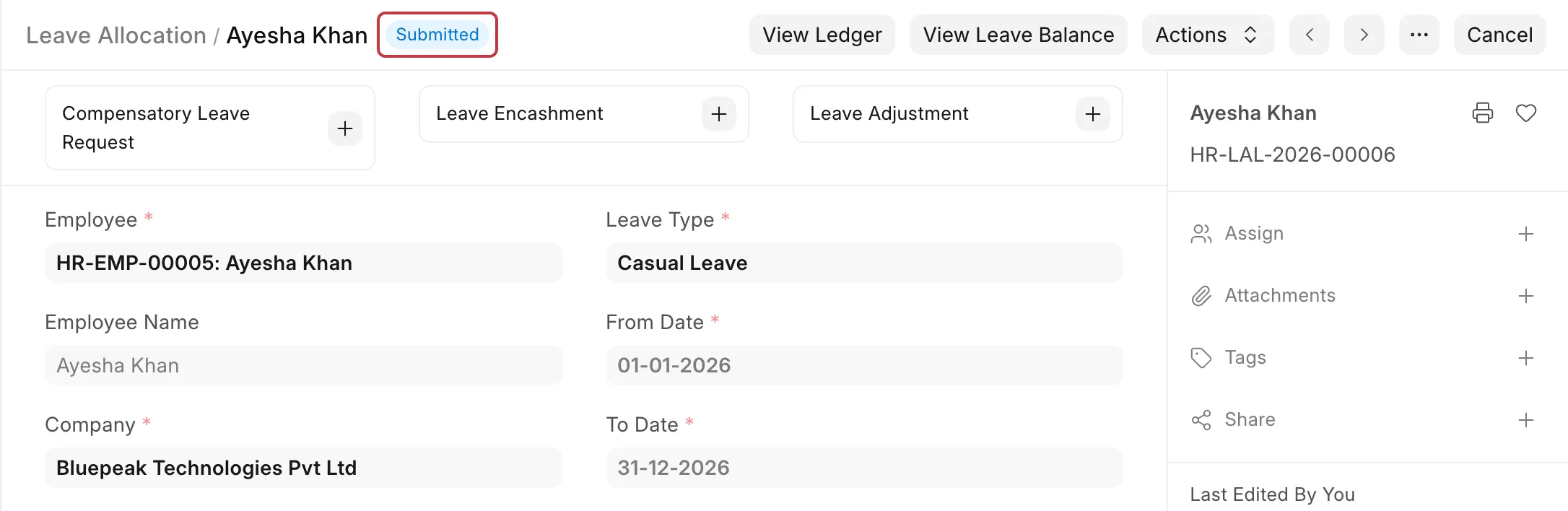
The status changes to Submitted.
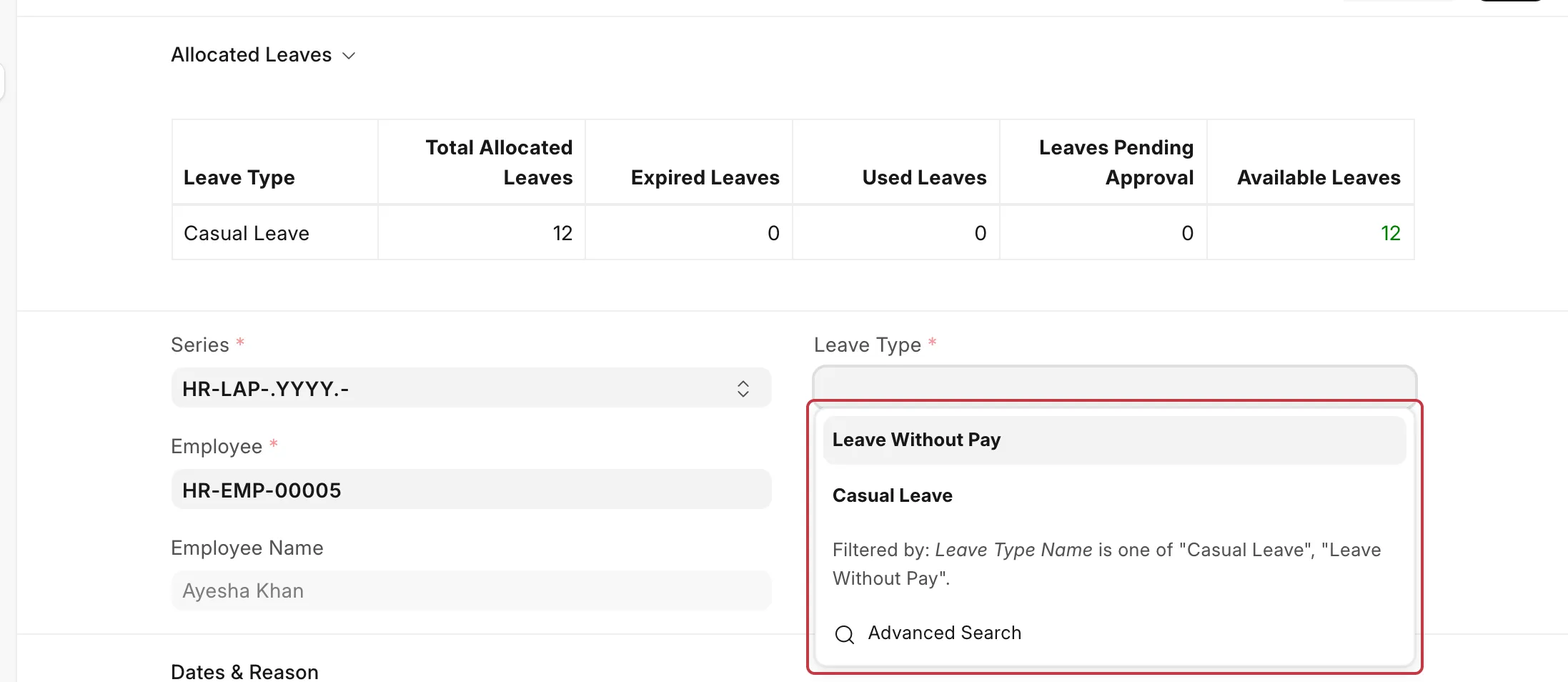
- Ask the employee to open a new Leave Application. The Allocated Leaves section now shows the balance, and the leave type shows in the Leave Type list.
If you use Leave Policies, you can allocate leaves to many employees at once with Leave Policy Assignment or Leave Control Panel. A Leave Policy Assignment creates the Leave Allocations when you submit it.
Leave in a new leave period: set the From Date first
If the allocation starts in the future, for example a new leave year, the leave type shows only after you enter a From Date in that period.
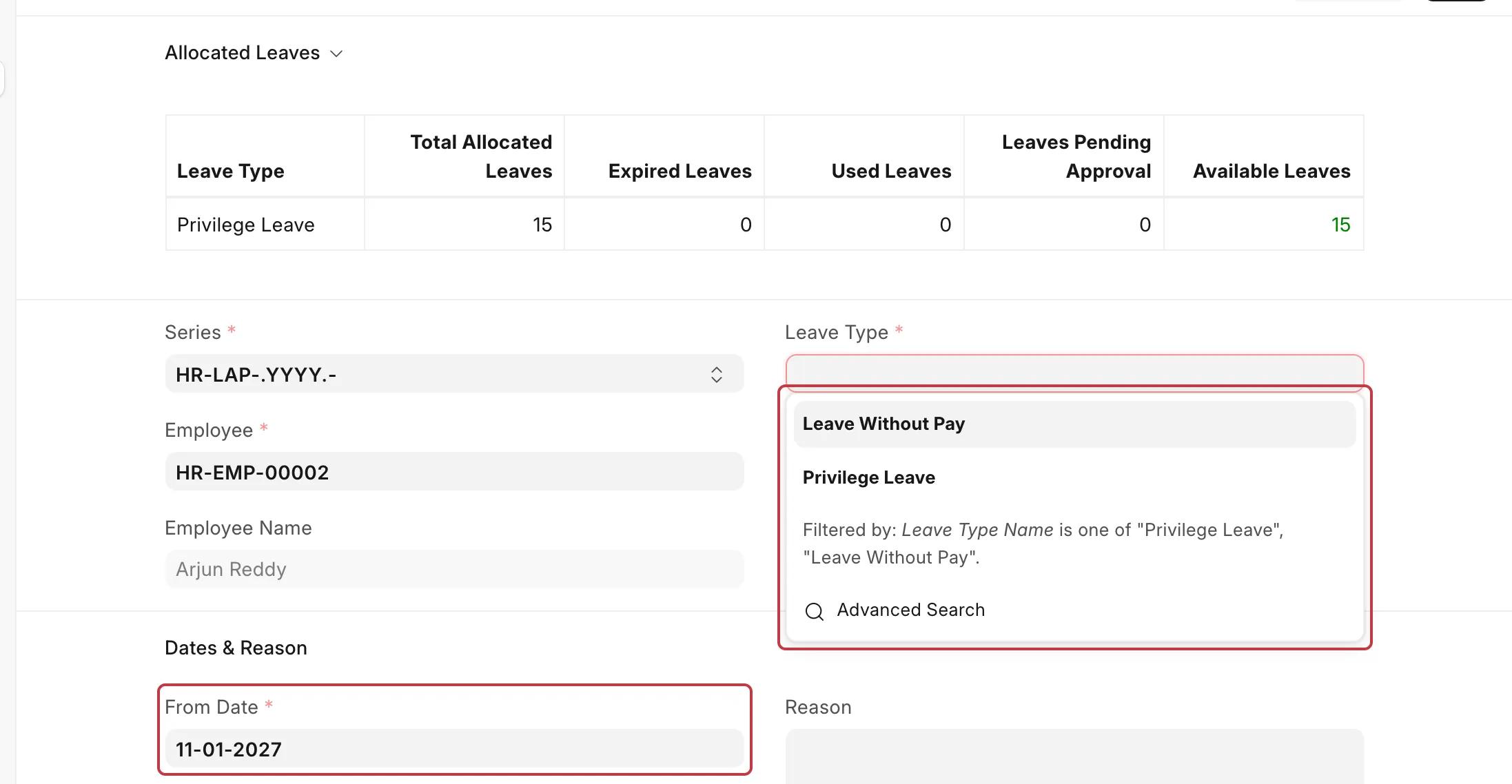
For example, Arjun Reddy has Privilege Leave allocated from 01-01-2027 to 31-12-2027. In October 2026, a new Leave Application shows only Casual Leave and Leave Without Pay.
- In the Leave Application, enter the From Date first, for example 11-01-2027.
- Then open the Leave Type list. Privilege Leave now shows.
How to prevent it
- Submit every Leave Allocation. A draft allocation does not give the employee any leave.
- Allocate leaves for the next leave period before it starts.
- Tell employees to enter the From Date before they select the Leave Type.