


















Why are Custom Fields not visible in the Frappe HR Mobile App?
You added a custom field in Desk, but the Frappe HR mobile app does not show it on the check-in screen, the expense claim form, or another screen. Or the check-in fails with Value missing for Employee Checkin. This article explains which custom fields the app shows, and what you can do when a field does not show.
The error
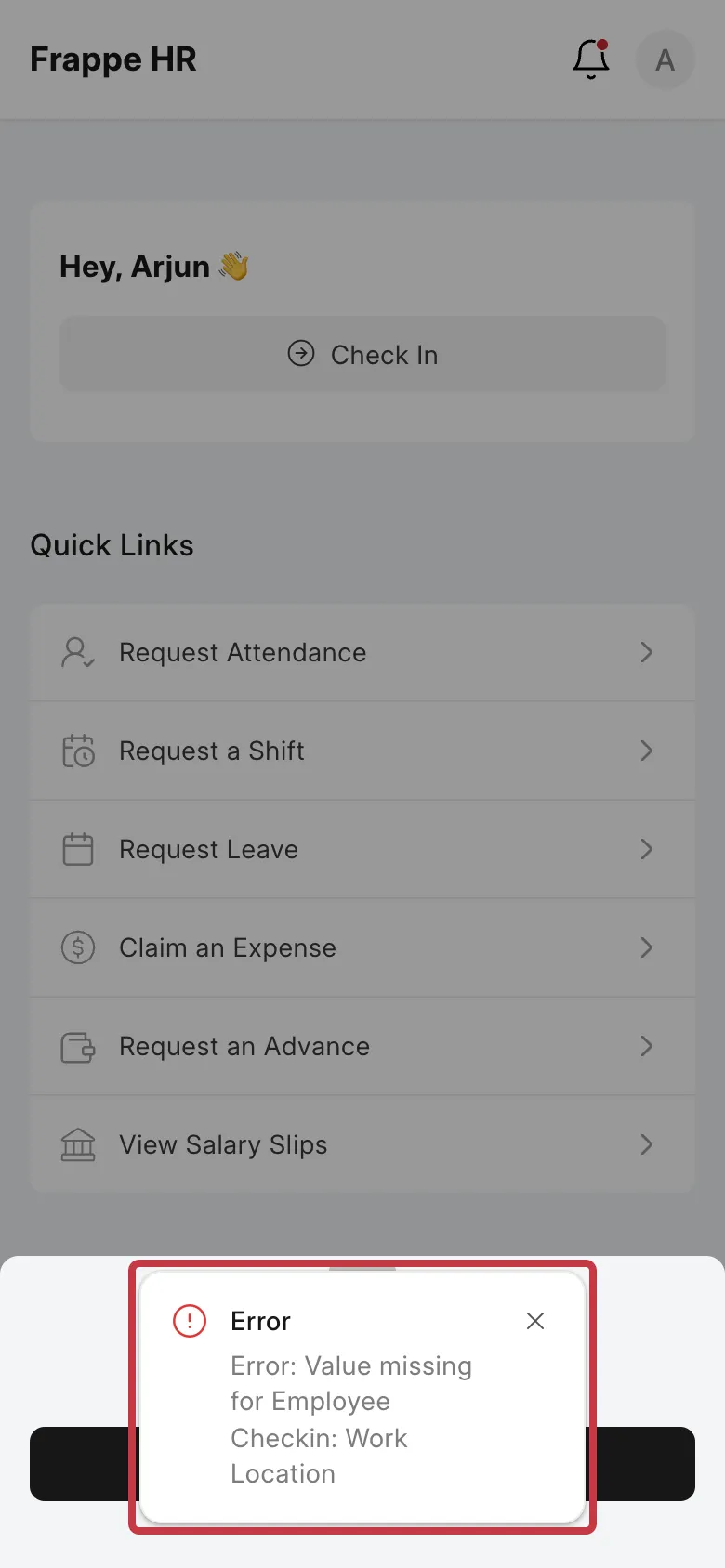
If the custom field on Employee Check-in is mandatory, each check-in from the app fails with this message:
Error: Value missing for Employee Checkin: Work Location
How it works
The mobile app (the /hrms app) is not Desk. It has its own screens. Each screen decides which fields it shows.
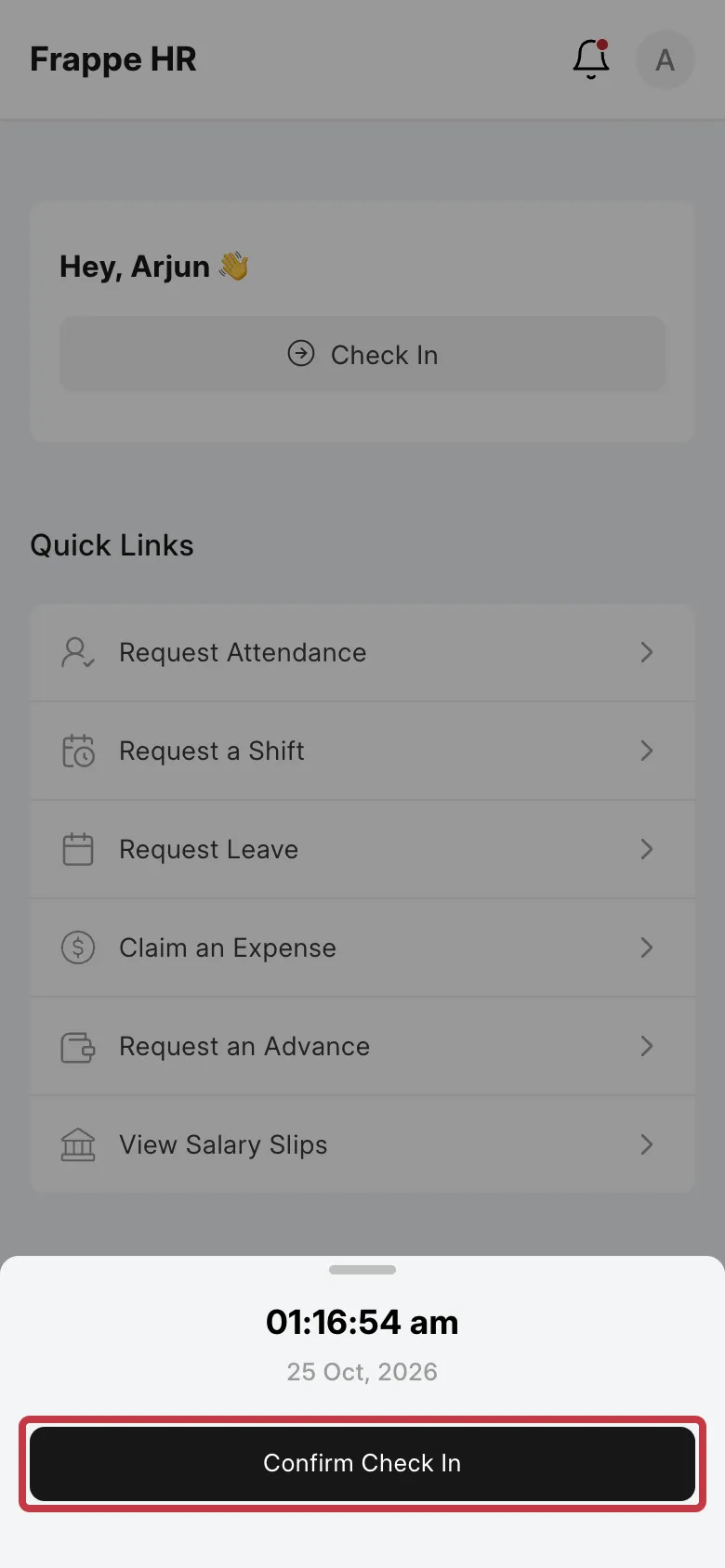
Check-in has no form. The Check In and Check Out buttons show only the time and a Confirm button. The app saves the employee, the log type, the time, and the location. It never shows custom fields for Employee Check-In. If a custom field is mandatory, the server cannot save the check-in, and you see the error above.
The request forms read the fields from the DocType. These screens show the custom fields that you add in Desk:
- Leave Application
- Expense Claim, and the rows of its Expenses table
- Attendance Request
- Shift Request
- Employee Advance
A custom field on these forms shows only when all these conditions are true:
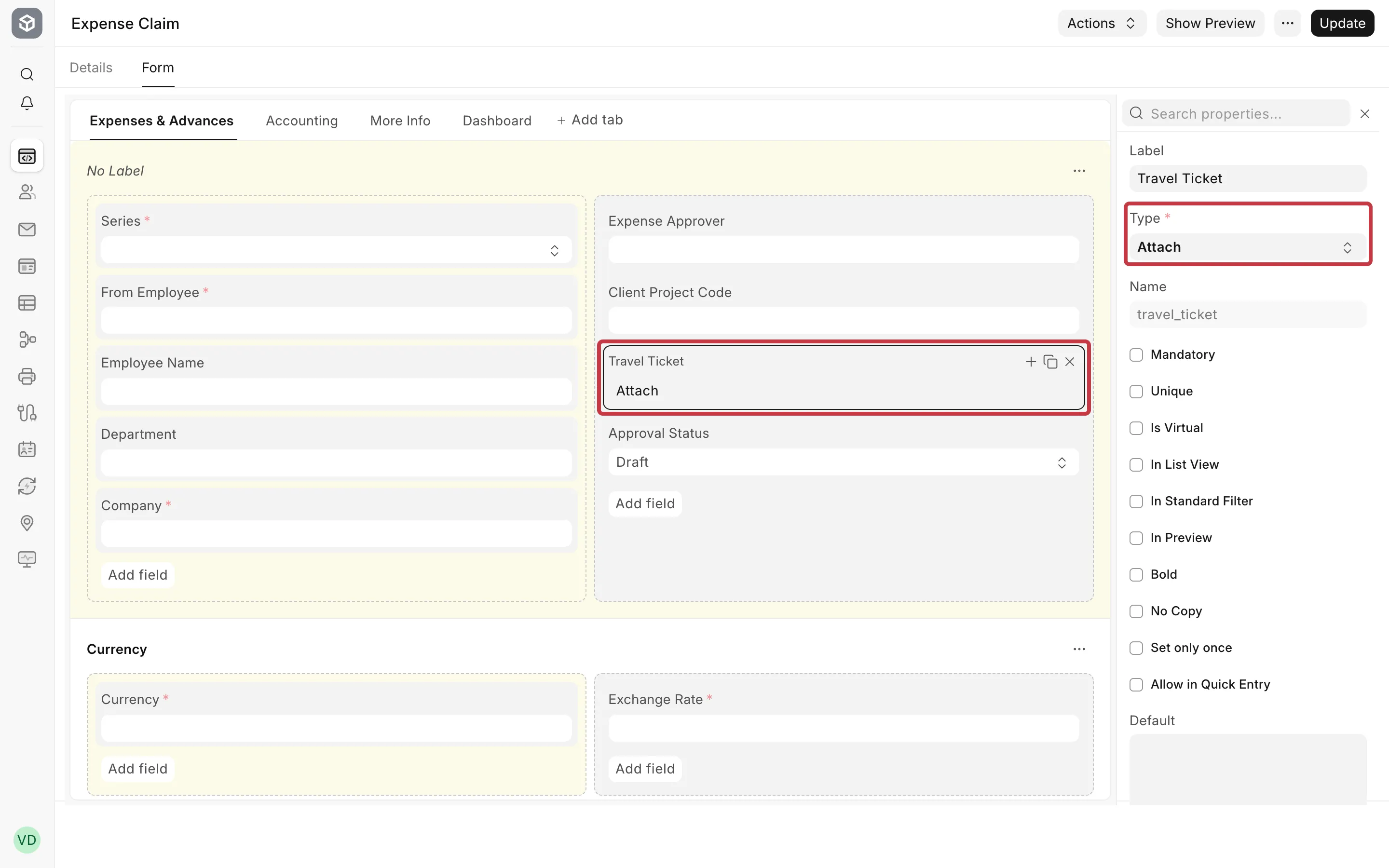
- The field type is supported. The app shows these types: Data, Link, Select, Check, Date, Datetime, Int, Float, Currency, Small Text, Text, Long Text, Text Editor, and Section Break. It does not show other types, for example, Attach, Attach Image, Table, Table MultiSelect, Phone, Duration, HTML, or Button. It ignores Column Break, so all fields show in one column.
- The field is not hidden. A field with Hidden turned on does not show.
- On Expense Claim, the field is in a tab the app shows. The app has three tabs: Expenses, Advances, and Totals. Fields that come after Cost Center in the field order (the More Info tab in Desk) do not show.
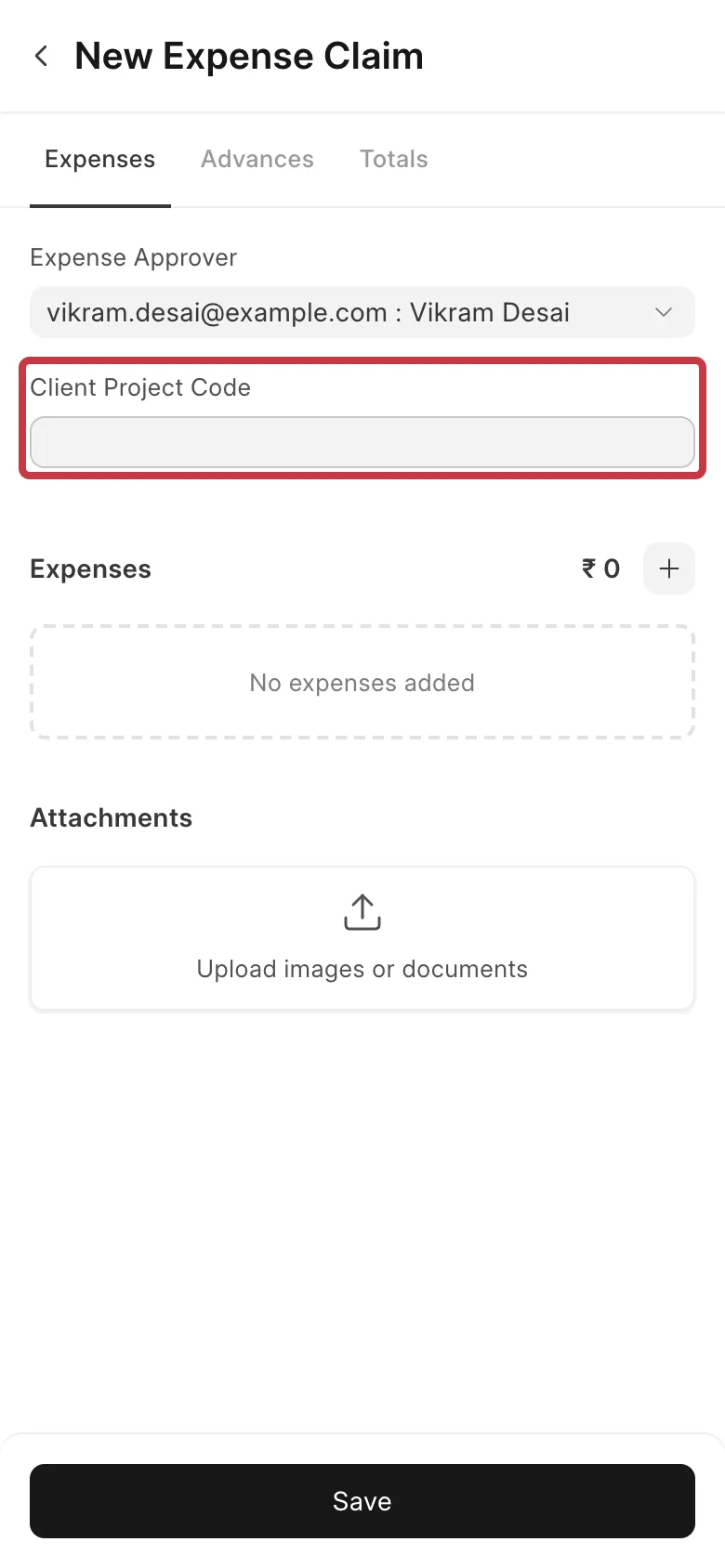
For example, Bluepeak Technologies adds three custom fields to Expense Claim. Client Project Code is a Data field after Expense Approver, so it shows in the app. Travel Ticket is an Attach field, so it does not show. Billable to Client is a Check field in the More Info tab, so it does not show.
Depends On and Mandatory Depends On do not work in the app. The app ignores these conditions. A field with Depends On always shows. A field with Mandatory Depends On is never mandatory in the app. The static Mandatory and Hidden settings work.
Custom DocTypes do not show in the app. The app has screens only for the standard Frappe HR documents.
What you can do
Fix check-in when a custom field on Employee Checkin is mandatory
Give the field a value that the server can set without the employee. The check-in then saves.
- Go to Customize Form and select Employee Checkin in Enter Form Type.
- Open the Form tab and click your custom field. In this example, click Work Location.
- In the field properties, type a value in Default. In this example, type Hyderabad.
- Click Update.
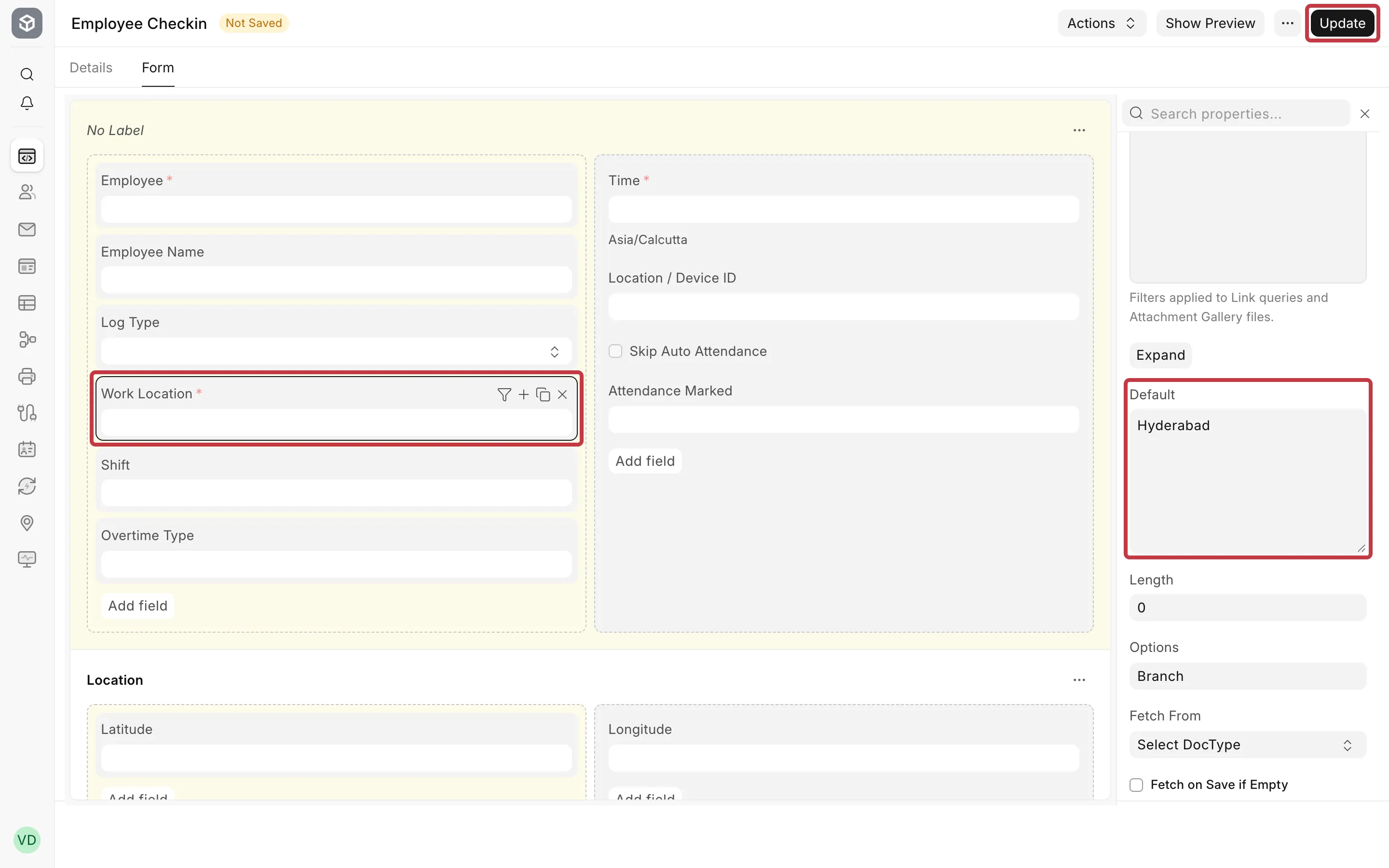
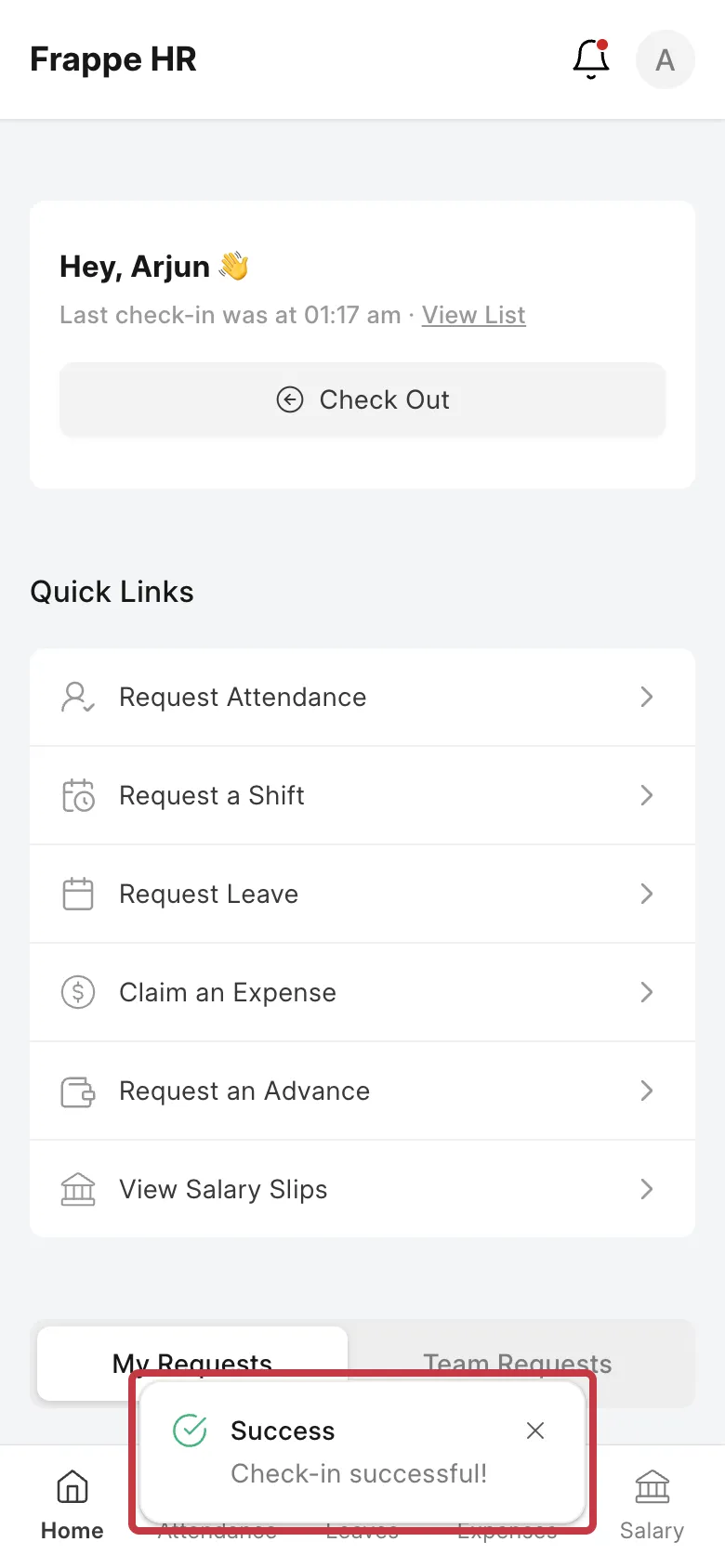
The next check-in from the app saves with Hyderabad in Work Location. The employee or the HR team can change the value later in Desk.
If one default value is not correct for all employees, use one of these instead:
- Turn off Mandatory for the field, and fill the field in Desk later.
- Ask your developer or partner to set the value on the server before the check-in saves, for example from the Employee master.
Make a custom field show on a request form
- Go to Customize Form and select the DocType.
- Click the custom field and look at Type. If the type is not in the supported list above, change the field to a supported type, or add a supported field for the app.
- Make sure Hidden is off.
- For Expense Claim, drag the field to the Expenses & Advances or Accounting tab, before Cost Center.
- Click Update, then close and open the form in the app again.
Do not move the standard fields of Expense Claim to other places. The app uses the position of Taxes, Advances, and Cost Center to split the form into tabs. If you move them, standard fields such as Posting Date can go missing from the app, and the employee cannot save the claim.