


















Where is the Holiday List field on the Employee form in v16?
After you update Frappe HR to version 16, the Holiday List field is not on the Employee form. This is expected. In v16, you assign a holiday list to an employee or a company with a separate document, Holiday List Assignment.
Why the field is not visible
In version 15, you selected a holiday list directly on the Employee and on the Company. When an employee moved to a new list, you changed the field. The old value was lost. Also, a leave that spanned two holiday lists could count holidays from one list only.
In version 16, Frappe HR uses Holiday List Assignment instead. Each assignment has a start date (Assignment Starts From). A new assignment does not replace the old one, so the history stays. The system uses the latest assignment that starts on or before a date.
The Holiday List field is still in the Employee DocType. Frappe HR hides it on the form with a script. This is why Customize Form does not show the field as hidden, and why you can still filter by it in the Employee list. The value in this field is no longer used by Frappe HR.
Note: If your site has ERPNext without Frappe HR, the field is still visible and is still used.
What happened to your old holiday lists
When your site was updated to v16, the update made a submitted Holiday List Assignment for:
- Each Active employee that had a holiday list on the Employee form.
- Each company that had a Default Holiday List.
Each assignment starts on the From Date of its holiday list. You do not have to assign these lists again.
Assign a holiday list to an employee
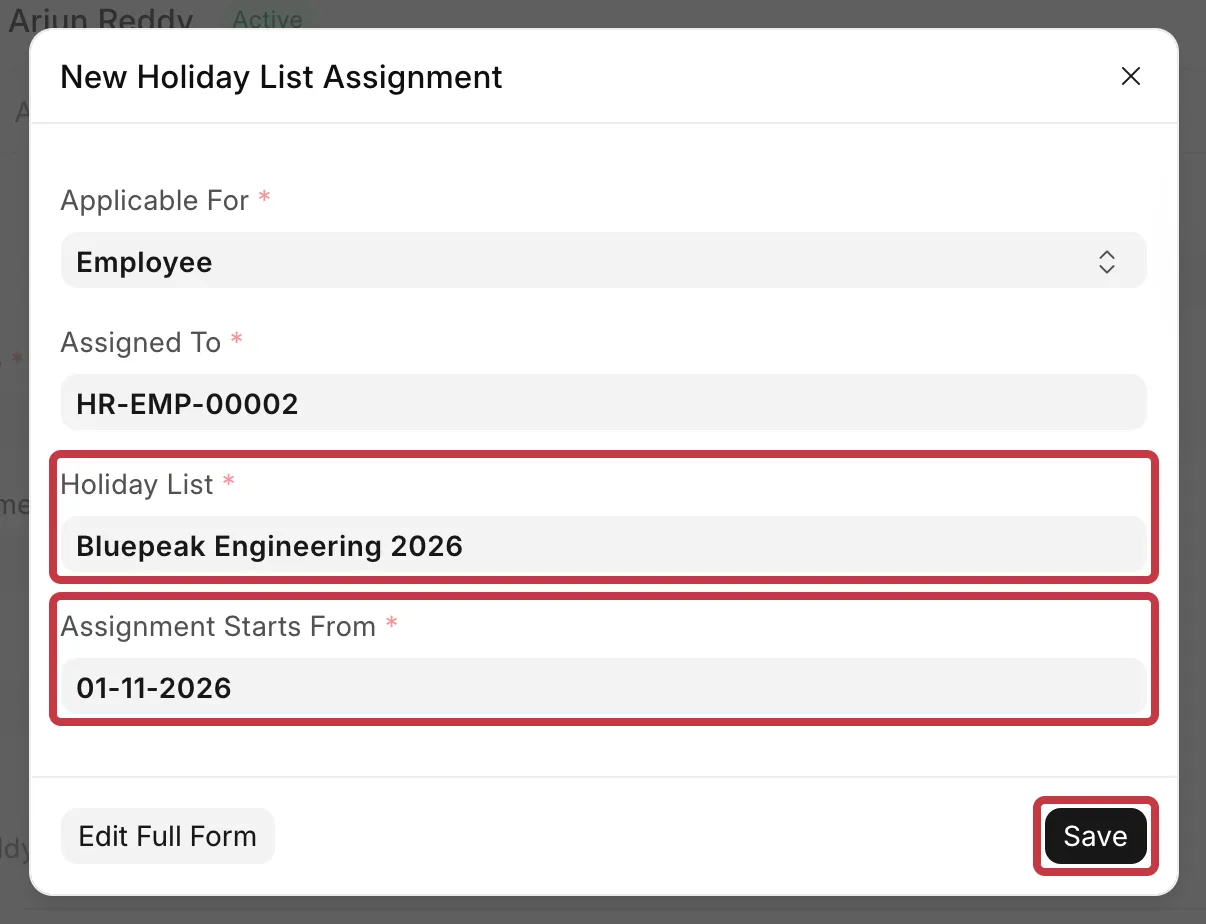
Do this when one employee needs a list that is different from the company list. For example, Arjun Reddy in the Engineering team of Bluepeak Technologies follows the Bluepeak Engineering 2026 list from 1 November 2026.
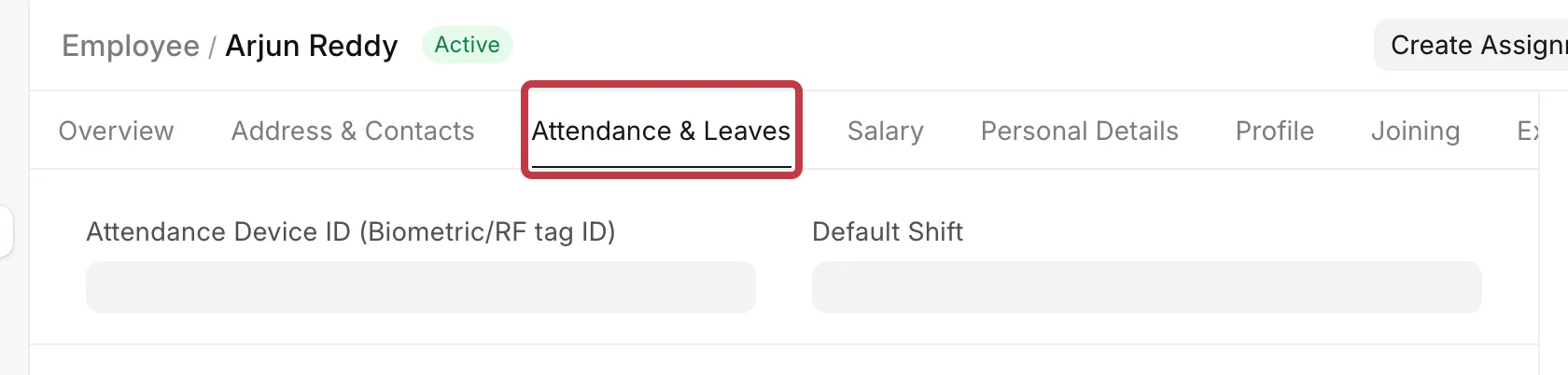
- Open the Employee.
- Click Create Assignments → Holiday List.

- In Holiday List, select the list. Assignment Starts From fills in with the start date of the list.
- Change Assignment Starts From if the list applies from a later date. The date must be between the From Date and To Date of the holiday list.
- Click Save.
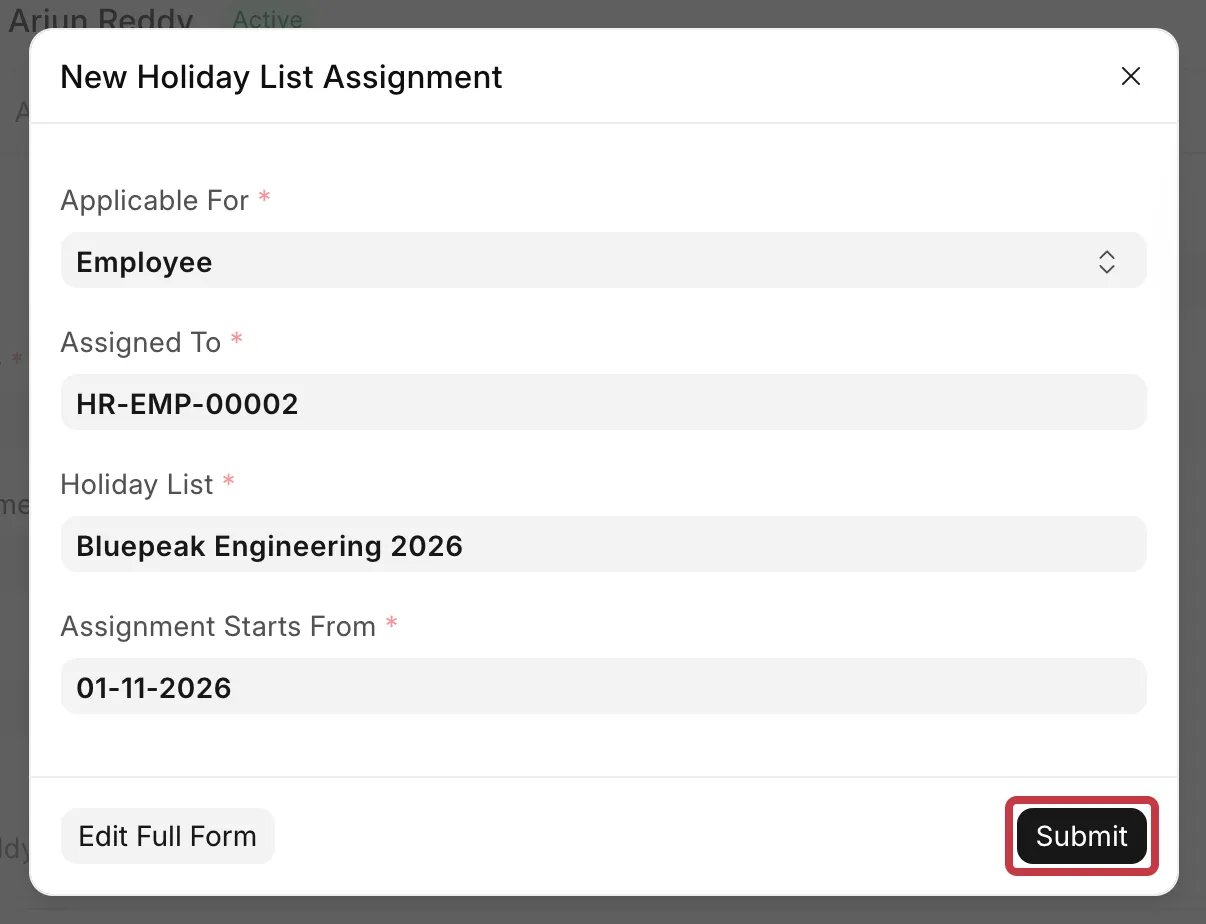
- Click Submit. A message shows that the holiday list was assigned.
The Create Assignments button shows only on a saved employee with status Active. If you do not see it, update your site, or go to Holiday List Assignment → New. Set Applicable For to Employee, then follow steps 3 to 6.
Set one holiday list for all employees of a company
You do not need an assignment for each employee. A company assignment applies to every employee of the company who has no assignment of their own.
- Go to Holiday List Assignment → New.
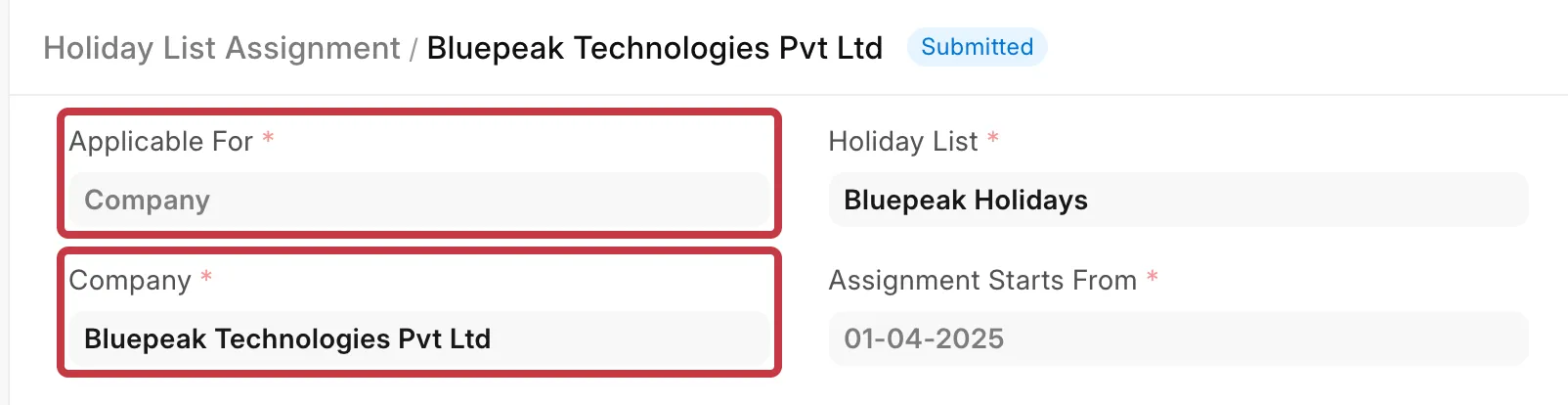
- In Applicable For, select Company.
- In Company, select your company.
- Select the Holiday List and the Assignment Starts From date.
- Click Save, then Submit.
An employee assignment always takes priority over the company assignment.
See the holiday list of an employee
- Open the Employee.
- Go to the Connections tab.
- In the Leave group, click Holiday List Assignment. The list shows all assignments of this employee.
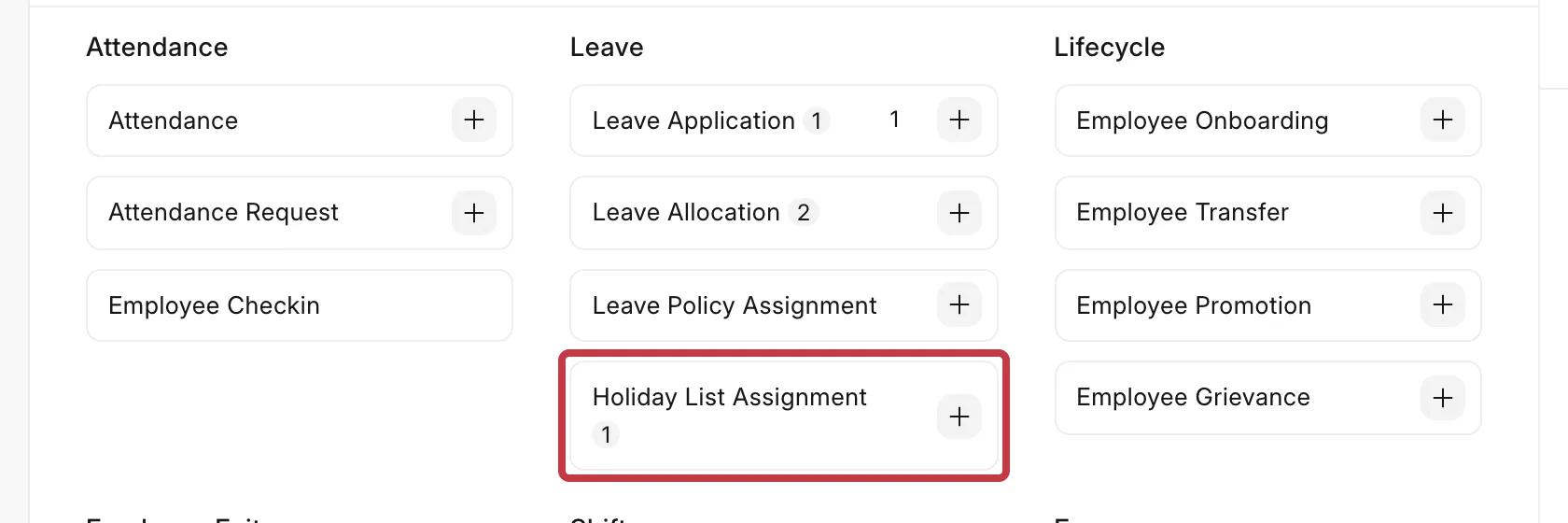
The assignment with the latest Assignment Starts From date, on or before today, is the one in use. If the employee has no assignment, the company assignment applies.
To see assignments for many employees, open the Holiday List Assignment list and filter by Assigned To. The Employee Name field is hidden by default. To show it, open Customize Form for Holiday List Assignment and clear Hidden on Employee Name.
Change the holiday list of an employee
You cannot edit a submitted assignment. Make a new assignment with the new list and a new Assignment Starts From date. The old assignment stays for the dates before it.
The error "No Holiday List was found"
If an employee has no assignment, and their company has none, you see this error when you save a Leave Application, Attendance or other HR document:
No Holiday List was found for Employee HR-EMP-00002 or their company Bluepeak Technologies Pvt Ltd for date 01-11-2026. Please assign through Holiday List Assignment
To fix it, make an employee or company assignment as shown above.
Note: The holiday list on a Shift Type is used only for auto attendance. Leave applications do not use it. An employee with a shift still needs a Holiday List Assignment, or a company assignment.