


















How to edit a submitted Leave Policy or Leave Policy Assignment?
After you submit a Leave Policy or a Leave Policy Assignment, Frappe HR locks its fields. If you try to change them, you see Not allowed to change Annual Allocation after submission or Cannot delete or cancel because Leave Policy ... is linked with Leave Allocation .... This article tells you which way to correct each case, with the least effect on leaves that employees already took.
The error
You can see one of these messages:
Row #1: Not allowed to change Annual Allocation after submission from 12.0 to 15.0
Not allowed to change Effective To after submission from 31-12-2026 to 30-06-2026
Cannot delete or cancel because Leave Policy HR-LPOL-2026-00001 is linked with Leave Allocation HR-LAL-2026-00008
Leave allocation HR-LAL-2026-00008 is linked with the Leave Application HR-LAP-2026-00003
Why this happens
Leave Policy, Leave Policy Assignment and Leave Allocation are submitted documents. A submitted document is a record of what happened, so its values cannot change. To correct it, you cancel it and make a new one.
The documents are linked in a chain:
- A Leave Policy says how many leaves of each type an employee gets in a year.
- A Leave Policy Assignment gives that policy to one employee for a period.
- When you submit the assignment, Frappe HR makes one Leave Allocation for each leave type in the policy.
- Each approved Leave Application uses leaves from an allocation.
You cannot cancel a document while a submitted document below it in the chain still uses it. For example, you cannot cancel a Leave Policy that is assigned to 400 employees until you cancel all 400 assignments and their allocations. You cannot cancel an allocation until you cancel the leave applications in its period.
So, in most cases, do not cancel the policy. Correct the allocation, or make a new policy for the next period.
For example, Bluepeak Technologies gives its staff the "Bluepeak Standard Leave Policy 2026" with 12 Casual Leave and 8 Sick Leave. In October, management raises Casual Leave to 15 days a year. Rahul Verma already took 2 days of Casual Leave.
Find your case
| What you want to change | What to do |
|---|---|
| Only the name of the policy | Edit Leave Policy Name on the submitted policy and click Update. This field stays editable. |
| A policy that is not assigned to anyone yet | Cancel the policy, click Amend, correct it, and submit it. |
| The number of leaves for employees who already have the policy | Adjust the current allocations (see below). Then make a new policy for the next period. |
| Add a leave type to a policy that is already assigned | Allocate the new leave type separately (see below) for this period. Then make a new policy for the next period. |
| The wrong policy or wrong dates in one employee's assignment | Cancel the assignment and make a new one (see below). |
| A different policy from the middle of the period (for example, after a promotion) | Adjust the current allocations (see below). Assign the new policy from the next period. |
You need the HR Manager or HR User role for all of these steps.
Adjust the leaves of employees who already have the policy
Use this to add or remove leaves without cancelling anything. Leave applications and attendance stay as they are.
Version 16 and later:
- Go to Leave Allocation and open the employee's allocation for the leave type. Use the Employee and Leave Type filters to find it.
- Click Actions → Adjust Allocation.
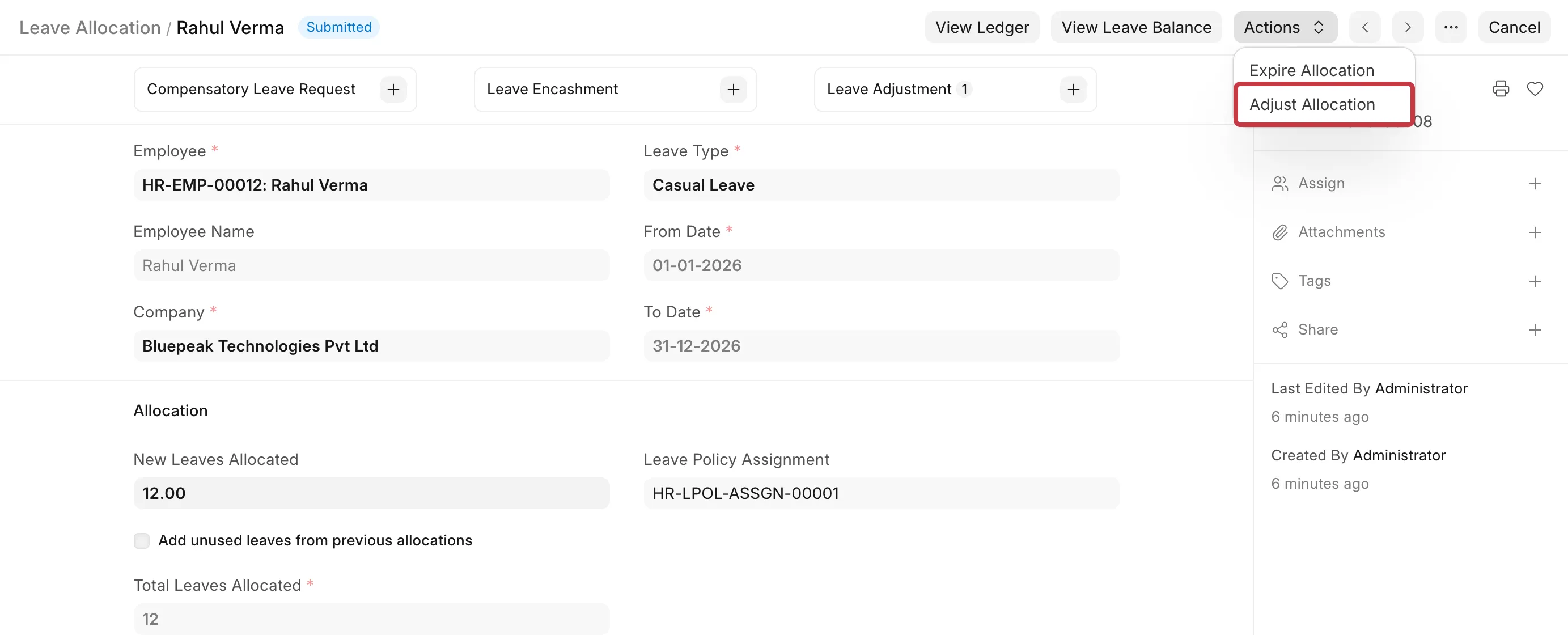
Adjust Allocation shows only on a submitted allocation whose period includes today.
3. In Adjustment Type, select Allocate to add leaves or Reduce to remove leaves.
4. In Leaves To Adjust, enter the difference. In the example, enter 3 (15 minus 12).
5. Enter a Reason for Adjustment, then click Adjust Leaves.
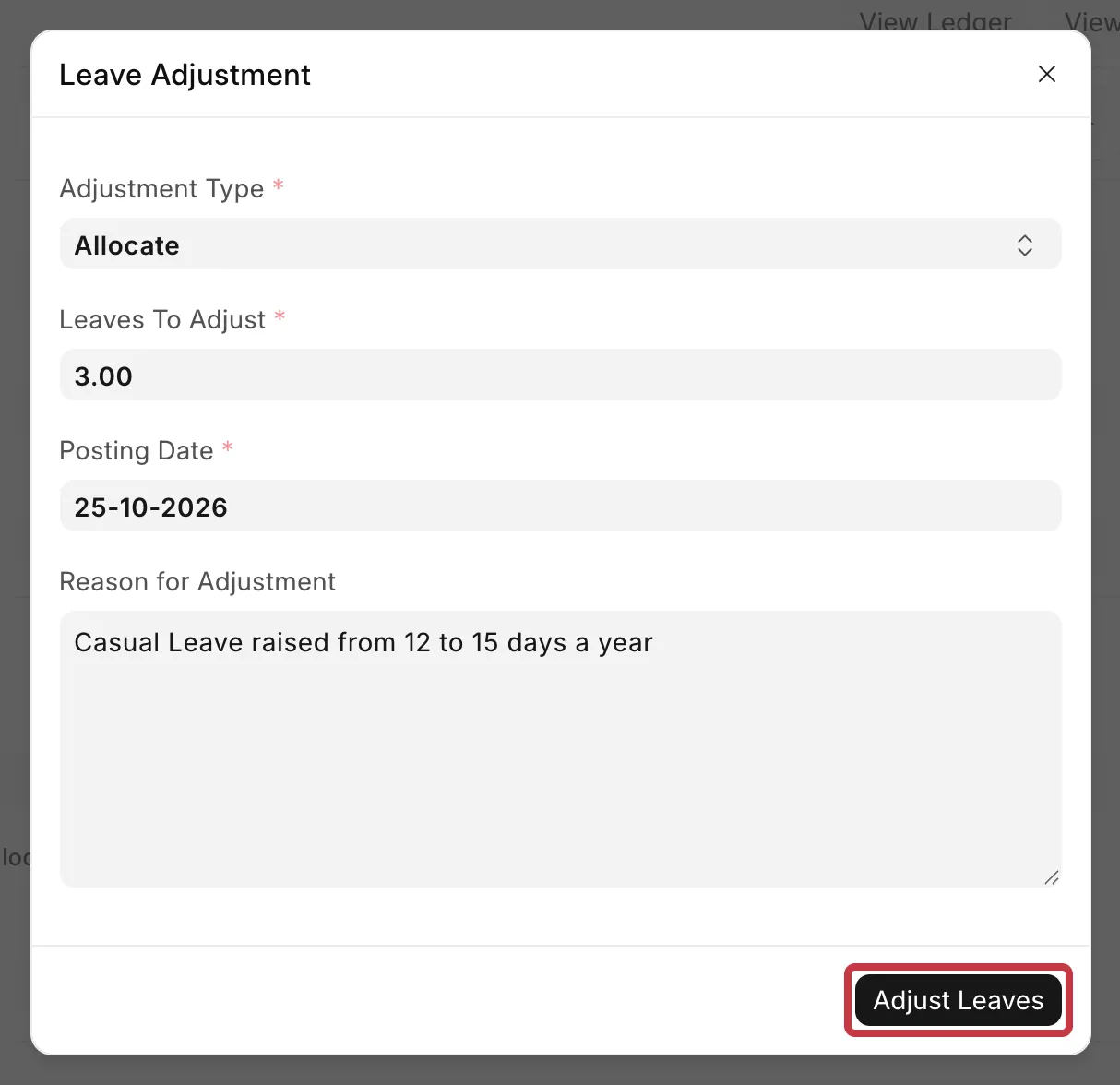
Frappe HR makes and submits a Leave Adjustment document. You see it under Leave Adjustment on the allocation. The employee's leave balance now includes the change. To check it, click View Leave Balance.
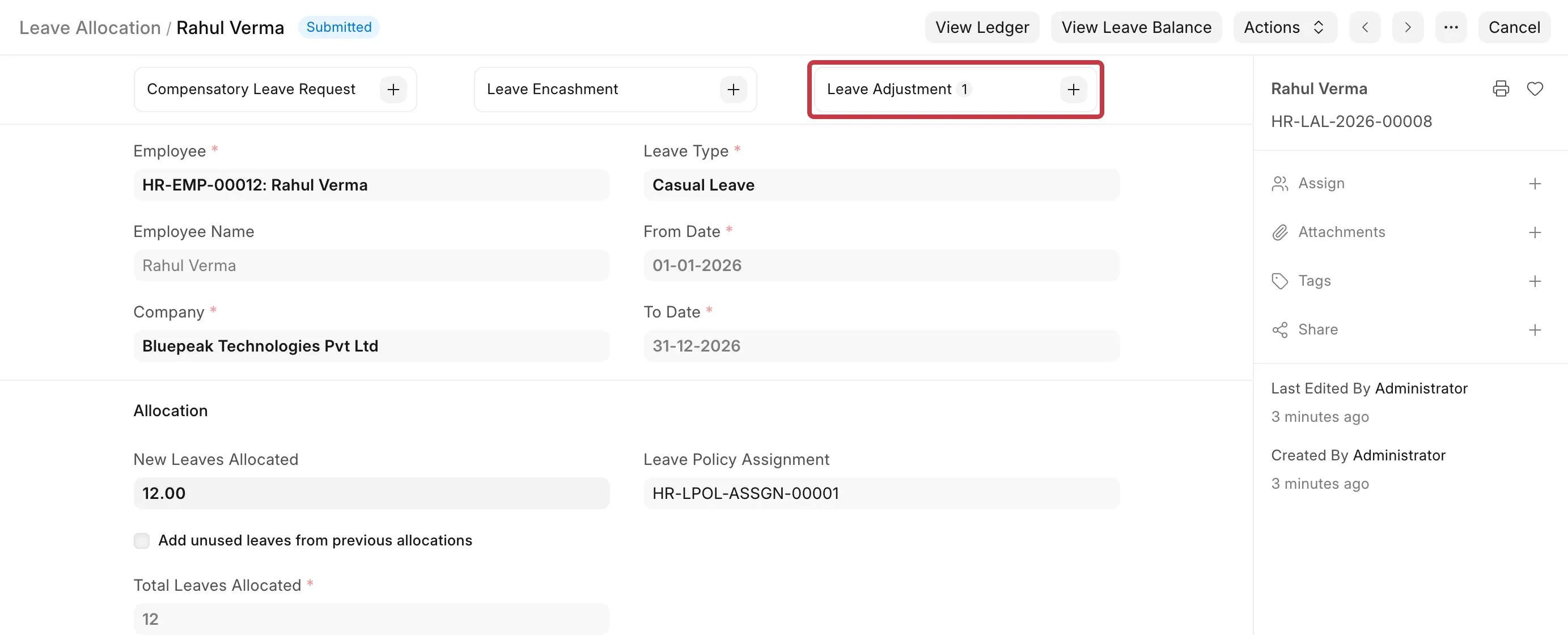
You can make only one Leave Adjustment for each allocation. To change it again, cancel the Leave Adjustment, click Amend and submit it with the new value.
Version 15: Leave Adjustment is not available. Open the Leave Allocation, change New Leaves Allocated (for example, from 12 to 15) and click Update. This does not work for earned leave types. Frappe HR allocates earned leaves every month from the policy.
Rules for both versions:
- You cannot reduce the leaves below what the employee already used. You see
Total allocated leaves 10.0 cannot be less than already approved leaves 12.0 for the period, or a message that the reduction is more than the leave balance. - You cannot allocate more than the Maximum Leave Allocation Allowed per Leave Period on the Leave Type.
Do this for each employee. Then make a new Leave Policy with the new values for the next period, as in How to prevent it below.
Add a leave type to a policy that is already assigned
The policy cannot get a new row after it is submitted. Give the new leave type to employees directly for this period:
- Go to Leave Control Panel.
- In Dates Based On, select Leave Period and select the current Leave Period.
- Clear Allocate Based On Leave Policy.
- Select the new Leave Type and enter New Leaves Allocated (In Days).
- Filter and select the employees, then click Allocate Leave.
For the next period, make a new Leave Policy that includes the new leave type.
Correct one employee's Leave Policy Assignment
Leave Policy Assignment has no Amend button. After you cancel it, you make a new assignment with Duplicate.
Before you start, check if the employee took leave in this period under this assignment. If yes, cancel those Leave Applications first. Cancelling a leave application also removes the attendance it created. After you correct the assignment, apply the leave again. If you do not want to cancel leave applications, adjust the allocation instead.
- Go to Leave Policy Assignment and open the employee's assignment.
- Click Cancel. A dialog lists the Leave Allocations made from this assignment.
- Click Cancel All. Frappe HR cancels the allocations and then the assignment.
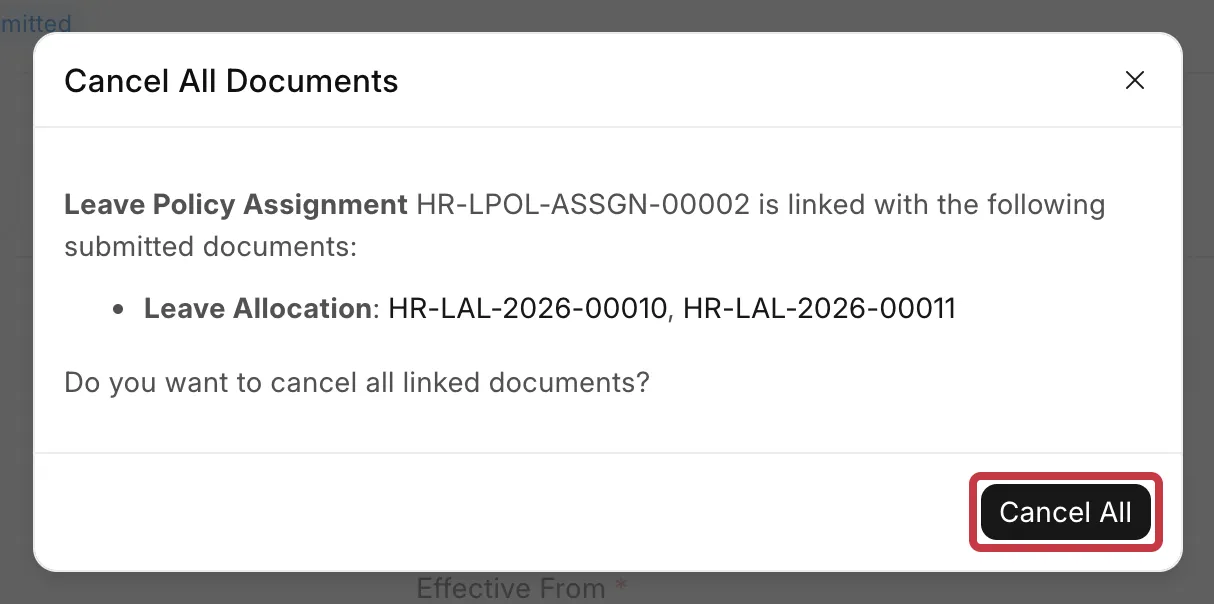
If an allocation has leave applications, you see Leave allocation ... is linked with the Leave Application .... Nothing is cancelled. Cancel the listed leave applications and try again.
4. On the cancelled assignment, click ··· → Duplicate.
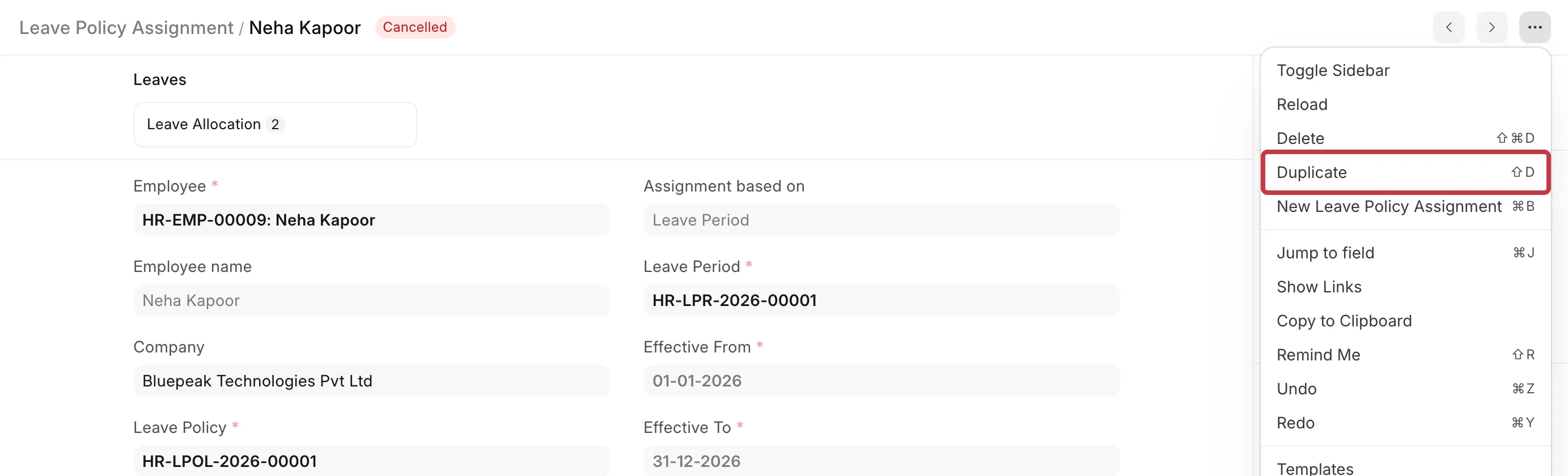
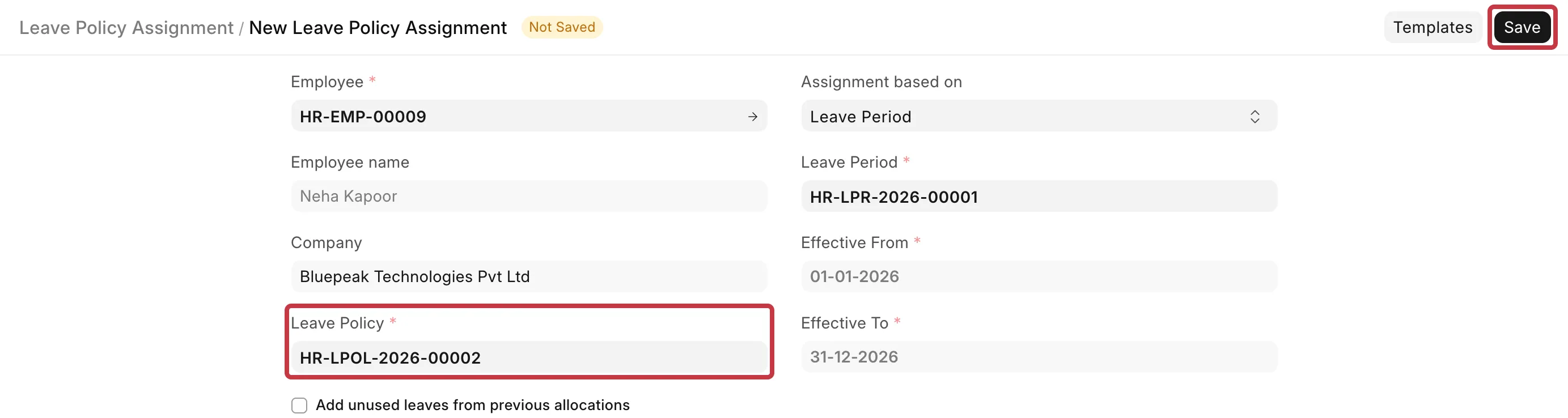
5. Correct the Leave Policy, the Leave Period, or the dates. In the example, select the senior policy.
6. Click Save.
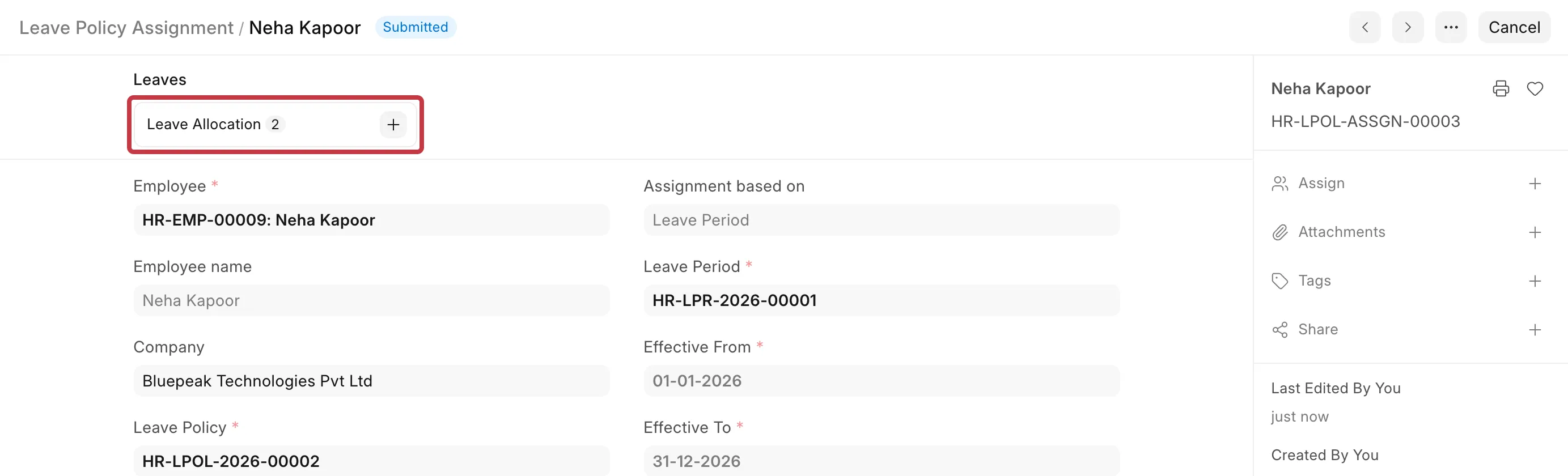
7. Click Submit. Frappe HR makes new Leave Allocations from the new policy. You see them under Leave Allocation on the assignment.
If you submit a new assignment without cancelling the old one, you see Leave Policy: ... already assigned for Employee .... Two assignments for one employee cannot overlap.
Change a Leave Policy that is not assigned yet
- Open the Leave Policy and click Cancel.
- Click Amend. A new draft opens with the same values.
- Correct the leave types or Annual Allocation, then click Save and Submit.
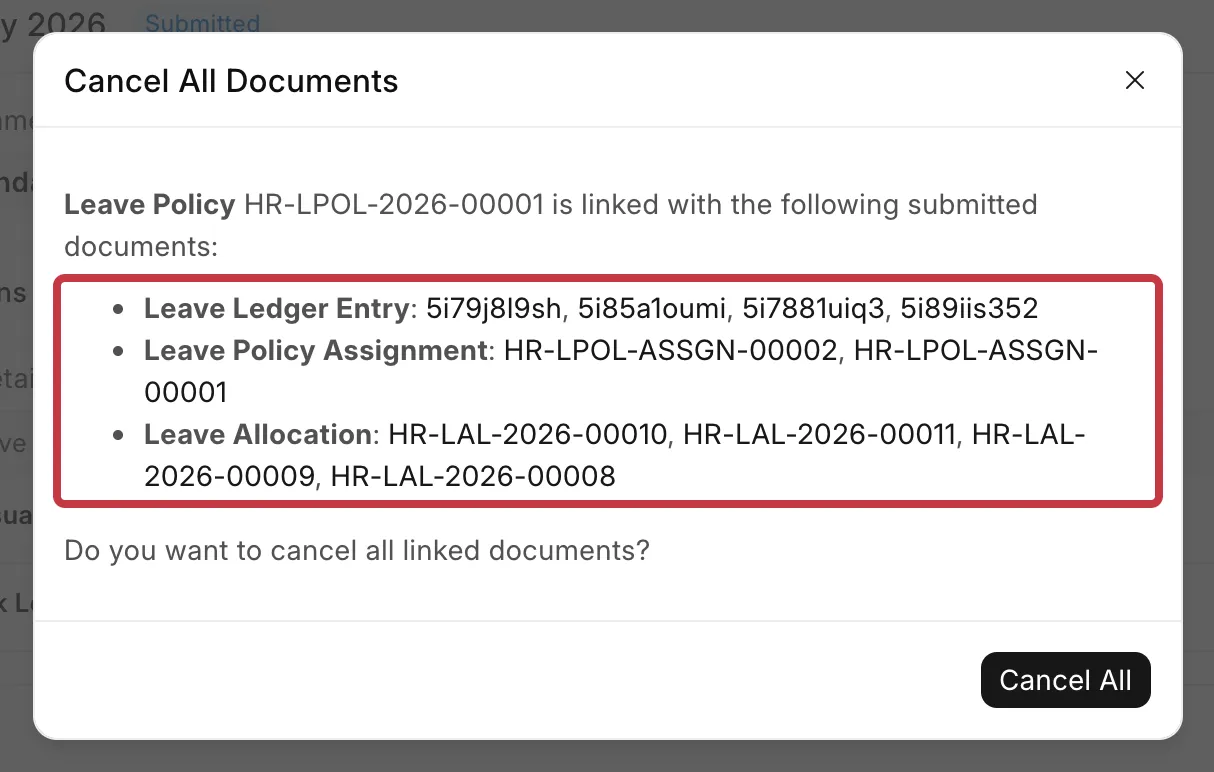
If the policy is already assigned, the Cancel dialog lists every Leave Policy Assignment, Leave Allocation, and Leave Ledger Entry that uses it. Do not click Cancel All for a policy that many employees use. Use the cases above instead.
How to prevent it
- Make one Leave Policy for each leave period, with the period in the name, for example "Bluepeak Standard Leave Policy 2027". When the rules change, make a new policy and assign it from the next period. Do not change the old one.
- To make the new policy, open the old one and click ··· → Duplicate. Change the values and submit it.
- Before you assign a policy to many employees with Leave Control Panel, assign it to one employee first. Check the Leave Allocations it makes.