


















Why aren’t Birthday and Work Anniversary reminders sent to all Employees?
Frappe HR sends a birthday or work anniversary reminder only to Active employees of the same company who have an email address on their Employee record. Employees who do not meet these conditions do not get the email.
Example
Bluepeak Technologies Pvt Ltd has ten active employees. Today is Arjun Reddy's birthday. The HR team sees that only seven people got the Birthday Reminder email:
- Rahul Menon and Pooja Nair did not get it. Their Employee records have no email address.
- Arjun Reddy did not get it. The reminder is about Arjun, so Arjun is not a recipient.
- Sneha Iyer did not get it. Sneha's status is Left.
- Employees of the other company on the site did not get it.
In this example, the system did what it is designed to do. Each person was left out for one of the reasons in the next section.
How it works
The reminders are a daily scheduled job. The job runs one time each day and does these steps:
- It finds the Active employees whose Date of Birth (or Date of Joining, for work anniversaries) has today's day and month. The year must be before the current year. Thus no one gets a work anniversary reminder on the day they join.
- It groups these employees by Company.
- For each company, it collects one email address for each Active employee of that company. It uses the first of these fields that has a value:
- User ID
- Company Email
- Personal Email
- It removes the people who have the birthday or anniversary from the list of recipients.
- It puts the email in the Email Queue. Each recipient gets a separate copy, with only their own address in the To field.
Thus an employee does not get the reminder in these cases:
| Reason | What to check |
|---|---|
| The Employee record has no User ID, Company Email or Personal Email | Address & Contacts and Overview → User Details tabs of the Employee |
| The employee Status is not Active (for example Inactive, Suspended or Left) | Status on the Employee |
| The employee is in a different company from the person who has the birthday | Company on the Employee |
| The employee is the person who has the birthday or anniversary | Not a problem. If two or more people share the date, each of them gets a separate email about the others. |
| The email address is in Email Unsubscribe, or the email failed to send | Email Queue and Email Unsubscribe lists |
The Preferred Contact Email field on the Employee is not used for these reminders.
The job uses the data that is on the Employee record at the time it runs. If you change an employee's status to Left after the job ran, the reminder for that day was already sent.
Employees born on 29 February get a birthday reminder only in leap years.
The reminder is not sent to anyone
If no one gets the reminder, check these items:
-
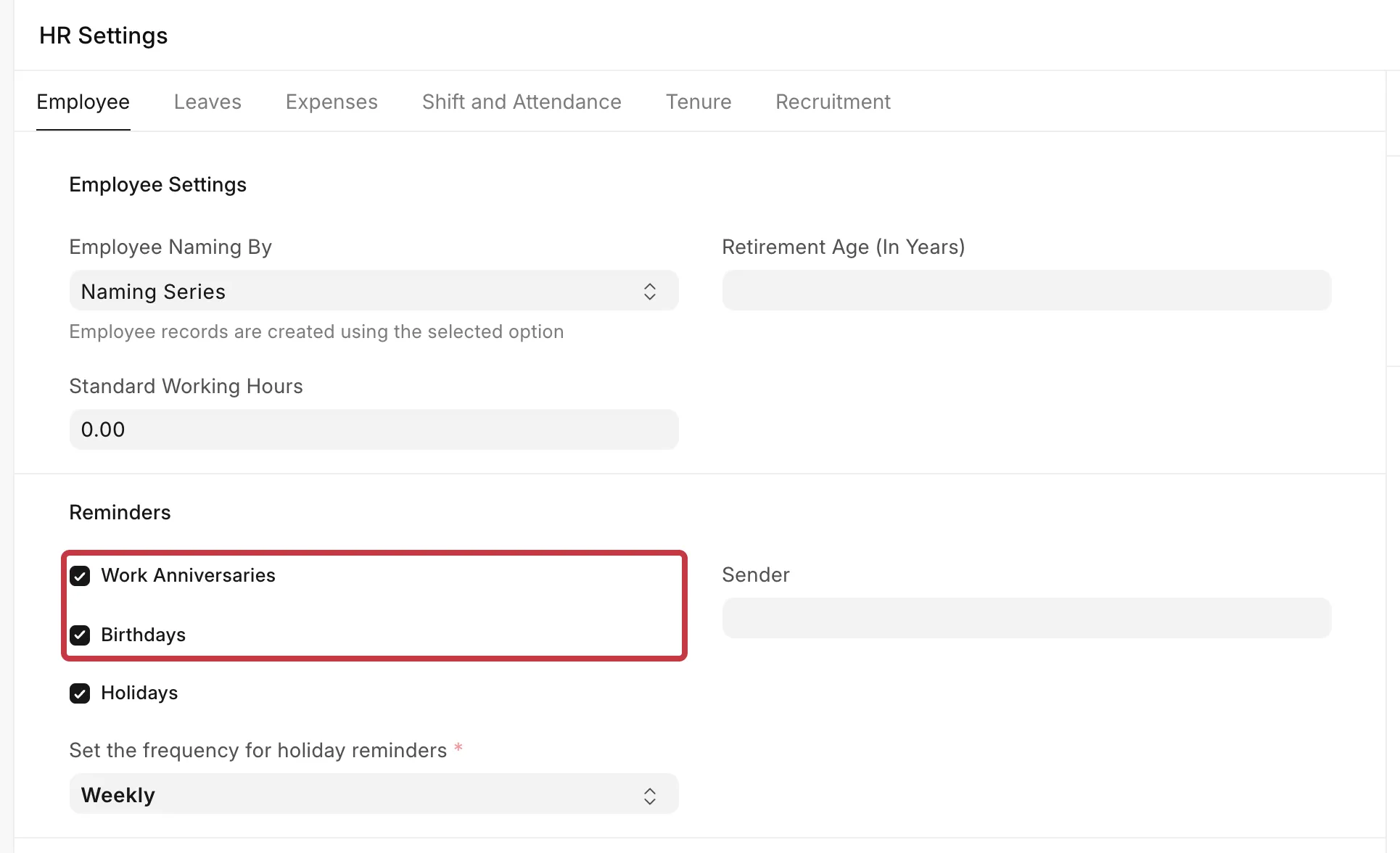
The reminder is turned off. Go to HR Settings → Employee → Reminders. Make sure Birthdays and Work Anniversaries are selected.
-
There is no outgoing email account. If the Sender field in HR Settings is empty, the system uses the default outgoing Email Account. If there is no default outgoing account, the job stops with this error:
Please setup default outgoing Email Account from Tools > Email AccountSet up an Email Account with Enable Outgoing and Default Outgoing selected, or select an account in Sender.
-
The scheduler is disabled. The reminders are a daily scheduled job. If the scheduler is disabled on your site, no reminders are sent.
What you can do
Find employees without an email address
- Go to the Employee list.
- Click Filters, then add these filters:
- Status Equals Active
- Company Equals your company
- User ID Is Not Set
- Company Email Is Not Set
- Personal Email Is Not Set
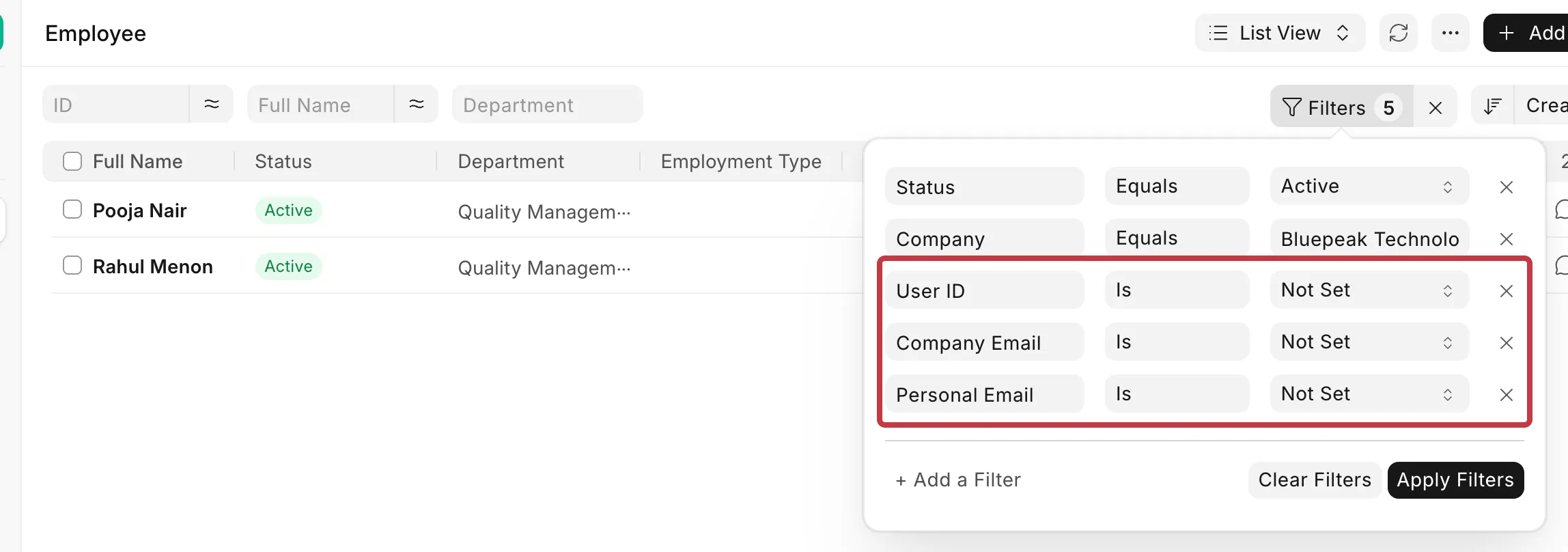
- Click Apply Filters. The list shows the active employees who cannot get the reminder.

Add an email address to the employee
- Open the Employee.
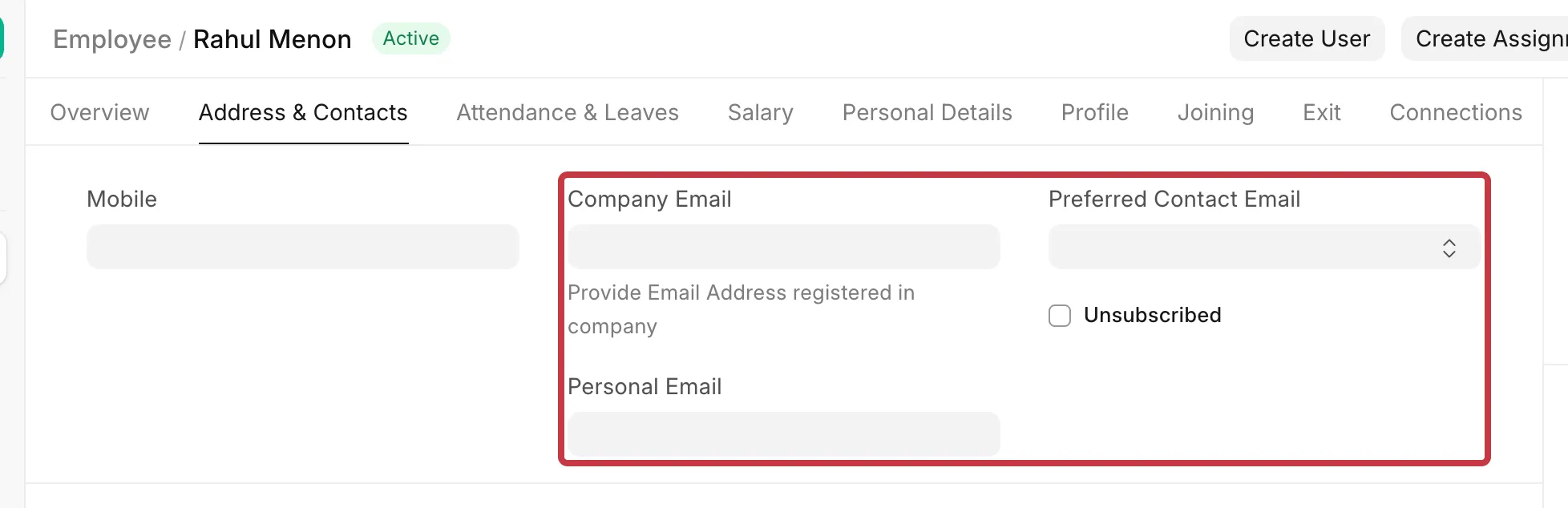
- Go to the Address & Contacts tab.
- Type the address in Company Email or Personal Email.
- Click Save.
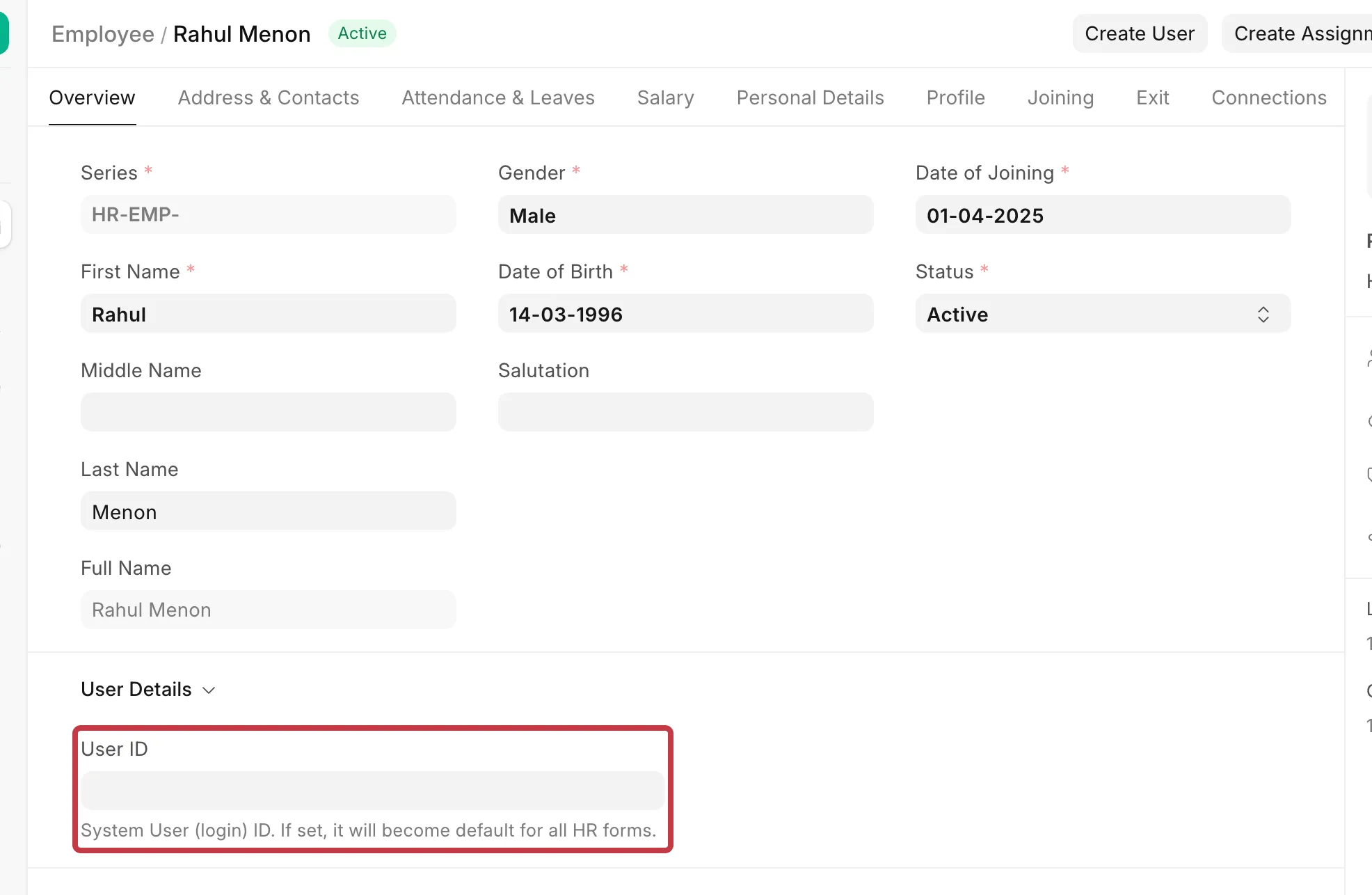
If the employee has a login, you can set User ID instead. It is on the Overview tab, in the User Details section. When User ID is set, the reminder goes to that address, even if Company Email also has a value.
Check who the email was sent to
- Go to the Email Queue list. You must have the System Manager role.
- Open the email with the subject Birthday Reminder or Work Anniversary Reminder.
- Look at the Recipient table. It shows every address the reminder was sent to, and the status for each one.
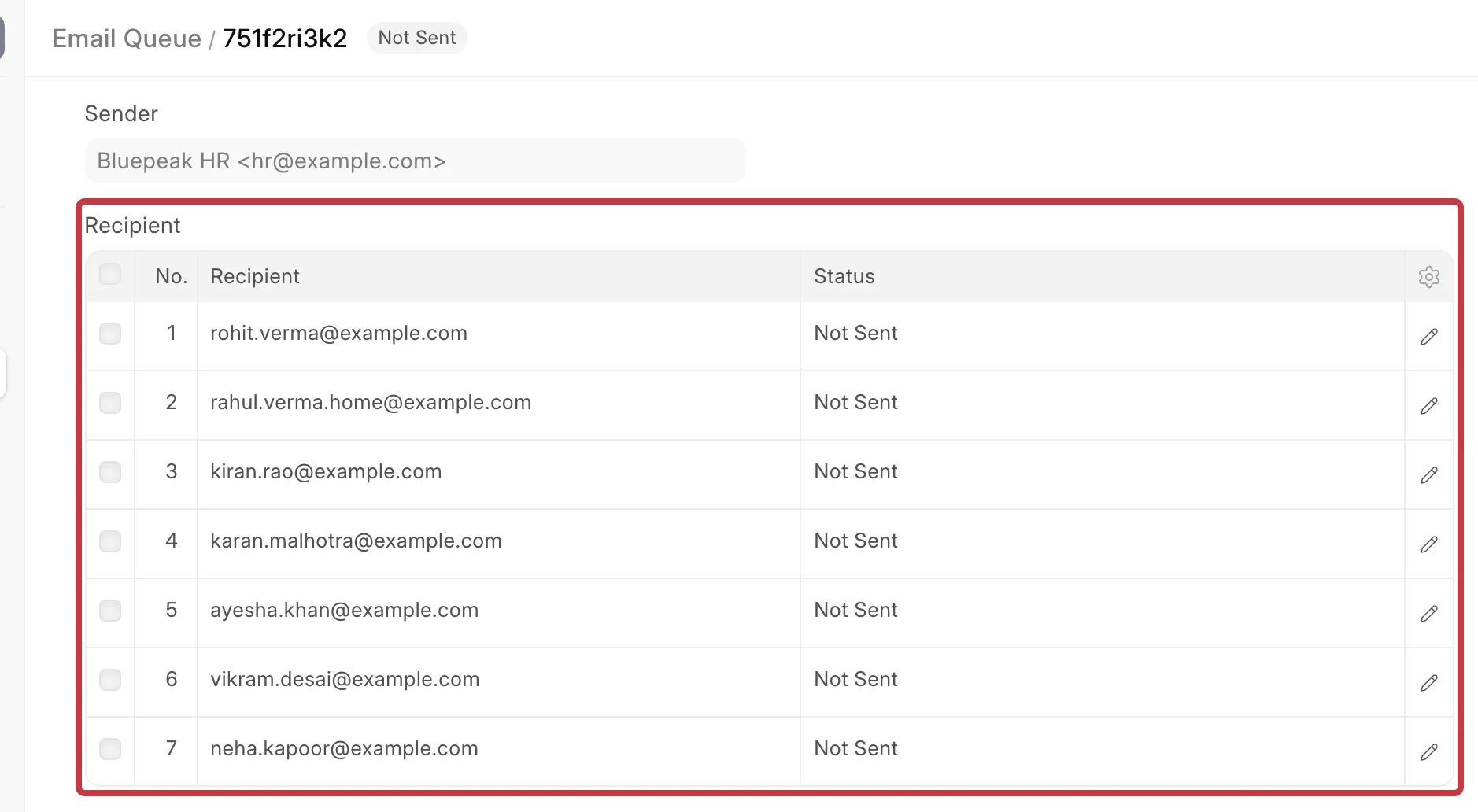
If the status is Error or the email stays in Not Sent, the problem is with the outgoing Email Account, not with the reminder.
Each recipient gets a separate copy. So if you compare the emails that two employees received, each shows a different address in To. This is correct. The Recipient table shows the full list.