

















Tax Regime Selector
Indian employees choose between the old and new income tax regimes at the start of each financial year, and payroll is processed according to that choice. The regime that results in less tax differs from employee to employee, depending on their salary, rent, investments, and employer contributions.
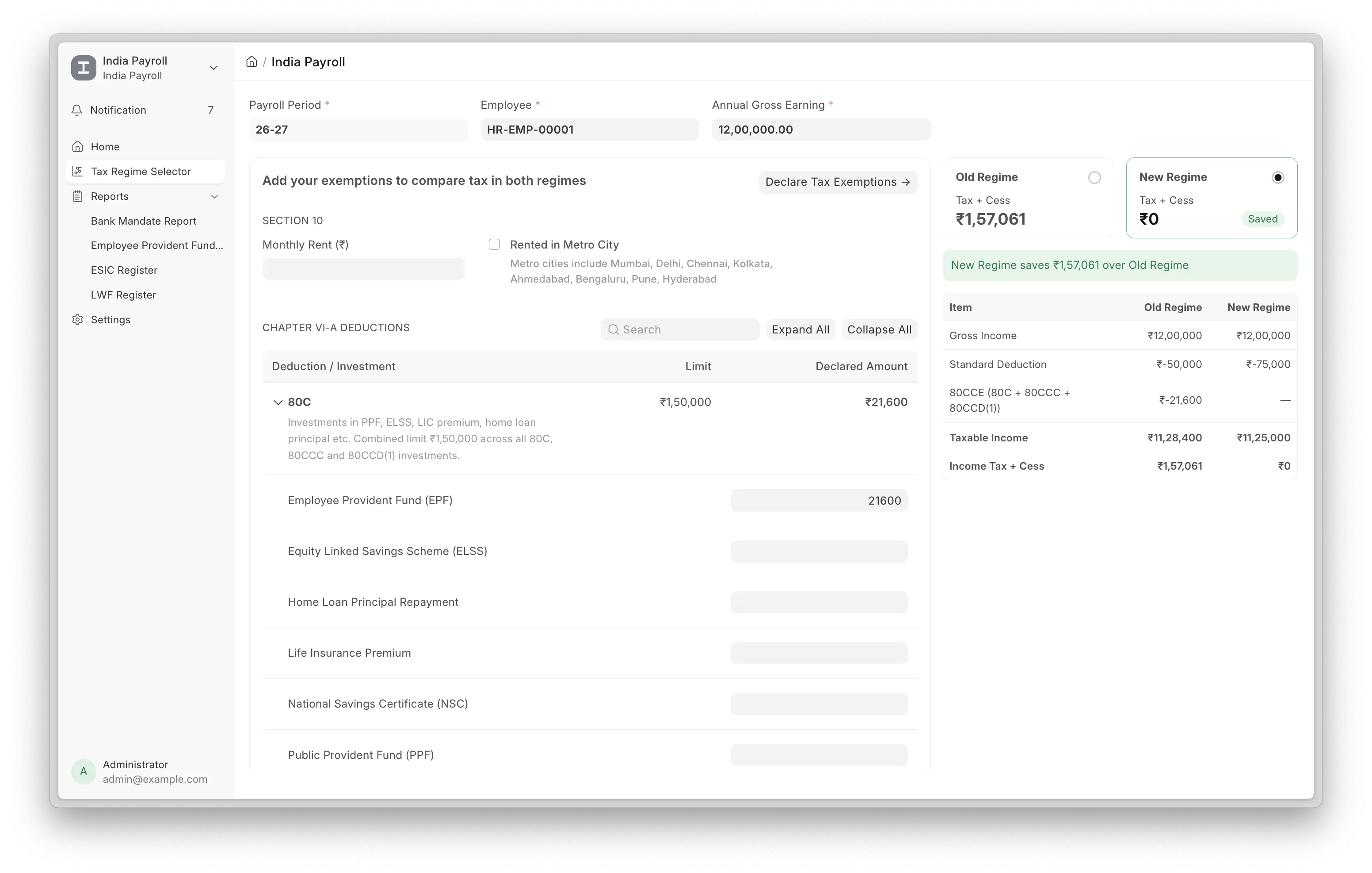
The Tax Regime Selector computes the annual tax under both regimes for an employee, recommends the one with the lower tax, and records the choice on the employee's Salary Structure Assignment so that payroll uses it.
To access the Tax Regime Selector, go to
Home > India Payroll > Tax Regime Selector
1. How to select a tax regime
To compare regimes and save a choice for an employee:
- Open the Tax Regime Selector. The Payroll Period is set to the active period for the company and the Employee defaults to the logged-in user. HR users can select any employee.
- Confirm the Annual Gross Earning. It is fetched from the employee's latest Salary Structure Assignment and can be edited.
- Enter the employee's declarations in the table below.
- Review the comparison shown on the right. The recommended regime and the resulting saving are highlighted.
- Select a regime and click Save Regime in the toolbar.
The Payroll Period is mandatory. If no period covers today's date, the page will prompt you to create one. An employee with no Salary Structure Assignment cannot be processed.
2. Features
2.1 Declarations
Declarations are entered in a table grouped by exemption section. Deduction components already present in the employee's salary structure, such as EPF and employee NPS, are matched by name and prefilled. Enter the remaining declarations directly.
Sections that do not apply to the employee are hidden: 80GG is hidden when the salary structure includes HRA, and 80TTA or 80TTB is shown depending on whether the employee is a senior citizen.
2.2 HRA Exemption
If the salary structure includes an HRA component, fields for the monthly rent and whether the employee lives in a metro city are shown. The HRA exemption is calculated as the lowest of the following:
- Actual HRA in the salary,
- 50% of basic salary for metro cities, or 40% for non-metro cities,
- Rent paid minus 10% of basic salary.
No exemption is applied if no rent is entered.
2.3 Comparison
The table breaks down detailed comparison between the two tax regimes, showing which exemptions are applicable in New and Old Regime
2.4 Saving the regime
Selecting a regime stages the choice and updates the comparison. Click Save Regime in the toolbar to commit it. After confirmation, the Income Tax Slab is set on the employee's draft Salary Structure Assignment.
2.5. Notifying Employees
The notify actions prompt employees to make a choice before their Salary Structure Assignment is submitted.
To notify a single employee, open their Salary Structure Assignment and click the Notify to Select Tax Regime button. The employee receives an email with a link to the Tax Regime Selector.
To notify several employees at once, go to the Salary Structure Assignment list, select the draft assignments, and run the same action. Only draft assignments are mailed; submitted assignments and employees without an email address are skipped. A message reports how many employees were notified and how many were skipped.
Emails are sent to the employee's preferred email, falling back to the company email, and then the personal email.
3. Declaring tax exemptions
The declarations entered in the tool are used for the comparison only; they are not saved on their own. To record them as the employee's official declaration, click Declare Tax Exemptions
This opens a new Employee Tax Exemption Declaration, prefilled with:
- Selected employee and payroll period,
- Monthly rent and metro-city flag, if the salary structure includes HRA,
- Row for each declared sub-category and its amount.
Review the document and submit it as usual. The declaration is then available to payroll and to exemption proof submission, the same as one created manually.
4. Setup
The first time the page is opened on a site, it creates the Income Tax Slabs and Employee Tax Exemption Categories if they do not already exist. This runs automatically, is idempotent, and requires no manual setup.