


















How to Configure Leave Carry Forward and Expiry?
At the end of a leave period, Frappe HR can move unused leave to the next period, limit how many days are moved, and expire the carried forward days after a set number of days. You set the rules on the Leave Type. The carry forward happens when you create the next Leave Allocation with Add unused leaves from previous allocations turned on.
Example
Bluepeak Technologies gives each employee 18 days of Privilege Leave each year. Their policy:
- An employee can carry forward a maximum of 10 unused days to the next year.
- Carried forward days must be used in the first 90 days of the new year.
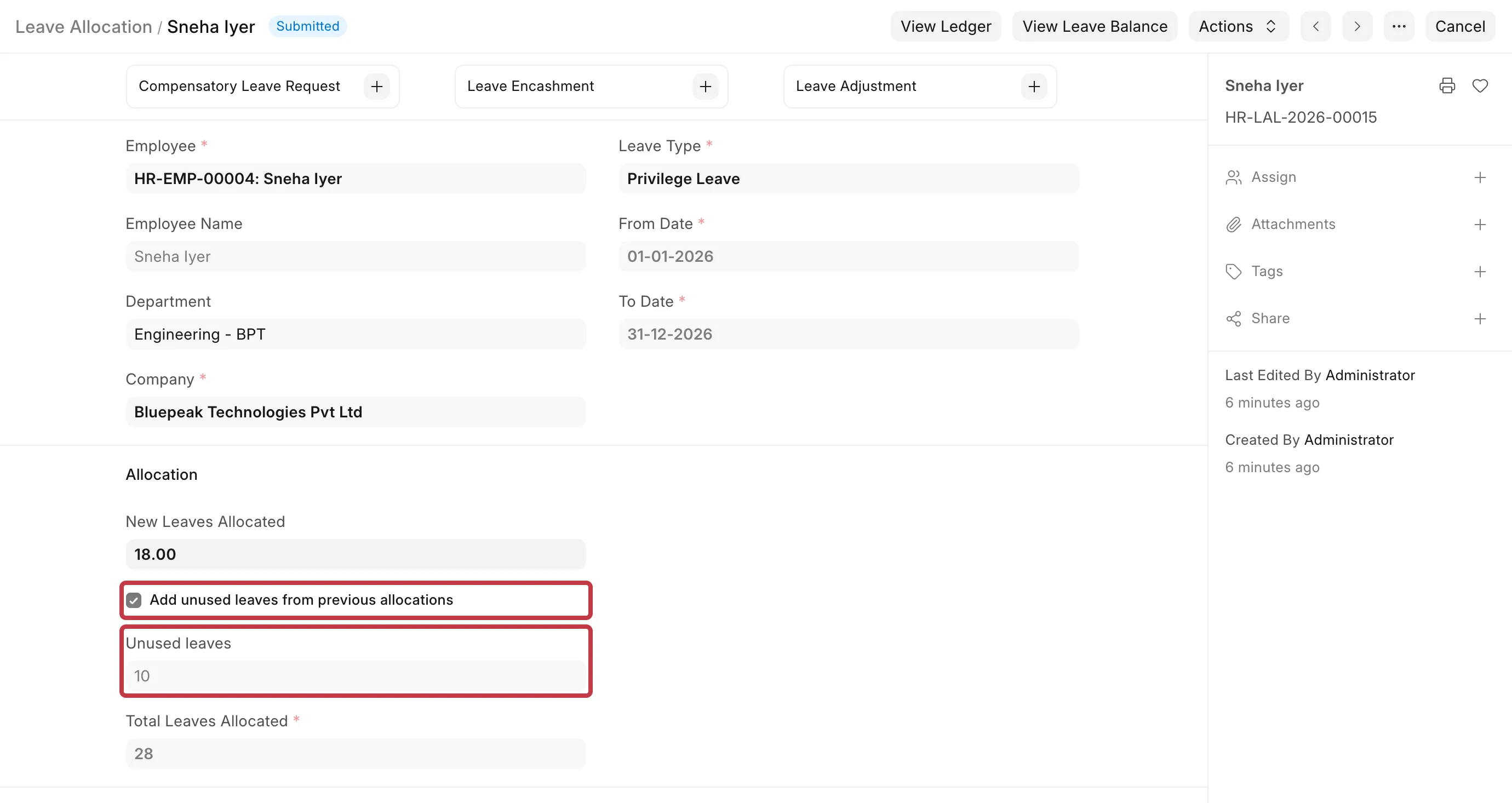
Sneha Iyer took 4 days of Privilege Leave in 2025, so 14 days are unused. On 1 January 2026, she gets 10 carried forward days and 18 new days, 28 days in total. The other 4 days lapse. If she does not use the 10 carried forward days by 31 March 2026, they expire.
How it works
- Carry forward is not automatic. Unused leave moves only when you create and submit the Leave Allocation for the next period with Add unused leaves from previous allocations turned on. If you do not, the unused leave expires at the end of the period.
- The previous balance expires when you submit the new allocation. On submit, the system expires all of the remaining balance of the previous allocation. Then it adds the carried forward days to the new allocation.
- Maximum Carry Forwarded Leaves limits the days that move. If it is 0, all unused days move.
- Maximum Leave Allocation Allowed per Leave Period (on the Limits tab) limits the total of new and carried forward days. If the new days already reach this limit, no days are carried forward.
- Expire Carry Forwarded Leaves (Days) counts from the From Date of the new allocation. If it is 0, carried forward days stay until the To Date of the new allocation. They never stay longer than the new allocation.
- Leave taken first uses the carried forward days. When carried forward days expire, the system deducts only the days that the employee did not use in that time.
- Leave types without carry forward expire at the end of each allocation. A daily scheduled job adds the expiry entry.
Before you start
- You need the HR Manager or HR User role.
- The employee must have a submitted Leave Allocation for the previous period.
Step 1: Set the carry forward rules on the Leave Type
- Go to Leaves → Leave Setup → Leave Type and open the leave type, for example, Privilege Leave.
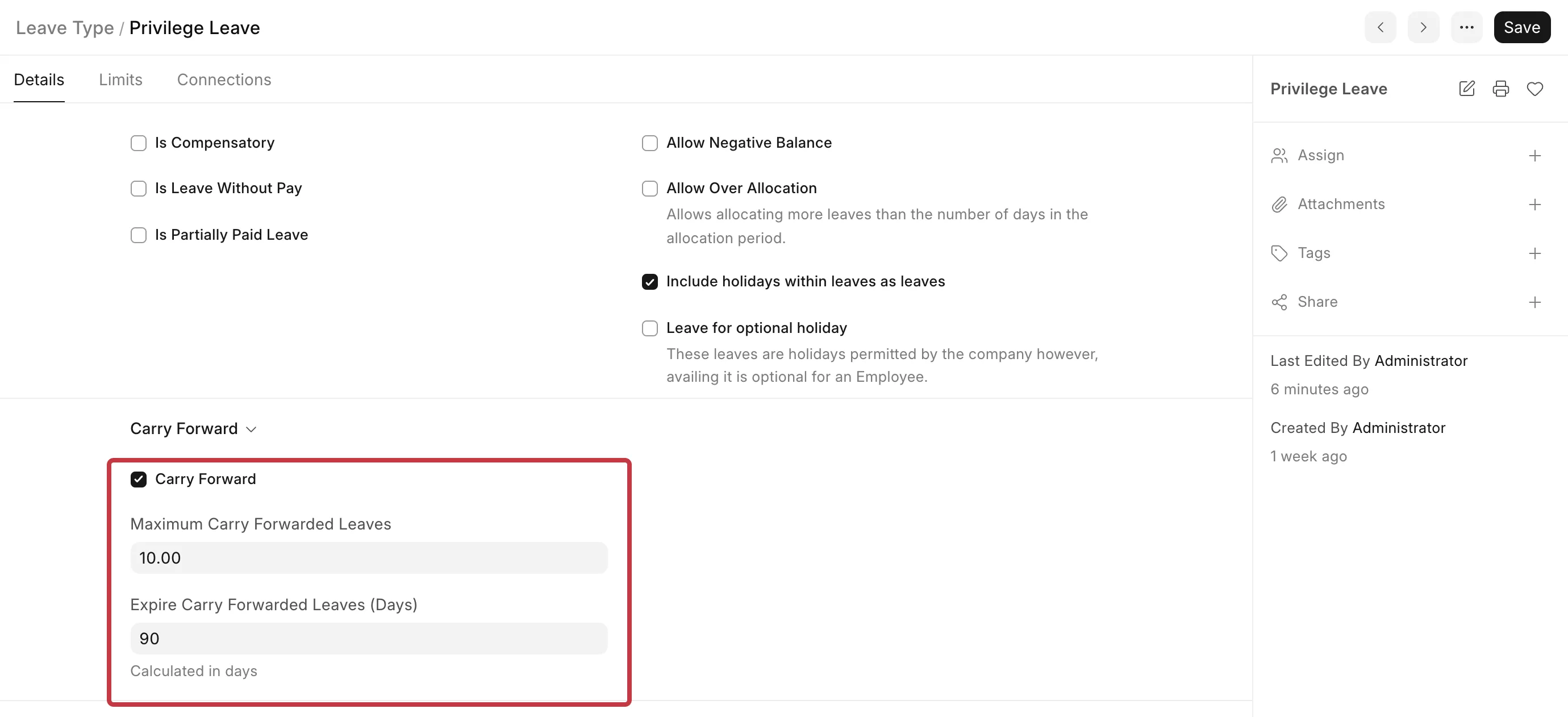
- In the Carry Forward section, select Carry Forward.
- In Maximum Carry Forwarded Leaves, type the most days that can move, for example 10. Type 0 for no limit.
- In Expire Carry Forwarded Leaves (Days), type the number of days that carried forward leave stays valid, for example, 90. Type 0 to keep it until the end of the new allocation.
- Click the Limits tab. Check Maximum Leave Allocation Allowed per Leave Period. It must be 0 (no limit), or at least the new days plus the carried forward days. In the example, 0 or 28.

- Click Save.
Step 2: Carry forward the unused leave to the new period
Do this on or after the first day of the new period. Use one of these ways.
For one employee: Leave Allocation
- Go to Leaves → Leave Allocations → Leave Allocation and click + Add Leave Allocation.
- Select the Employee and the Leave Type.
- Set the From Date and To Date of the new period, for example 01-01-2026 and 31-12-2026.
- In New Leaves Allocated, type the new days, for example 18.
- Select Add unused leaves from previous allocations. Unused leaves shows the days that will move, and Total Leaves Allocated shows the new total.
- Click Save, then Submit.
For many employees: Leave Control Panel
- Go to Leaves → Leave Allocations → Leave Control Panel.
- Select the Leave Period and the Company.
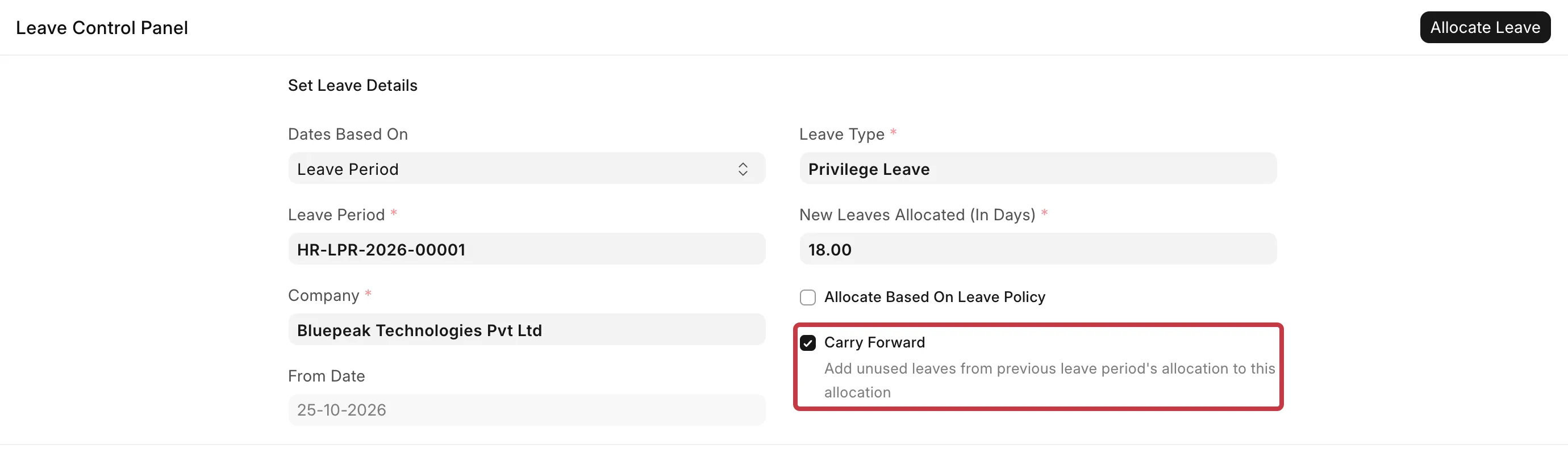
- Select the Leave Type and type the New Leaves Allocated (In Days). If you use a leave policy, select Allocate Based On Leave Policy and the Leave Policy instead.
- Select Carry Forward.
- Select the employees and click Allocate Leave.
If you create a Leave Policy Assignment for one employee, select Add unused leaves from previous allocations on it.
Step 3: Check the result in the Leave Ledger
- Go to Leaves → Reports → Leave Ledger.
- Set the dates to cover both periods, and select the Employee and Leave Type.
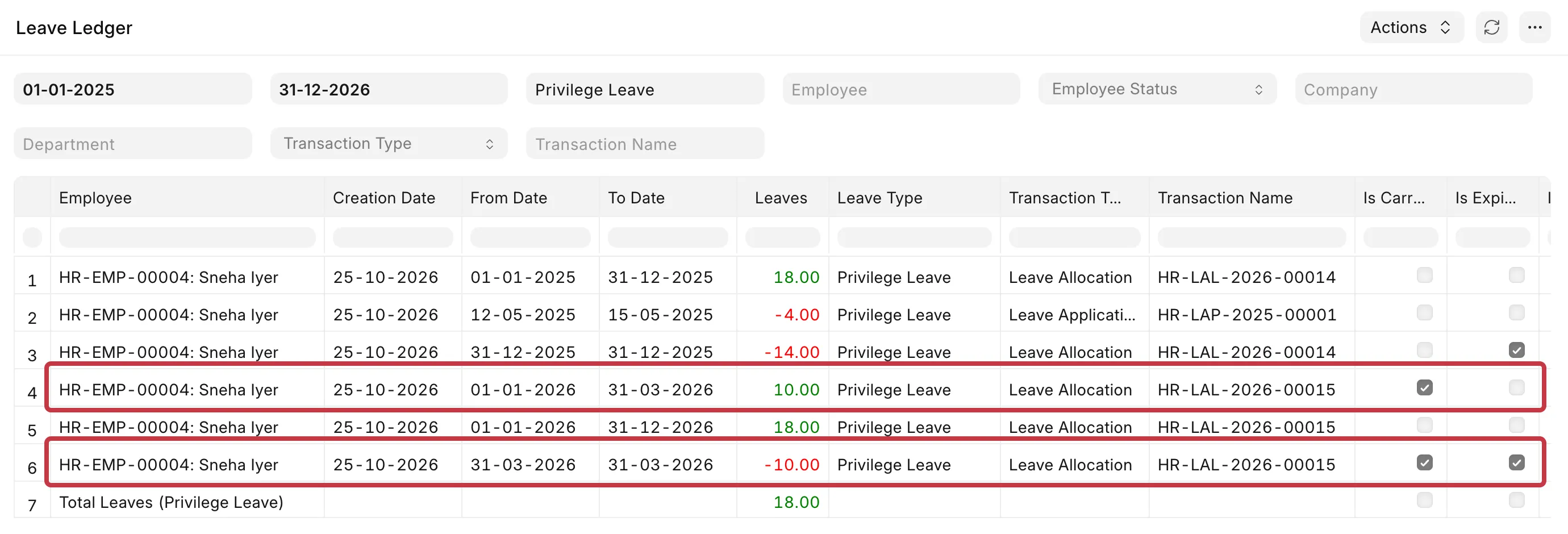
In the example, you see these entries:
- -14 on 31-12-2025 with Is Expired: the remaining 2025 balance expires.
- 10 from 01-01-2026 to 31-03-2026 with Is Carry Forward: the carried forward days and their validity.
- 18 from 01-01-2026 to 31-12-2026: the new days.
- -10 on 31-03-2026 with Is Carry Forward and Is Expired: the unused carried forward days expire after 90 days.
Common problems
Fewer days were carried forward than expected.
Check Maximum Carry Forwarded Leaves and Maximum Leave Allocation Allowed per Leave Period on the Leave Type. The second limit includes the new days. For example, with a limit of 15 and 15 new days, no days move.
Employees cannot apply for leave in the last days of the old period.
You submitted the new allocation, or a Leave Policy Assignment for the new period, before the old period ended. Submitting the new allocation or a Leave Policy Assignment for the new period expires the old balance at once. Create the new allocation on or after the first day of the new period. If you must prepare it early, save it as a draft and submit it when the new period starts.
The carried forward balance is negative.
If Allow Negative Balance is on and the closing balance of the old period was negative, the negative days are also carried forward.
Carried forward leave came from a year that is not the previous one.
The system carries forward from the latest allocation before the new From Date, even if there is a gap of some years. Create an allocation for each period. If an allocation is not a continuation of the last one, do not select Add unused leaves from previous allocations.
I carried forward leave by mistake.
Cancel the new Leave Allocation. The system removes the carried forward days. Then create the allocation again without selecting Add unused leaves from previous allocations.
A "Leaves Expired" message shows when I submit the allocation.
The carried forward days are already past their expiry date, for example, when you create an allocation for a past period. Click Expire Leaves to expire them now, or let the daily scheduled job expire them.