Why doesn't Payroll Entry fetch all Employees?
When you click Get Employees in a Payroll Entry, some employees can be missing from the list, or you see No employees found for the mentioned criteria. Payroll Entry fetches only the employees that match all its criteria. This page lists each criterion and how to fix it.
The error
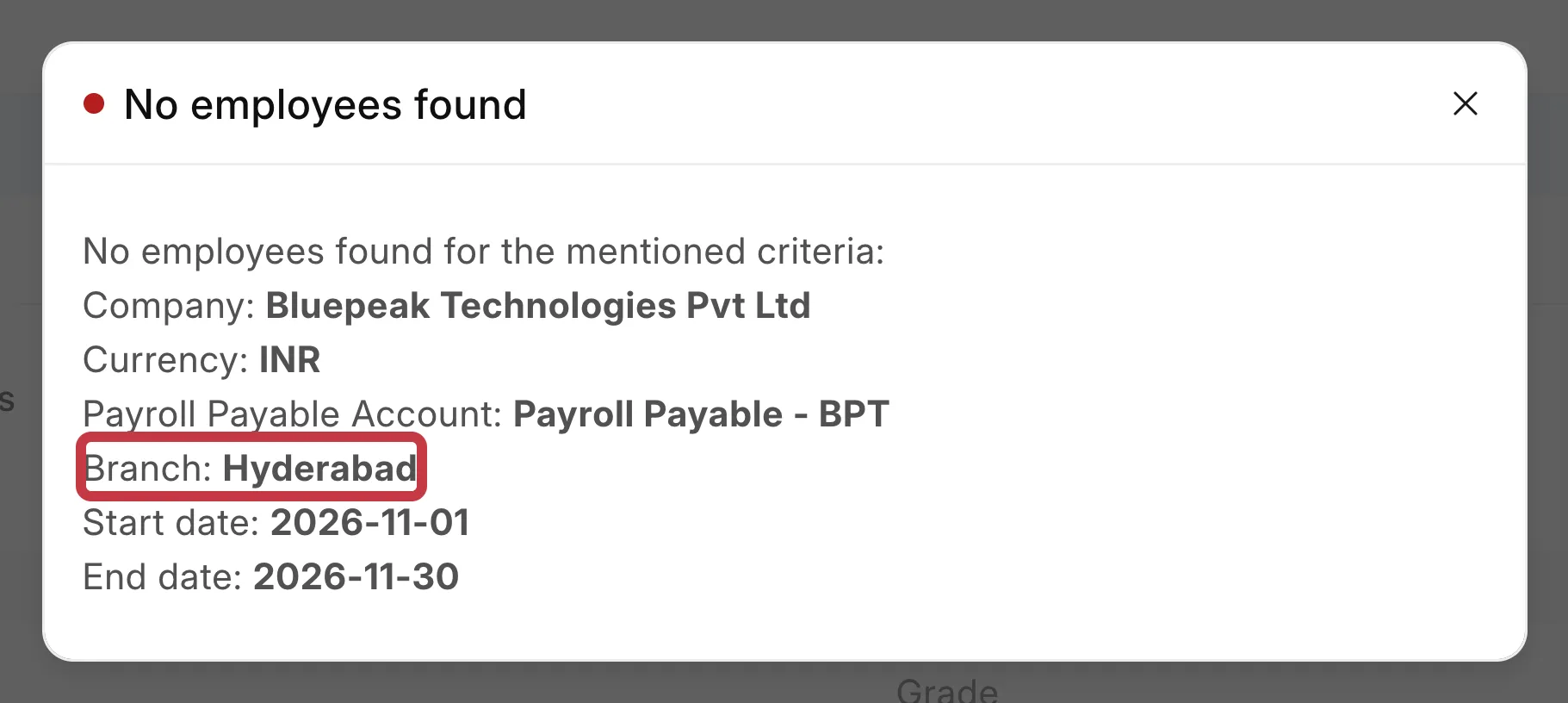
If no employee matches, Payroll Entry shows this message. It lists the criteria it used:
No employees found
No employees found for the mentioned criteria:
Company: Bluepeak Technologies Pvt Ltd
Currency: INR
Payroll Payable Account: Payroll Payable - BPT
Branch: Hyderabad
Start date: 2026-11-01
End date: 2026-11-30
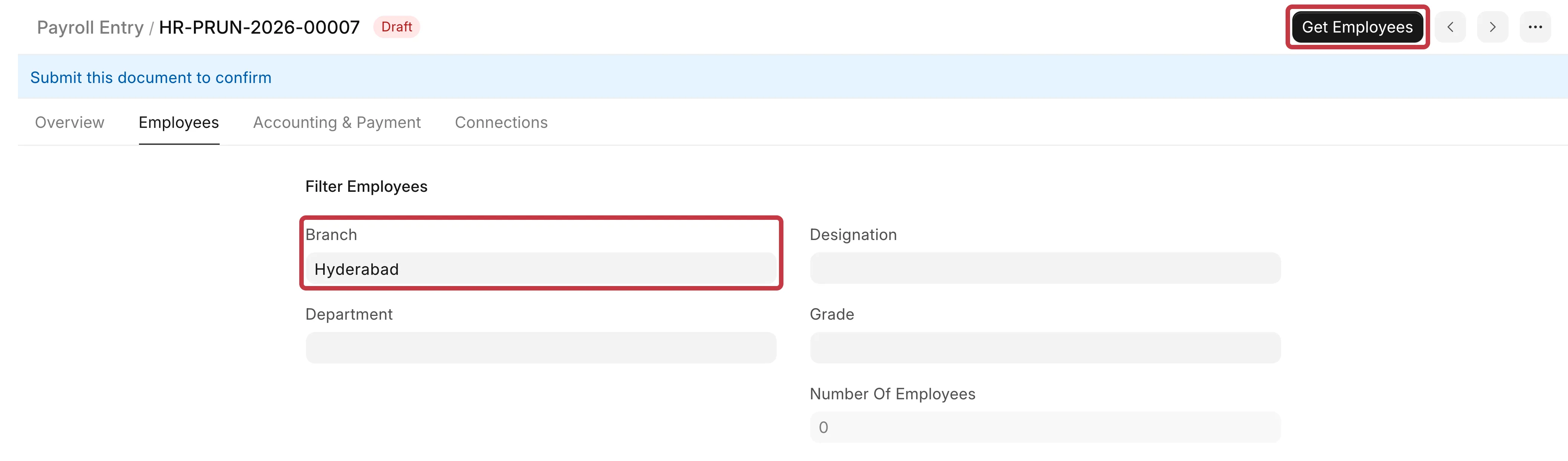
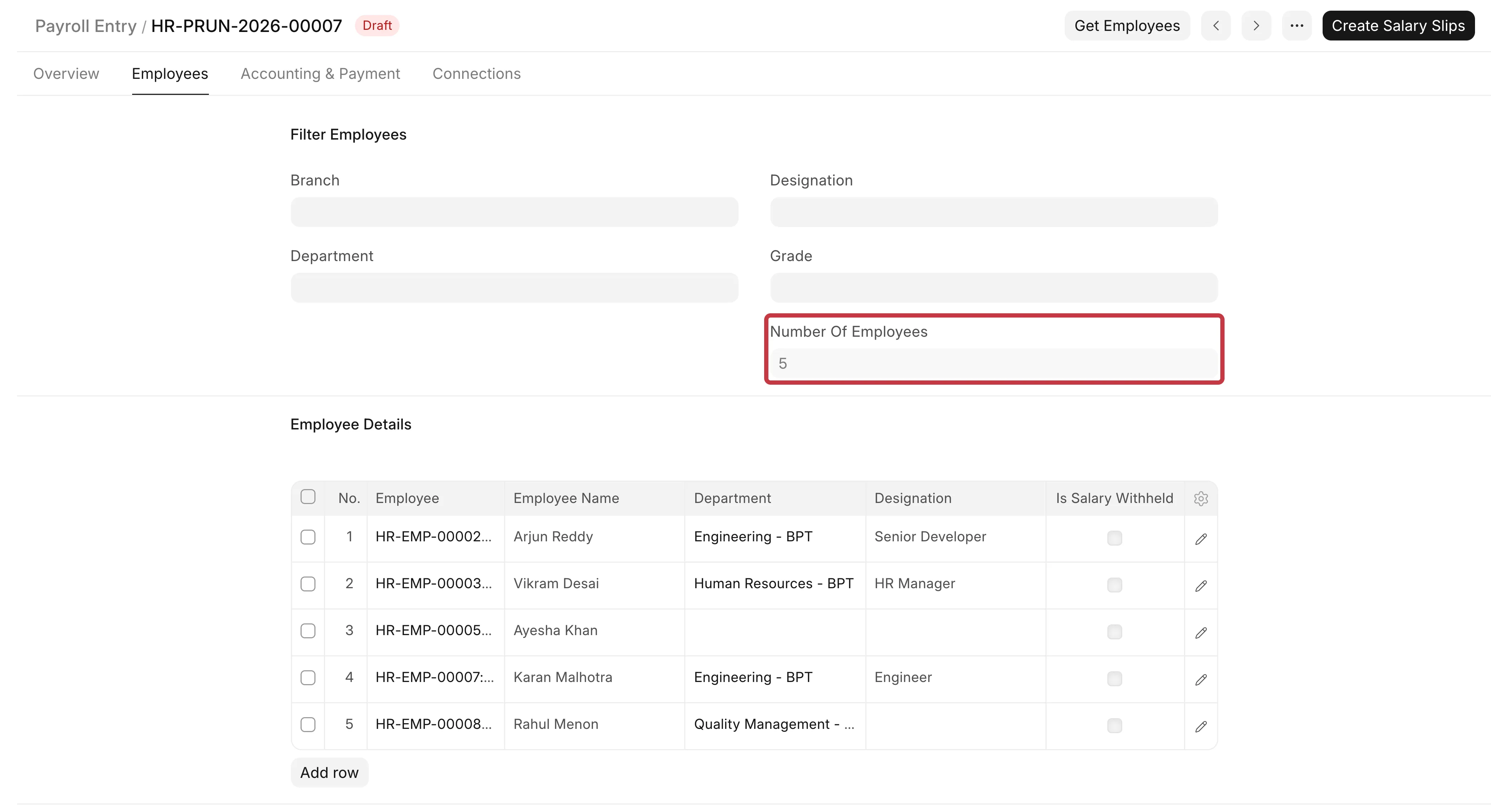
If only some employees are missing, you do not see a message. The Number of Employees is lower than you expect.
Why this happens
Payroll Entry does not fetch every active employee. It fetches an employee only if all these conditions are true:
- The employee matches the filters on the Employees tab: Branch, Department, Designation and Grade.
- The employee has a submitted Salary Structure Assignment. Its From Date is on or before the End Date of the Payroll Entry.
- The Salary Structure in that assignment is submitted and active. Its Company, Currency, Payroll Frequency and Salary Slip Based on Timesheet are the same as in the Payroll Entry.
- The Payroll Payable Account in the Salary Structure Assignment is the same as in the Payroll Entry.
- The employee belongs to the same Company, and the Status is not Inactive.
- The Date of Joining is on or before the End Date, and the Relieving Date (if set) is on or after the Start Date.
- The employee does not already have a submitted Salary Slip for the same Start Date and End Date.
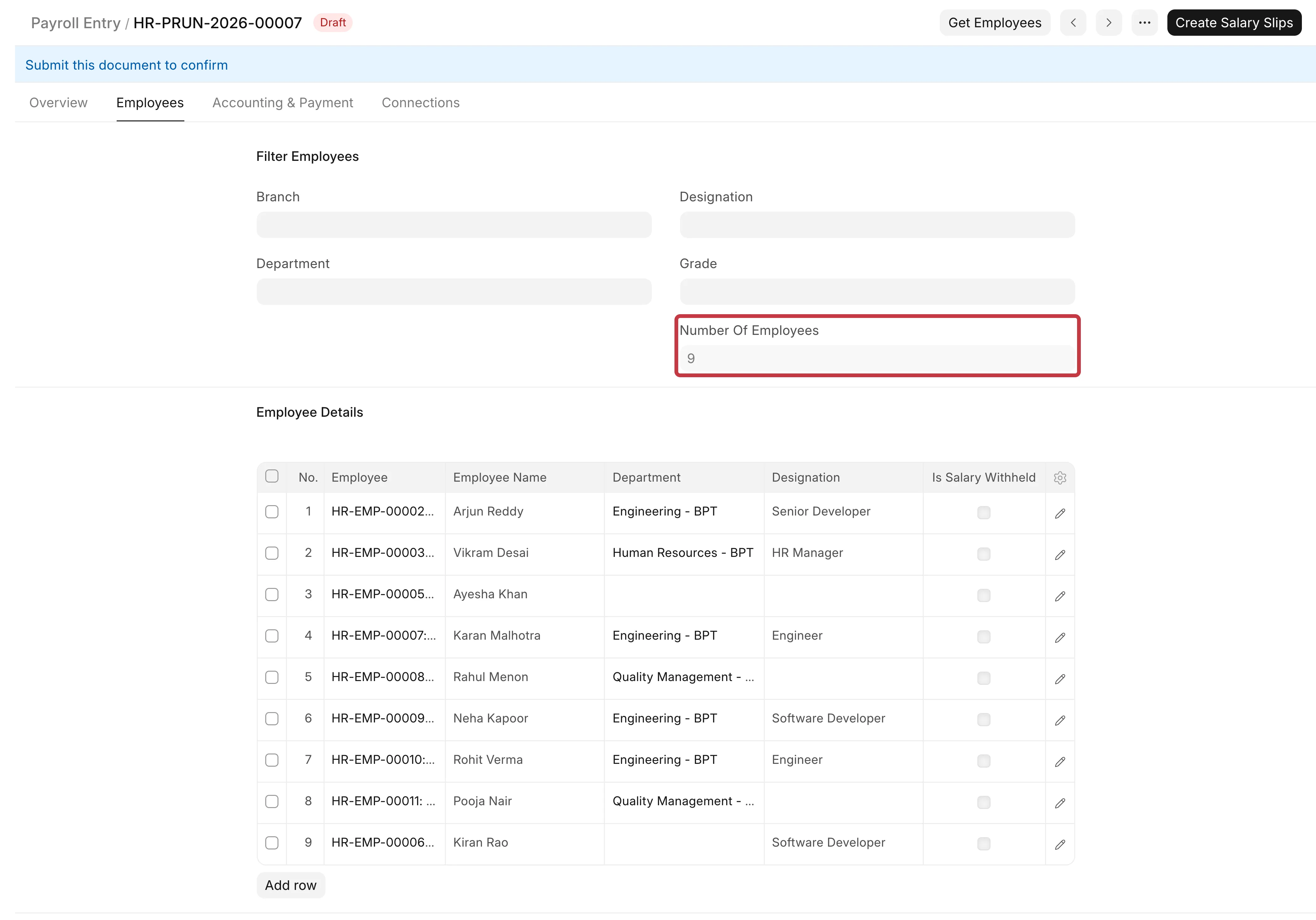
For example, Bluepeak Technologies runs payroll for November 2026. It has 9 employees, but Get Employees fetches only 5:
| Employee | Why Payroll Entry skips the employee |
|---|---|
| Kiran Rao | No submitted Salary Structure Assignment. |
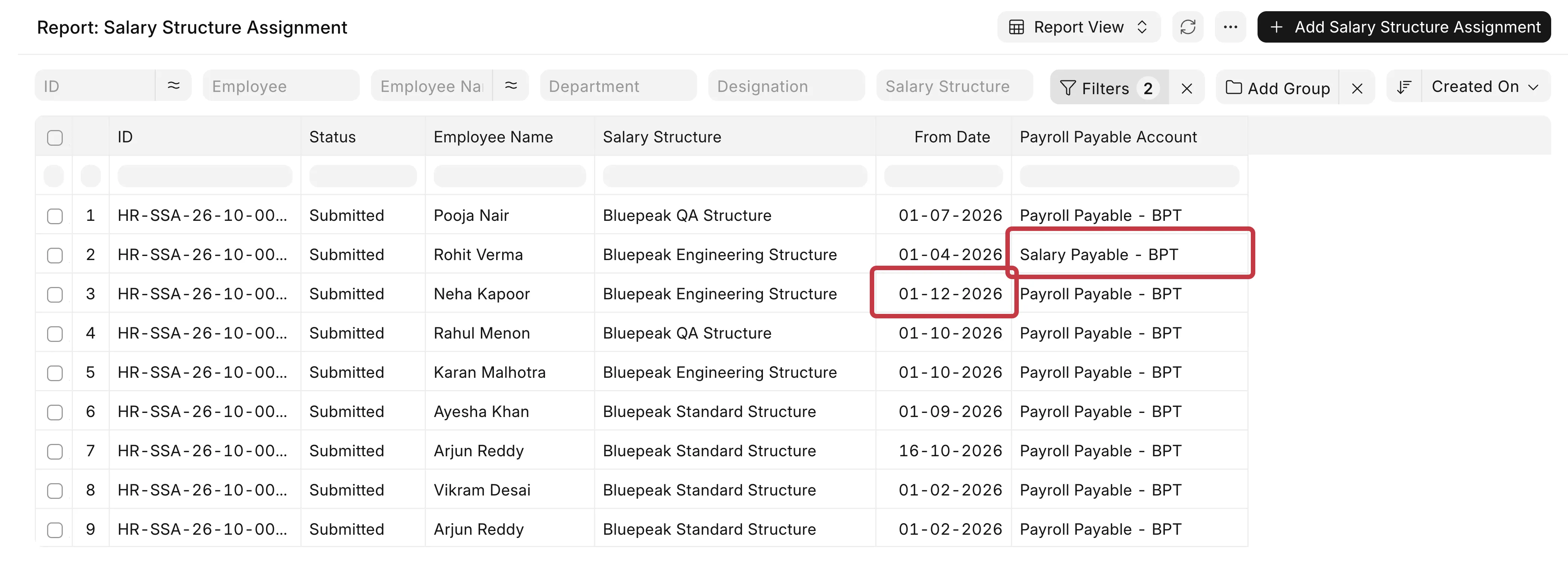
| Neha Kapoor | The Salary Structure Assignment starts on 01-12-2026, after the payroll period. |
| Rohit Verma | The Salary Structure Assignment uses Salary Payable - BPT. The Payroll Entry uses Payroll Payable - BPT. |
| Pooja Nair | The Employee record has an old Relieving Date (30-06-2026), but the employee still works for the company. |
How to fix it
Do the checks in this order. After each fix, open the Payroll Entry and click Get Employees again.
1. Check the Payroll Entry
- Open the Payroll Entry and go to the Overview tab.
- Check Currency, Payroll Payable Account, Payroll Frequency, Start Date, and End Date. They must match the salary setup of the missing employees.
- If the missing employees are paid on timesheets, select Salary Slip Based on Timesheet. If not, clear it.
- Go to the Employees tab. Clear Branch, Department, Designation, and Grade if you do not want to filter by them.
2. Check the Salary Structure Assignments
- Go to Payroll → Salary Structure Assignment.
- Filter by your Company and switch to Report View.
- Add the columns From Date and Payroll Payable Account.
- Look for the missing employees.
- The employee is not in the list: create a Salary Structure Assignment for the employee and click Submit. A draft assignment is not used.
- The From Date is after the End Date of the Payroll Entry: if the employee must be paid in this period, open the assignment, click Cancel, then Amend. Change the From Date and click Submit.
- The Payroll Payable Account is different: cancel and amend the assignment with the account that the Payroll Entry uses. If the employees must stay on a different account, make a separate Payroll Entry with that Payroll Payable Account.
- The assignment is for another company: create a Salary Structure Assignment with a Salary Structure of the company that you run payroll for.
3. Check the Salary Structure
- Open the Salary Structure from the assignment.
- Make sure that it is submitted, Is Active is Yes, and Company, Currency and Payroll Frequency match the Payroll Entry.
For example, if the Salary Structure is Bimonthly and the Payroll Entry is Monthly, the employee is not fetched. If the Salary Structure is in USD and the Payroll Entry is in INR, the employee is not fetched.
4. Check the Employee record
- Open the Employee.
- Check Status, Company, and Date of Joining.
- Go to the Exit tab and check the Relieving Date.
- If the employee still works for you and a Relieving Date is set, clear it and click Save.

An old relieving date can be left on a record that you made with Duplicate, for example, when you move an employee to another company.
5. Check for a salary slip in the same period
If the employee already has a submitted Salary Slip with the same Start Date and End Date, Payroll Entry skips the employee. This prevents paying the same salary twice. Go to Payroll → Salary Slip and filter by the employee to find it.
After the fixes, Get Employees fetches all 9 employees: