


















How do I stop approvers from approving their own leave?
A manager who has the Leave Approver role can approve and submit their own Leave Application. To stop this, turn on Prevent self-approval for leaves, even if the user has permissions in HR Settings. After that, the leave goes to the manager's own approver.
Who sees this
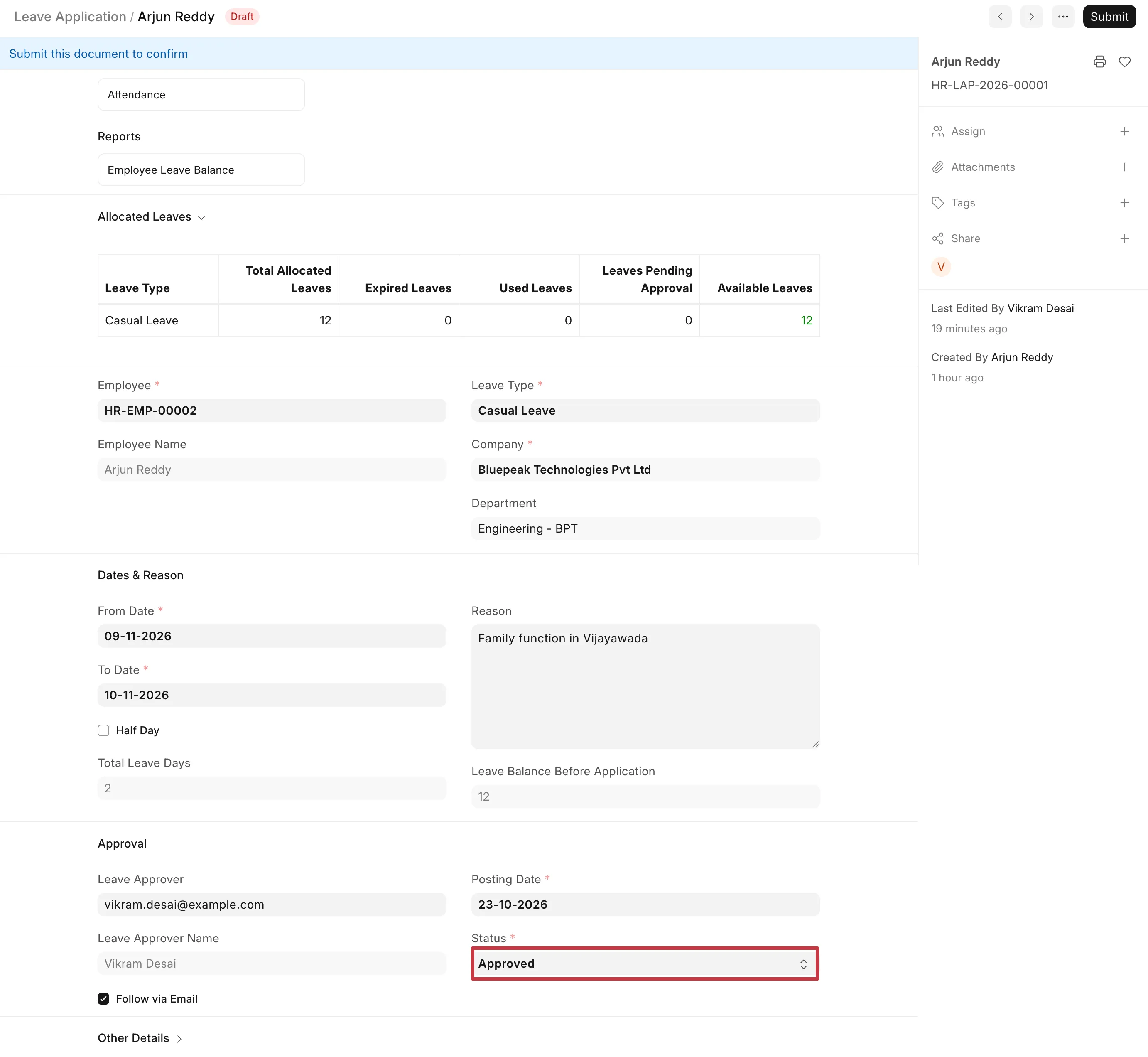
You see this when an employee is also a leave approver. For example, a team lead approves leave for their team. The team lead applies for leave, opens the Leave Application, sets Status to Approved, and clicks Submit. Their own manager never sees the request.
Why this happens
Frappe HR controls the Leave Application with roles. The Leave Approver, HR User and HR Manager roles can change the Status of a Leave Application and submit it. A role applies to every Leave Application the user can open, including their own.
The Leave Approver field on the Leave Application only says who gets the notification. It does not stop another user with the role from approving.
For example, at Bluepeak Technologies, Arjun Reddy is a Senior Developer. He approves leave for Sneha Iyer in his team, so he has the Leave Approver role. His own leave approver is Vikram Desai, the HR Manager. Arjun applies for 2 days of Casual Leave. Because he has the role, he can approve his own request.
How to fix it
Step 1: Set the leave approver for each employee
The leave must go to someone else. Set the employee's own approver first.
- Go to HR Setup → Employee and open the employee. In the example, open Arjun Reddy.
- Click the Attendance & Leaves tab.
- In Leave Approver, select the user who approves this employee's leave. In the example, select vikram.desai@example.com.
- Click Save.
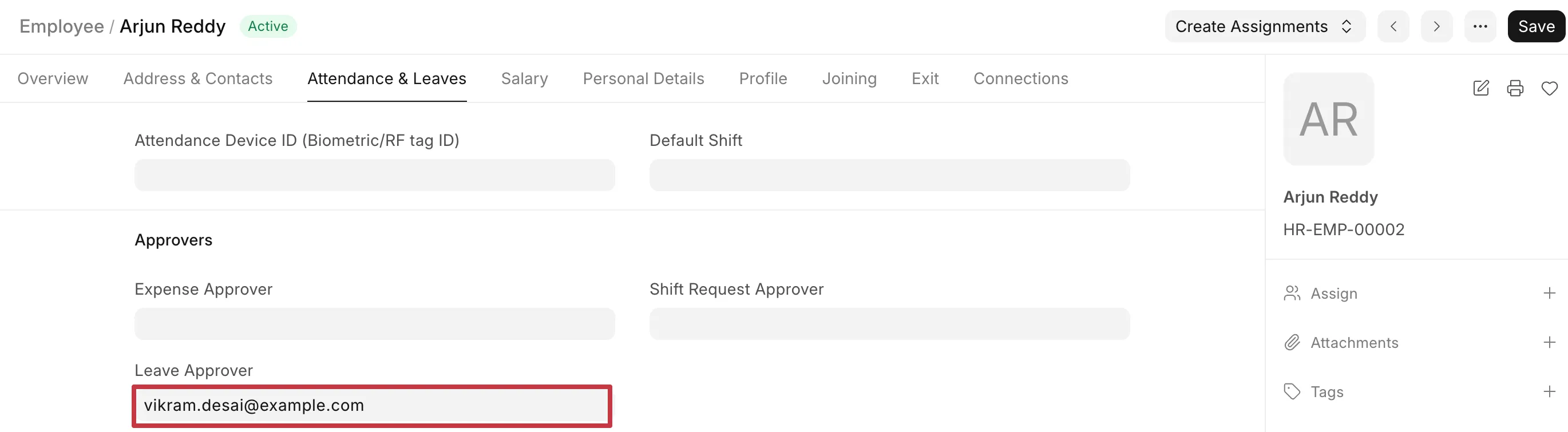
You can also set leave approvers for a whole department in the Department form, in the Leave Approver table. The approver on the Employee form wins over the department approver. For all the ways to set an approver, see Setting Employee Wise Leave Approver.
Step 2: Turn on the HR Settings option
You need the HR Manager or System Manager role for this step.
- Go to HR Setup → Settings. The HR Settings form opens.
- Click the Leaves tab.
- Select Prevent self-approval for leaves even if the user has permissions.
- Click Save.
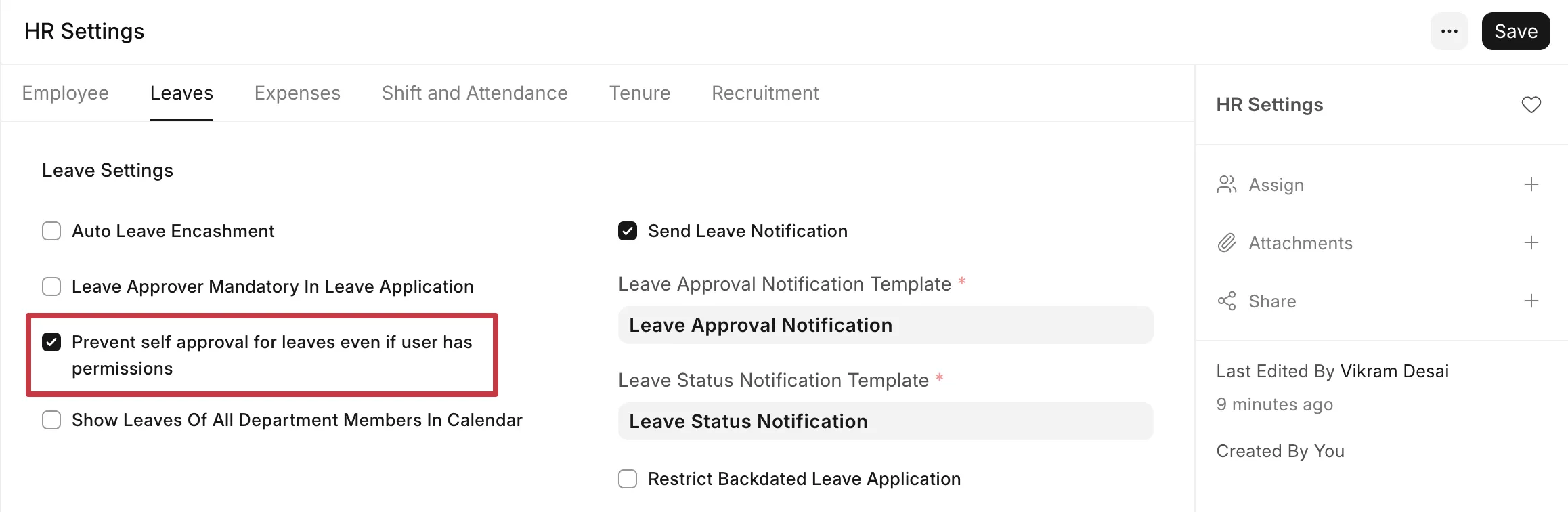
The setting applies to all users, including HR Managers and System Managers, for their own leave.
After applying the fix
When the approver opens their own Leave Application, the Status field is read-only. The Submit button is not shown. The employee can only Save the request.
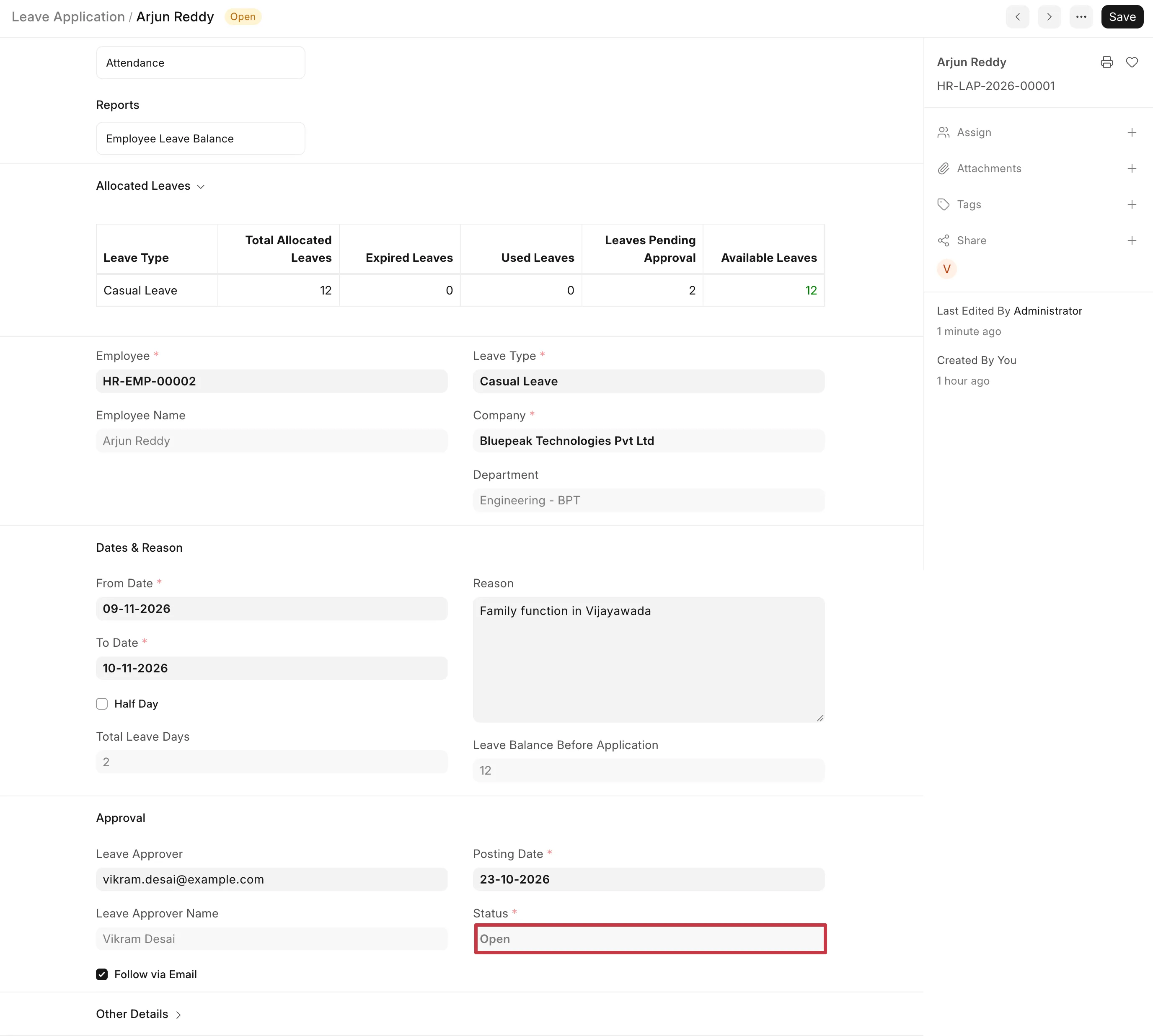
If the employee changes the status another way, for example through the API or a data import, the system stops it with this message:

If you use a workflow on Leave Application
If your site has an active Workflow for Leave Application, the system ignores the HR Settings option. The workflow controls who can approve. Do this in the workflow instead:
- Search for Workflow in the search bar and open the workflow for Leave Application.
- In the Transitions table, open each row that approves or rejects the leave.
- Clear Allow Self Approval.
- Click Save.
Allow Self Approval off means that the user who created the document cannot do that transition.
Other leave documents, for example, Compensatory Leave Request, do not use the HR Settings option. To stop self-approval on them, use a workflow with Allow Self Approval cleared.