


















What happens to the user account when I change an employee's status?
When you change an employee's Status from Active to Left, Inactive, or Suspended, Frappe HR disables the user account linked to that employee. The person cannot log in after you save. When you set the status back to Active, the user account is enabled again.
This only applies to an employee who has a User ID. An employee without a User ID has no user account to change.
Example
Sneha Iyer resigns from Bluepeak Technologies. Her last working day is 31 October 2026. Vikram Desai, the HR Manager, sets her Employee status to Left. When he saves, her user account sneha.iyer@example.com is disabled. Vikram does not need to open the User record or ask a System Manager.
How it works
The User ID field on the Employee links the employee to a user account (the login). Each time you save an Employee whose Status or User ID has changed, Frappe HR compares the status with the user account:
| Employee status | What happens to the linked user account |
|---|---|
| Active | Enabled. If it was disabled, it is enabled again. |
| Left | Disabled |
| Inactive | Disabled |
| Suspended | Disabled |
A disabled user cannot log in. Frappe HR does not delete the user account. The employee's documents, such as leave applications, attendance, and salary slips, stay as they are.
The change is recorded in the activity log of the User, with the name of the person who changed the Employee.
When the status is Left, two more things happen:
- If a Sales Person is linked to the employee, the Sales Person is disabled.
- The User ID is free again. You can link it to another Employee record, for example, if the person joins again later.
Steps
- Go to HR Setup → Employee and open the employee.
- In the Overview tab, open the User Details section. Check that User ID shows the employee's user account.
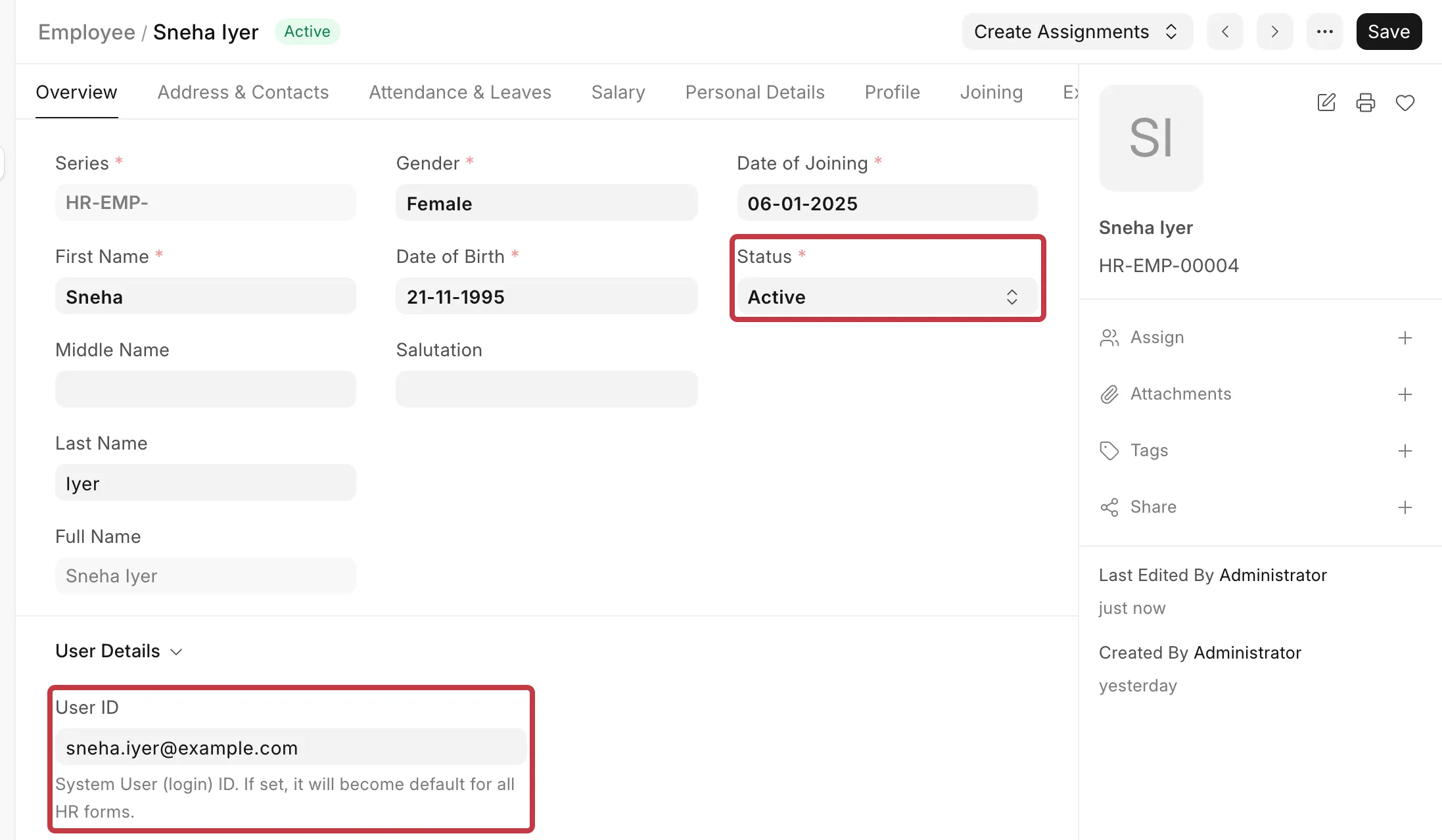
- In Status, select Left, Inactive or Suspended.
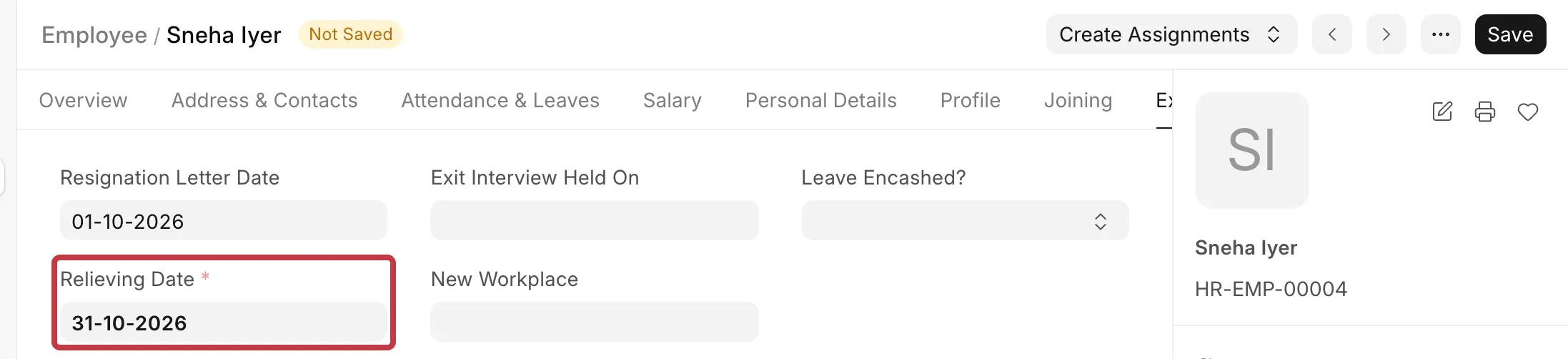
- If you selected Left, go to the Exit tab and enter the Relieving Date. This field is mandatory for the status Left.
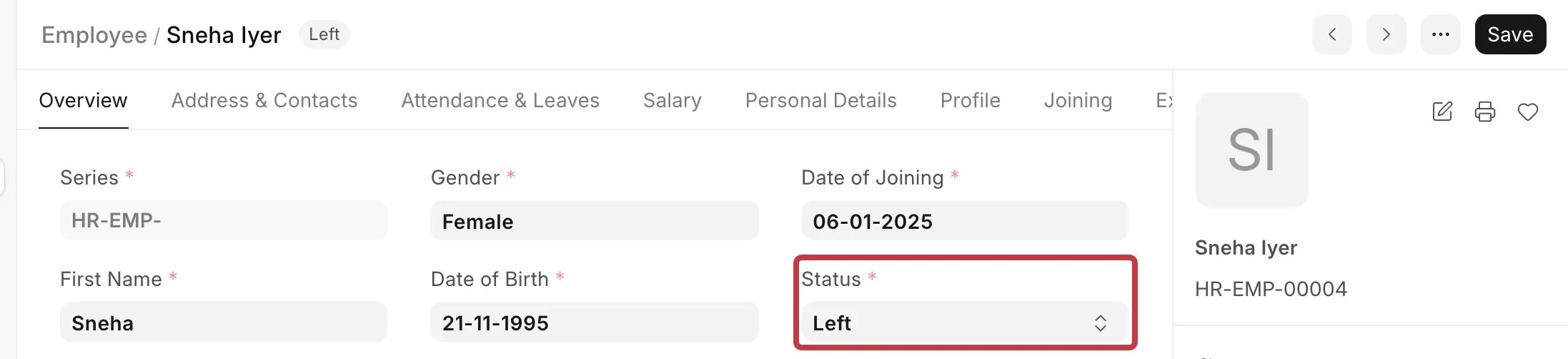
- Click Save. The status in the page header changes.
User Account
To check the user account, a System Manager can go to User and open the user. The Enabled checkbox is clear, and the page header shows Disabled.

The Activity section of the User shows who disabled the account.
