


















Why does my Leave Application ask for a Holiday List Assignment?
In Frappe HR version 16, a Leave Application stops at Submit with No Holiday List was found for Employee … Please assign through Holiday List Assignment. This happens when no submitted Holiday List Assignment applies to the employee or their company. It often starts after an upgrade from version 15, or for a new company or a new joiner.
The error
The leave approver sees the error in a message dialog when they submit the Leave Application. The employee can save the application. The error occurs at submission.
No Holiday List was found for Employee HR-EMP-00006 or their company Bluepeak Technologies Pvt Ltd for date 05-11-2026. Please assign through Holiday List Assignment
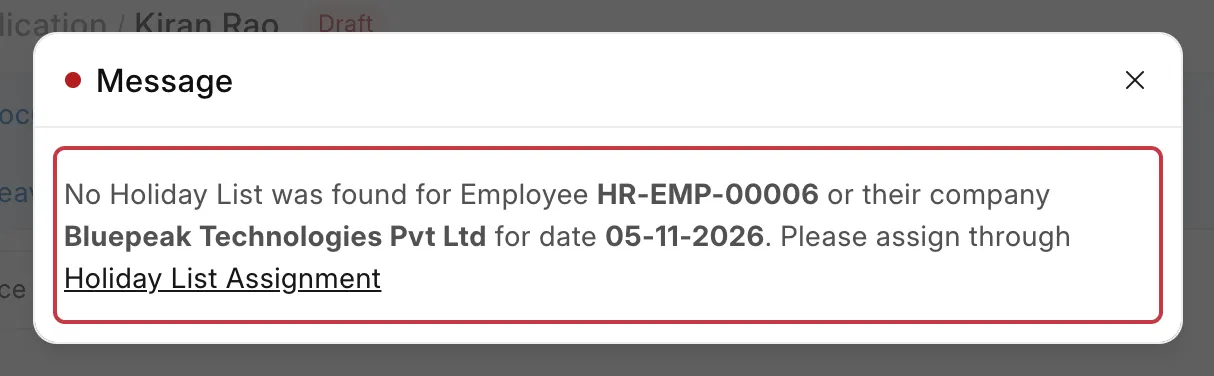
Older version 16 releases (before v16.4.0) show the same problem with different text:
Please assign Holiday List for Employee HR-EMP-00006 or their company Bluepeak Technologies Pvt Ltd through Holiday List Assignment
Why this happens
A Leave Application needs a holiday list to count the leave days and to record the leave in the leave ledger. In version 15, the holiday list came from the Holiday List field in the Employee, or the Default Holiday List in the Company.
In version 16, the holiday list comes only from a Holiday List Assignment. This is a separate document that links a holiday list to an employee or to a company from a start date. It keeps the history of when the holiday list changes. The Holiday List field in the Employee is now hidden.
When the Leave Application is submitted, Frappe HR looks for the holiday list in this order:
- A submitted Holiday List Assignment for the employee.
- A submitted Holiday List Assignment for the employee's company.
If it finds neither, it shows the error. These do not count:
- An assignment in Draft or Cancelled status.
- The Holiday List set in the Shift Type of the employee's default shift. Frappe HR uses the shift's holiday list only for auto attendance. The Leave Application has no shift, so it cannot use it.
- The Default Holiday List in the Company, or the hidden Holiday List field in the Employee.
- An assignment for a different company. If the employee moved to another company, that company needs its own assignment.
For example, Bluepeak Technologies Pvt Ltd upgraded to version 16. The upgrade did not create a company-level assignment. Kiran Rao joins on 1 October 2026 and applies for two days of Casual Leave. Kiran's manager, Vikram Desai, approves the leave and clicks Submit. The error appears because neither Kiran nor Bluepeak Technologies Pvt Ltd has a submitted assignment.
How to fix it
Create one company-level assignment. It applies to every employee of the company who has no assignment of their own. You need the HR Manager or HR User role.
- Make sure a Holiday List exists that covers the leave dates. Its From Date and To Date must include the leave dates.
- Go to Leaves → Holidays → Holiday List Assignment and click Add Holiday List Assignment.
- In Applicable For, select Company.
- In Company, select the employee's company.
- In Holiday List, select the holiday list. Holiday List Start and Holiday List End show its dates.
- In Assignment Starts From, enter the first date the list applies. Use the Holiday List Start date. It must be between Holiday List Start and Holiday List End.
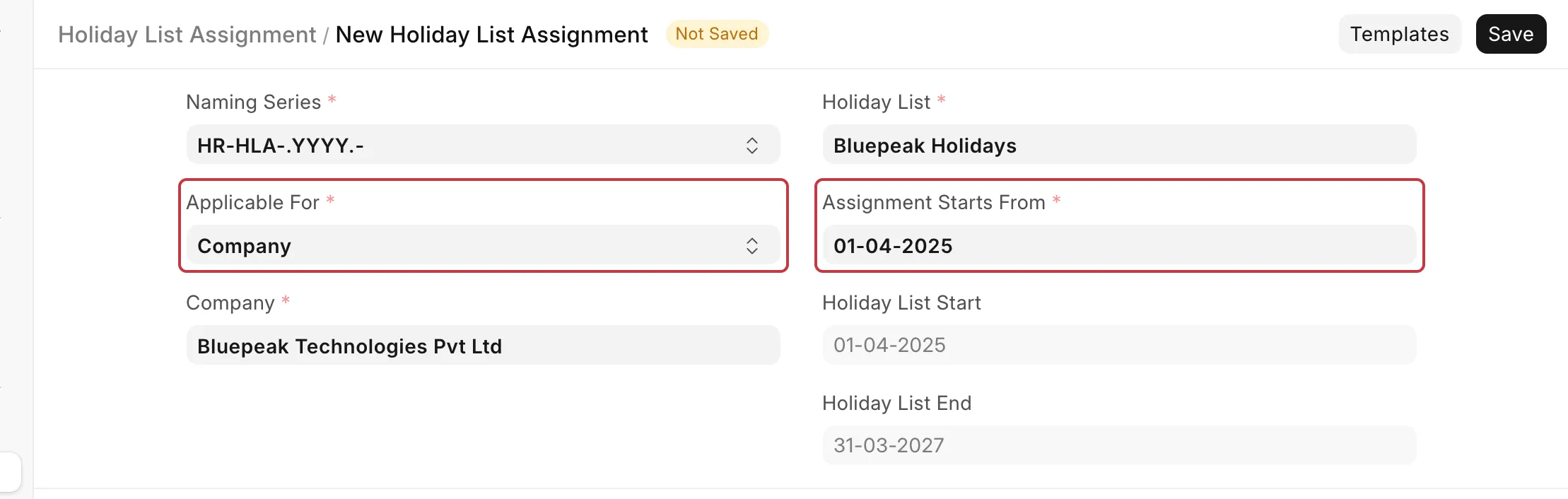
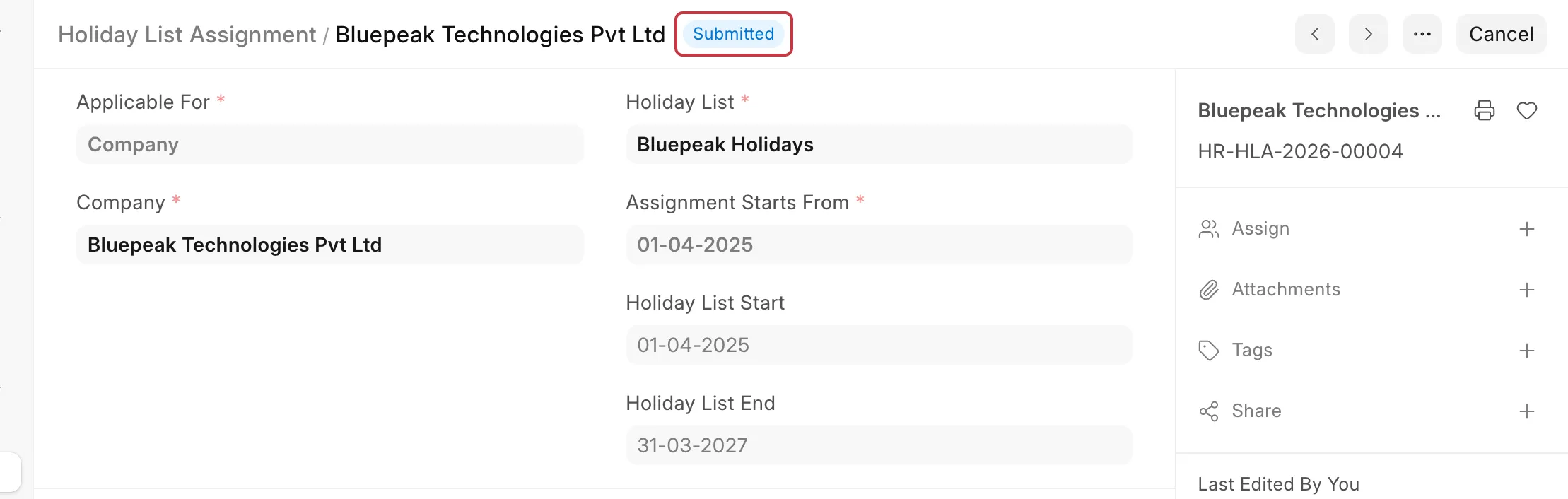
- Click Save, then Submit. The status changes to Submitted.
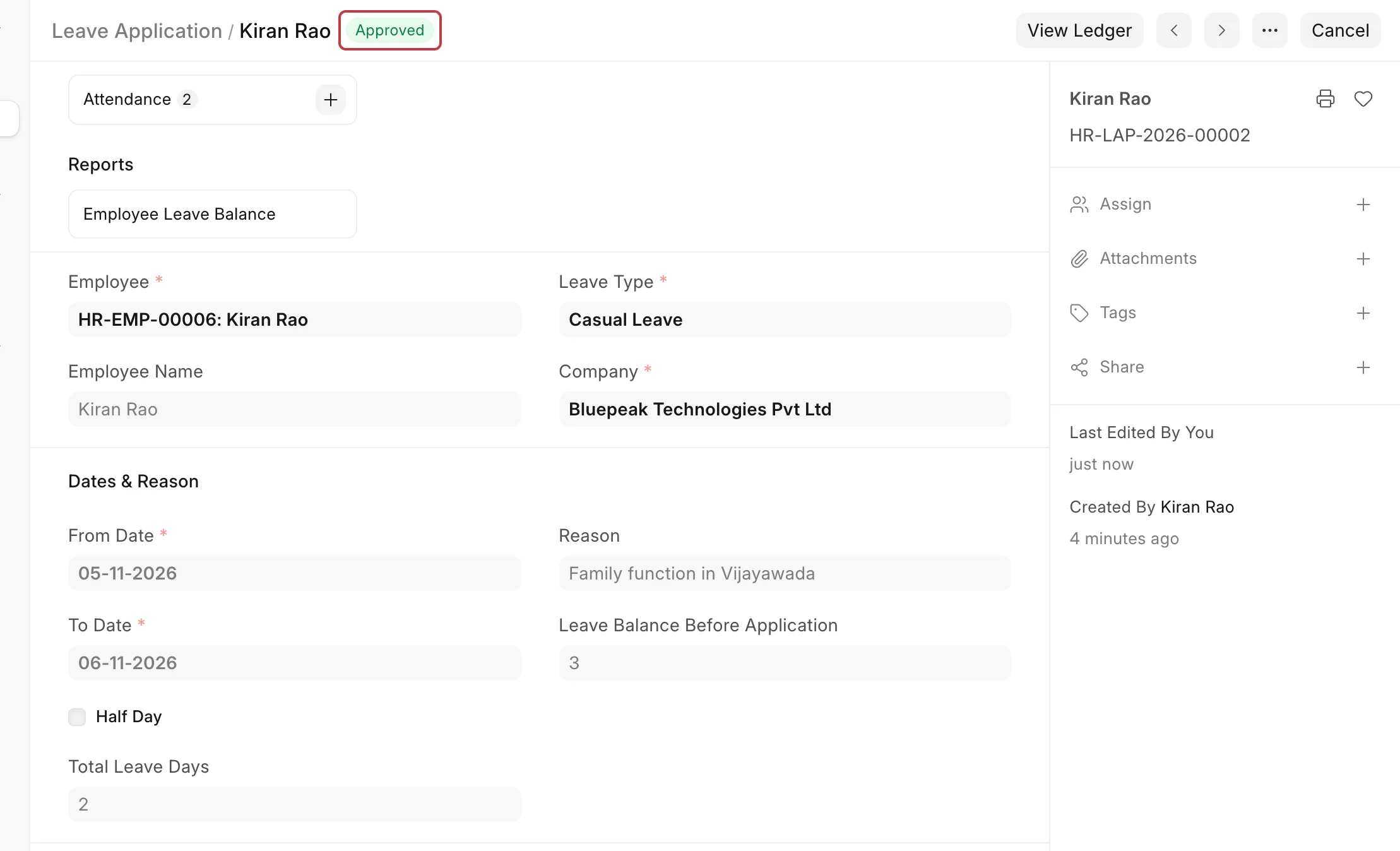
- Open the Leave Application again and click Submit. The status changes to Approved and the leave is recorded.
If some employees follow a different holiday calendar (for example, another branch or a night team), create one more assignment for each of them. Select Employee in Applicable For and select the employee. An employee-level assignment wins over the company-level assignment.
If the date in the error is before the assignment's start date
A submitted assignment cannot be edited. Do one of these:
- Update your site to the latest version 16 release (v16.20.0 or later).
- Or create another assignment with an Assignment Starts From date on or before the date in the error. If the current holiday list does not cover that date, create a holiday list for that period first and assign it.
How to check which holiday list applies
- Go to Leaves → Holidays → Holiday List Assignment.
- Filter Assigned To by the employee ID, then by the company name.
- Look at the submitted records. The record with the latest Assignment Starts From date on or before the leave date applies.
How to prevent it
- Create a company-level assignment for every company, including a new company.
- When you make the holiday list for the next year, also create and submit an assignment that starts on the first day of the new list.
- After an upgrade from version 15, check that each company has a submitted assignment. The upgrade creates assignments only for active employees and companies that had a holiday list set.