


















How do I post Job Openings to LinkedIn or Indeed?
Frappe HR does not post a Job Opening to LinkedIn, Indeed or other job boards by itself. But you can publish the opening on your own job portal, post it on the job board with a link back to your site, and get every application in Frappe HR as a Job Applicant.
Why there is no direct posting
A Job Opening in Frappe HR is published only on your own site https://<your-site>/jobs. Frappe HR has no connector for LinkedIn, Indeed, Naukri, or other job boards. When you set a Job Opening to Open, nothing is sent to these sites.
Job boards let you send candidates to an application page on your own website. So the job board shows the job, and your Frappe HR site collects the applications.
For example, Bluepeak Technologies hires a Senior Python Developer. The HR Manager posts the job on LinkedIn and Indeed. Candidates click Apply on the job board, fill in the Job Application form on the Bluepeak site, and each application comes in as a Job Applicant with the Source set to LinkedIn or Indeed.
Before you start
- You need the HR Manager or HR User role.
- Create the Job Opening first. See Job Opening.
- Your site must be open to the public, so candidates can open the job page without signing in.
Steps
1. Publish the Job Opening on your job portal
- Go to Recruitment → Job Opening and open the job.
- Make sure Status is Open.
- Select Publish on website. The Route fills in, for example
jobs/bluepeak_technologies_pvt_ltd/senior-python-developer. - Click Save.
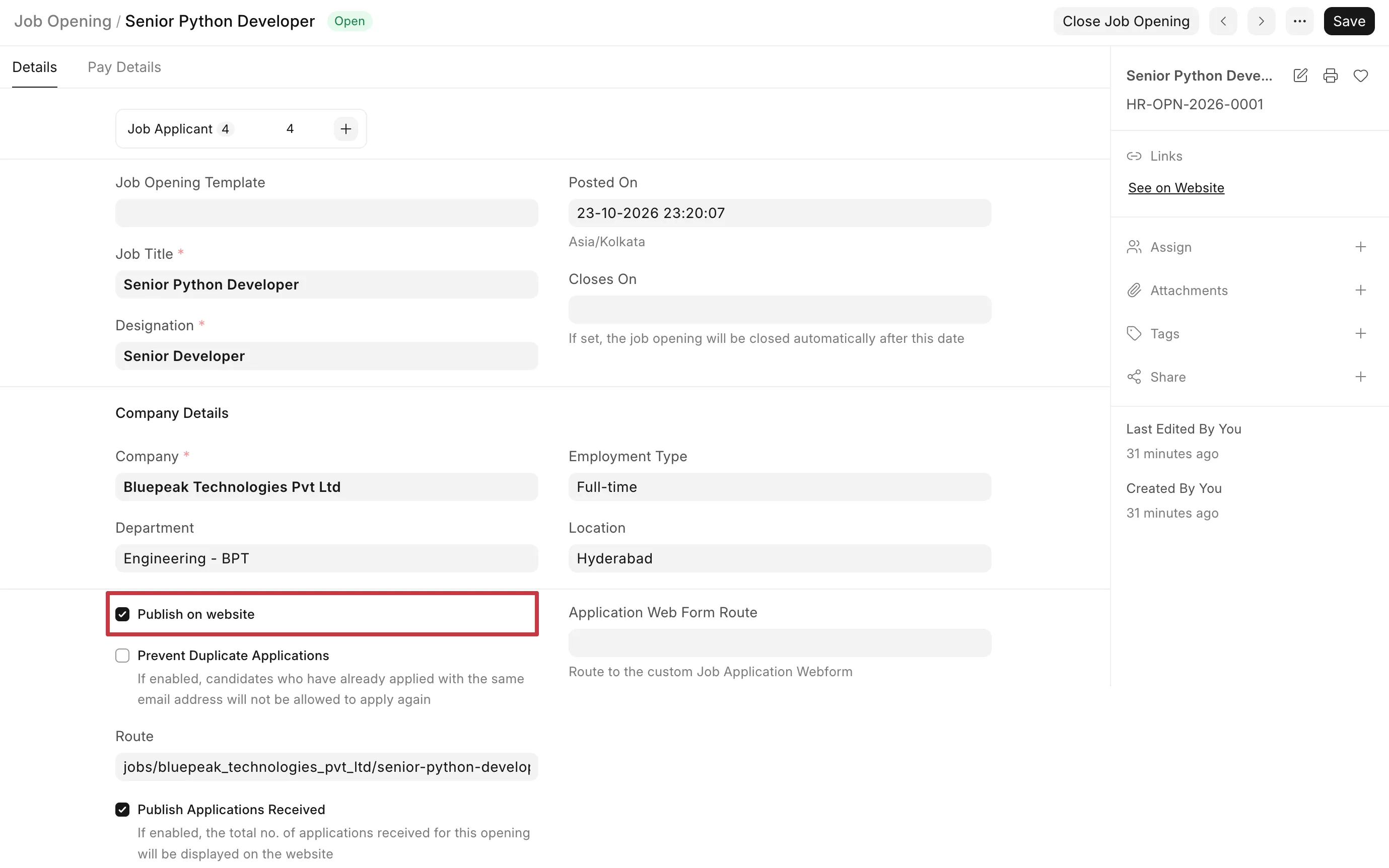
- In the sidebar, under Links, click See on Website. The public job page opens with an Apply Now button. Copy this page's address from the browser.
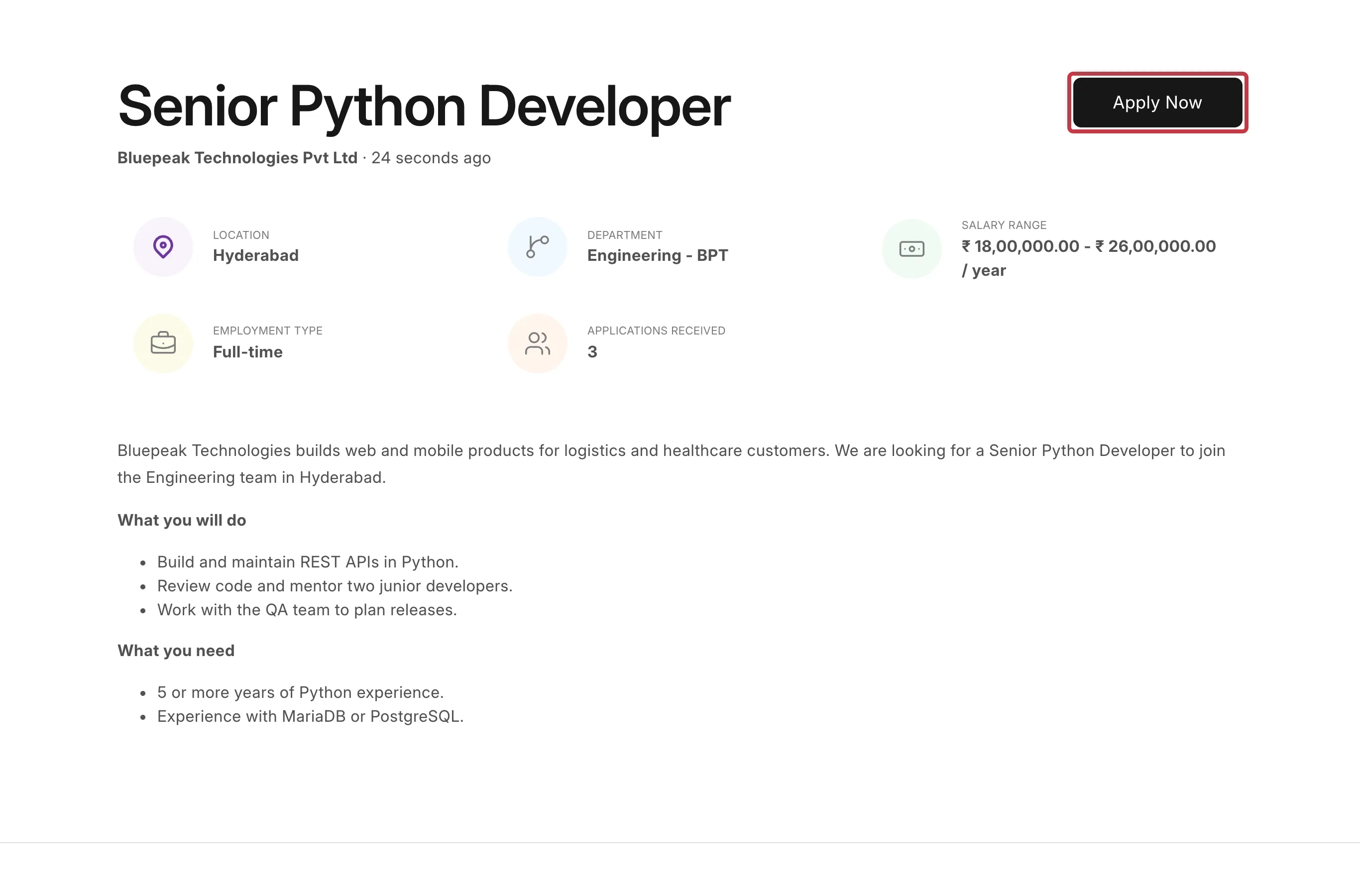
The job also shows on your job portal at https://<your-site>/jobs. See Job Portal.
2. Add the job boards as Job Applicant Sources
Do this once. The Source of each Job Applicant then tells you which job board the candidate came from.
- In the search bar, type
Job Applicant Sourceand open the Job Applicant Source list. - Click Add Job Applicant Source.
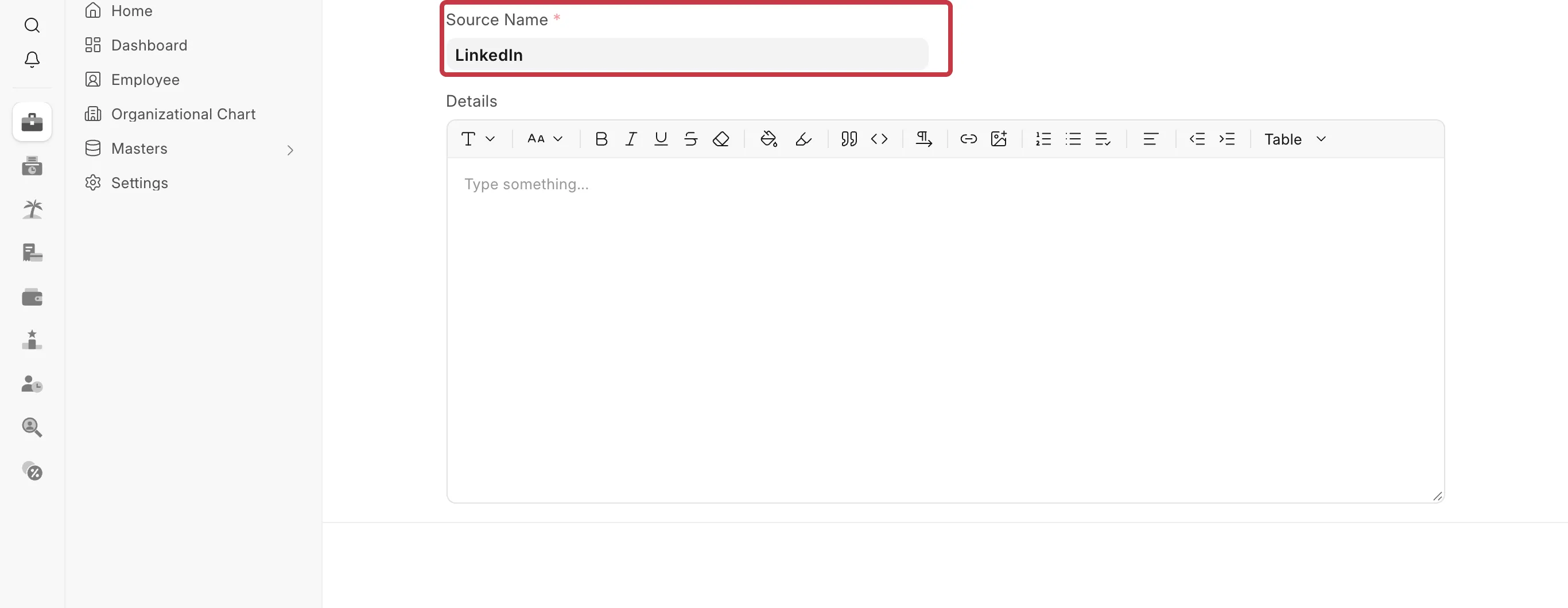
- In Source Name, enter
LinkedIn. - Click Save.
- Do the same for
Indeedand every other job board you use.
3. Make one application link for each job board
The Job Application form fills in the fields that you put in its address. Use this to make one link for each job board:
https://<your-site>/job_application/new?job_title=<Job Opening ID>&source=LinkedIn
- Replace
<your-site>with your site address. - Replace
<Job Opening ID>with the ID of the Job Opening, for exampleHR-OPN-2026-0001. The ID shows in the sidebar of the Job Opening form. - Write the source exactly as the Source Name you saved in step 2, with the same capital letters.
- If you set an Application Web Form Route in the Job Opening, use that route instead of
job_application.
For the example above, the two links are:
https://bluepeak.example.com/job_application/new?job_title=HR-OPN-2026-0001&source=LinkedIn
https://bluepeak.example.com/job_application/new?job_title=HR-OPN-2026-0001&source=Indeed
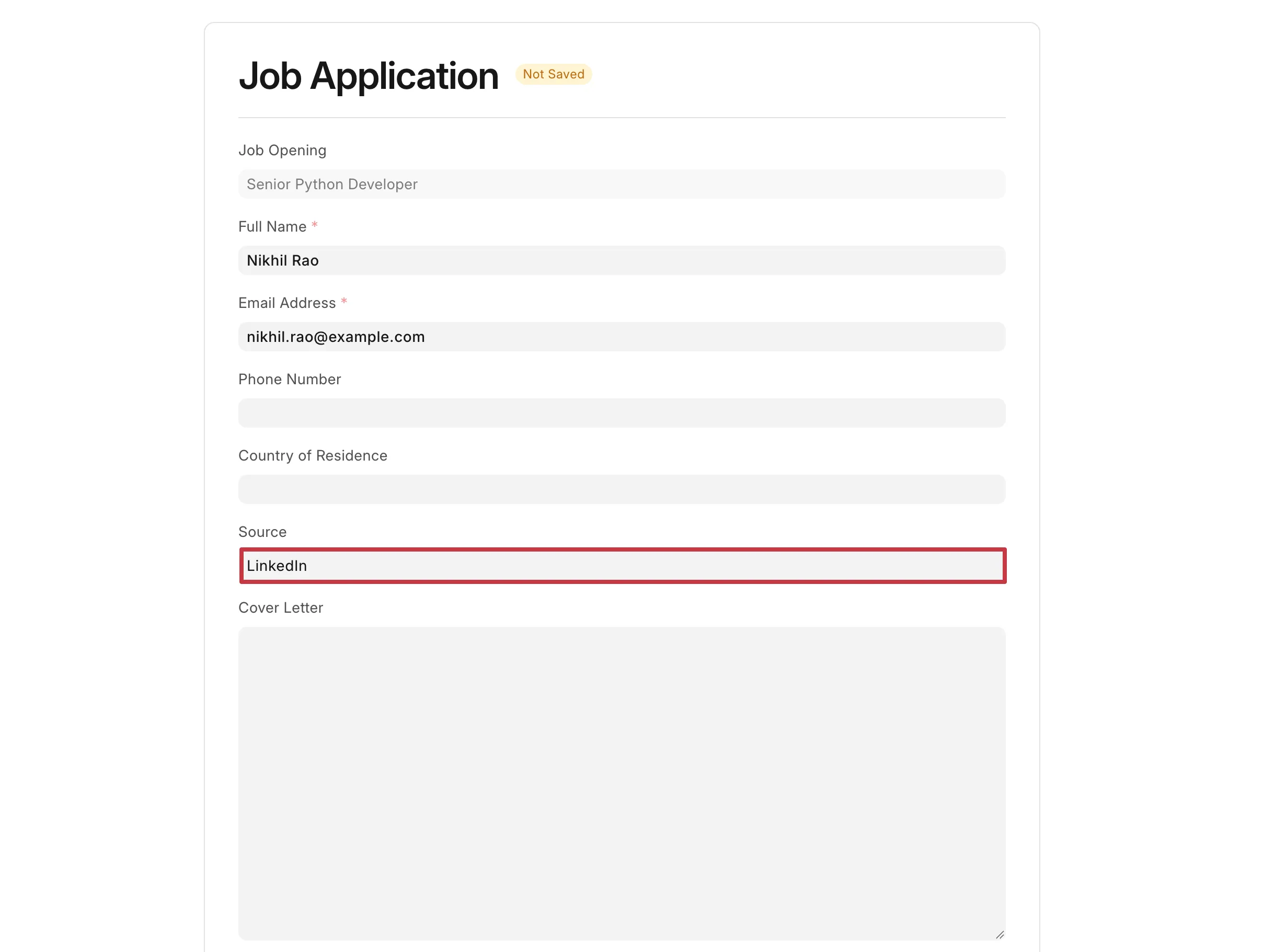
Open each link in a private browser window to check it. The form opens with the Job Opening and the Source already filled in.
4. Post the job on LinkedIn and Indeed
- Create the job post on the job board. Copy the job title, description, location and salary range from the Job Opening.
- In the job board's application settings, select the option that sends candidates to an external website.
- Paste the link for that job board from step 3.
- Publish the job post.
The name and place of this setting change from time to time, and some job boards offer it only on some plans. If you cannot find it, check the job board's help pages.
5. Review the applications
When a candidate submits the form, Frappe HR creates a Job Applicant linked to the Job Opening.
- Go to Recruitment → Job Applicant.
- Click Filters and add the filter Source = LinkedIn. You now see only the candidates who came from LinkedIn.
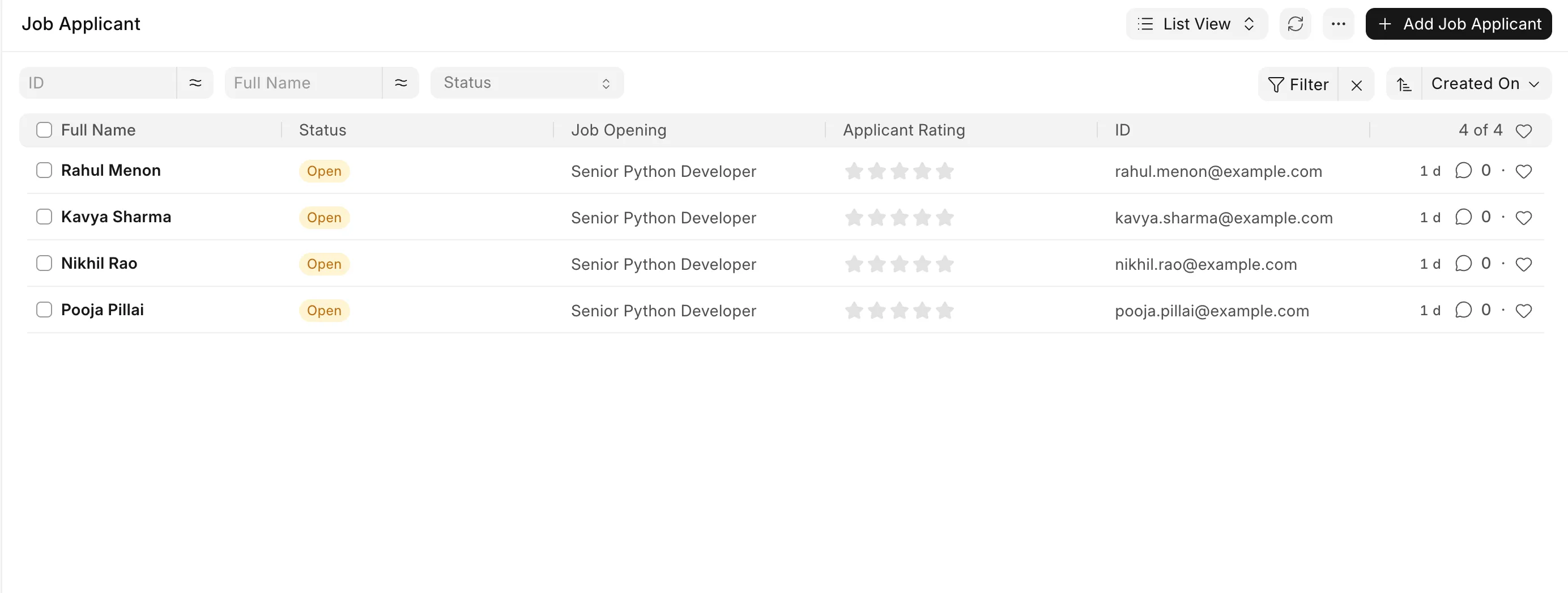
The number of applications for each Job Opening also shows in the Job Applicant count at the top of the Job Opening form.