


















The main content of a course resides in the lesson. A lesson can have various kinds of content ranging from documents to images to videos from Youtube, Vimeo, etc. We can also put quizzes or assignments to make them more interactive!
Create a Lesson
- Navigate to the Course you want to edit.
- Locate the Chapter where you want to add content.
- Click the
Add Lessonbutton within that chapter.
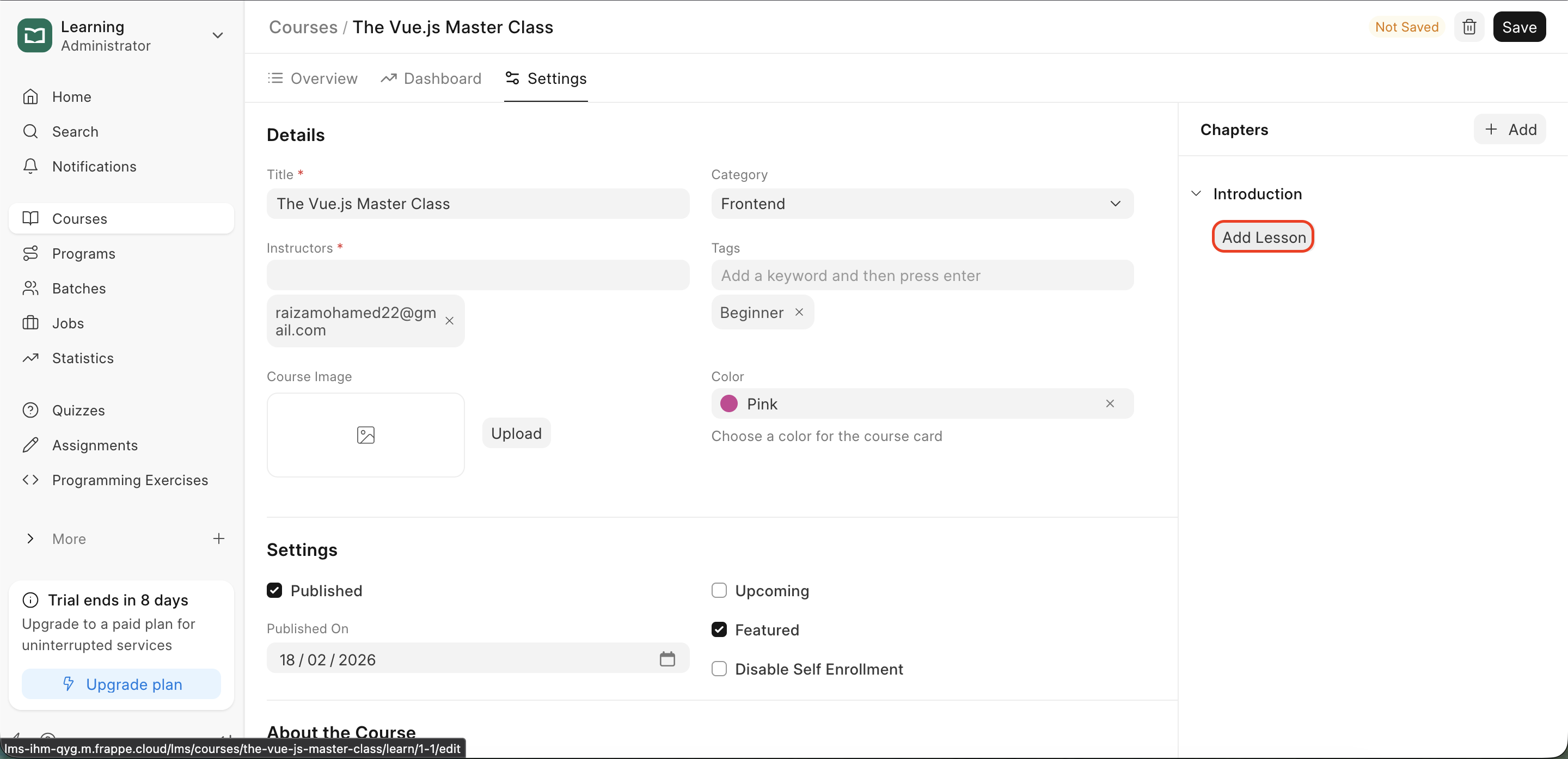 Course Settings
- You will be taken to the Lesson editor to add your content. Add your content here.
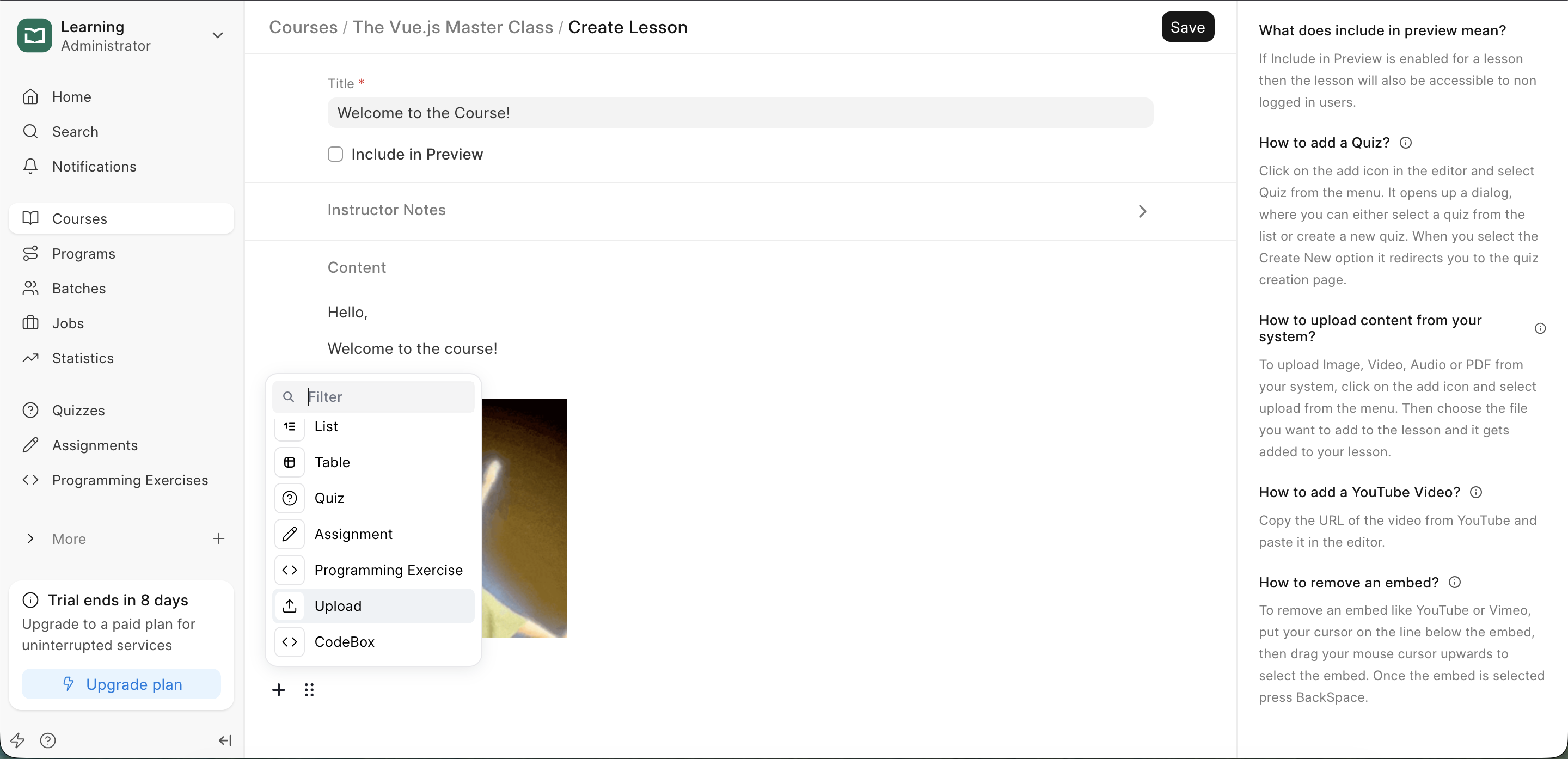 Lesson Editor
- Enter your lesson details.
Types of Lesson Content
Frappe Learning allows you to mix and match different media and tools to create a rich learning experience. By default, the type of content is text.
Choose from the following options to build your lesson:
- Text: Enter any text content. This is the default block type.
- Heading: Add various heading levels to structure your lesson.
- Quiz: Add quizzes you have previously created. These act as progression gates for the learner.
- Assignment: Link to an assignment where students can submit files (PDF, Image, Document) or URLs for instructor review.
- Programming Exercises: Embed auto-graded coding tasks where students write and test code directly in the browser.
- Upload: Directly upload images, videos, PDFs, and audio files to be rendered within the lesson.
- Google Slides: Make sure it is not view restrited and simply copy the link and paste it to render the presentation.
- Google Sheets & Docs: Similar to Slides, use the link to embed live spreadsheets or documents.
- Video Hosting: Integrate videos hosted on external services like YouTube, Vimeo, Cloudflare Stream, or BunnyStream.
- CodeSandBox: Embed live coding environments for technical or programming lessons.
Lesson Fields Reference
| Field | Description | Mandatory |
|---|---|---|
| Title | The name of the lesson (e.g., "Installing Python"). | ✅ |
| Content | The rich-text editor for text, images, and embedded media. When you hover on the editor, a + icon will appear at the left of it. Click on the icon to open the lesson menu. You can select the type of content you want to add from the menu. | ❌ |
| Include in Preview | If you want Guest users to be able to see this lesson without enrolling for the course, you can enable this option. | ❌ |
| Instructor Notes | If there is some content that you want to share only with the instructors and moderators of the system, and don't want learners to see it, you can add such content here. These notes will only be visible to users who have Course Creator, Batch Evaluator, and Moderator roles. Any teaching or training instructions can be shared here. | ❌ |
Last updated 8 months ago
Was this helpful?