

















Editing or Deleting Content
As your course evolves, you may need to update or remove content.
Delete a Course
Go to your Course and click on Settings in the tab panel. In the top right corner, click the trash icon and confirm to delete the entire course.
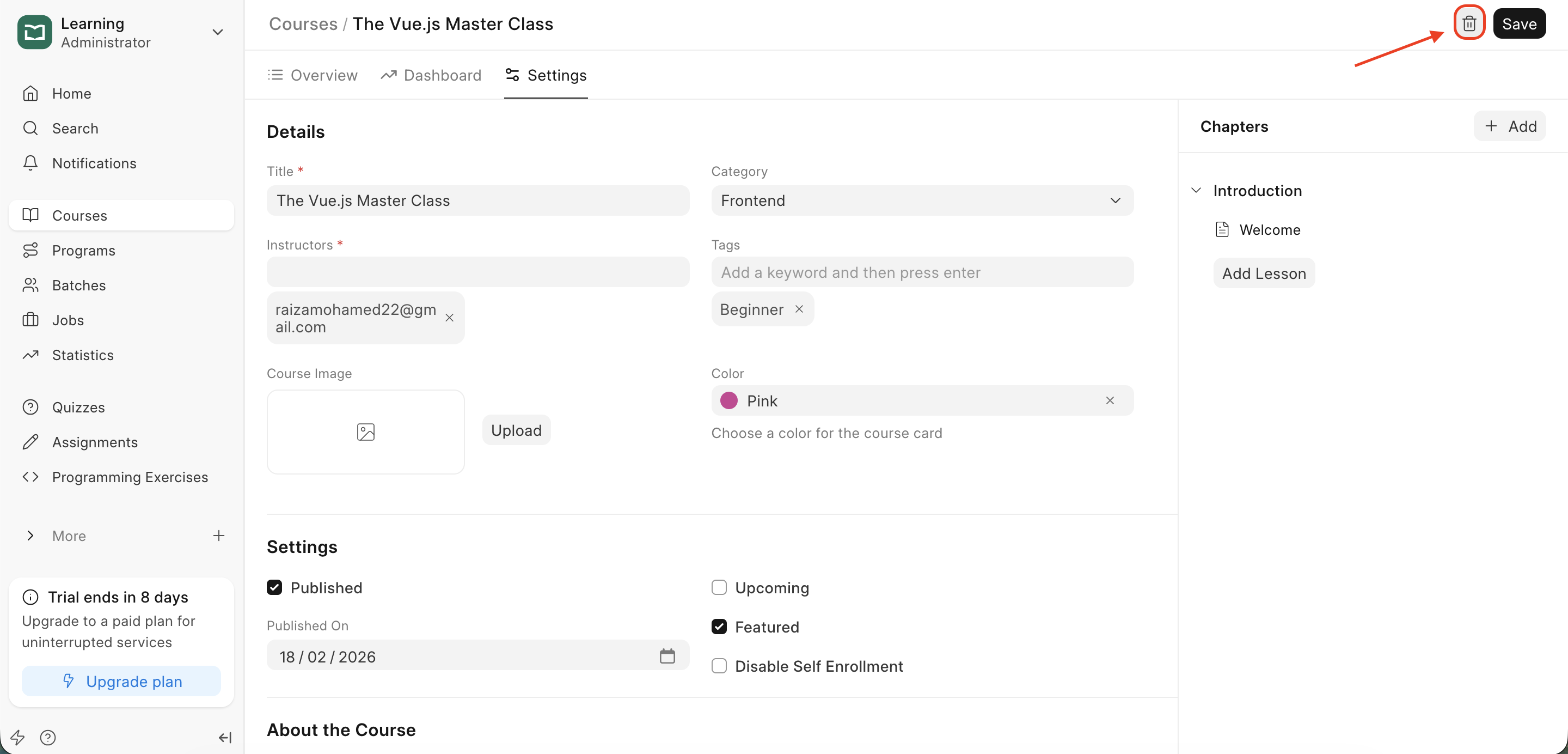 Course Settings View: course delete button is highlighted.
Edit or Delete a Chapter
- To edit a chapter, hover over the chapter name in the curriculum view. Click the edit icon that appears on the same line to change the Title or update SCORM content.
- To delete a chapter, hover over the chapter and click the trash icon on the same line. Confirm the deletion to remove the chapter and its associated lessons.
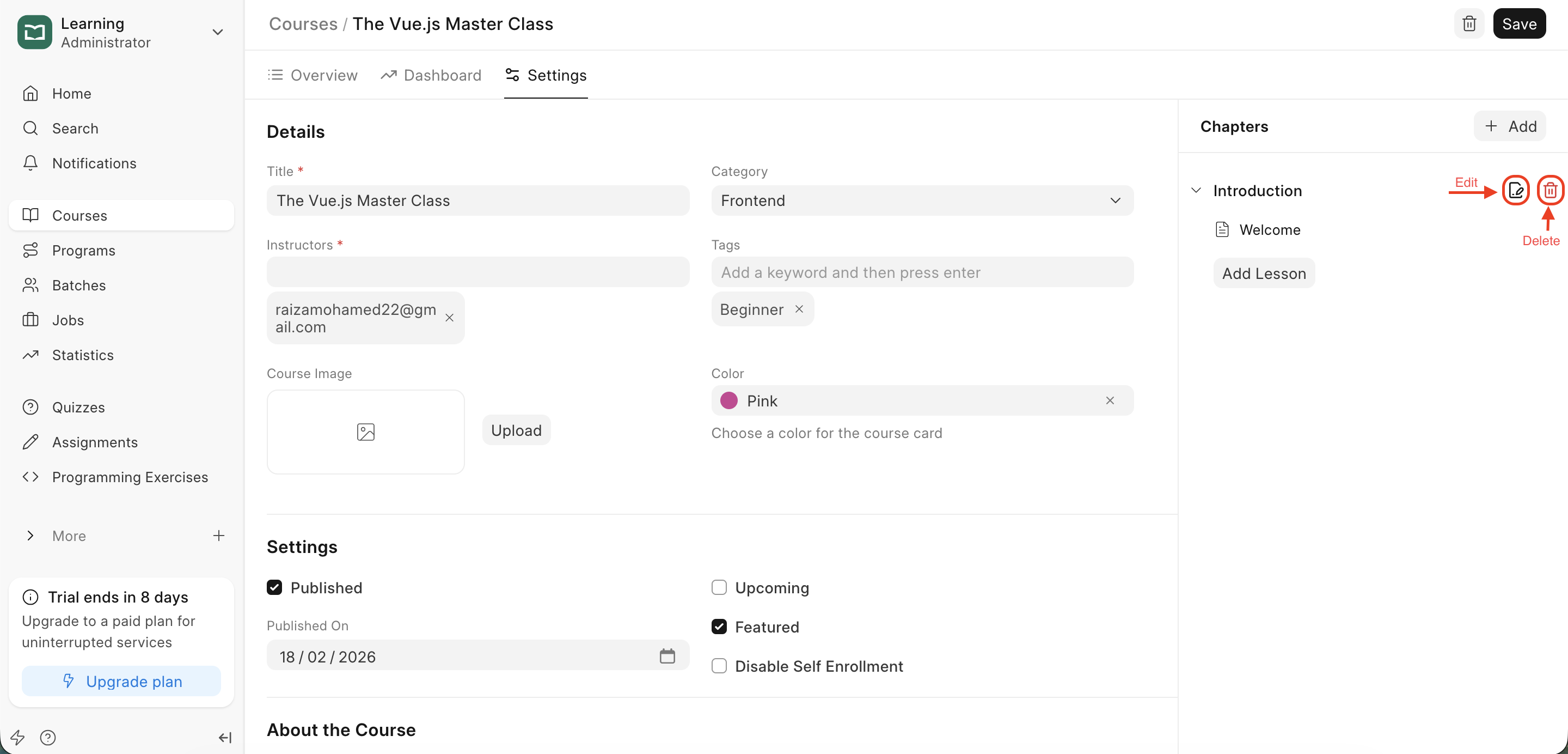 Course Settings View: chapter edit and delete buttons are highlighted
Edit or Delete a Lesson
- To edit a lesson, simply click on the lesson title to open the Lesson Editor. From here, you can modify any blocks or settings.
- To delete a lesson, hover over the lesson in the curriculum list. Click the trash icon that appears on the same line and confirm to delete.
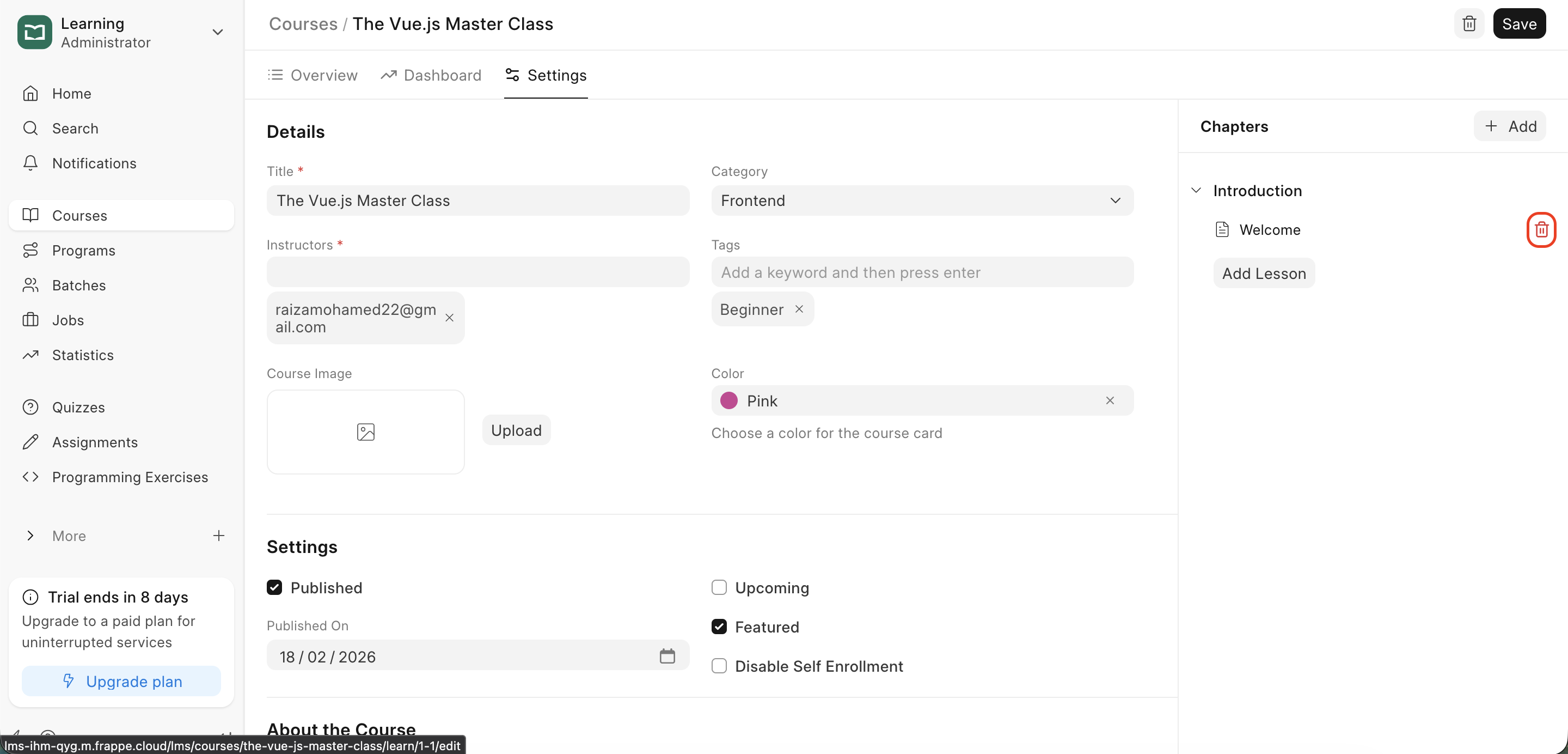 Course Settings View: lesson delete button is highlighted
Last updated 6 months ago
Was this helpful?