


















A deal is a qualified opportunity you're actively working to close. It usually starts as a lead. Once you've figured out there's real potential, you convert it into a deal and start tracking it through your pipeline. You can also use the deal record to track upsells, cross sells and renewals too against an organization.
The Deals List
The Deals list works just like the Leads list. Each row shows you the organization, deal value, status, email, phone, who it's assigned to, and when it was last updated.
You can filter, sort, and switch between List and Kanban view. To create a deal manually, hit + Create in the top right.
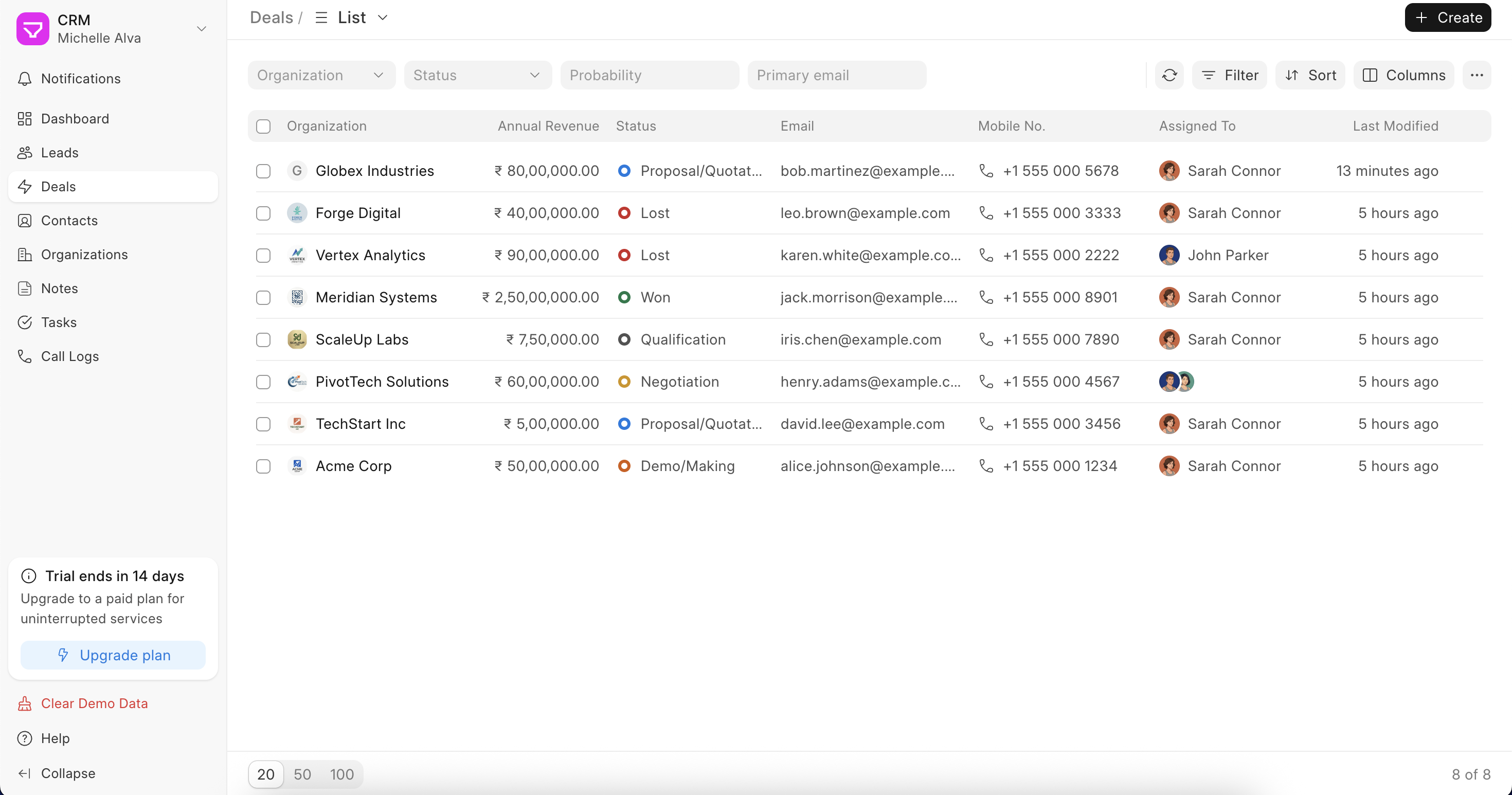 The Deal List
Inside a Deal
When you open a deal, the layout is similar to a lead – activity on the left, details on the right. But there are a few differences.
On the right side, you'll see three sections:
- Contacts – A deal can have multiple contacts linked to it, unlike a lead, which is tied to one person. When a lead is converted, the contact from the lead becomes the primary contact automatically. You can add more contacts anytime using the + button
- Forecasted Sales – Shows up when forecasting is enabled. You can set an expected closure date, probability, and expected deal value here. If you've also enabled Auto Update Expected Deal Value, this gets calculated automatically from the products table
- Organization Details – The organization linked to the deal, along with website, territory, annual revenue, and deal owner
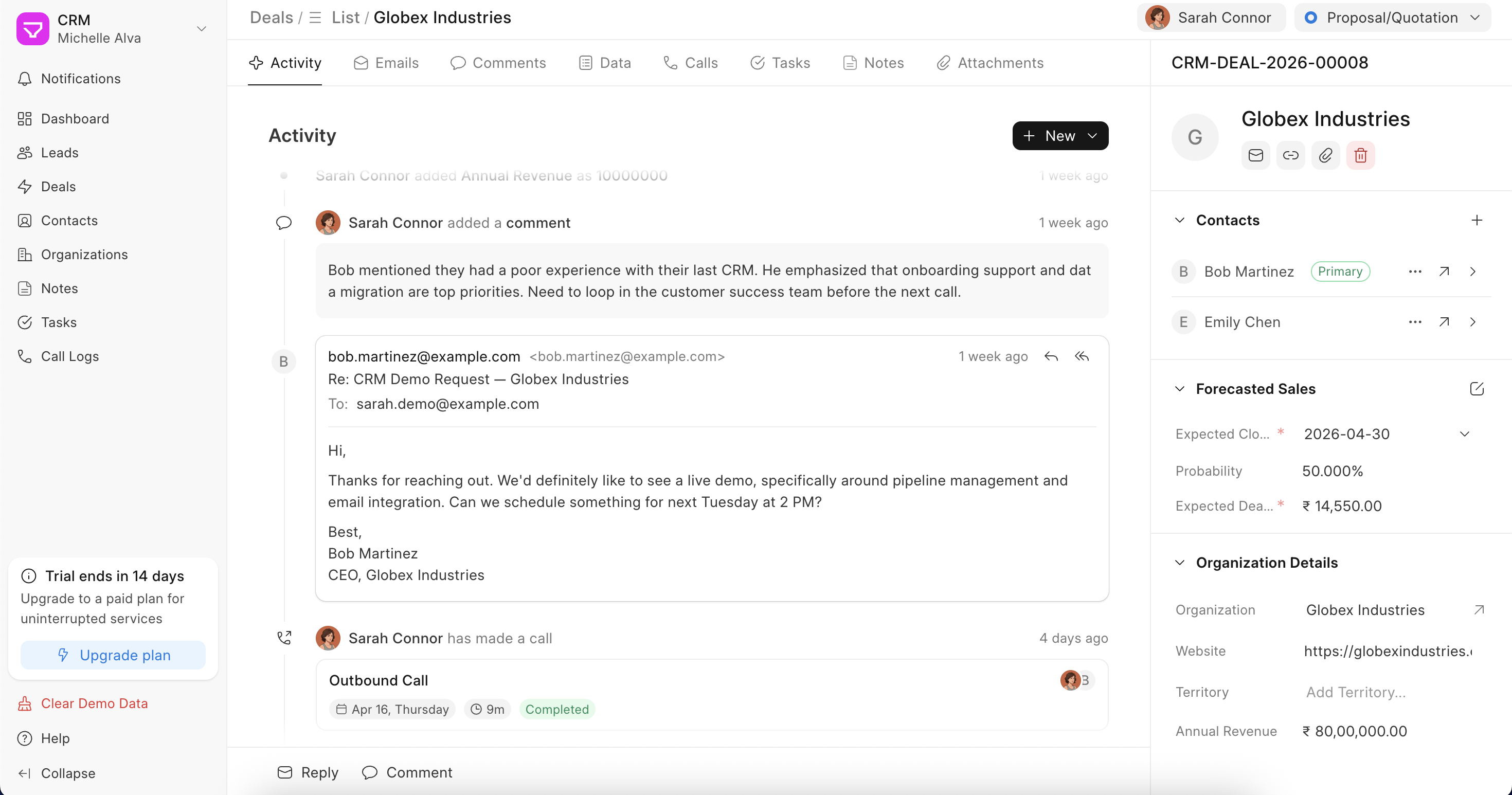 Inside the Deal record
The tabs across the top work the same as leads:
- Activity – Full timeline of everything that's happened on this deal
- Emails – Send and receive emails directly from here
- Comments – Leave notes for your team, tag teammates
- Data – All the deal fields in one place, plus a Products table where you can add what you're selling. Each row is a product with quantity, rate, and discount. The table calculates the total and net total automatically. You can also edit the table columns to show hidden fields — click the settings icon on the table header to do that
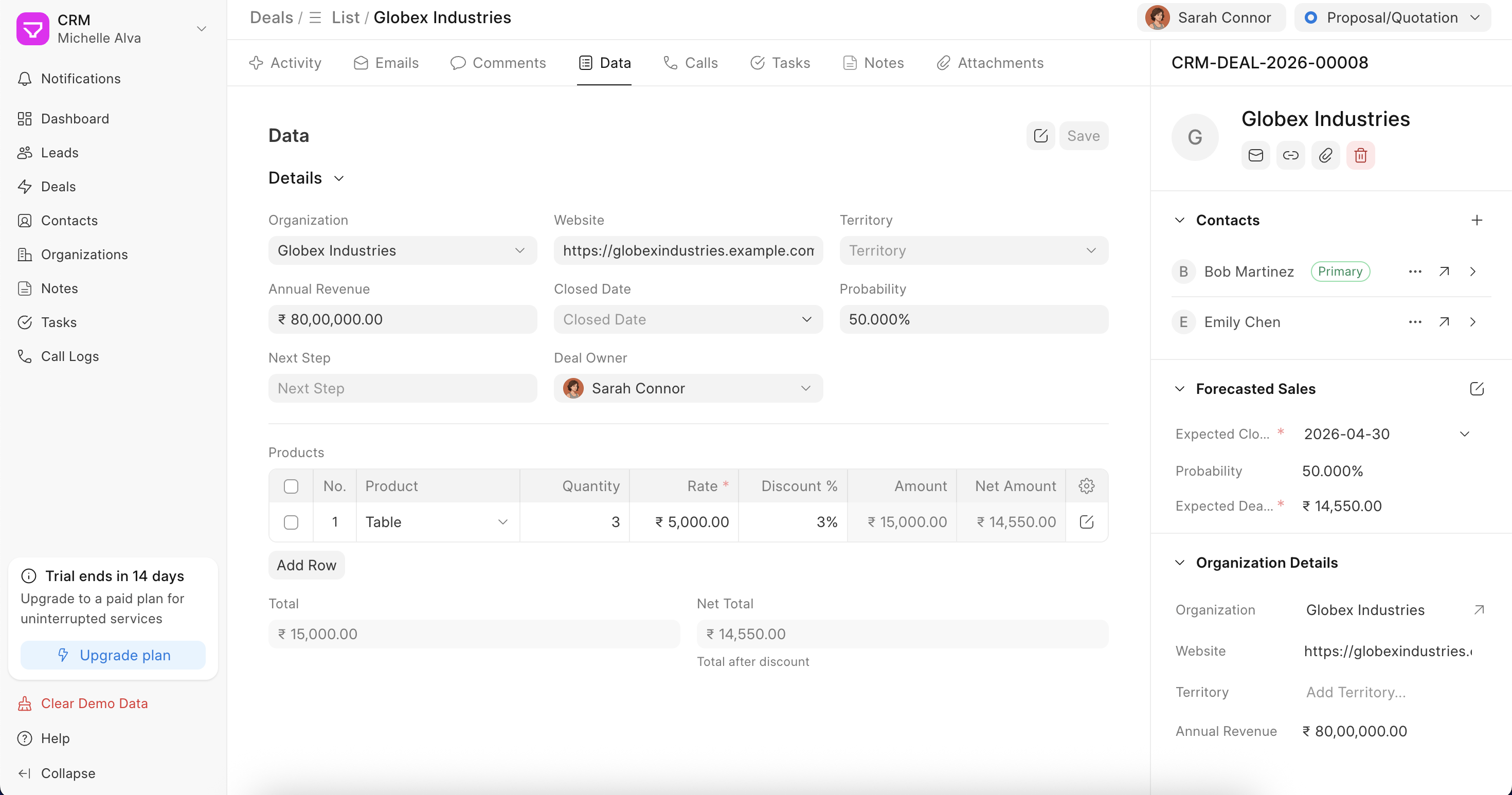 Products table in Data tab of Deal
 - Calls – Call history and recordings
- Tasks – Tasks linked to this deal
- Notes – Freeform notes
- Attachments – Files and documents
Adding a new Deal Status
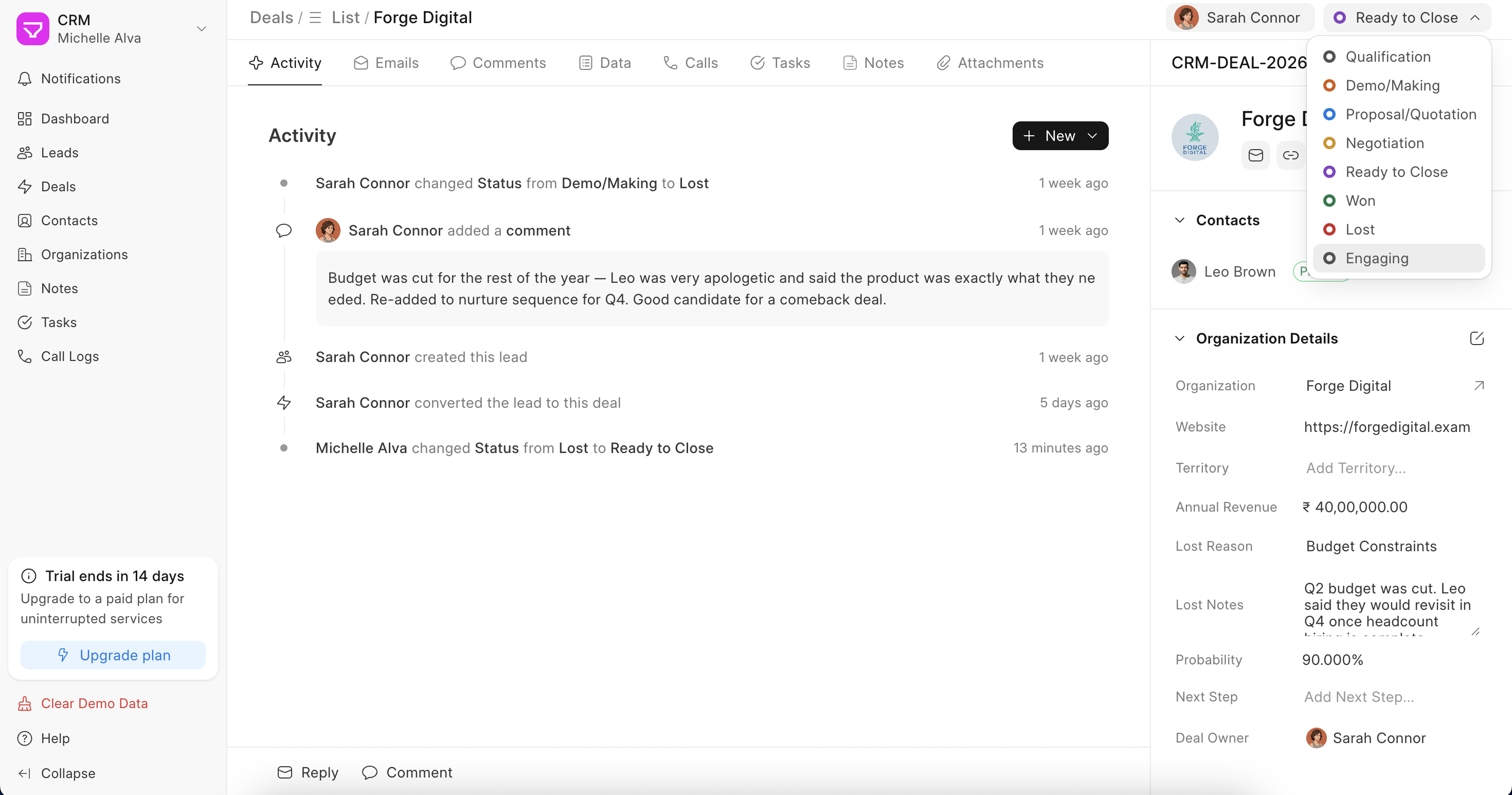
At the top, you'll also see the Deal status. Some of these statuses are available out of the box. If you want to add custom statuses, you can add them by going to the Desk view (more details read here) and searching for CRM Deal Status. Add the status of your choice, choose the type, and click on save. The Deal status helps you visualize your Deals through a pipeline.
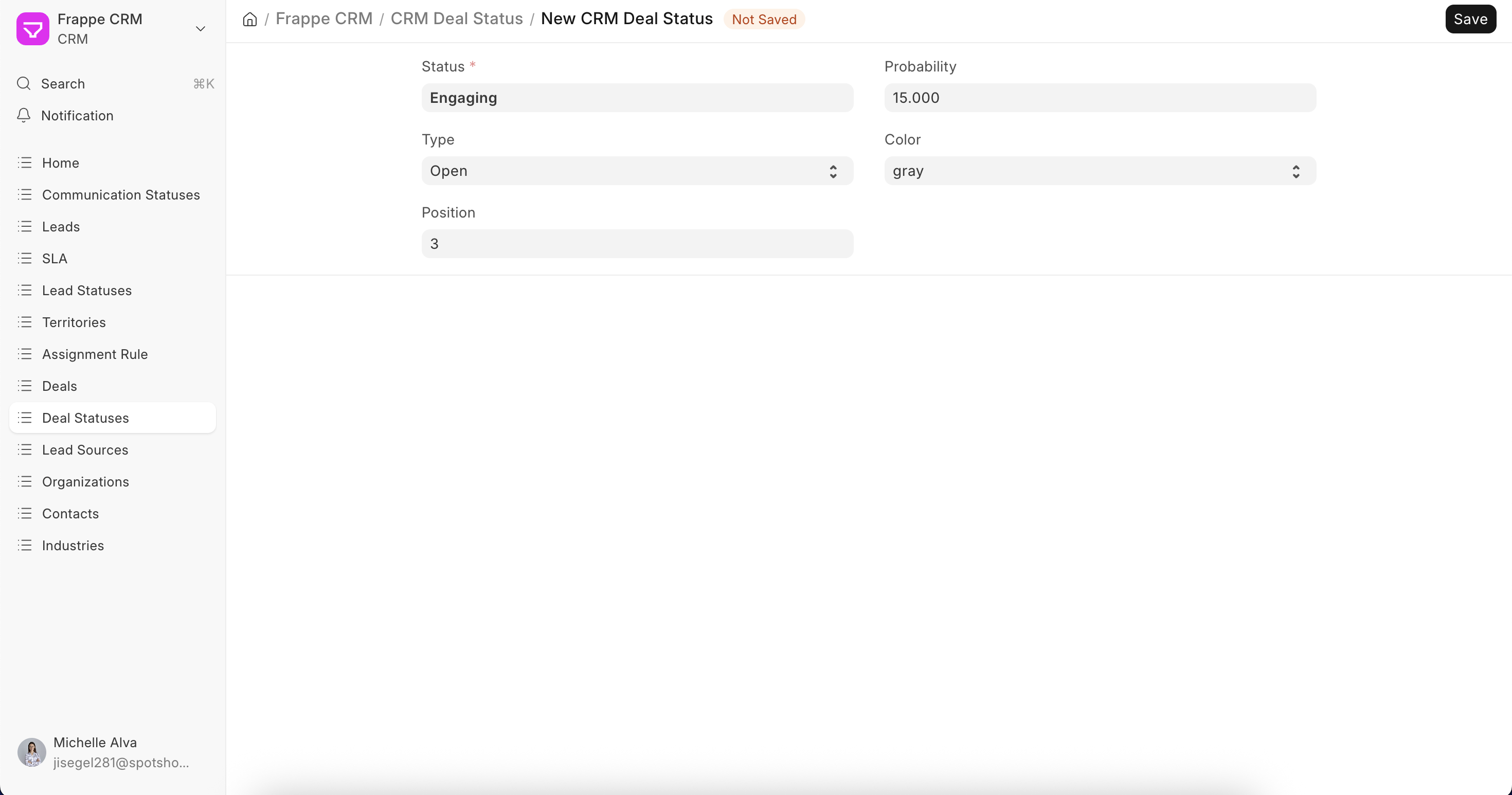 Adding new CRM Deal Status
What carries over from the Lead
When you convert a lead to a deal, all the communication history – emails, calls, comments, moves over to the deal. Nothing gets lost.
The organization name becomes the deal name, and the contact linked to the lead becomes the primary contact on the deal.
Forecasting
If you want to forecast revenue across your pipeline, go to Settings > Dashboard and enable the Enable Forecasting toggle. This makes the Expected Closure Date and the Expected Deal Value mandatory on every deal. You can also turn on Auto Update Expected Deal Value to have it calculated automatically from whatever you've added to the Products table.
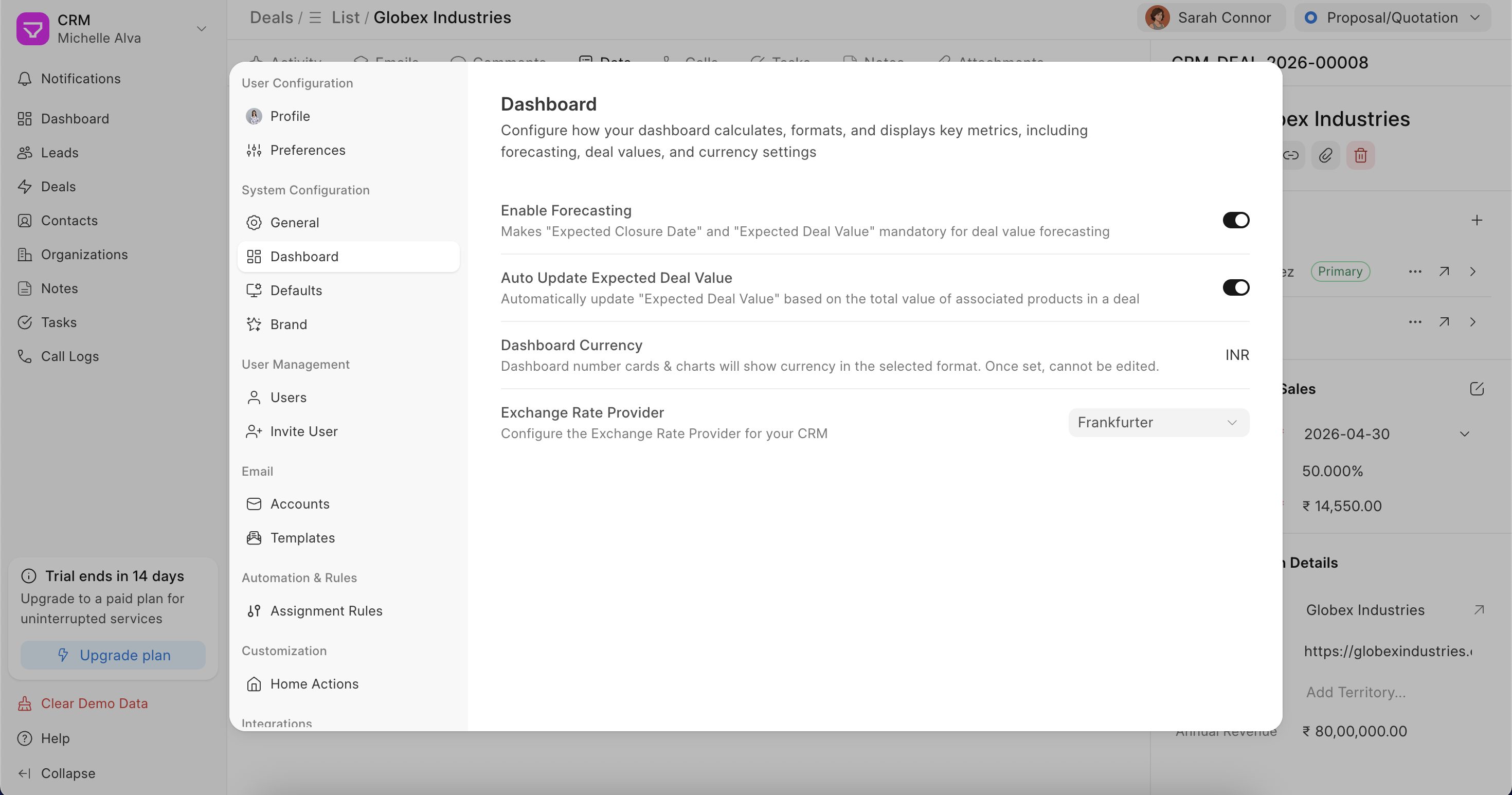 Enable Forecasting in Settings
Once enabled, the Forecasted Sales section will appear on every deal's right panel.
Marking a Deal as Lost
When you change a deal's status to Lost, a pop-up appears asking you to fill in a Lost Reason and any additional notes. This helps you track why deals fall through and spot patterns over time.