

















Bulk Actions
When you need to do the same thing to many tickets, you don't have to open them one by one. Select them in the ticket list and act on all of them at once.
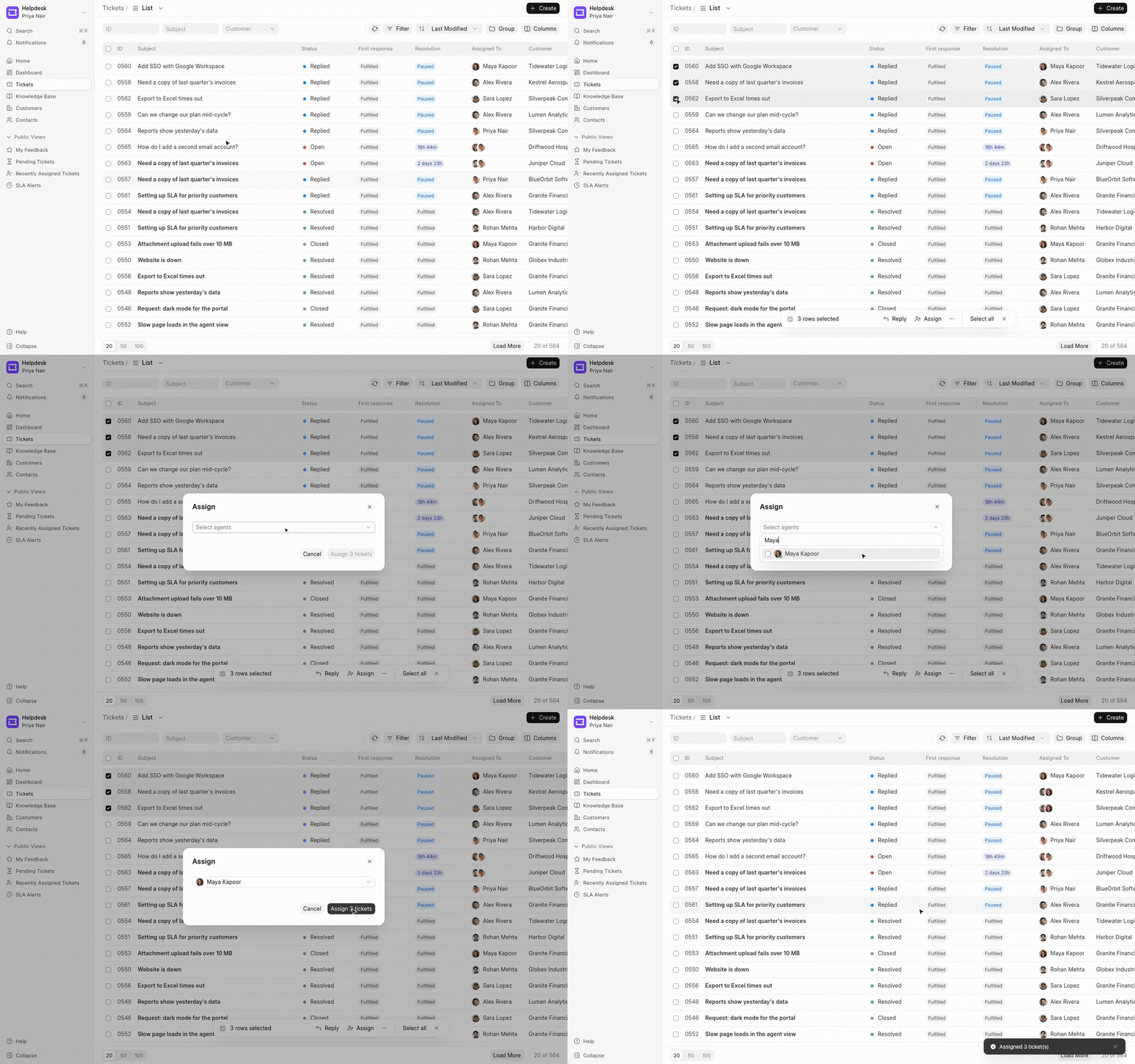 Assigning three tickets to an agent in one go
Selecting tickets
In the Tickets list, tick the checkbox at the start of each row you want. To select a run of tickets, tick the first one, then hold Shift and tick the last one. The checkbox in the header selects every ticket shown on the page.
As soon as one ticket is selected, a bar appears at the bottom of the list. It shows how many tickets you've selected and these actions:
- Reply – Send the same reply to every selected ticket. See Bulk Reply
- Assign – Assign the tickets to one or more agents
- ... – More actions: Export, Edit and Delete
Select all selects every ticket that's loaded on the page. Click × to clear your selection.
Assigning tickets
- Select the tickets and click Assign.
- Pick one or more agents. Each agent shows whether they're active right now or away, so you can see who's around.
- Click Assign N tickets.
The agents are added to each ticket. Anyone already assigned stays assigned.
Changing a field on many tickets
- Select the tickets, click ... and choose Edit.
- Pick the Field you want to change, such as Status, Priority, Team or Ticket Type. Your own custom fields are in the list too.
- Choose the new Value.
- Click Update N tickets.
You can change one field at a time. If you're updating 20 or more tickets, the update runs in the background and you'll see a message when it's done.
Exporting tickets
Select the tickets, click ... and choose Export. Pick Excel or CSV and click Download. Tick Export all N tickets to export every ticket in the list instead of just the ones you selected.
Deleting tickets
Agent Managers can delete tickets. Select them, click ..., choose Delete and confirm. This can't be undone.