

















Command Palette
The command palette lets you find a ticket or act on one without leaving the keyboard.
To open it, press Cmd + K on a Mac or Ctrl + K on Windows and Linux, or click Search at the top of the sidebar. Press Esc to close it.
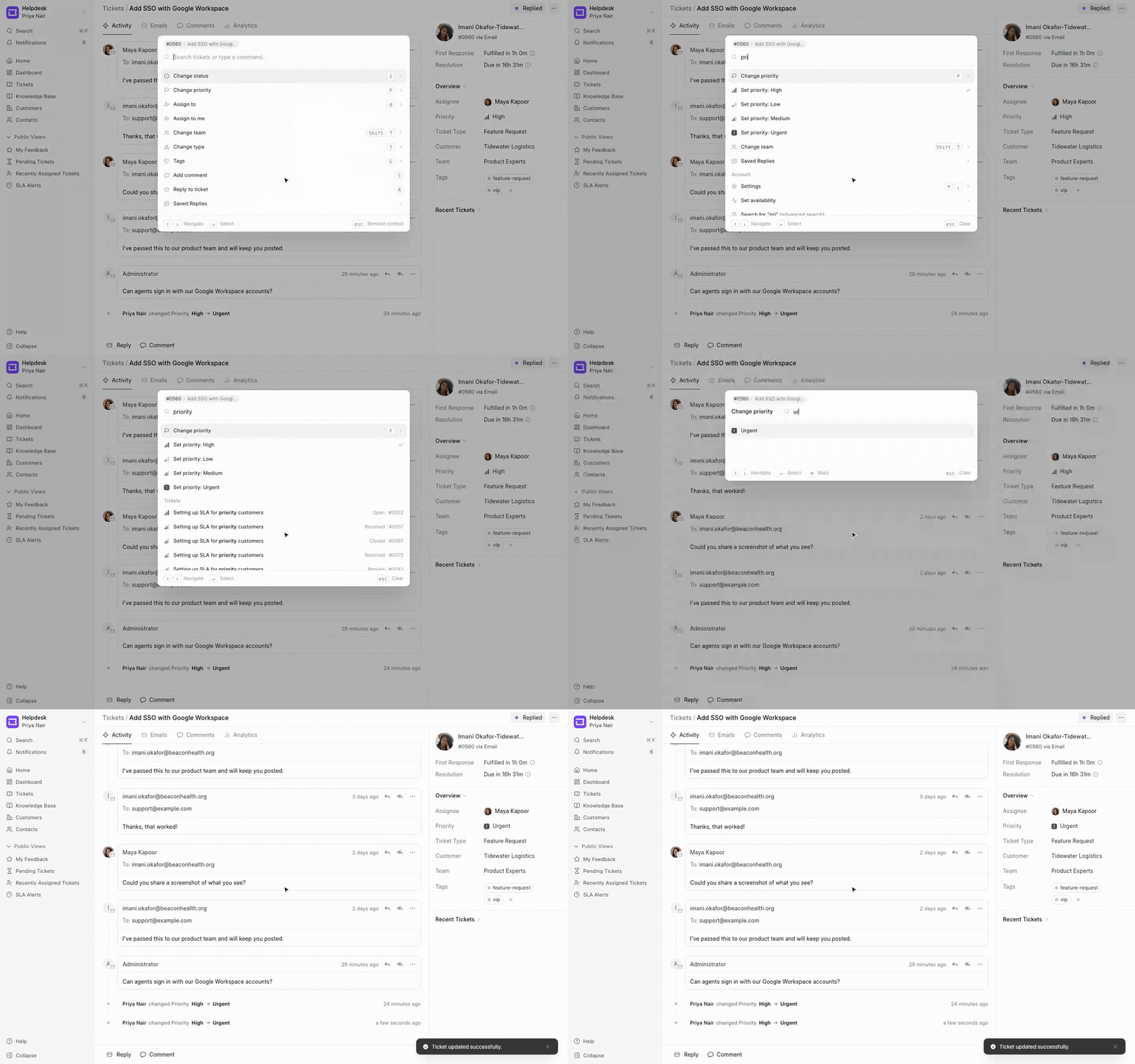 Changing a ticket's priority from the command palette
Finding tickets
Type at least two letters to search. The palette looks through ticket subjects and descriptions, and also through the emails and internal comments on each ticket. Matches show up under Tickets, with their status and number. If the match was in an email or a comment, the ticket opens at that message.
To jump to a ticket by its number, type the number, like 142 or #142, and pick Go to ticket.
At the bottom of the results, you can also choose to search with the full search page, or create a new ticket with what you typed as the subject.
Before you type
When the box is empty, the palette shows:
- Recent tickets – The last few tickets you opened
- Navigate – Jump to Home, Dashboard, Tickets, Knowledge Base, Customers or Contacts
- New ticket and New article
- Account – Switch between light and dark theme, set your availability, open Settings, see keyboard shortcuts, or log out
Actions on a ticket
When you open the palette on a ticket, it shows actions for that ticket first. You can change its status, priority, team or type, assign it (or assign it to yourself), add or remove tags, add a comment, reply, insert a saved reply, merge it, move to the next or previous ticket, or copy its number or link.
You can also type straight away. For example, type "urgent" and pick Set priority: Urgent to change the priority in one step.
Actions on the ticket list
On the Tickets list, you can filter by status or priority, show only the tickets assigned to you, switch to another view, or clear your filters.