

















Group By
Group By turns your ticket list into a summary. Instead of a row per ticket, you get a row per group, like each team or each priority, with the number of tickets in it. You can also add totals and averages, such as the average resolution time for each team.
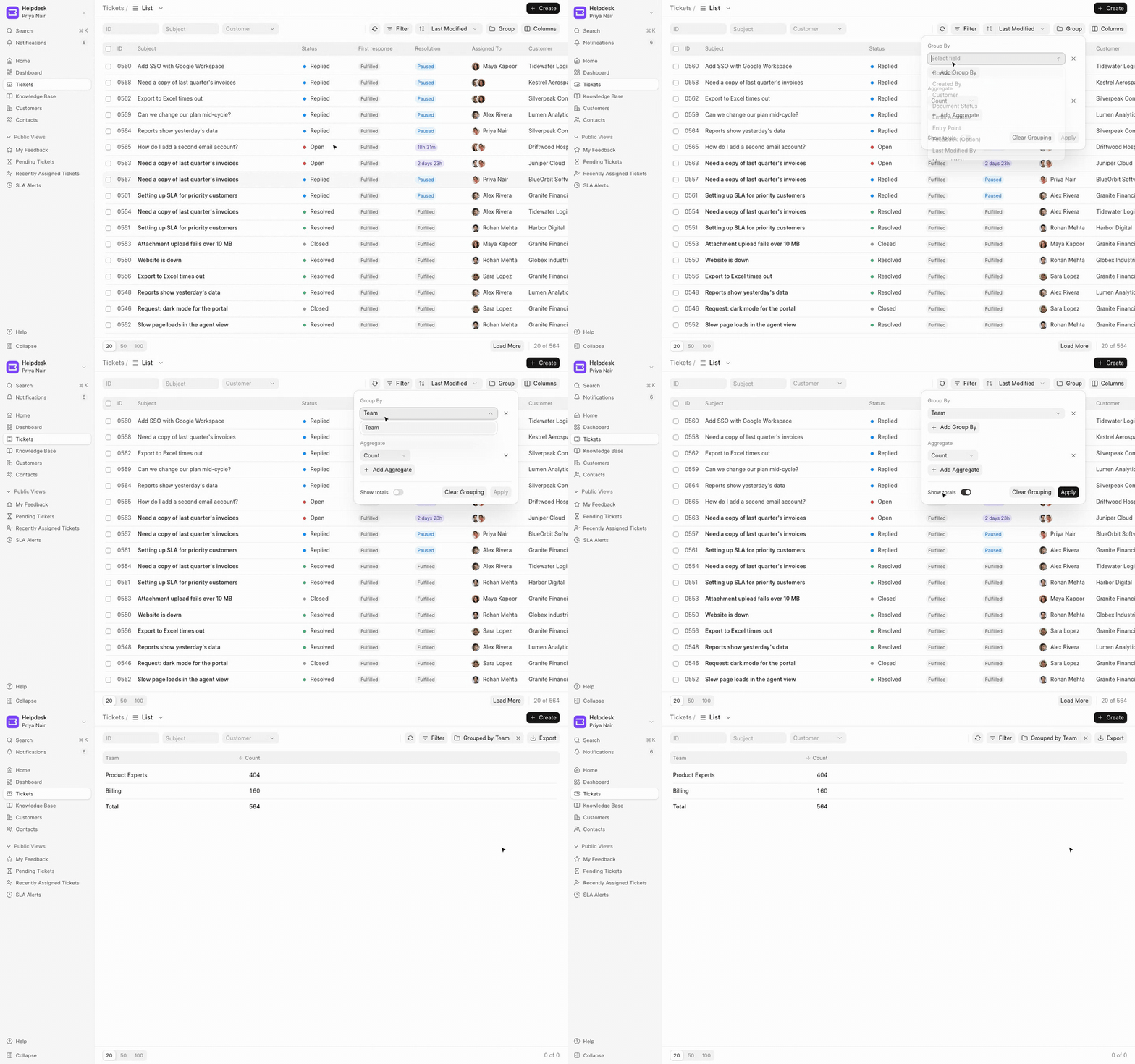 Grouping tickets by team and priority, with a total
Grouping your tickets
- Open Tickets and click Group in the toolbar.
- Under Group By, choose a field, such as Team, Status, Priority, Ticket Type or Customer. Click Add Group By to group by more than one field, for example by team and then by priority.
- Under Aggregate, choose what to show for each group. Count is there to start with. Click Add Aggregate to add Sum, Average, Min or Max of a field, such as the average Resolution Time or the earliest Opening Date.
- Turn on Show totals to add a Total row at the bottom.
- Click Apply.
The button now reads Grouped by and the fields you picked. Click the × next to it to go back to the normal list.
Reading the summary
Each row is one group, with a column for each aggregate. Click a column header to sort by it. Tickets with no value for a field are grouped under Not Set.
The Total row is worked out across all matching tickets, so averages are correct and not just an average of the groups.
Your filters still apply. For example, filter by the last 30 days and group by team to see how many tickets each team got this month.
To download the summary, click Export and choose Excel or CSV.
Saving it
The grouping is saved with your view, along with its filters. On a saved view, click Save Changes to keep it. Read more about Views.