


















Workflow Automations let Frappe CRM do the routine follow-up work for you. You describe when something should happen and what should happen next, and the CRM runs it in the background every time, for every matching lead or deal.
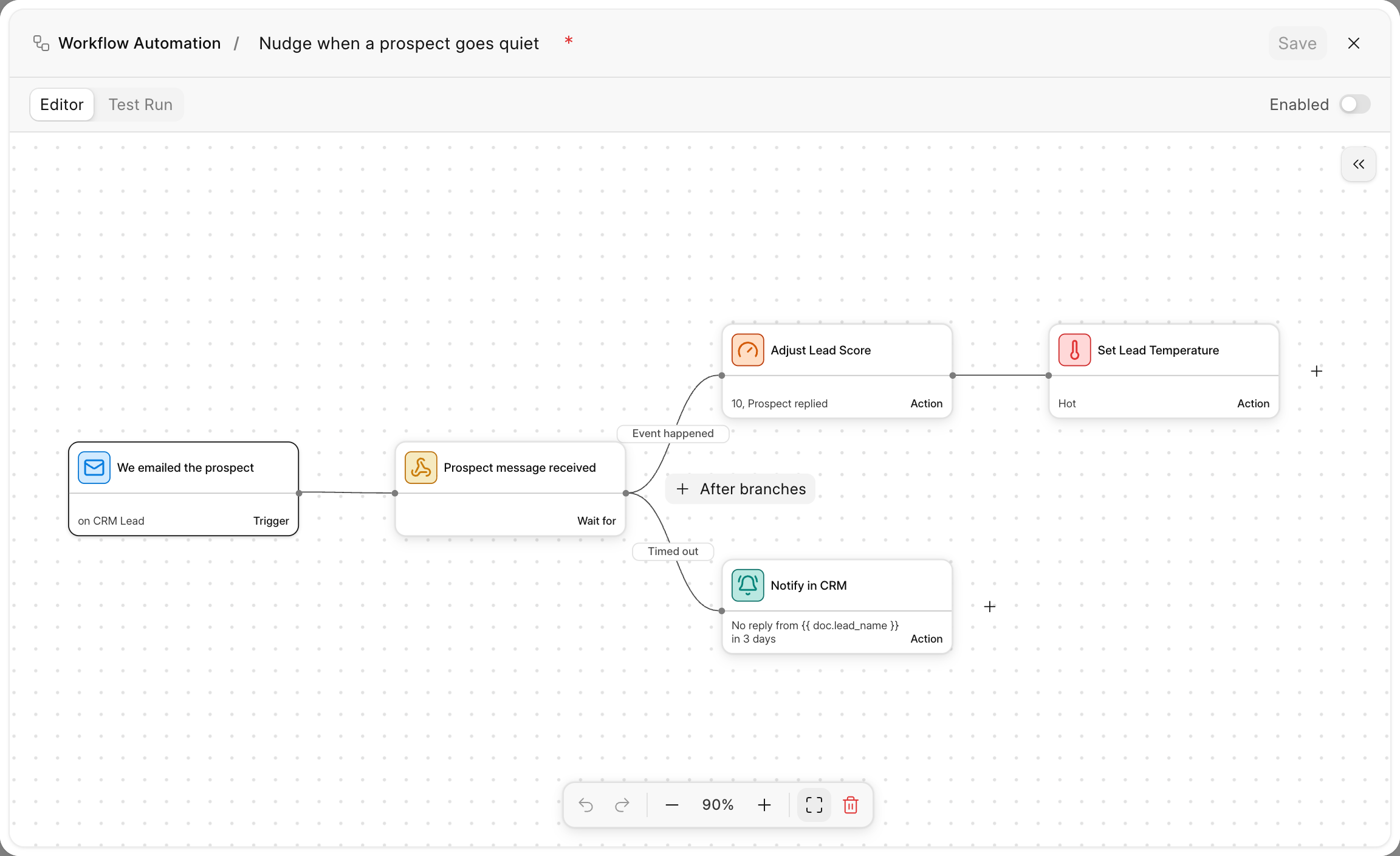
You build an automation visually as a flow: a trigger, followed by the steps it should take. There is no code to write for most automations.
What you can do with automations
Follow up with prospects on time
- Send a welcome email as soon as a new lead is created.
- Wait three days after emailing a prospect. If they have not replied, remind the lead owner.
- Email a deal's contact when the deal moves to the Proposal stage.
Keep your pipeline moving
- Convert a lead into a deal as soon as it is marked Qualified.
- Assign new deals to the right sales rep based on territory or deal value.
- Move a deal to a new stage, or set a field, when a condition is met.
Score and prioritise leads
- Add points to a lead's score when the prospect replies, and subtract points when a task goes overdue.
- Mark a lead Hot, Warm or Cold based on its score or activity.
Keep your team informed
- Notify the deal owner in the CRM when a deal is won or lost.
- Alert a manager when a high-value deal changes stage.
- Notify assignees when a task linked to their lead goes overdue.
Connect other tools
- Call a webhook to push a won deal to your billing or project tool.
- Create a record in another DocType, such as a ToDo or a project, when a deal closes.
- Run an API Server Script for anything the built-in actions do not cover.
How it works
- An event starts the automation. For example, a lead is created, a field changes, a prospect replies, a date arrives or a schedule fires.
- Filters decide whether it applies. Only records that match the conditions you set start a run.
- Steps run in order. Each step is an action (send an email, set a field), a wait, or an If / Else branch.
- Each step reports a result. A step ends as Success, Skipped or Failed, with the reason.
You can test an automation against a real record before you turn it on. A test run rolls back all its changes, so nothing is saved and no webhook is called.
Where to find it
Go to Settings > Automation & Rules > Workflow Automations. You need the System Manager role to create or edit automations.
Next steps
- Getting started: the parts of an automation and how to build your first one.
- Events: everything that can start an automation.
- Blocks: control the flow with waits and If / Else branches.
- Actions: everything an automation can do.
Last updated 3 weeks ago
Was this helpful?