


















Arrange your sales team into a reporting tree so managers see the leads and deals owned by their team while everyone else sees only their own.
Only Admins Can edit the Sales Hierarchy. For others, they can only view it in read-only mode
Enable Sales Hierarchy
Go to Settings > User Management > Click on "Enable" button to enable sales hierarchy for your site.
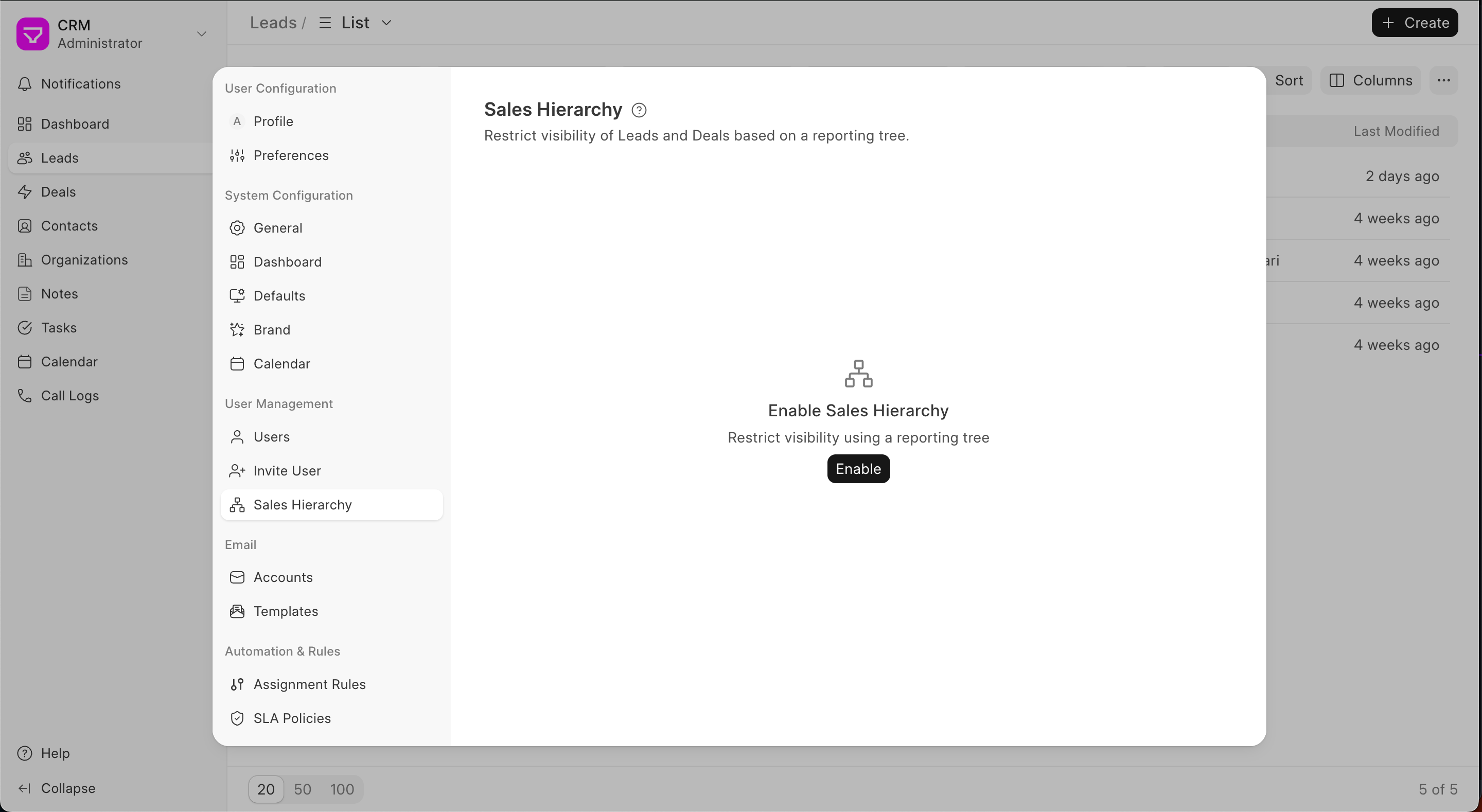 Enable Sales Hierarchy
Once enabled:
- Sales Managers see leads and deals owned by themselves and anyone below them in the tree
- Sales Users see only what they own
Note:
- A user with Sales Manager Role cannot directly report to a Sales User
- A Sales Manager who has reportees cannot be demoted to Sales User from the frontend
Adding Users
Click on the "Add User" button from the top right corner to select the users which you want to add to the hierarchy. These users will be added at the top level of the tree.
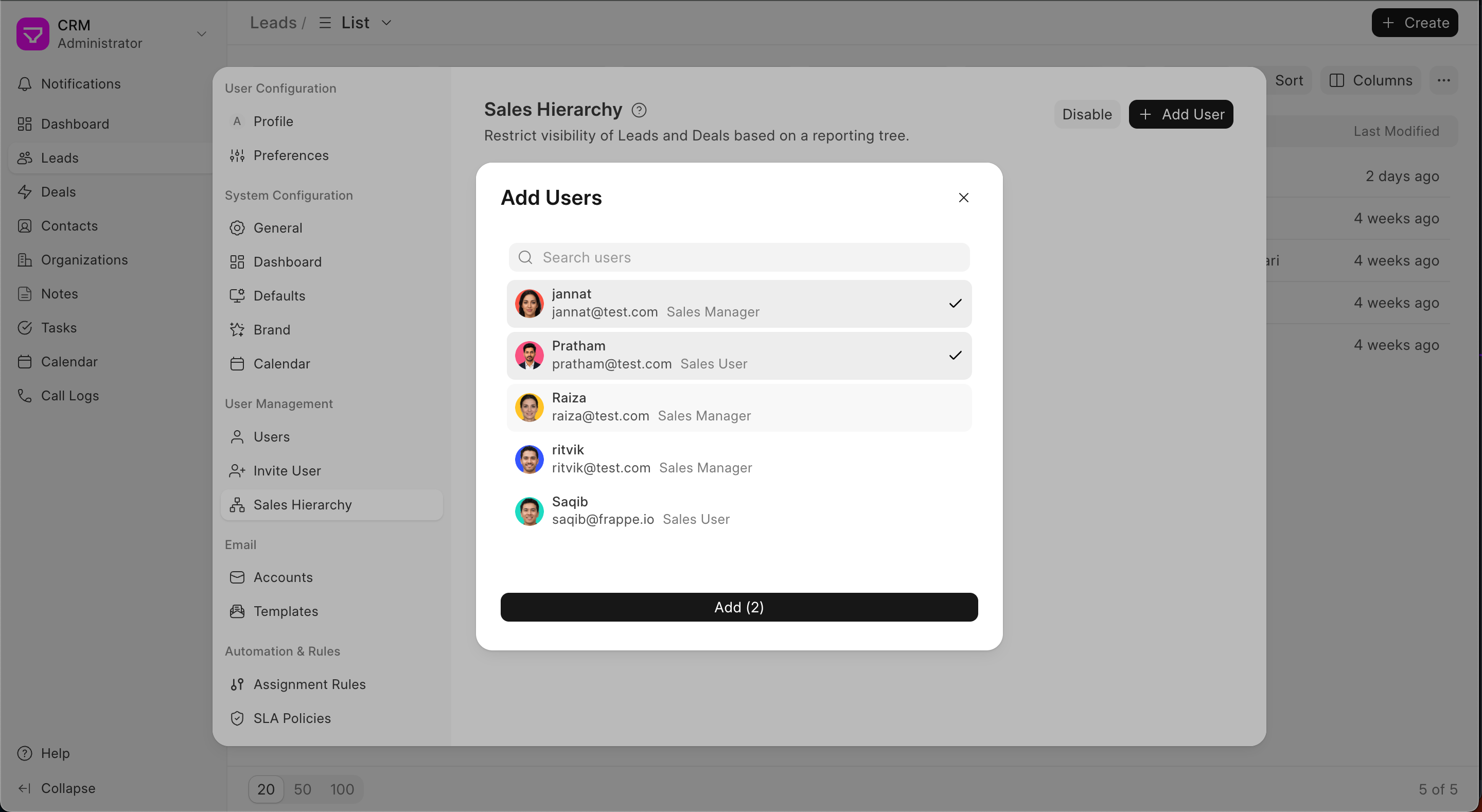 Add users
Add direct reports
Reportees can be added to a manager by clicking the + icon. Using this you can bulk assign reportees to a manager to create a hierarchy.
Removing Users from hierarchy
The are three ways to remove users from the hierarchy. The options depend based on whether the user has someone reporting to them or not.
Delete
A user who does not have any reportee can be removed without unlinking by clicking on the delete button
Reassign And remove
Moves their direct reports up to their own manager and then removes them from the hierarchy
Remove with reports
Removes the user and everyone reporting to them from the hierarchy.
Managing users
Quickly drag and drop users you want to change reporting for.
Move a user to top level
A Manger who reports to another manager can be moved to top level along with their reportees.