


















Profile and Preferences
Every user in Frappe CRM has their own profile and preferences. These are personal to you. Changing them won't affect anyone else on your team.
To get here, click your name at the top left of the sidebar and go to Settings.
Profile
This is your personal account page. Keep it up to date, especially if you're communicating with leads and deals directly from the CRM.
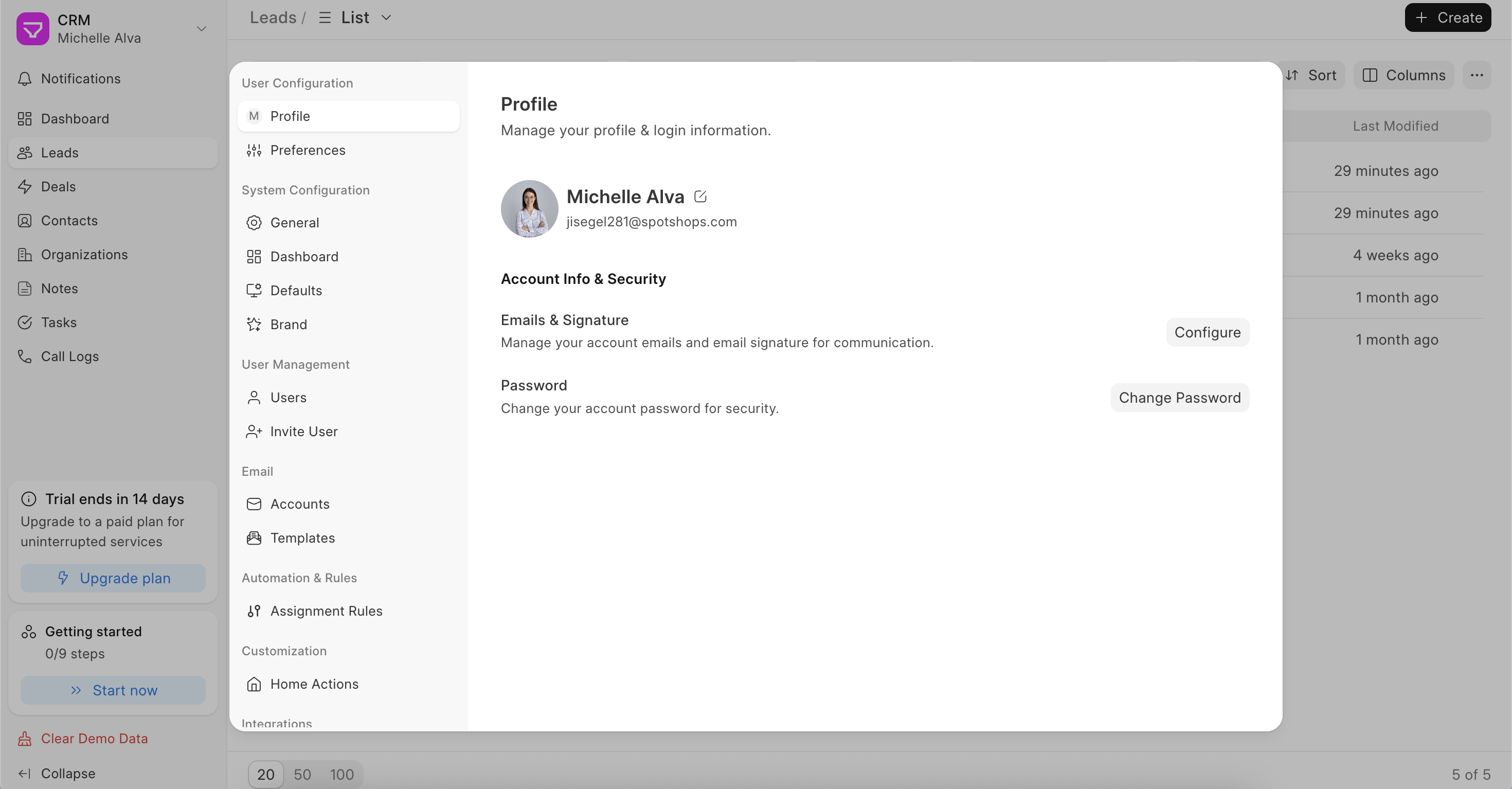
- Name – How you appear to your teammates inside the CRM
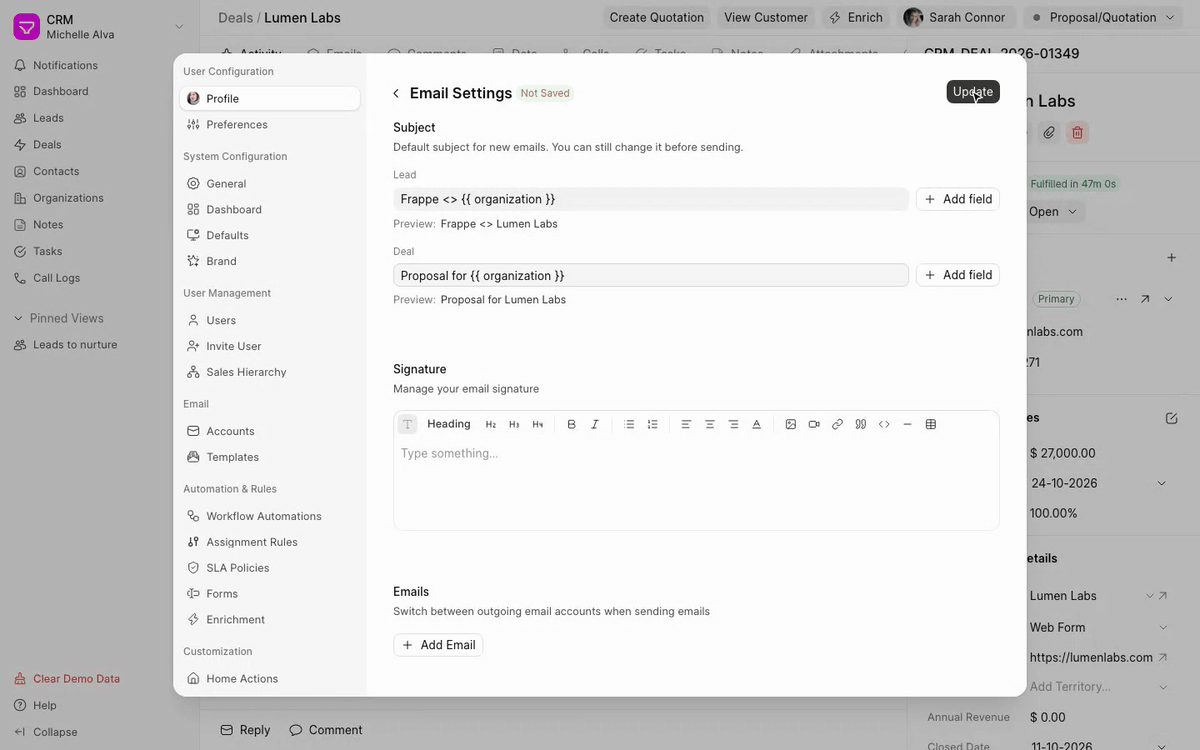
- Email & Signature – Click Configure to open your Email Settings. Here you can set up three things:
- Subject – Set a default subject for new emails from leads and deals. By default, the subject is the record name and ID, like "Lumen Labs (#CRM-DEAL-2026-01349)". There's one field for leads and one for deals. Type the subject you want, and click Add field to insert details from the record, such as
{{ organization }}or{{ first_name }}. The preview below each field shows how the subject will look. You can still edit the subject before sending. Leave a field empty to go back to the record name and ID
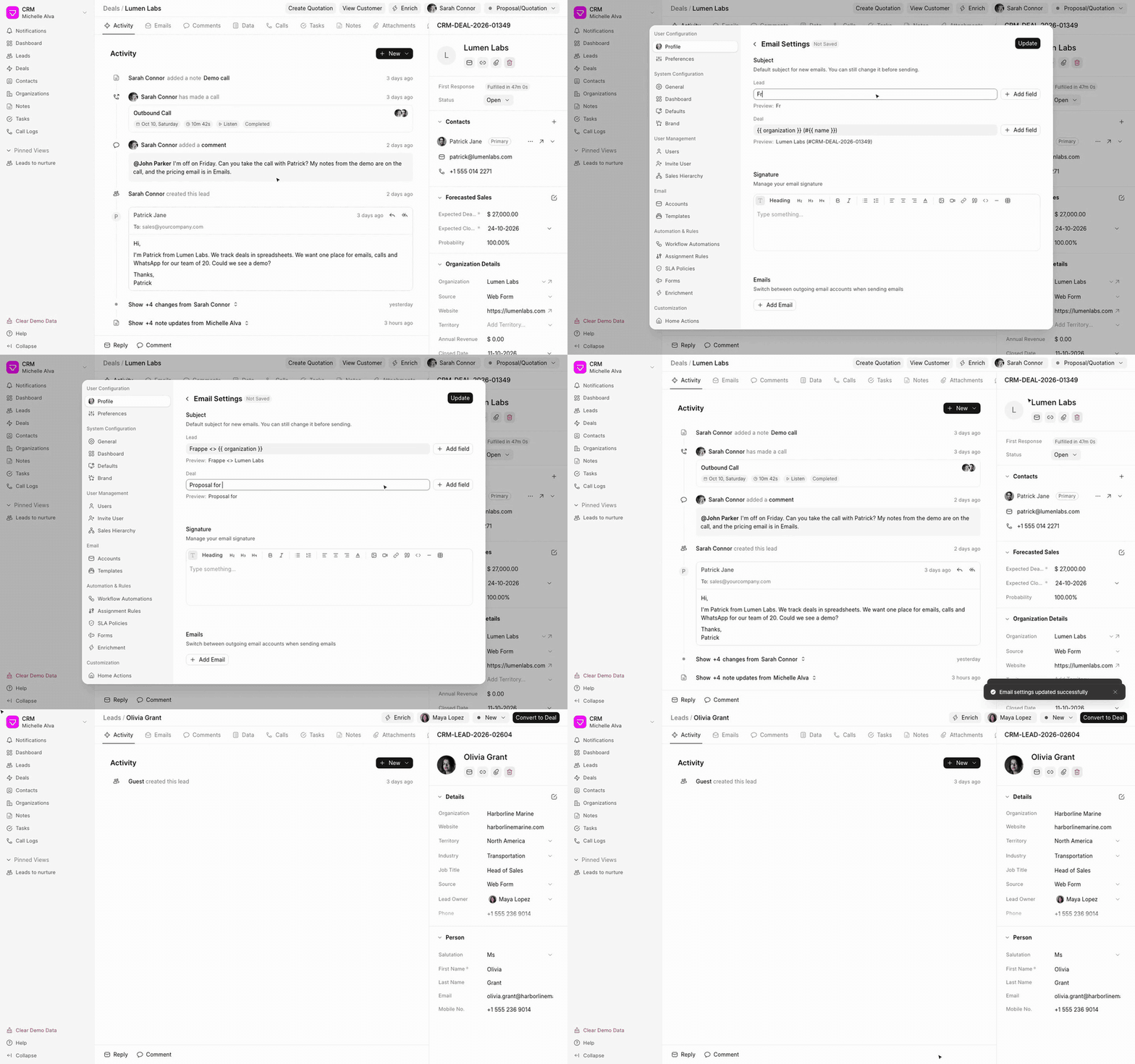
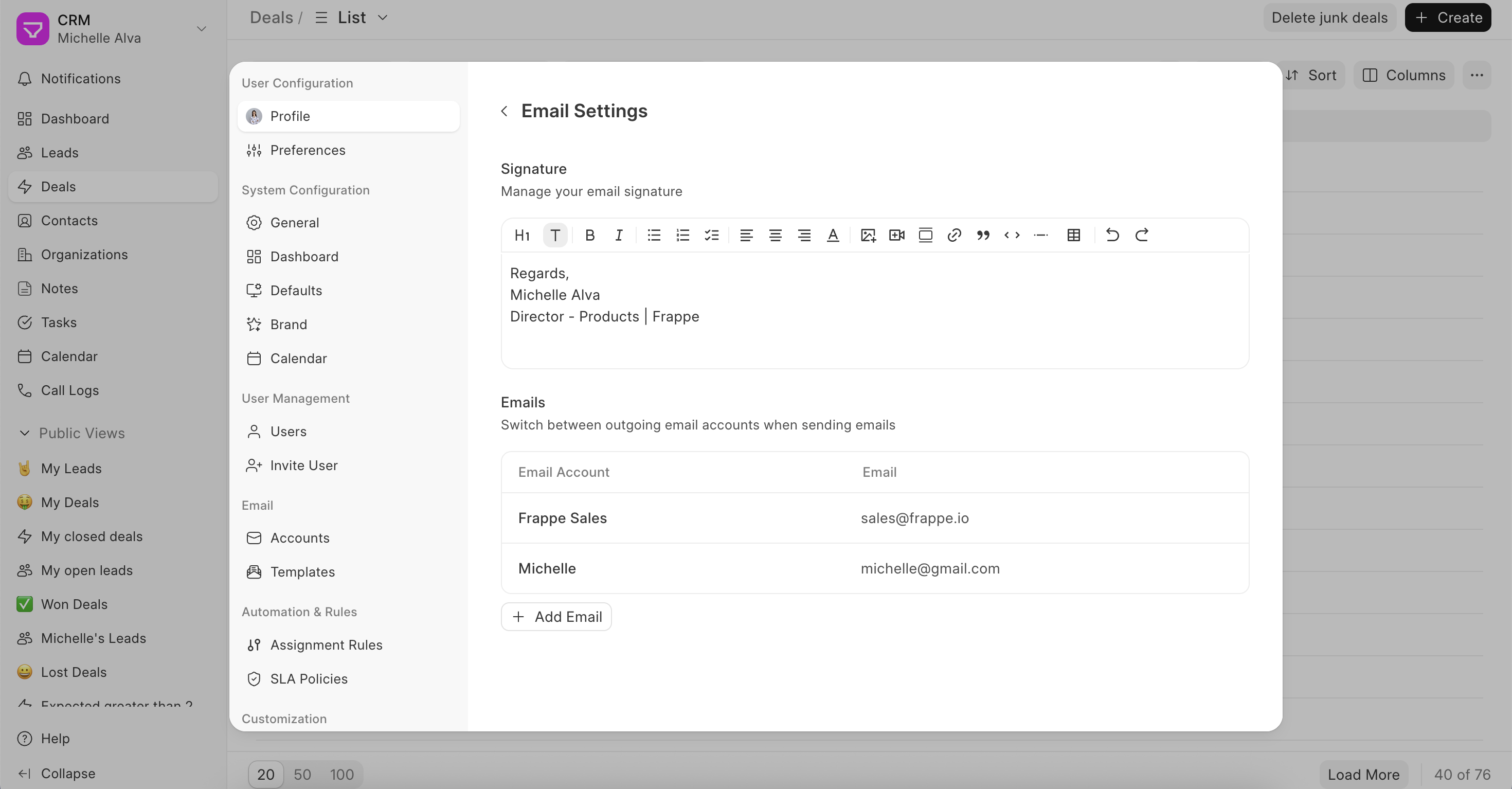
- Signature – Write your email signature once, and it'll automatically appear at the bottom of every email you send from the CRM
- Emails – If your team has multiple email accounts set up, you can choose which one to send from when composing an email. Useful if you handle both a personal inbox and a shared team inbox like sales@yourcompany.com
- Subject – Set a default subject for new emails from leads and deals. By default, the subject is the record name and ID, like "Lumen Labs (#CRM-DEAL-2026-01349)". There's one field for leads and one for deals. Type the subject you want, and click Add field to insert details from the record, such as
- Password – Change your password anytime from here.
Preferences
This is where you make the CRM feel like yours.
- Theme – Light, Dark, or System. System follows whatever your OS is set to, so it switches automatically if you use dark mode at night
- Language – Change the language of the application. This will be only applicable to your user account, so your sales team is free to pick theirs
- Timezone – Set this to your local timezone so dates and times always show up correctly for you
Once you've set this up, you are now set to invite more of your team members to Frappe CRM. Check the next page to learn how to do this.
Last updated 2 weeks ago
Was this helpful?