


















You will see an update banner on your bench dashboard whenever an update is available for any of the apps installed on that bench:
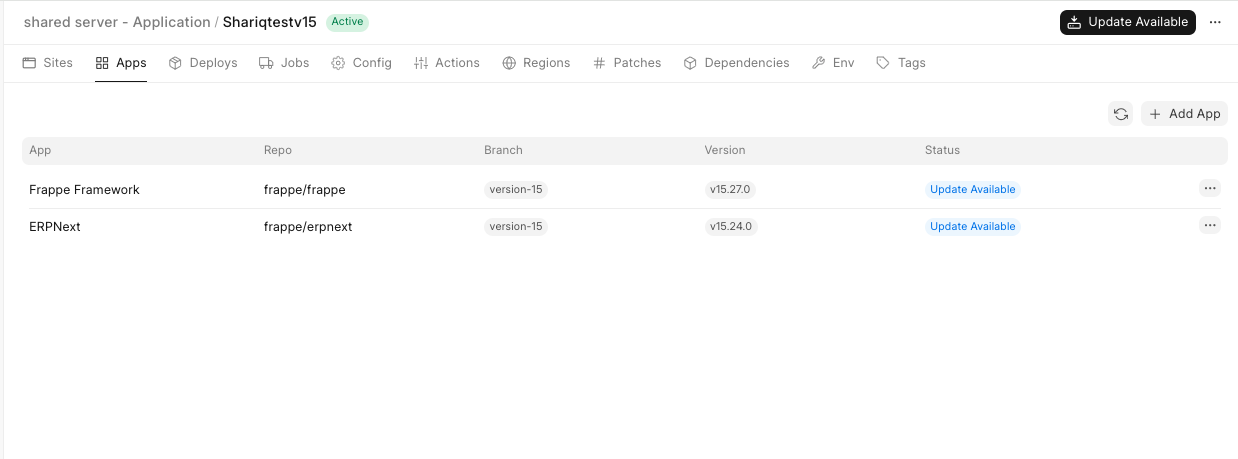
Clicking on the Show Updates button will open up a dialog box where you can choose which apps to update (yes, we do have selective app updates!). Deselect the apps you don't want to update and click Deploy:
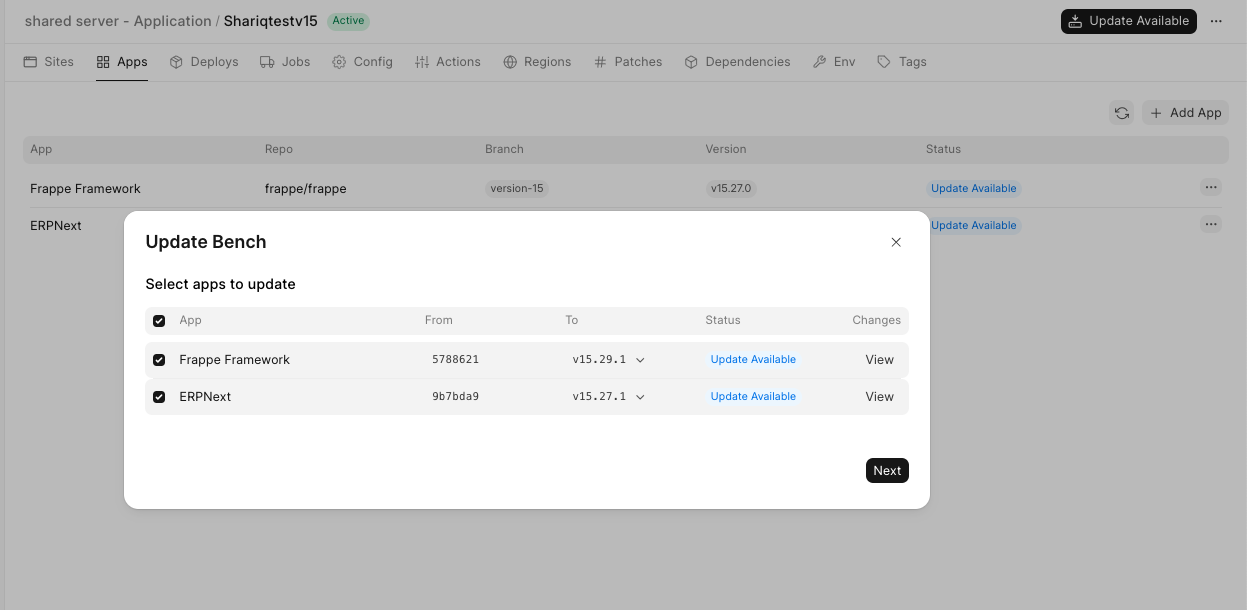
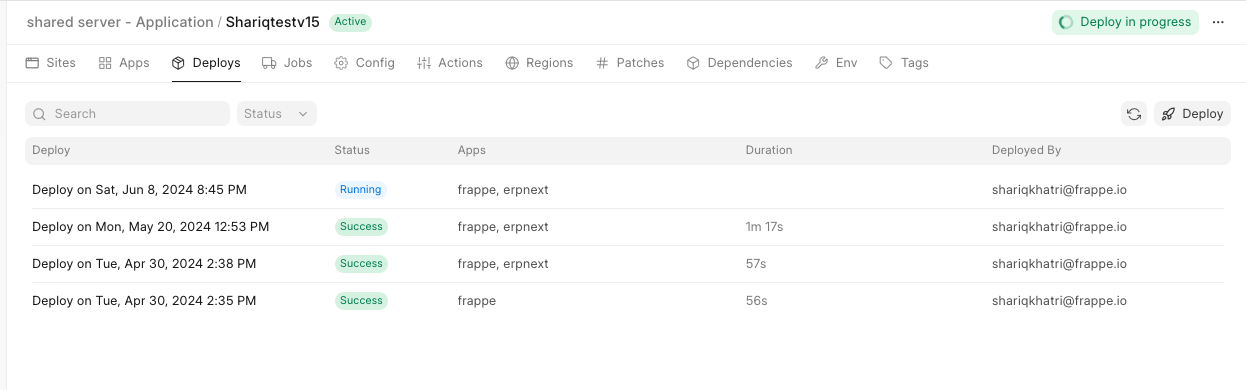
You can monitor the progress of your deploy in the Deploys tab:
When you click on a deploy it takes you to a screen showing each stage of the deploy.
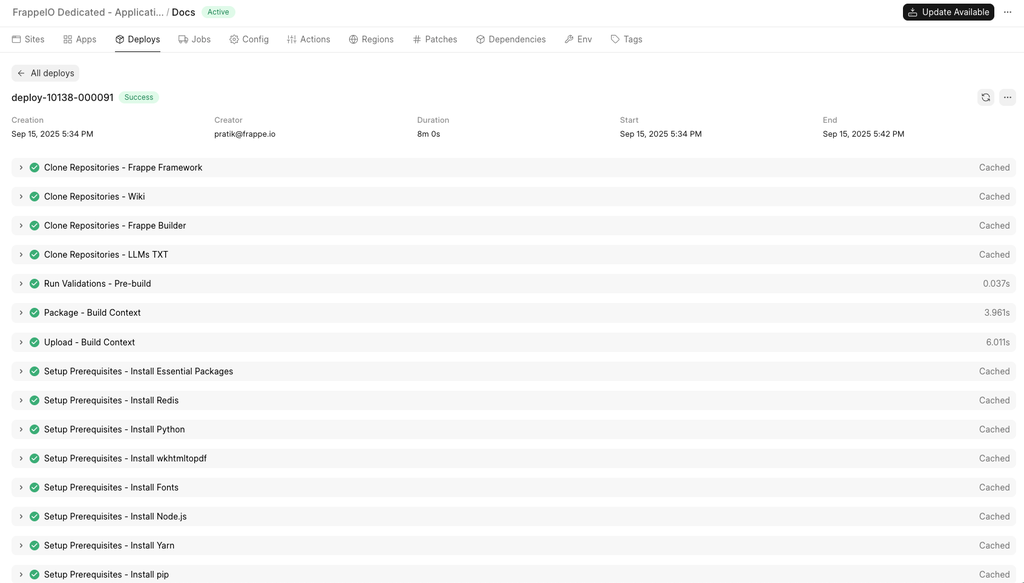
For deploys in the running stage a Fail Build button will also show up which can be used to stop a build once it has started.

Fail build prompt
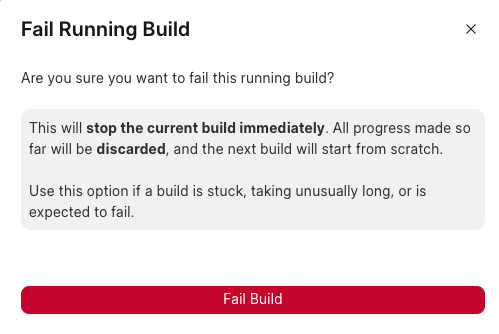
Proceeding with this confirmation will fail the build.
Bench Provisioning & Queueing
Once your build phase completes successfully, the system moves into the provisioning stage. You will notice a "Benches In Queue" banner in your Sites tab:
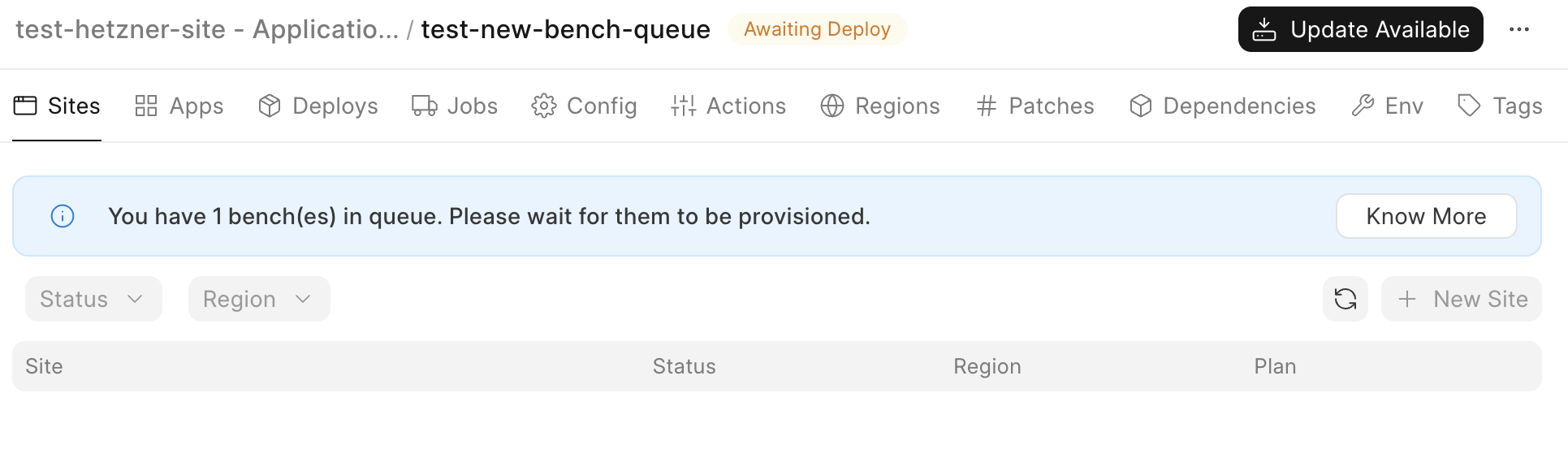 Benches In Queue
What does this mean?
To ensure server stability and optimal performance, we process new bench deployments through an automated queue. Your bench is currently "in line" and will begin installing on the server as soon as a processing slot becomes available. No further action is required on your par, the worker will pick up the task and start the creation process automatically.
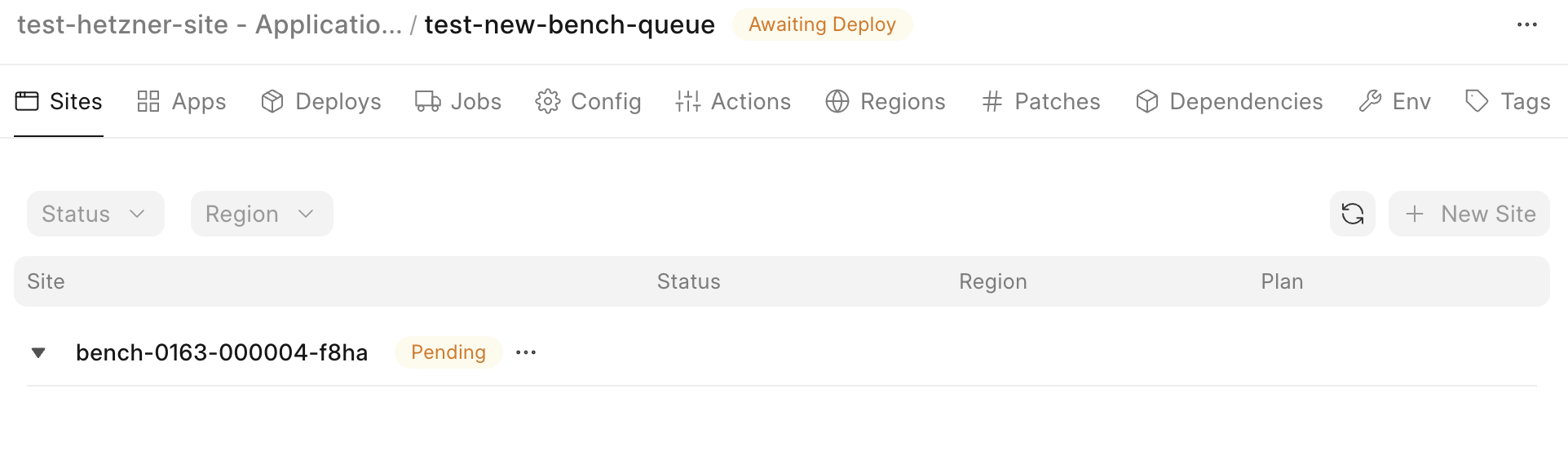 Bench Created From Queue
Checking deployed app versions
Clicking on the three dots on the deploy page will show an option to view app versions.

Which will lead to a dialog showing all apps deployed and their versions.

These apps can also be redeployed using the button shown below.
The "Redeploy" option will only appear in the following cases:
- Deploy succeeded
- Deploy failed
In cases where a deployment succeeds but the bench breaks temporarily — for example, due to:
- Connectivity issues
- No space on the server
- Manual deployment failures
—you can create a new, identical build and attempt the new bench again using Redeploy.
Note: You cannot deselect Frappe Framework if you want to update ERPNext
After Bench is updated, the sites (as long as auto update is enabled) shall auto update during non-working hours. (1 AM - 4 AM)
Auto Deploy Via Commit Markers
Deploying a bench can be automated using the press-deploy commit marker.
Deploying all applicable benches
To update multiple benches where an app is installed, include the marker in your commit message. For example:
Added new changes to custom app press-deploy
This automatically deploys all benches owned by the team where the app is installed and have a auto-deploy tag on them.
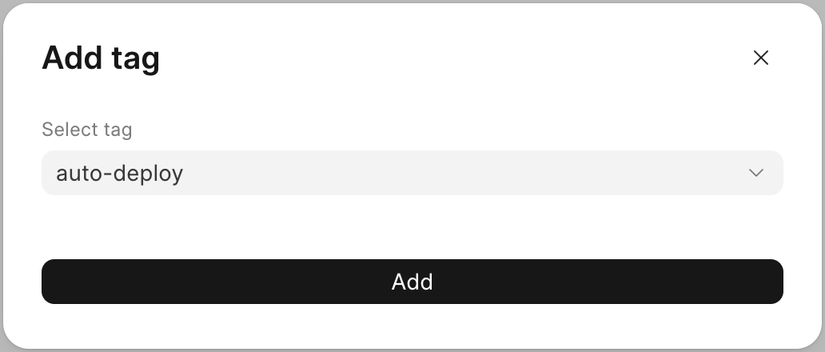
Deploying a specific bench
You can also target a specific bench by including its identifier in the marker. For example:
Added new changes to custom app press-deploy-bench-10202
This deploys the specified bench template (bench-10202) with the changes from the custom app.
Conditions where deployment will NOT occur
A bench will not be deployed if any of the following conditions are met:
- The bench is not owned by the team creating the new app release
- The bench is not enabled
- A deployment is already in progress for that bench
Yanked App Releases
A marketplace app release may be marked as yanked. Yanked releases are withdrawn and should not be installed or used for updates.
Because of this, you may occasionally see a message like the one below when updating a bench.
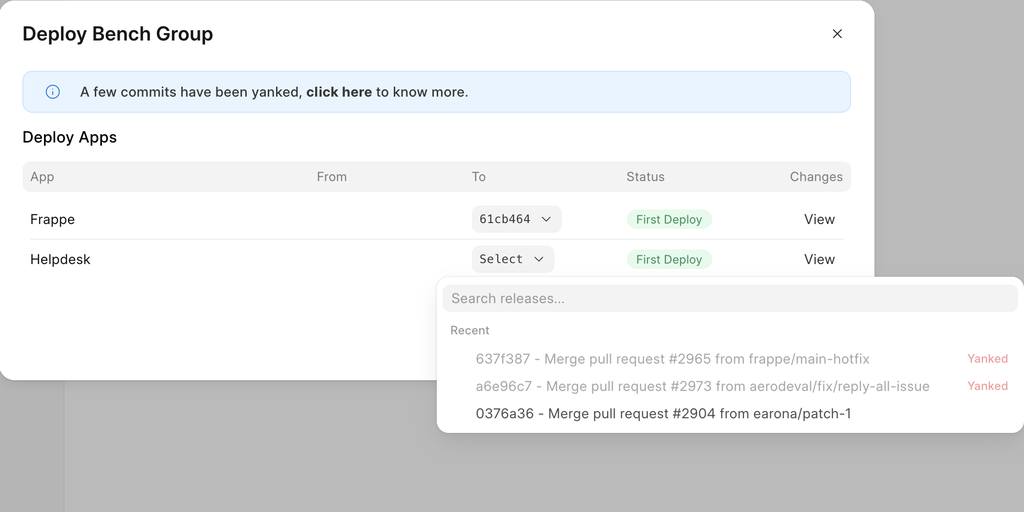
This typically indicates that the available release has been yanked and is therefore skipped during the update process.
To resolve this, ensure that a valid (non-yanked) release is selected for update.