


















> Frappe Insights is an easy-to-use, open-source business intelligence tool designed to help businesses make the most of their data.
>
>
> For simplicity, we have used test.com as the site name in the documentation. Please replace it with your actual site name.
>
>
First Scenario
Insights is installed in same site and you haven't configured anything.
- Go to insights setup page > <https://test.com/insights/setup>
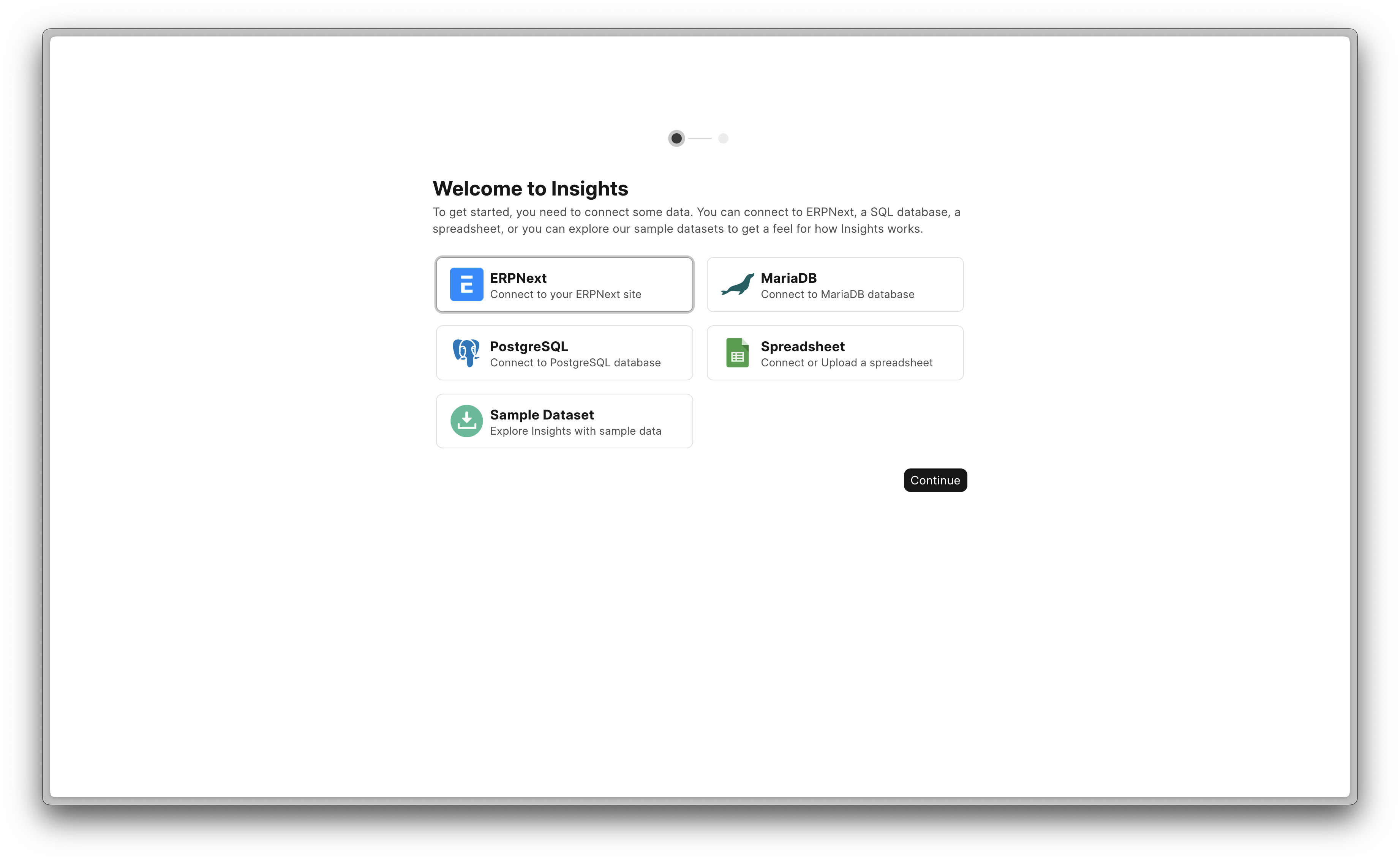
2. Click on the first option Connect to your ERPNext Site.
3. Choose a title for your data source. It can be anything you prefer, then continue.
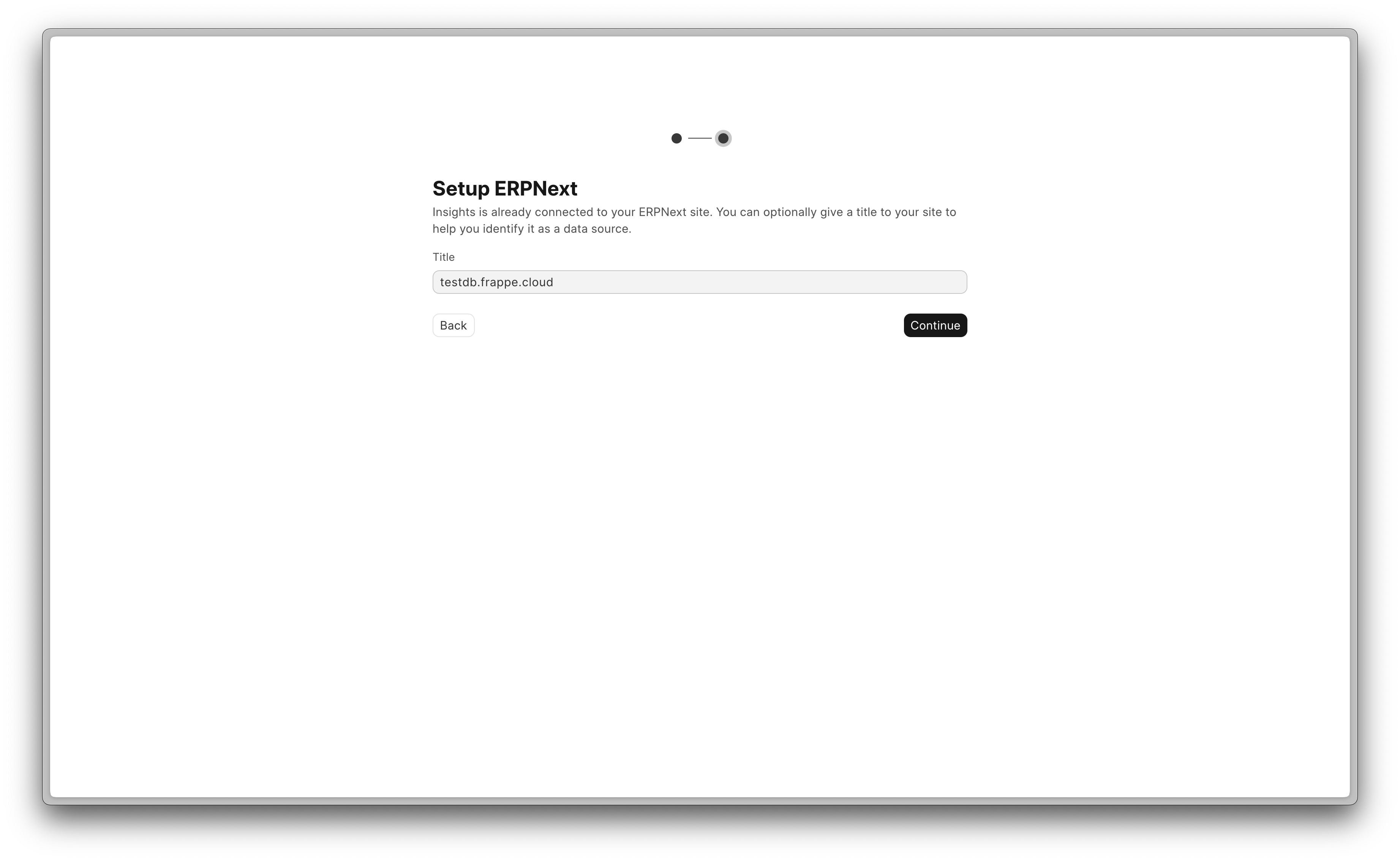
4. This may take a few minutes. Once it's complete, you will be redirected to insight's dashboard.
5. Open Data Sources and you will be able to see you database's tables.
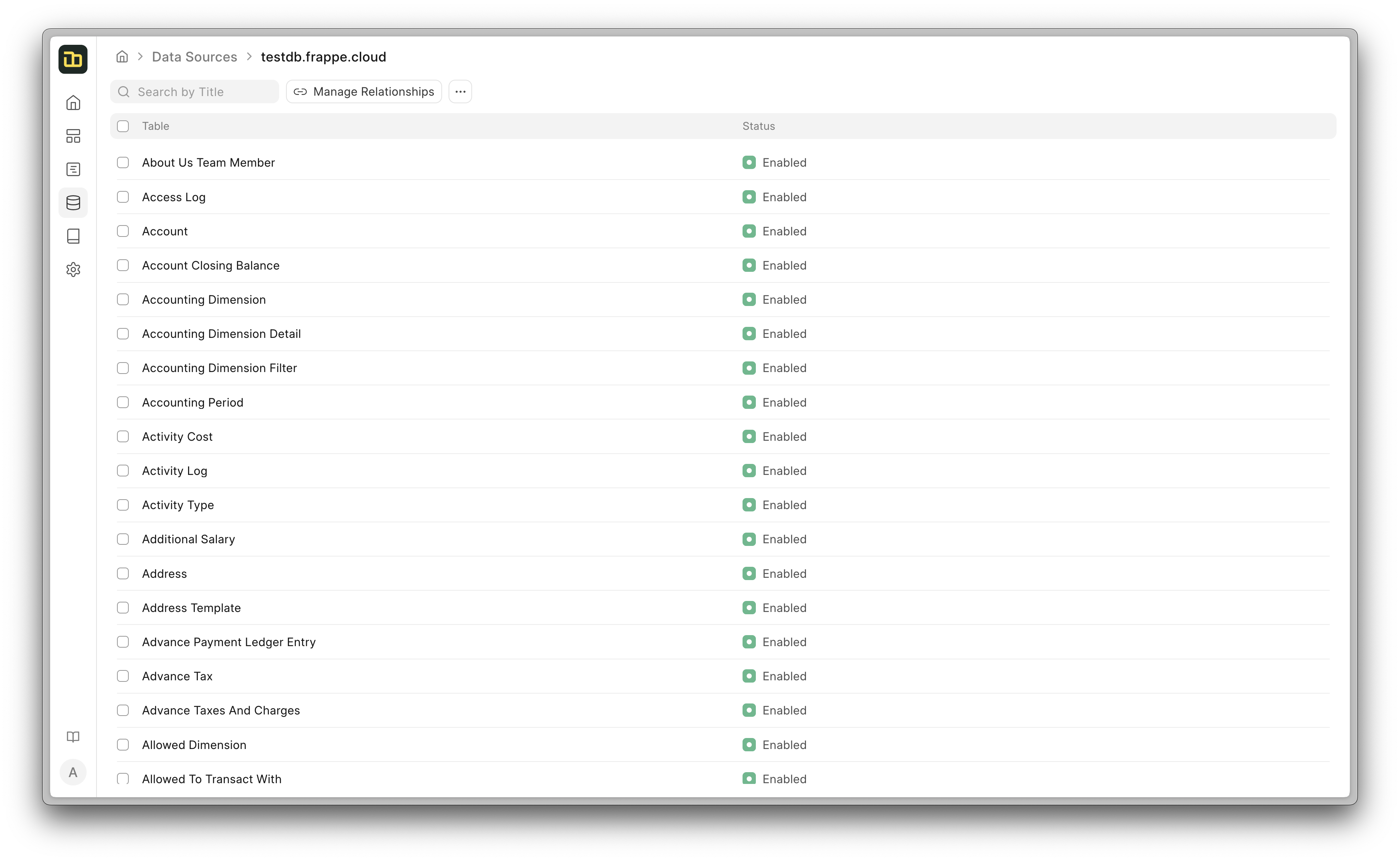
6. Now you can write query, reports. For more details, check the documentation <https://docs.frappe.io/insights/introduction> .
Second Scenario
Insights is installed in different site and you need to connect with that.
- You need to first generate a database user for your site. Follow this documentation to create a read-only user.
Typically, it takes a few seconds to configure the database user. Once it's complete, click on View Credential
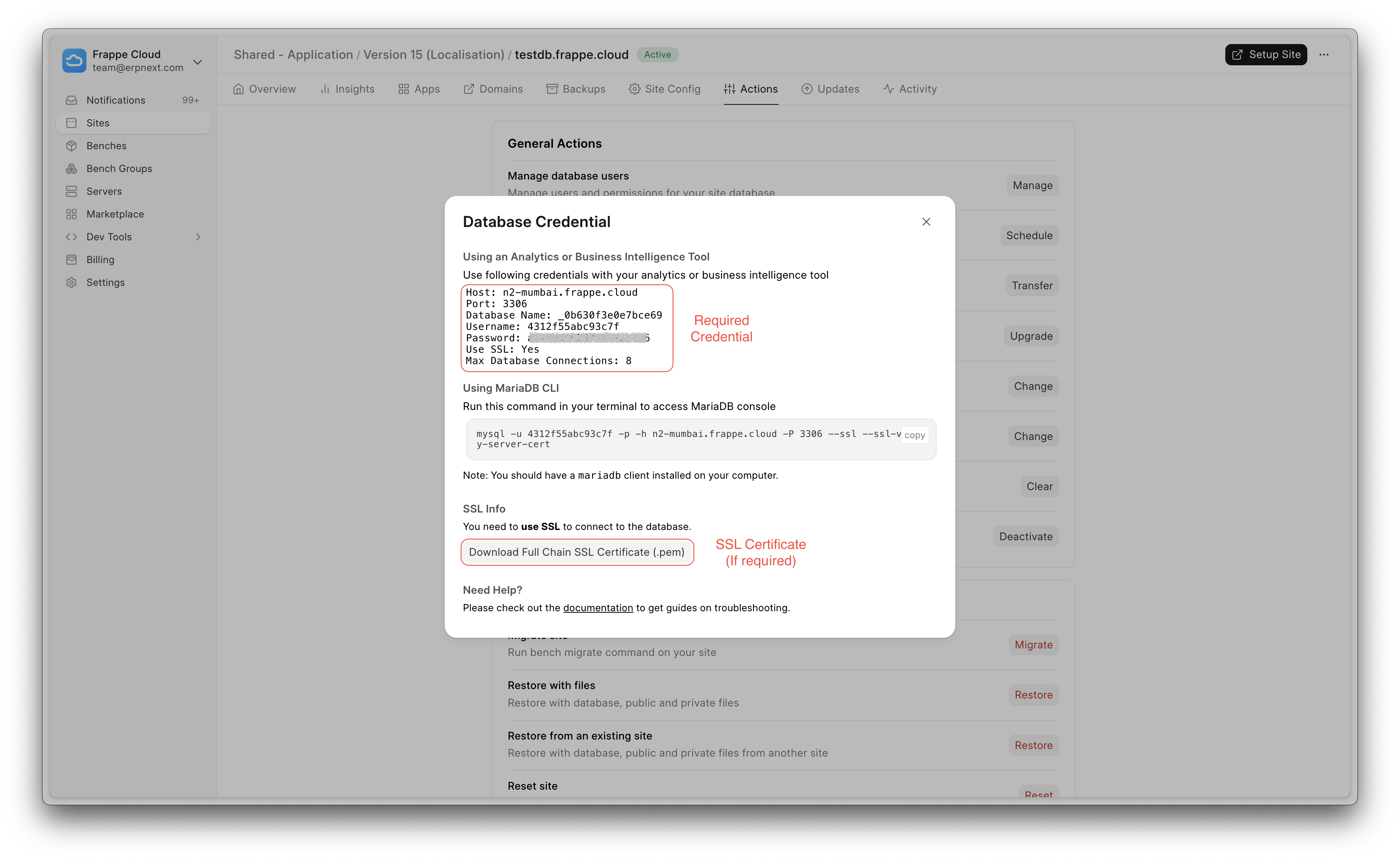
2. Go to insights setup page > <https://test.com/insights/setup>
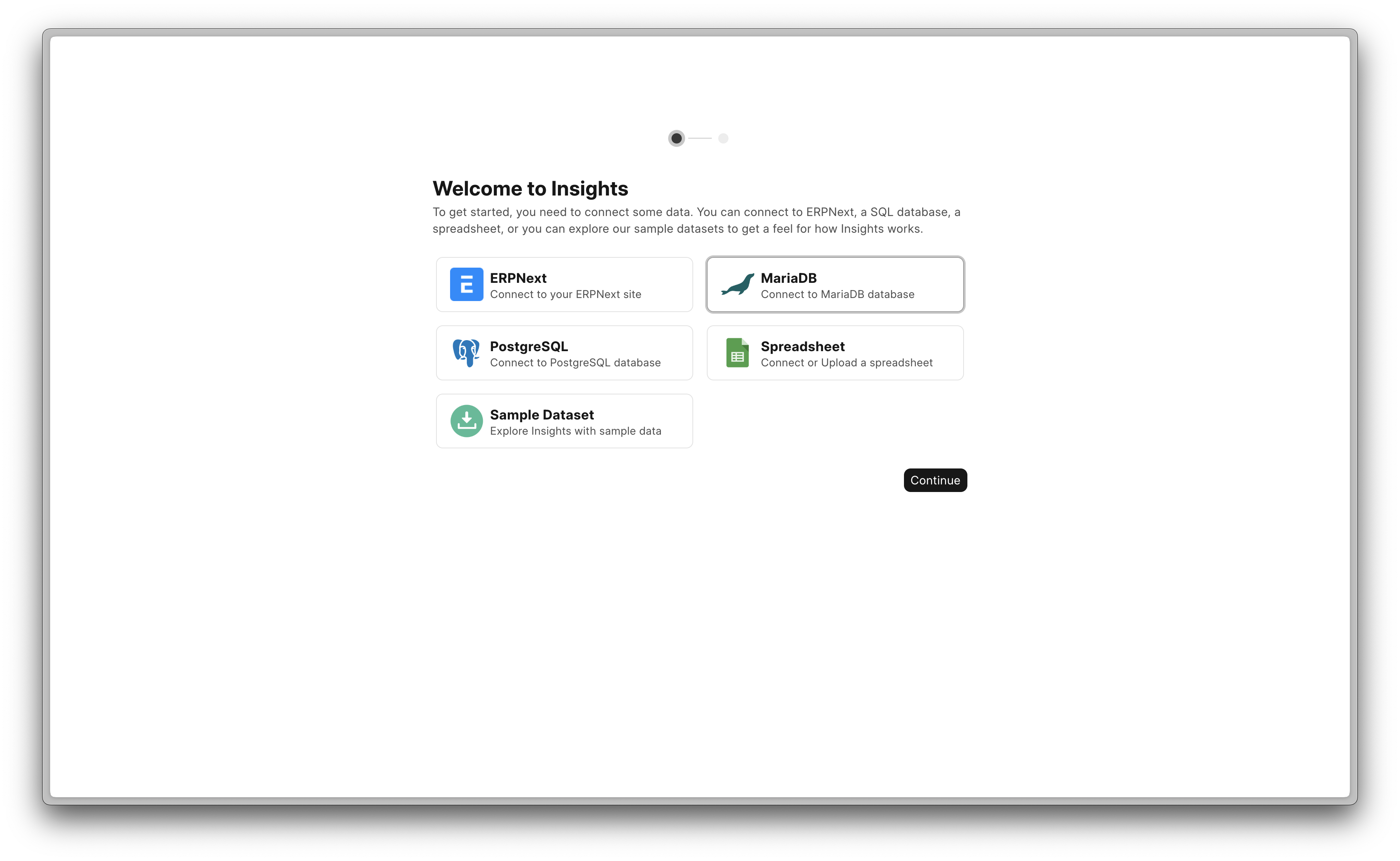
Note : If you have already completed setup and this page is not appearing to you, go to <https://test.com/insights> and click on Connect Data Source.
3. Click on MariaDB and continue.
4. Fill in the required information and make sure to check the Use SSL checkbox.
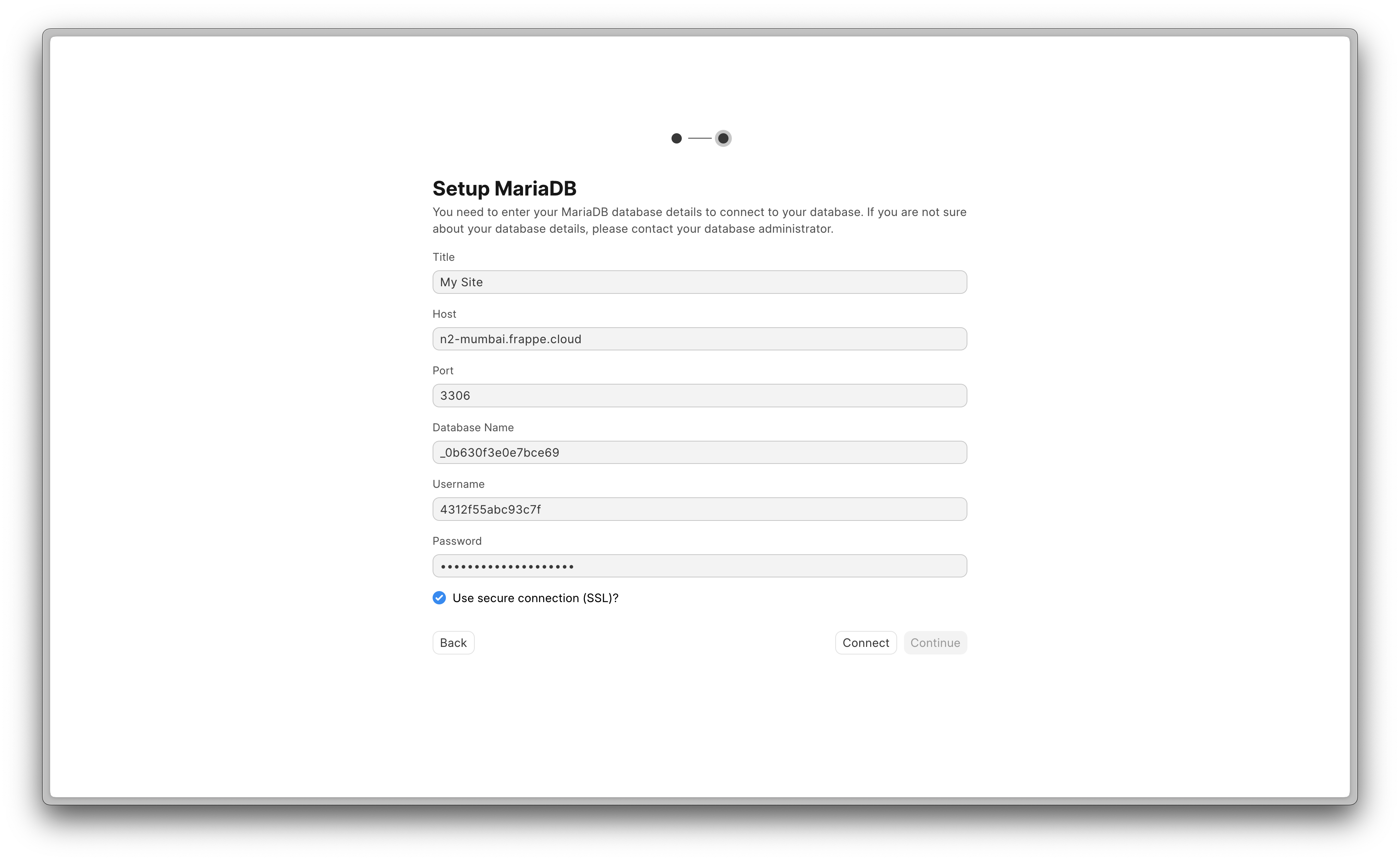
5. Click on Connect
6. Once connection verified, click on Continue button.
7. This may take a few minutes. Once it's complete, you will be redirected to insights dashboard.
8. Open Data Sources and you will be able to see you database's tables.
9. Now you can write query, reports. For more details, check the documentation <https://docs.frappe.io/insights/introduction> .