


















A 502 error means that the web workers of your site are dead, or the app server is dead. The proxy in front of your site got no connection.
Note: A slow site gives a 504 error, not a 502. See Site Slow: 504 Gateway timeout.
Step 1: Wait one minute and reload the page
A deploy or a bench restart gives a short 502. If the site opens again, no other action is necessary.
Step 2: Restart the bench
- Open your bench group dashboard.
- Go to the Sites tab.
- Click the ⋯ menu of the bench that hosts your site.
- Click Restart Bench.
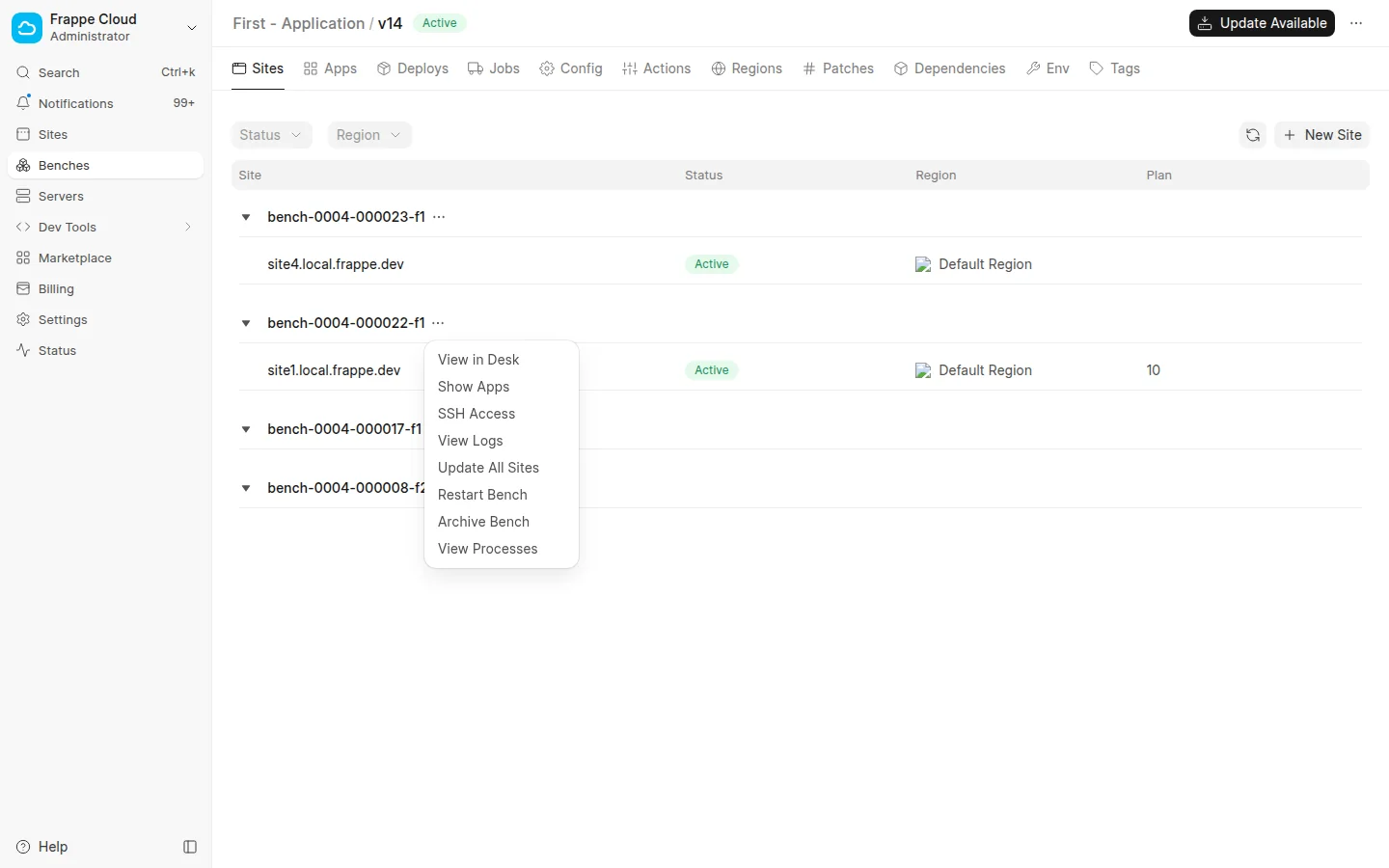
If your site is on a shared server, you have no bench group dashboard. Then open a ticket at support.frappe.io.
You can also restart the bench over SSH:
bench restart
Step 3: Read the logs
If the 502 continues after a restart, read the logs of the bench.
- Go to the Sites tab of your bench group.
- Click the ⋯ menu of the bench.
- Click View Logs.
- Open
web.error.log.
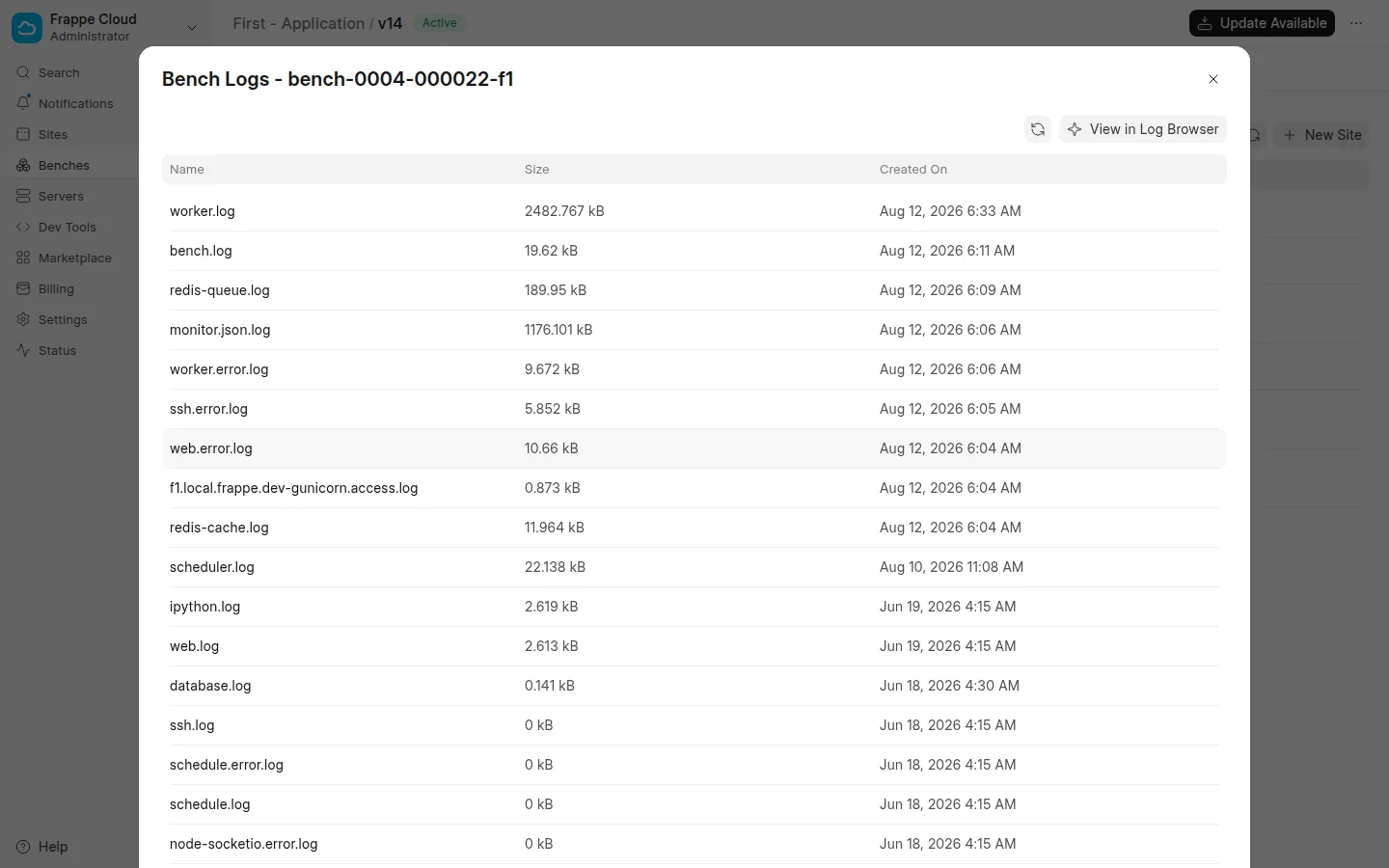
- Go to the bottom of the file. The last lines show why the workers stopped.
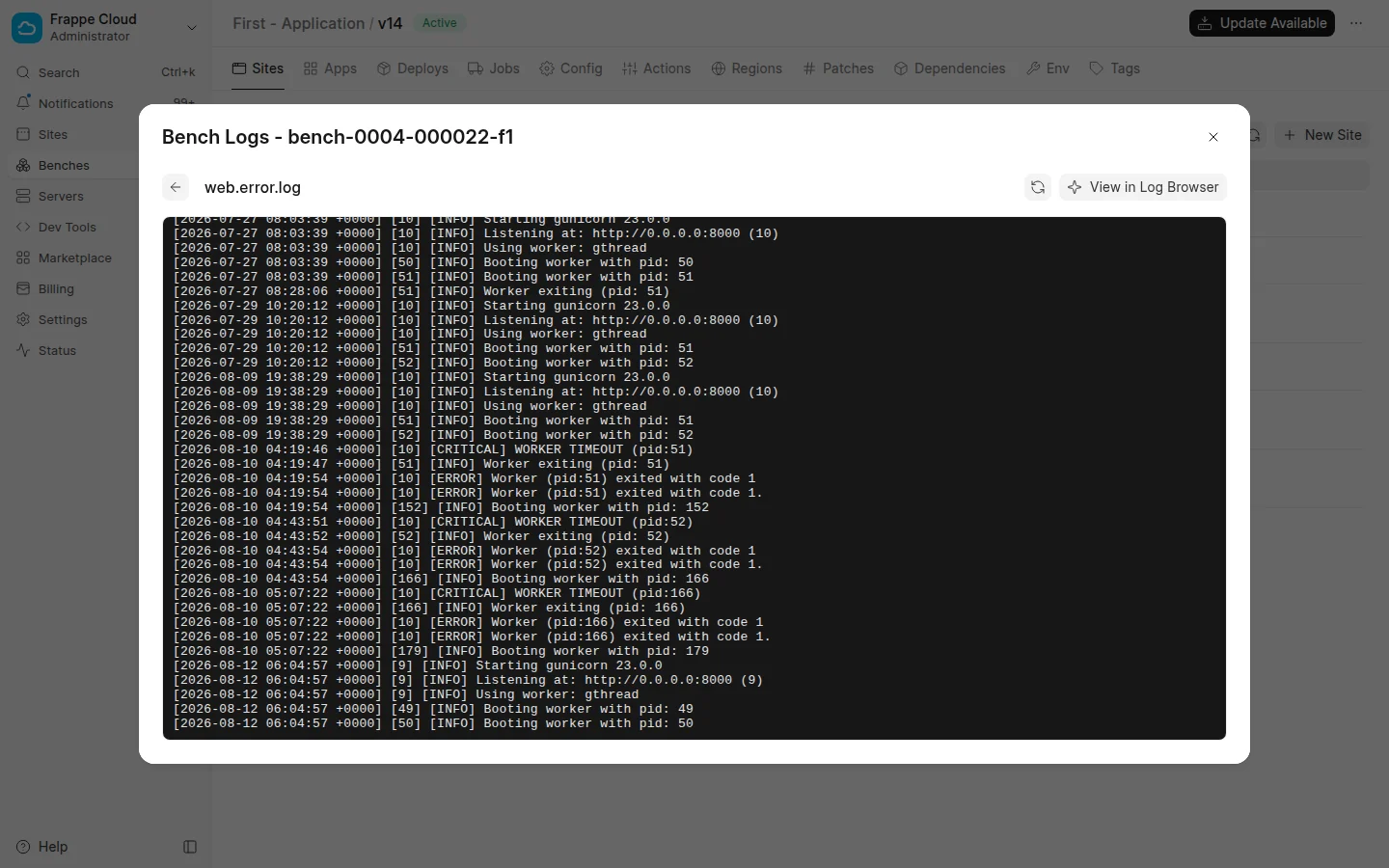
In this example, Gunicorn stopped a worker with a WORKER TIMEOUT error. Then it started a new worker.
The steps are the same as for a 500 Internal Server Error. You can also read the logs over SSH. See Debugging.
Step 4: Examine the memory of the server
If the log shows no error, the system stopped the workers before they wrote one. This usually means that the server had no free memory.
- Open your server dashboard.
- Go to the Analytics tab.
- Examine the memory graph at the time of the error.
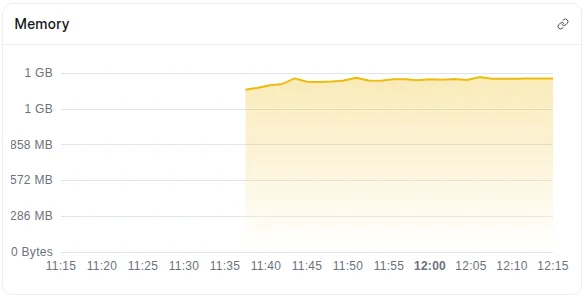
- If the memory was full, change the server plan, or decrease the load on the server.
Note: You cannot change the number of workers from the dashboard. The server plan gives the number of workers. If you think that your bench needs more workers, open a ticket at support.frappe.io. More workers also need more memory.