


















Change ownership of Server
You can transfer a dedicated server to another team from the Frappe Cloud dashboard. The team that gets the server becomes its new owner and pays for it from then on.
What moves with the server
When the transfer is done, these things move to the new team:
- The application server and its database server (and any database replicas)
- All benches on the server
- All sites on the server
- Server snapshots
- Billing for the server plans
The new team can also see the past activity of the server.
Team-specific settings on the server, such as role permissions and notification contacts, are removed. The server then uses the new team's settings.
Note: A transfer can't be undone. To get the server back, the new team has to transfer it back to you.
Before you start
Make sure that:
- You are an admin of the team that owns the server.
- The server is Active.
- No server operation (like a resize or a snapshot) is running.
- Autoscaling and on-prem failover are turned off for the server.
- Your team has no unpaid invoices.
- All sites and benches on the server belong to your team.
- The receiving team has an active Frappe Cloud account and can have dedicated servers. If they can't, they need to contact support to enable it.
If any of these is not true, the dashboard shows you what to fix before you can send the request.
Note: Self-hosted servers can't be transferred.
Send the transfer request
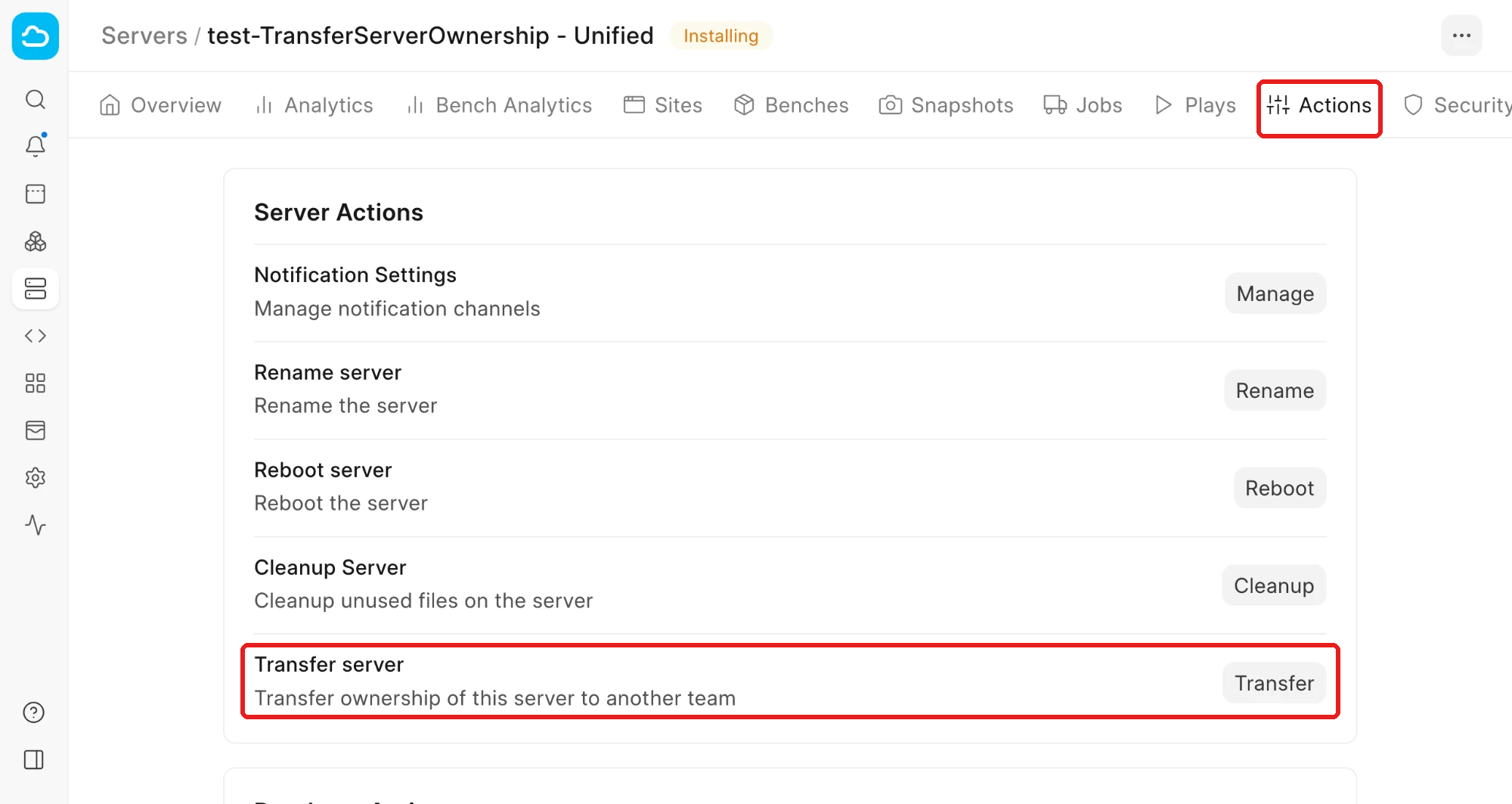
Go to the Server Dashboard > Actions > Transfer server and click Transfer.
Enter the email address of the team that will own the server, and the reason for the transfer (optional). Then click Transfer.
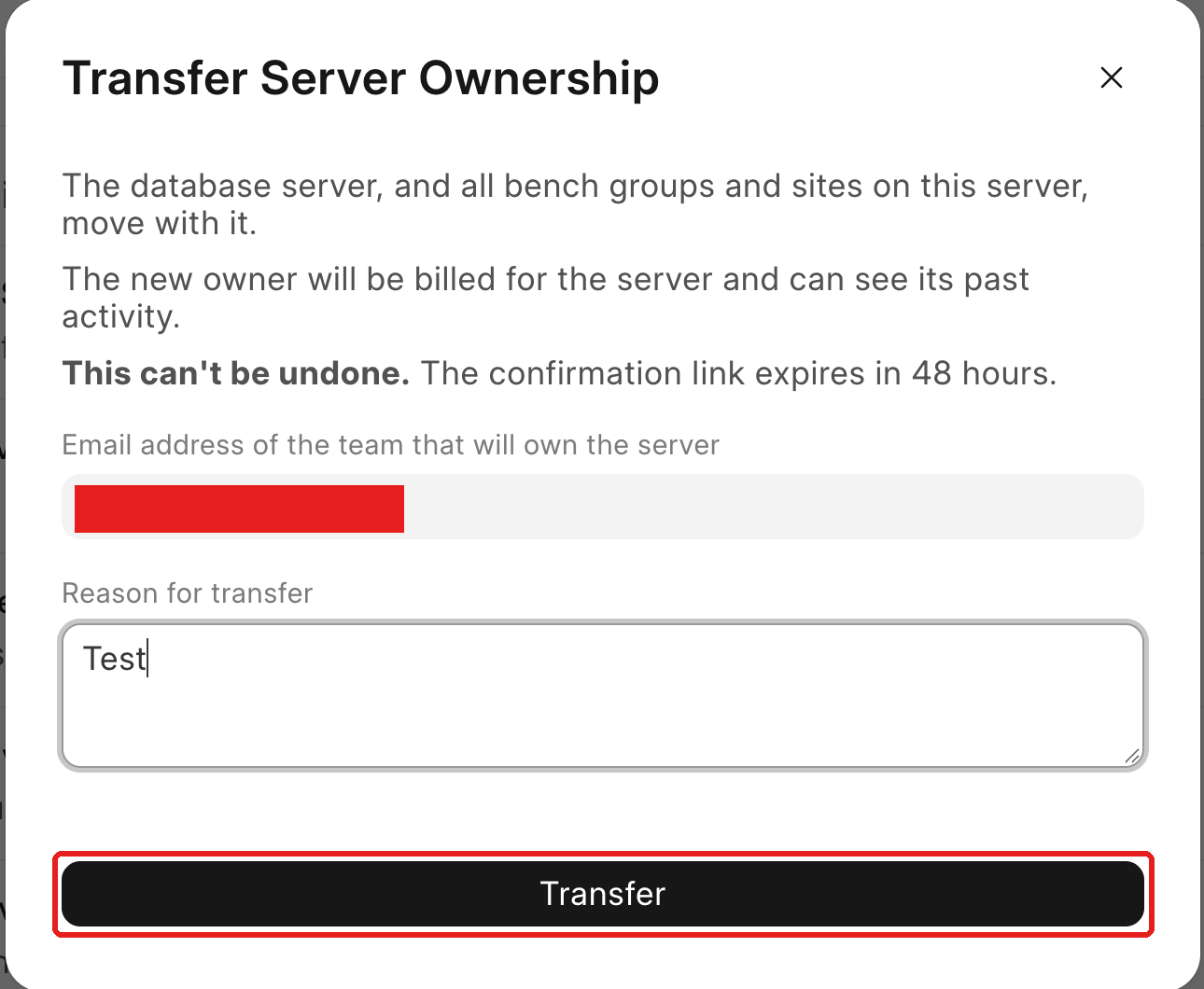
The receiving team gets an email with a confirmation link.
Note: You can have only one pending request for a server at a time. If you already sent one, you can send a new request after the first link expires.
Accept the transfer
The receiving team gets an email that shows the database server, benches and sites that move with the server, the monthly price they will pay for the server plans, and when the link expires.
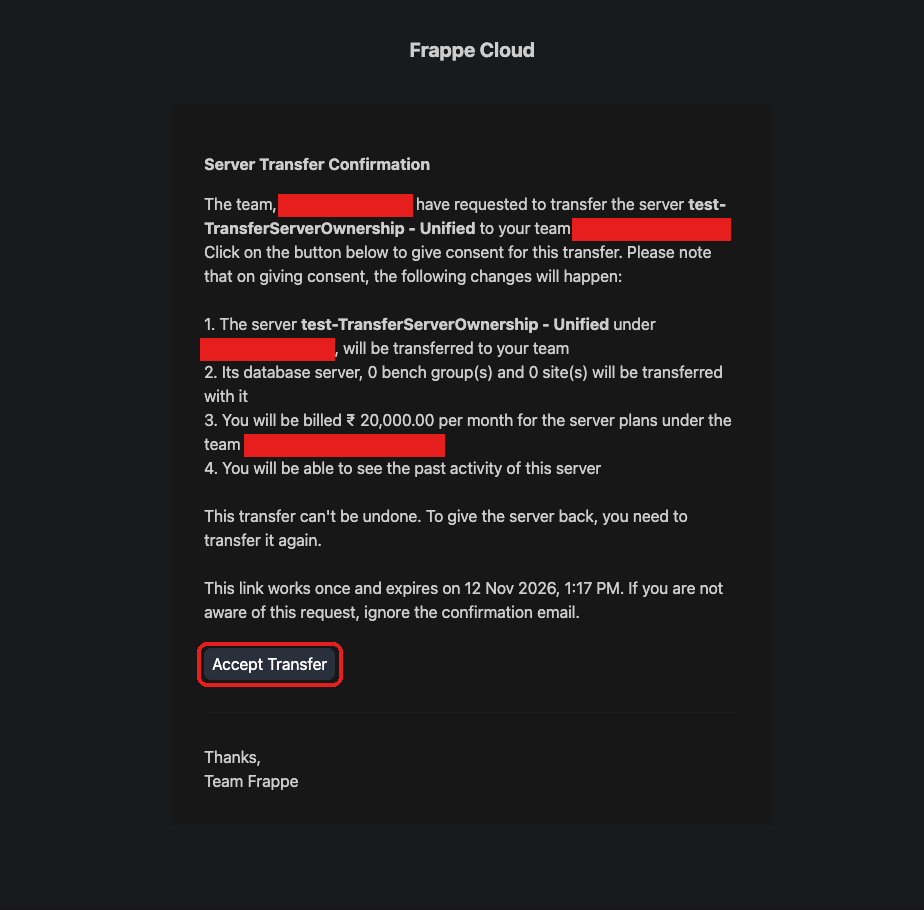
To accept, a member of the receiving team must log in to Frappe Cloud and click Accept Transfer in the email. After the transfer is done, they are taken to the server page in their dashboard.
Note: The link expires in 48 hours and works only once. If it expires, the sending team needs to send a new request.
Common errors
| Message | What to do |
|---|---|
| The link you are using is invalid or expired. | Ask the sender to send a new transfer request. |
| This link has already been used. | The transfer is already done. Check the server in your dashboard. |
| You are not a member of the team to which the server is being transferred. | Log in with an account that is a member of the receiving team. |
| These bench groups also run on other servers. | Raise a support ticket. We will help you move the server. |
| The receiving team can't have dedicated servers yet. | The receiving team needs to contact support to enable dedicated servers. |
Need help?
If your benches also run on other servers, or something else stops the transfer, raise a ticket at support.frappe.io and we'll be happy to help.