


















What is a Binary Log?
The Binary Log (Binlog) in MariaDB records all changes made to the database. This includes SQL statements that modify data (INSERT, UPDATE, DELETE) and DDL statements that change the structure of your tables.
What is the Binlog Browser?
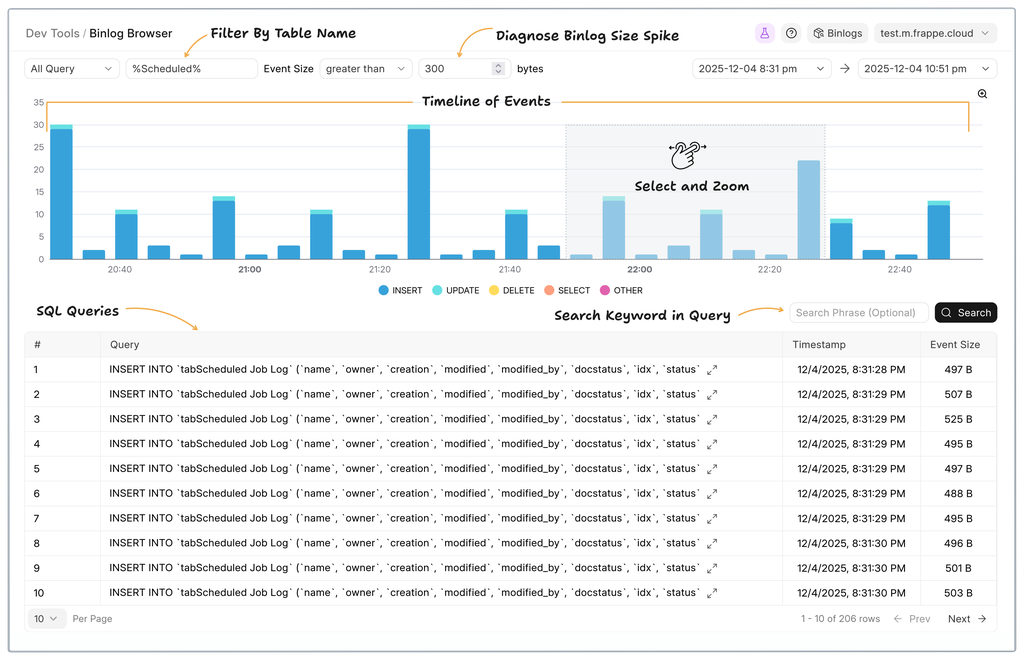
Binlog Browser is a GUI tool that lets you view your database’s binary logs. You can check which query ran, when it ran, and on which table it was executed.
Where to find it?
You can find it in the sidebar under Devtools > Binlog Browser.
If you don’t see the option, make sure you have completed your Frappe Cloud onboarding. If it still doesn’t appear, please contact support.frappe.io.
Who can access it?
Right now, only dedicated database servers with at least 8GB RAM can use this tool. Once the feature is more stable, it will also be available for servers with 4GB RAM.
Why do we need the Binlog Browser?
Binary logs are stored in a binary format, which makes them difficult and resource-heavy to read manually.
You might use the Binlog Browser for debugging, such as:
- When some data looks wrong or missing. Binlogs can show which query caused it.
- When binlog file sizes suddenly grow. Binlog Browser helps identify the queries responsible or shows which database had heavy writes.
- When doing point-in-time restoration or checking that no writes happened after a backup. Binlog Browser helps confirm this.
How it works?
The Binlog Browser depends on another tool called the Binlog Indexer.
The Indexer converts binary logs into metadata that can be queried quickly.
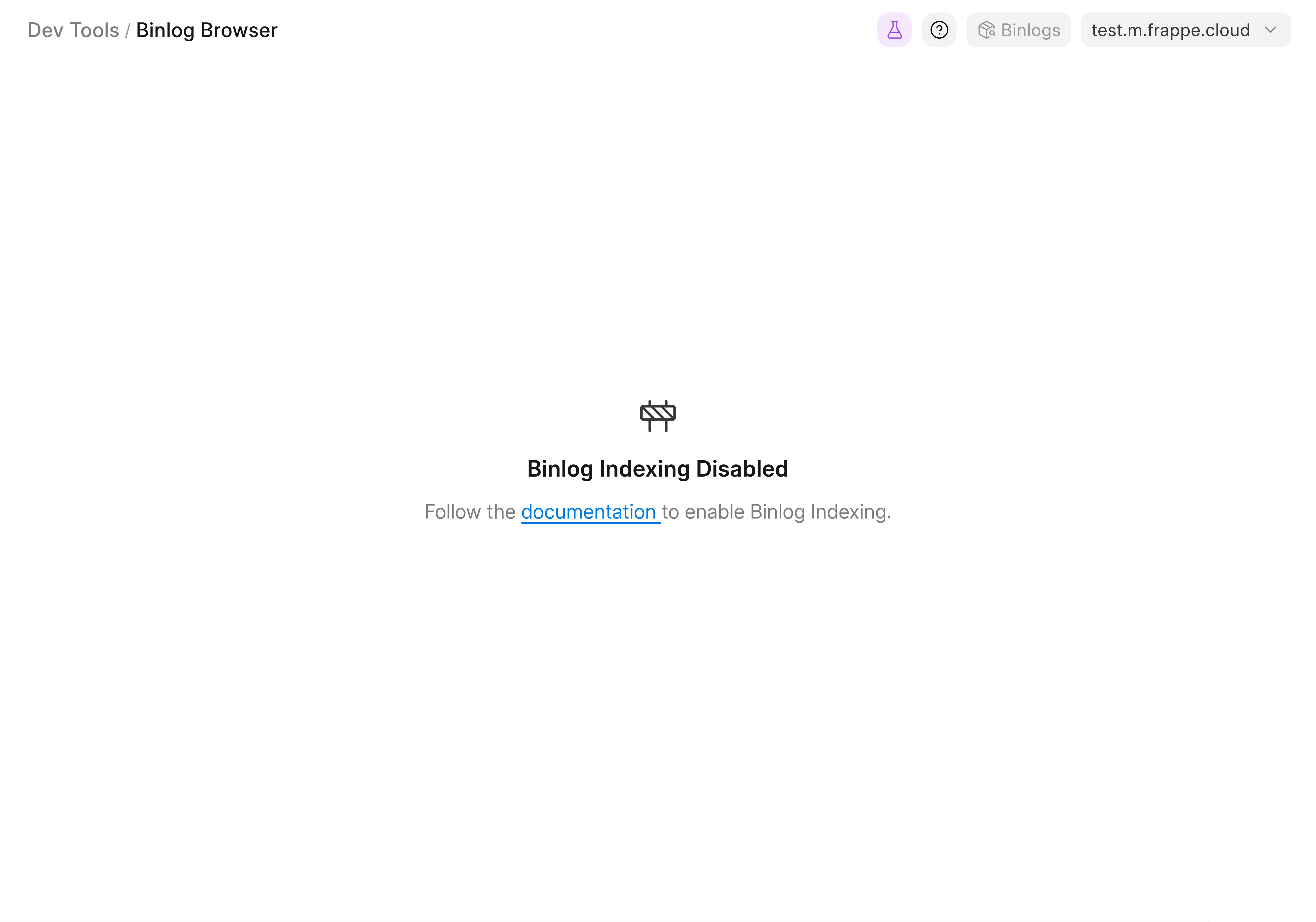
If the indexer is not enabled, you will see a page like this:
How to enable the Binlog Indexer / Browser?
Please refer to the documentation to enable it.
Automated Binlog Indexing
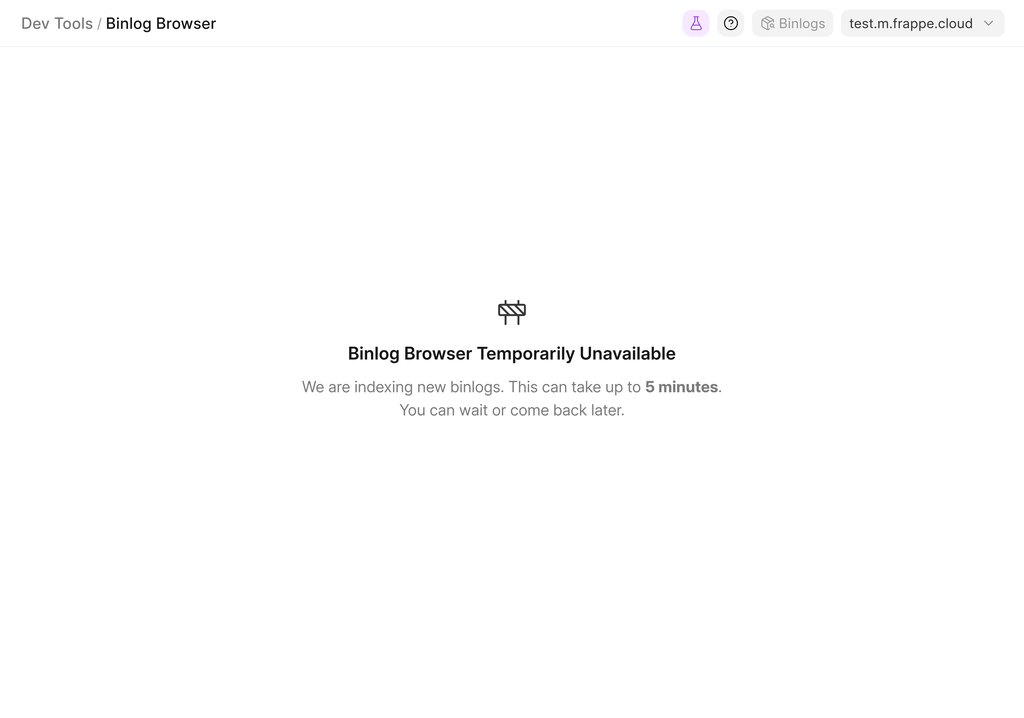
By default, Frappe Cloud runs a job every hour that indexes 4 binlogs.
During this time, you cannot access the Binlog Browser, and you will see a page like this:
You will need to wait for the job to finish.
Binlog Indexing Status
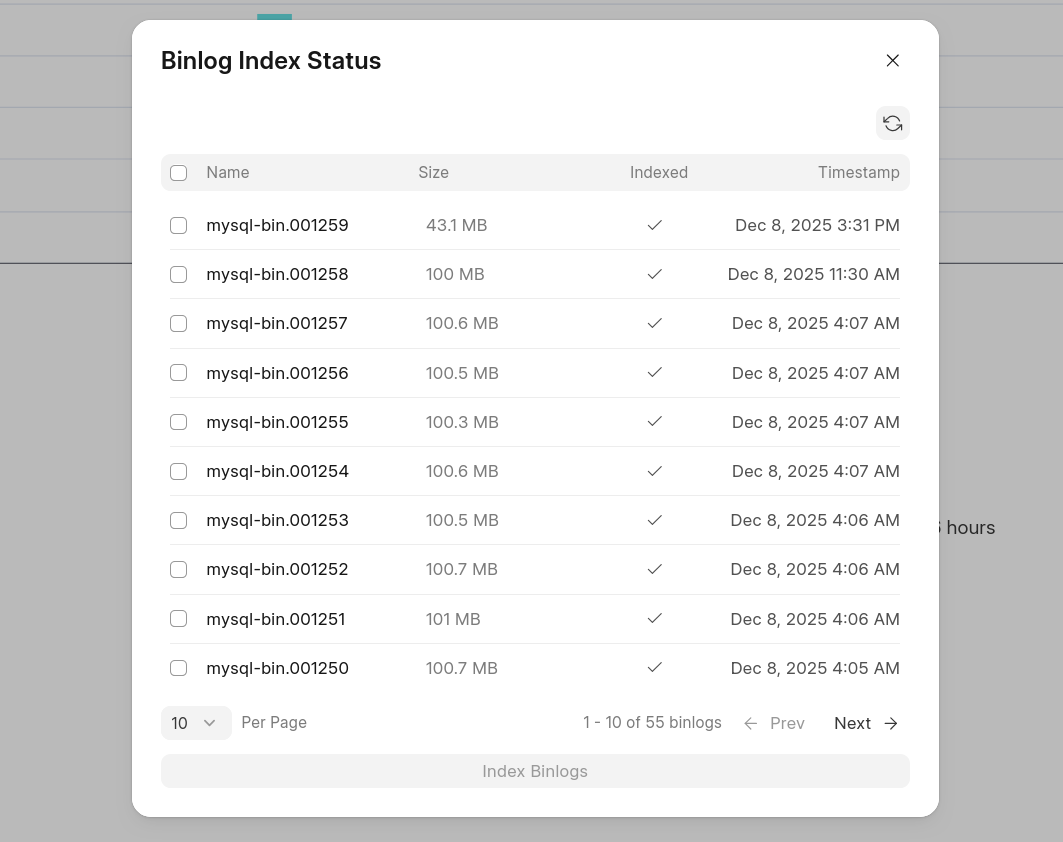
If your binlogs are not indexed yet, the Binlog Browser will show no results.
To check which binlogs are indexed, click the Binlogs icon on the top-right.
This opens a modal showing each binlog, its size, and its index status.
On-demand Binlog Indexing
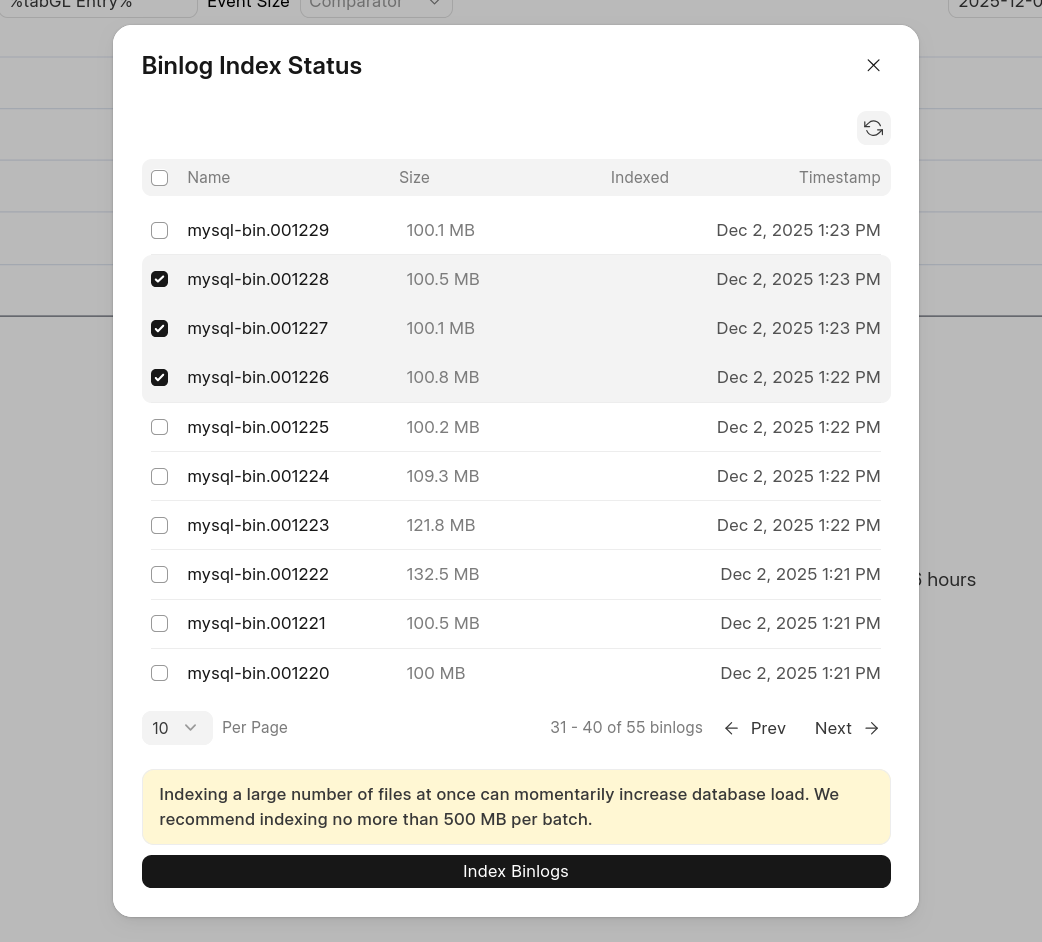
If you need to index multiple binlogs urgently, you can select the binlogs and submit an indexing request.
After submitting, you will be redirected to a page where you can track the job status.
Once completed, you can return to the Binlog Browser to access the newly indexed binlogs.