


















Move Site To Different Region
To move your site to a different region, follow the steps below.
If your site is currently running on a Shared Bench, you can skip the region setup steps described below.
1. Add the Target Region
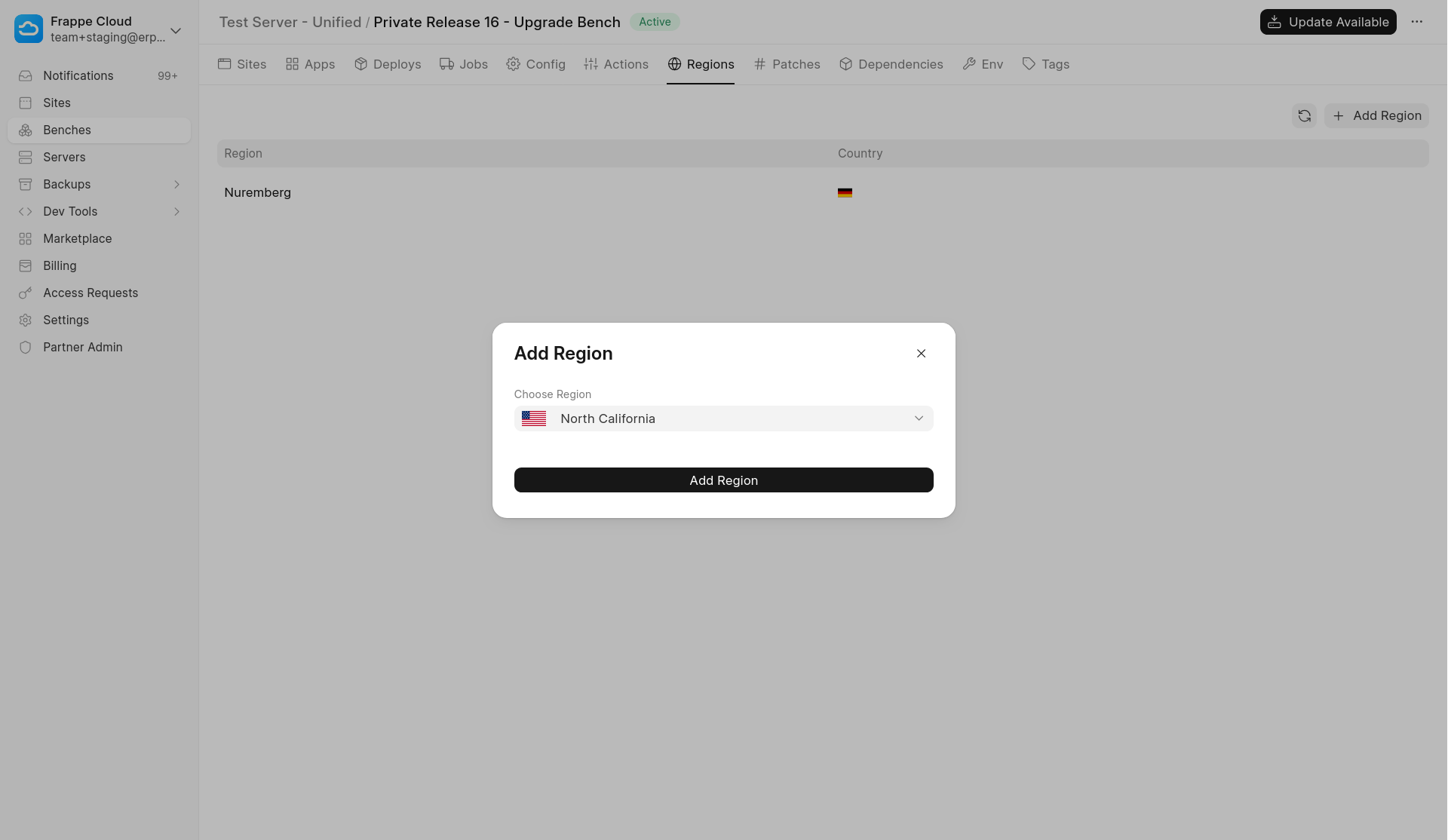
Go to your Private Bench and open the Regions tab.
Click Add Region and select the region where you want to deploy your site.
2. Wait for Bench Provisioning
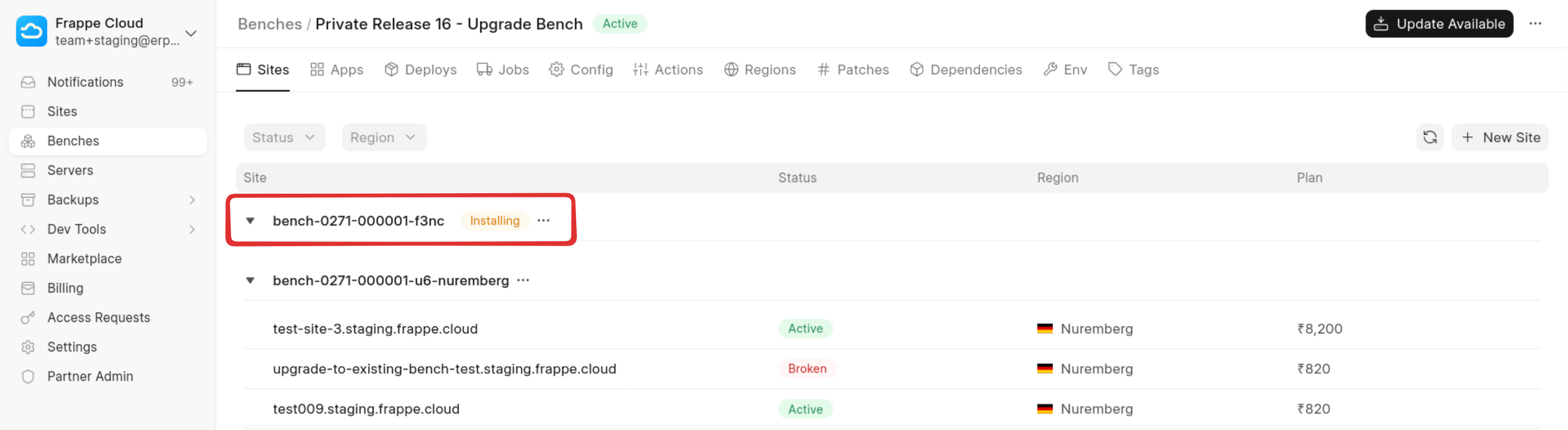
After adding the region, return to the Sites tab.
A new bench will appear with the status Installing. Wait until the bench becomes Active before proceeding.
3. Trigger the Migration
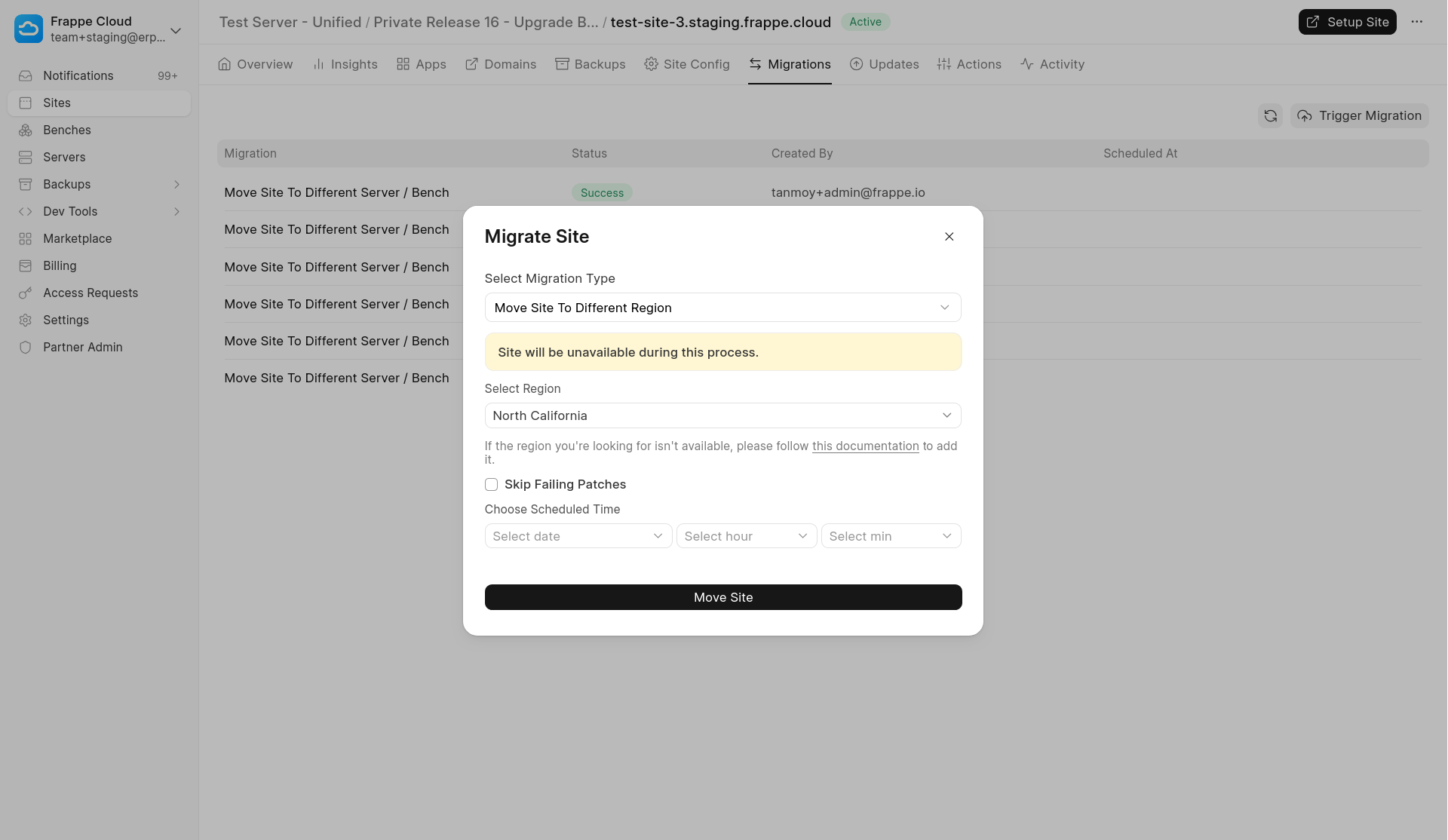
Once the bench becomes active, open your Site and go to the Migrations tab.
Click Trigger Migration. From the migration type options, select Move Site to Different Region, then choose the target region where you want the site to be moved.
4. Migration Completion
Once the migration process completes, your site will be successfully moved to the selected region.