
We have an option to download the template to insert the records/update the records
- Clicking on Download Template opens a dialog box
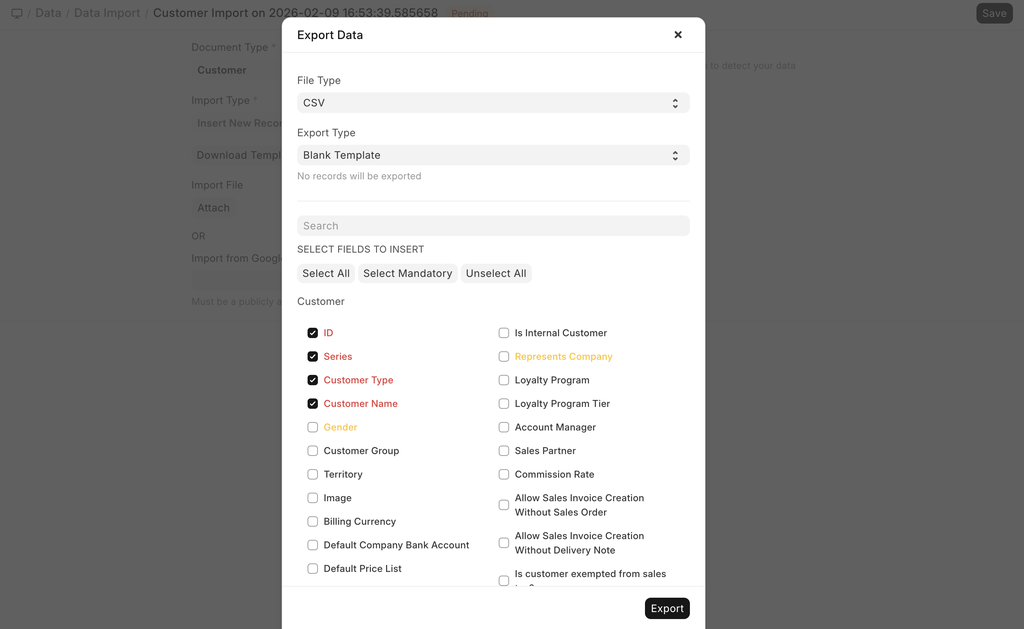 Download Template Dialog box
- We can select the File type as CSV or Excel
- Then the next step is to decide the Export Type, there are various options available for this:
- All Records - This will export all the records for the selected Document Type
- Filtered Records - Based on filters, the records will be fetched and exported
- 5 Records - This will fetch the top 5 records; it can be used to see the data format for reference
- Blank Template - This includes just a blank file with the selected column names
- Once the Export Type is selected, all the fields are displayed below. The ones in red are the mandatory fields, and the yellow ones indicate the depends on fields
- There are options to consider when selecting the fields to insert as well:
- Select All - As the name suggests, it will pick all the fields
- Select Mandatory - Picks only the mandatory fields in red
- Unselect All - This is like a reset, removing the selection from all fields
- Then Click Export and get the exported file.
Last updated 3 hours ago
Was this helpful?