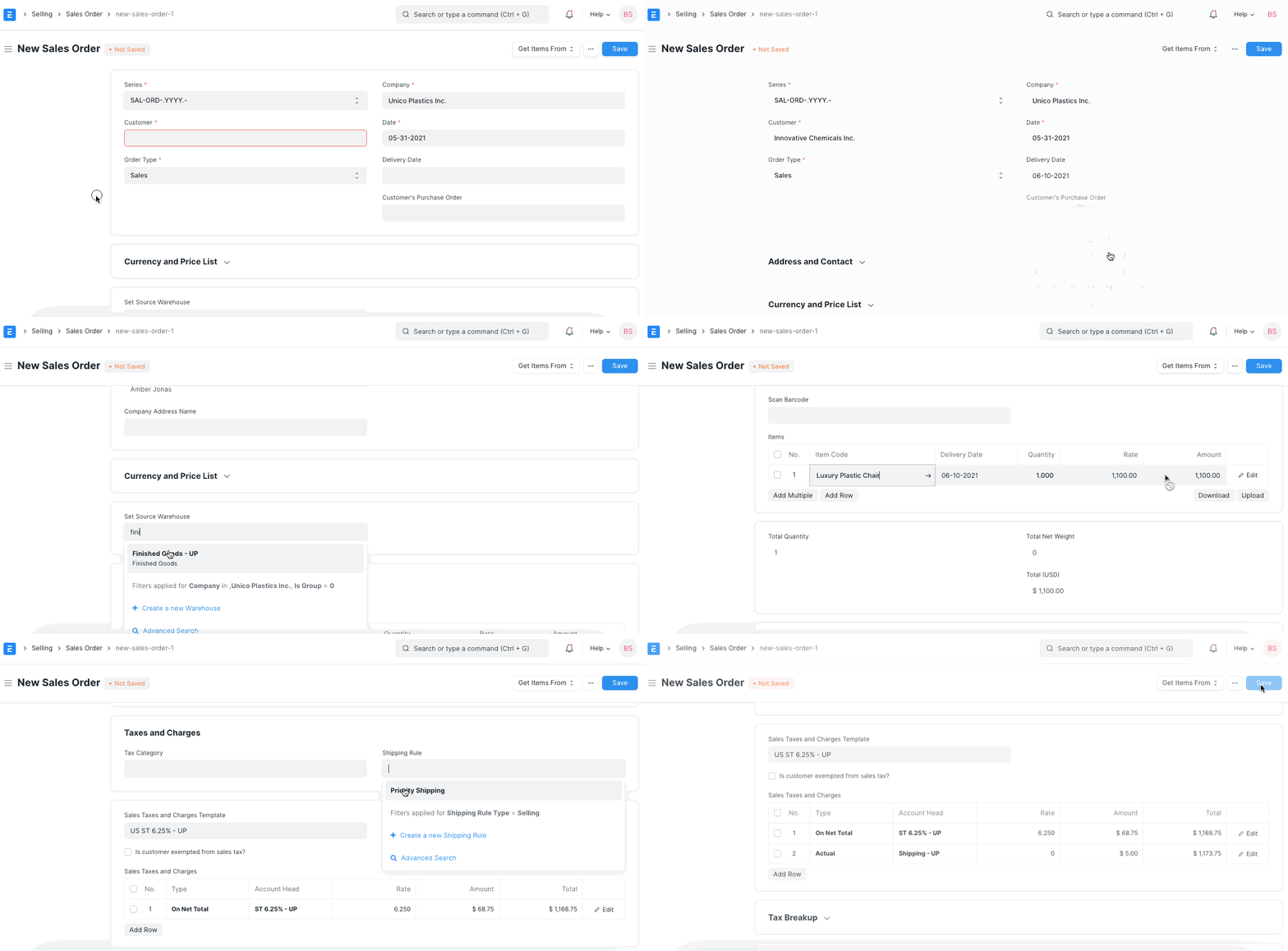
Using Shipping Rule, you can define the cost for delivering the product to the customer or the supplier. Its a rule to define shipping charges applied to sales transactions
Most of the companies (mainly retail) have a shipping charge applied based on the invoice total. You can setup Shipping Rule to address the requirement of varying shipping charges based on the Net Total of sales transactions. Use them to offer discounted shipping rates on high-value orders and standard rates on smaller ones.
To set up a Shipping Rule, go to:
Selling > Setup > Shipping Rule or Accounts > Setup > Shipping Rule
How to create a Shipping Rule
- Go to the Shipping Rule list, click on New.
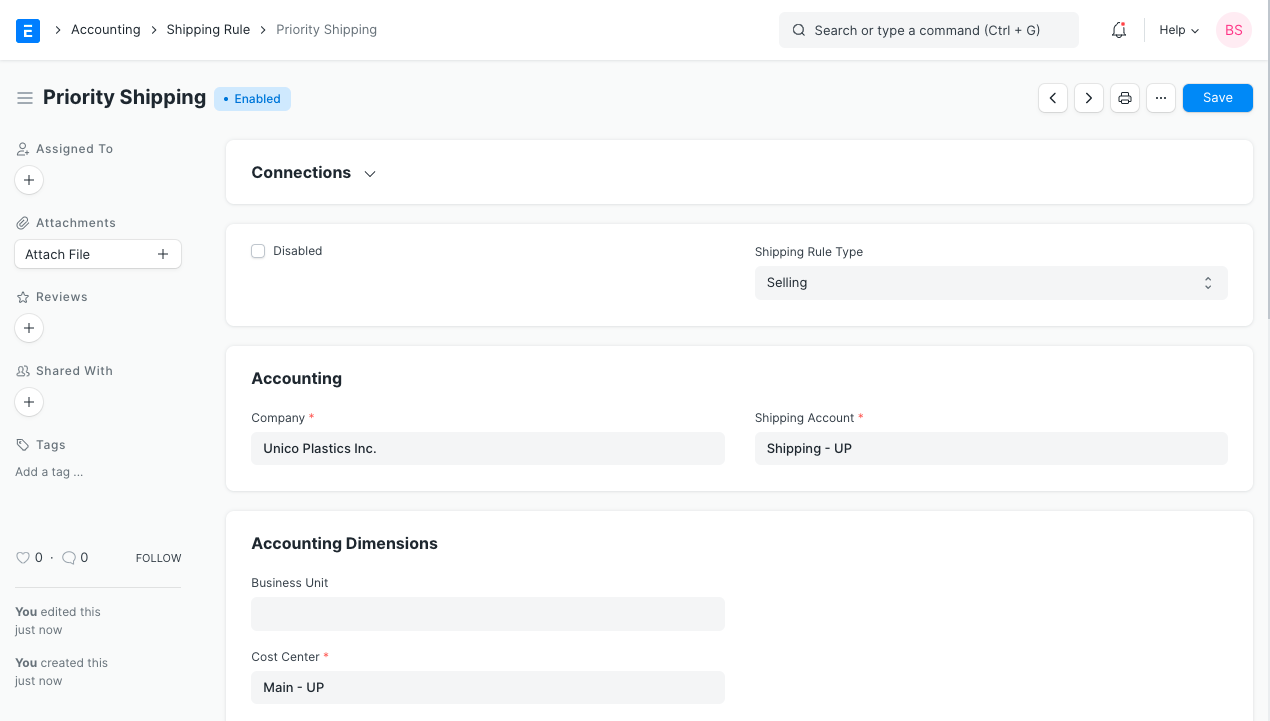
- Enter the Shipping Rule label, for example, 'Priority Shipping' or 'Next Day Shipping'.
- When shipping charges are determined by a Shipping Rule, you must also provide the Shipping Account, Cost Center, and Shipping Amount. These details are required to populate the "Taxes and Other Charges" table in the transaction.
- Under Calculate Based On, you can also change the calculation on which the Shipping Rule will be applied, like net total quantity or net total weight; by default, it is "Fixed".
- Save
Features
Shipping Rule Conditions
On selecting Net Total or Net Weight, a table will appear where you can set the from and to values for the amount or weight. Enter the Shipping Amount to be calculated for the entered range. Add more conditions as necessary. You can select only one of the three calculation methods in one Shipping Rule.
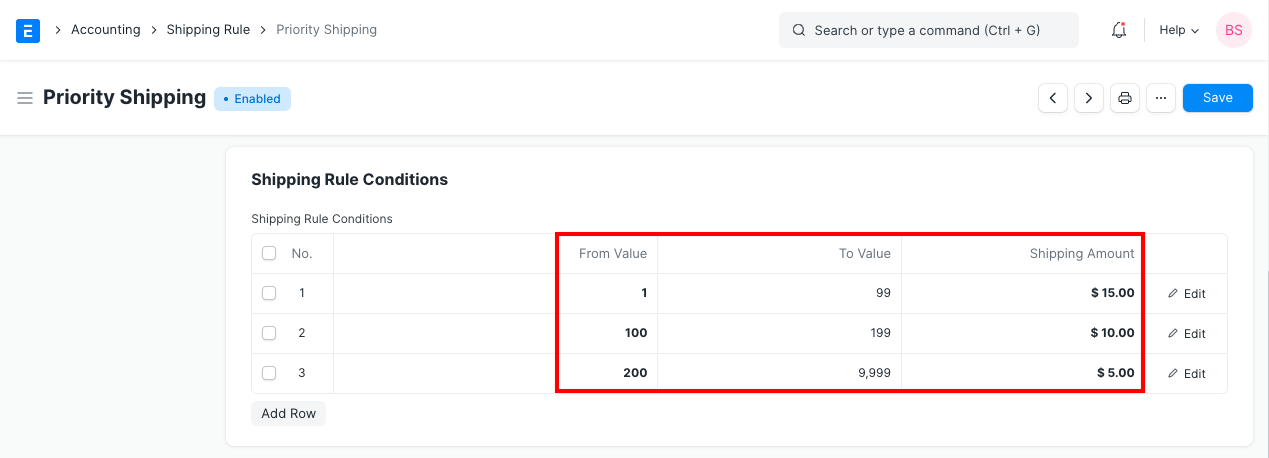
Referring above, you will notice that shipping charges are reducing as the value increases. This shipping charge will only be applied if the transaction total falls under one of the above ranges.
Valid for Countries
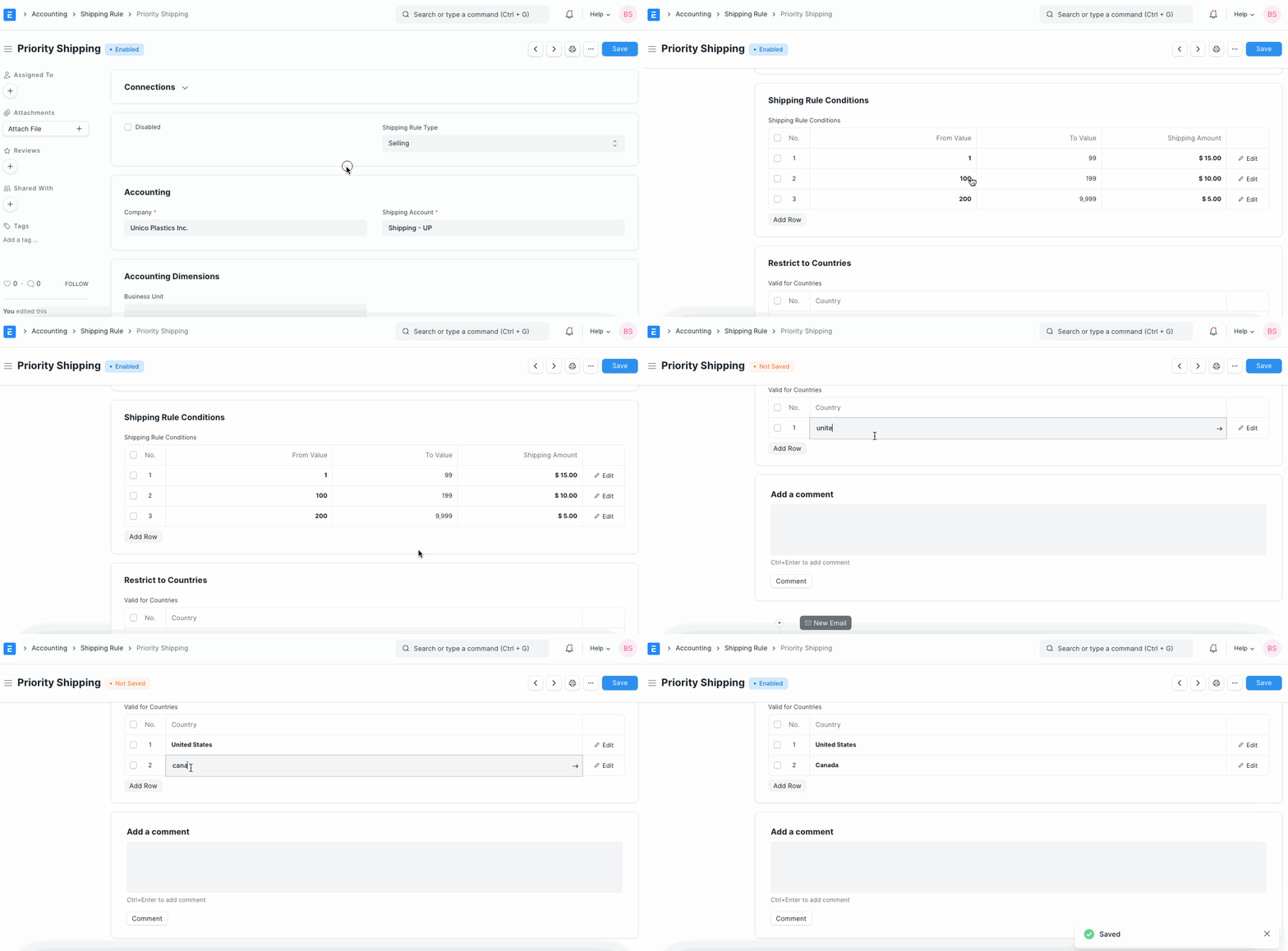
You can restrict the Shipping Rule to certain countries. Add the countries in the table. By default, the Shipping Rule will be applicable globally. If specific countries are mentioned, then Shipping Charges will be applied only if the Customer's country matches the country mentioned in the Shipping Rule.
Shipping Rule Application
Following is an example of how shipping charges are auto-applied on a Sales Order based on a Shipping Rule.