

















Distributed Cost Center
Nova Electronics Trading pays $10,000 each month for software used by two teams. Retail Operations uses most of it, while Online Sales uses the rest. If Nova charges the complete bill to Retail Operations, that team's expenses look too high and Online Sales appears to use the software for free.
Nova can record the bill once against a shared main Cost Center. A Cost Center Allocation then distributes 60% to Retail Operations and 40% to Online Sales. The source bill remains one transaction, but management reports show $6,000 against Retail Operations and $4,000 against Online Sales.
A distributed cost center is not a separate ERPNext record. It describes the accounting result of posting to one main Cost Center and letting an allocation rule divide the amount among receiving Cost Centers.
Before you begin
Create the main Cost Center and every receiving Cost Center in the same Company. Choose a percentage that the business can explain, such as employee count, floor area, revenue, or actual software usage.
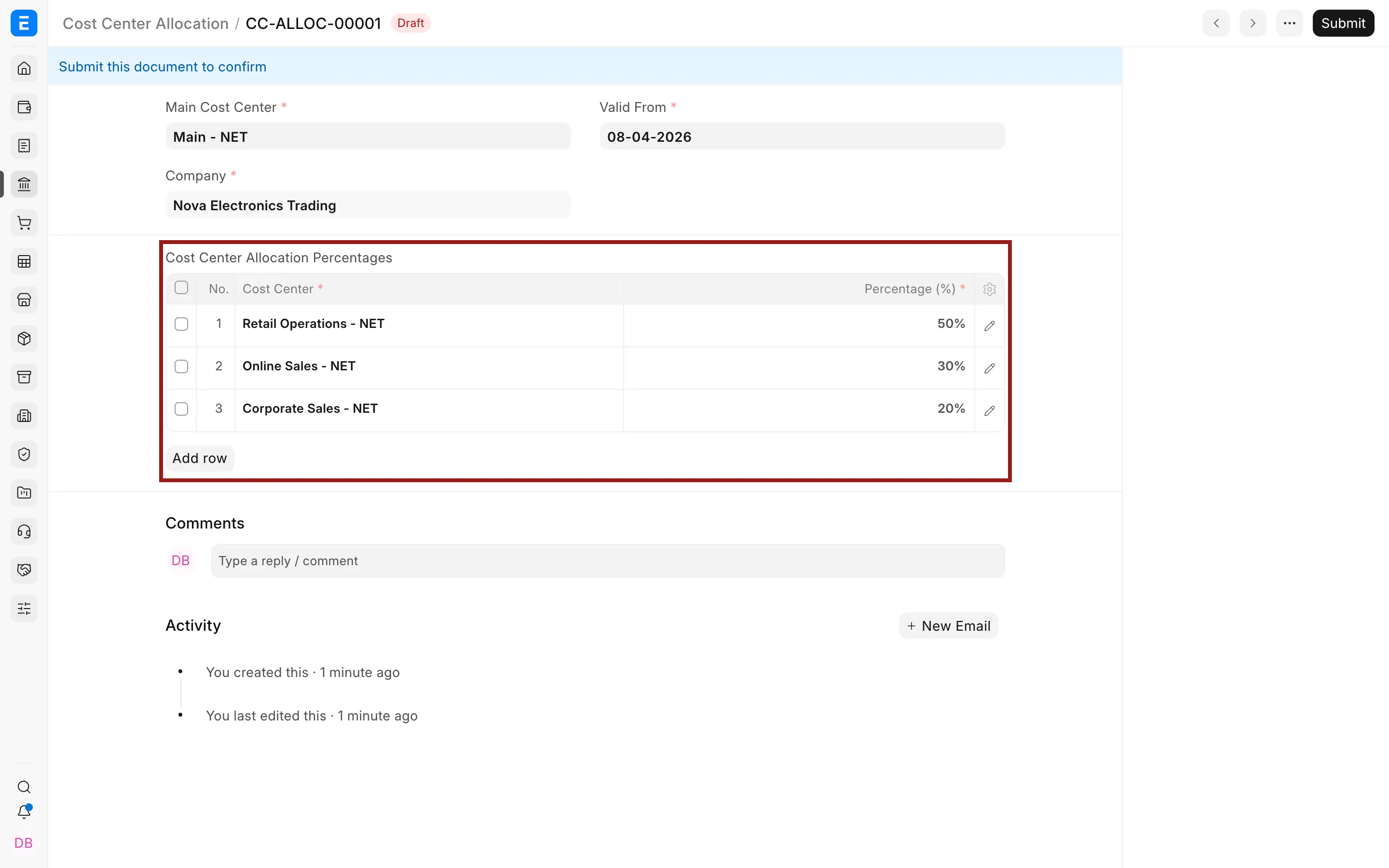
The percentages must add up to 100%. Choose the effective date carefully. ERPNext compares the transaction's Posting Date with Valid From to decide which allocation to use.
Set up the distribution
Open the Cost Center Allocation list and select Add Cost Center Allocation.
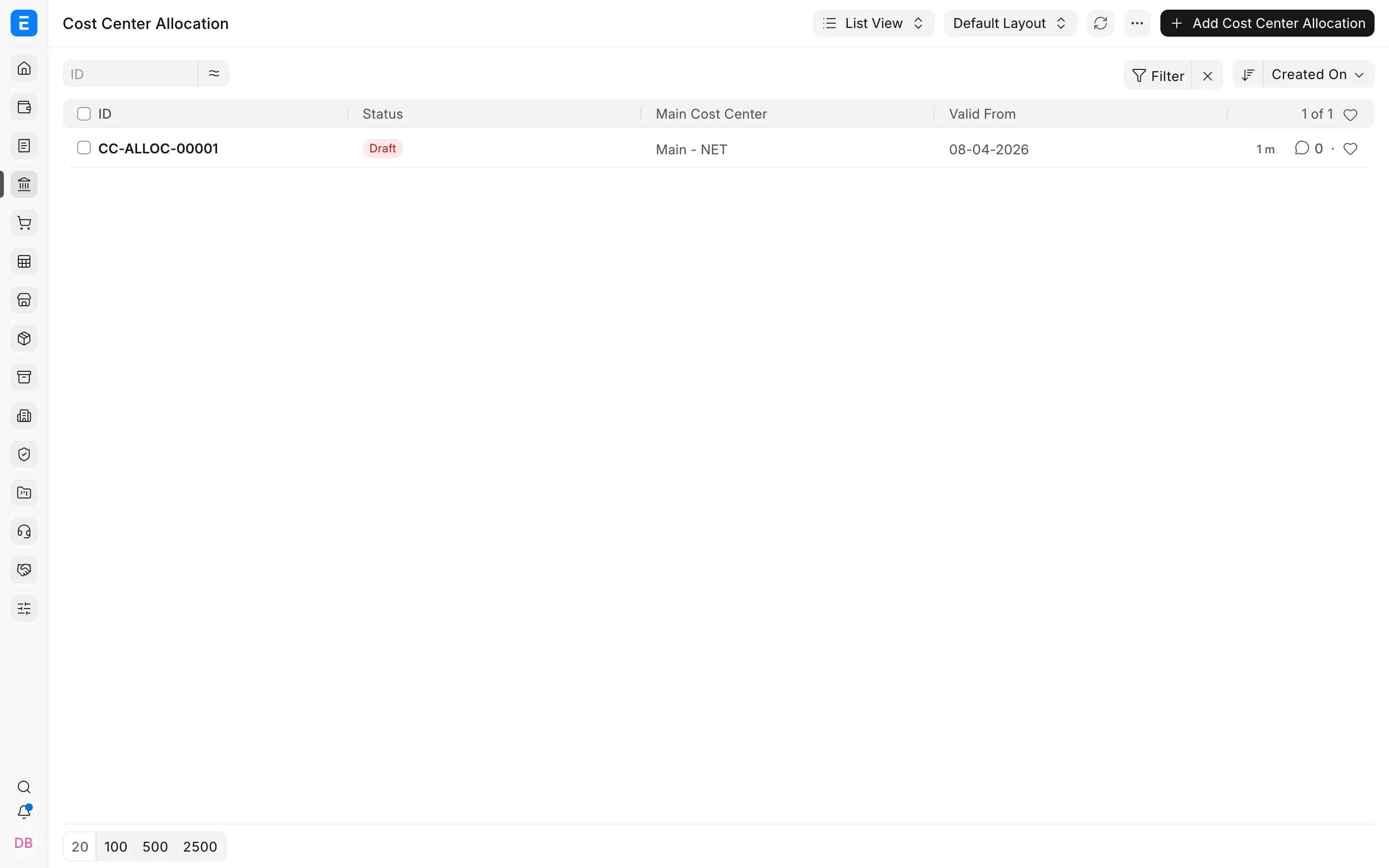
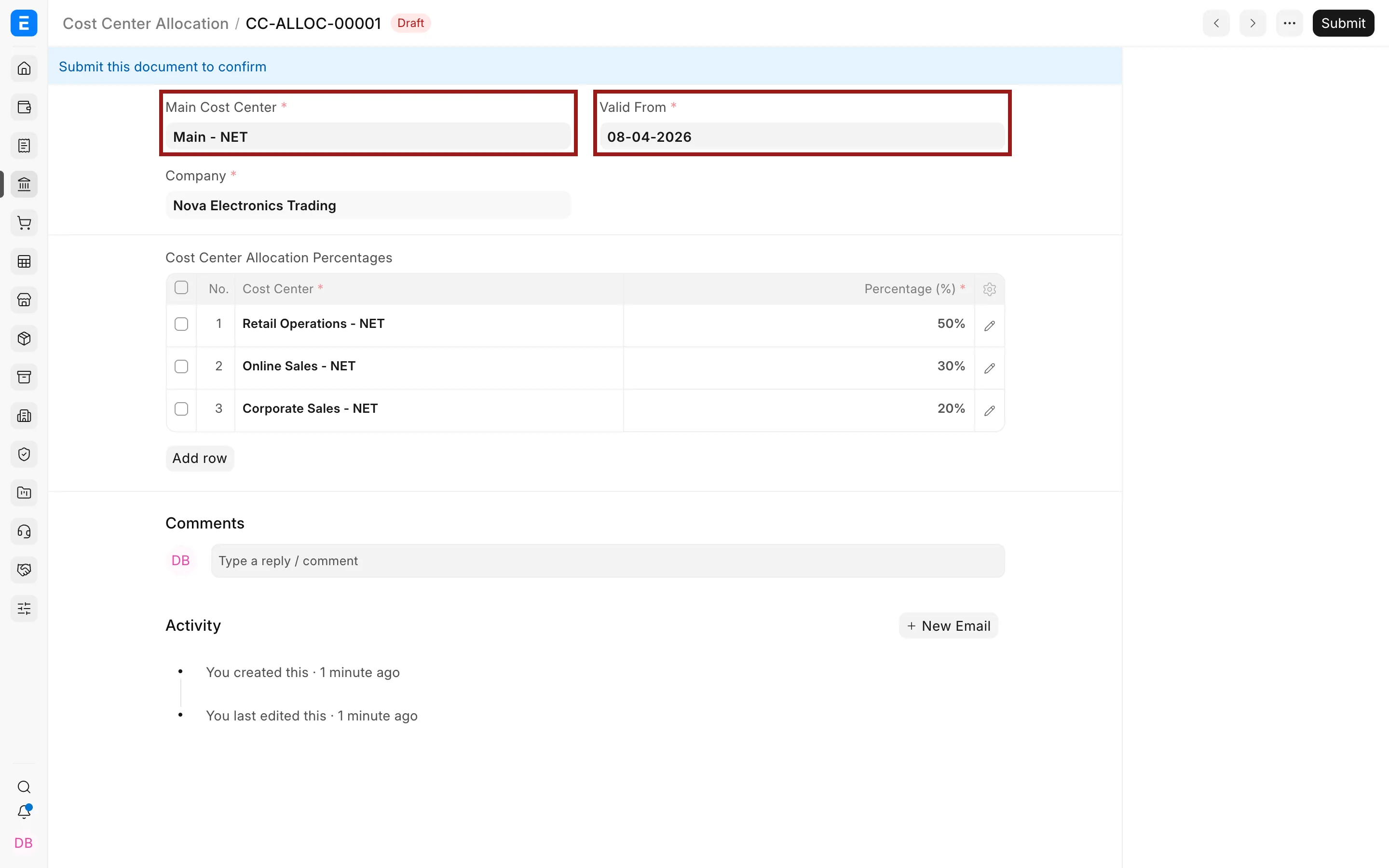
Select the shared Main Cost Center, the Company, and the Valid From date.
In the allocation table, add each receiving cost center and its percentage. Save the record after the total reaches 100%.
What happens in a transaction
When you enter a supported accounting transaction, select only the main Cost Center. This can apply to a Purchase Invoice, Sales Invoice, or Journal Entry. You do not need to calculate and enter every receiving share manually.
When the transaction posts, ERPNext applies the allocation valid on that date. The resulting General Ledger entries carry the receiving Cost Centers and their calculated shares. The allocation changes the reporting classification, not the supplier, invoice total, taxes, or payment due.
Example result
| Posting | Cost center | Amount |
|---|---|---|
| Original selection | Shared Services - NET | $10,000 |
| Distributed share | Retail Operations - NET | $6,000 |
| Distributed share | Online Sales - NET | $4,000 |
Use the Profit and Loss Statement with a Cost Center filter to compare each team's expense. Open the General Ledger when you need to inspect the individual debit and credit lines behind the report. The Accounts Payable amount remains $10,000 because the supplier is still owed one complete invoice.
Change the distribution later
Create a new allocation with a later Valid From date when the ratio changes. For example, if Online Sales grows, Nova may change the split from 60:40 to 50:50 from the next month. The earlier allocation remains available to explain transactions posted under the old arrangement.
Do not change old submitted transactions merely to apply a new allocation. Review the business effective date with the finance team before changing the rule.
Troubleshooting
The amount was not distributed
Confirm that the transaction used the exact main cost center, its posting date falls on or after the allocation's Valid From date, and the allocation belongs to the same company.
The percentages cannot be saved
Check that every row has a receiving cost center and that the total is exactly 100%.
The report shows an unexpected split
Check which allocation was valid on the transaction's posting date. Then inspect the voucher and its General Ledger entries to confirm the cost center stored on each line.
Frequently asked questions
Does distribution create several invoices?
ERPNext keeps one invoice. It distributes the accounting entries across the receiving Cost Centers.
Can the receiving cost centers belong to different companies?
The main and receiving Cost Centers must belong to the same Company. Use an inter-company workflow when separate companies need to charge one another.
Can I use a different ratio next month?
You can create a new allocation with the revised ratio and the correct Valid From date. ERPNext uses the allocation applicable to each transaction's Posting Date.