


















Accounting Dimensions Filters
Imagine Apple pays $1,000 to advertise the iPhone. The company wants its reports to show two simple facts: the money was spent on the iPhone product and by the Marketing department.
While entering the expense, someone accidentally selects Mac and Engineering. The payment amount is still correct, so the accounts balance. However, Apple's reports now tell the wrong story. They say the Mac engineering team spent $1,000, even though the money was used to advertise the iPhone.
An Accounting Dimension Filter prevents this mistake. Apple can create a rule that says, “When this iPhone advertising account is used, select the iPhone product and an allowed department.” If someone chooses an incorrect value, ERPNext stops the transaction before it is submitted.
This means the employee does not need to remember every accounting rule. ERPNext guides them while they enter the transaction. At the end of the month, the finance team can trust that the iPhone and Marketing reports include the correct $1,000 expense.
Accounting Dimensions record which product and department received or spent the money. Accounting Dimension Filters make sure users choose values that are allowed for the account. This Apple story is only an easy example, not a description of Apple's real accounting system.
In the working example below, Nova Electronics Trading records revenue by department. The Sales - NET account must use the Sales department. The filter places this rule inside ERPNext, so users do not have to remember it for every invoice or journal entry.
Before you begin
Create and enable the required Accounting Dimension first. Also create the dimension values that users will select, such as Sales, Service, or Operations.
Confirm which ledger accounts need control. A filter can apply to one or more accounts and can either allow selected values or restrict selected values.
Create an Accounting Dimension Filter
Open the Accounting Dimension Filter list and select Add Accounting Dimension Filter.
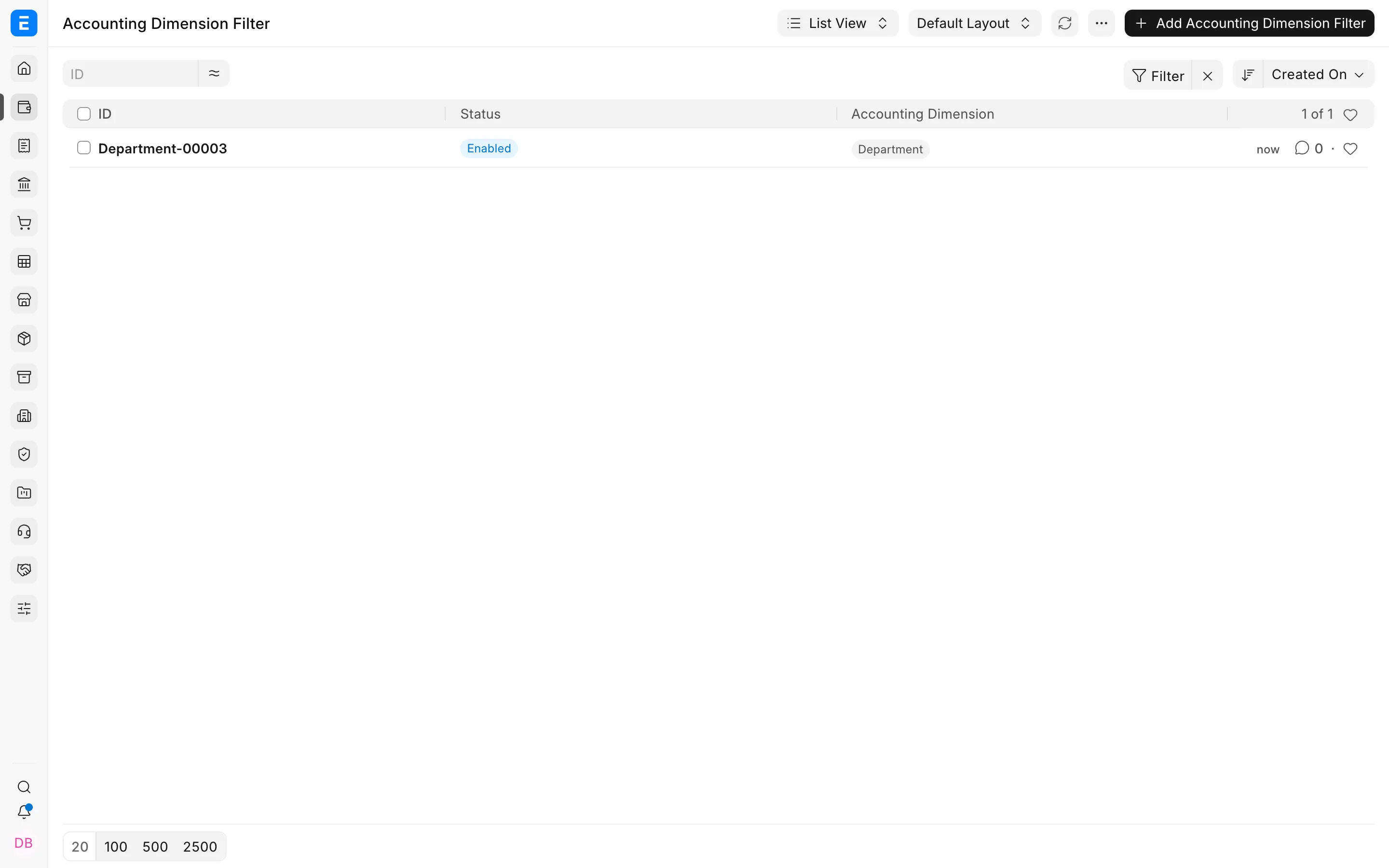
Select the Accounting Dimension and Company. Enable Apply restriction on dimension values, then choose how ERPNext should interpret the values:
- Allow: only the values listed in the filter can be used with the selected accounts.
- Restrict: the values listed in the filter cannot be used with the selected accounts.
Use Allow when the permitted list is short and stable. Use Restrict when most values are valid and only a few combinations must be blocked.
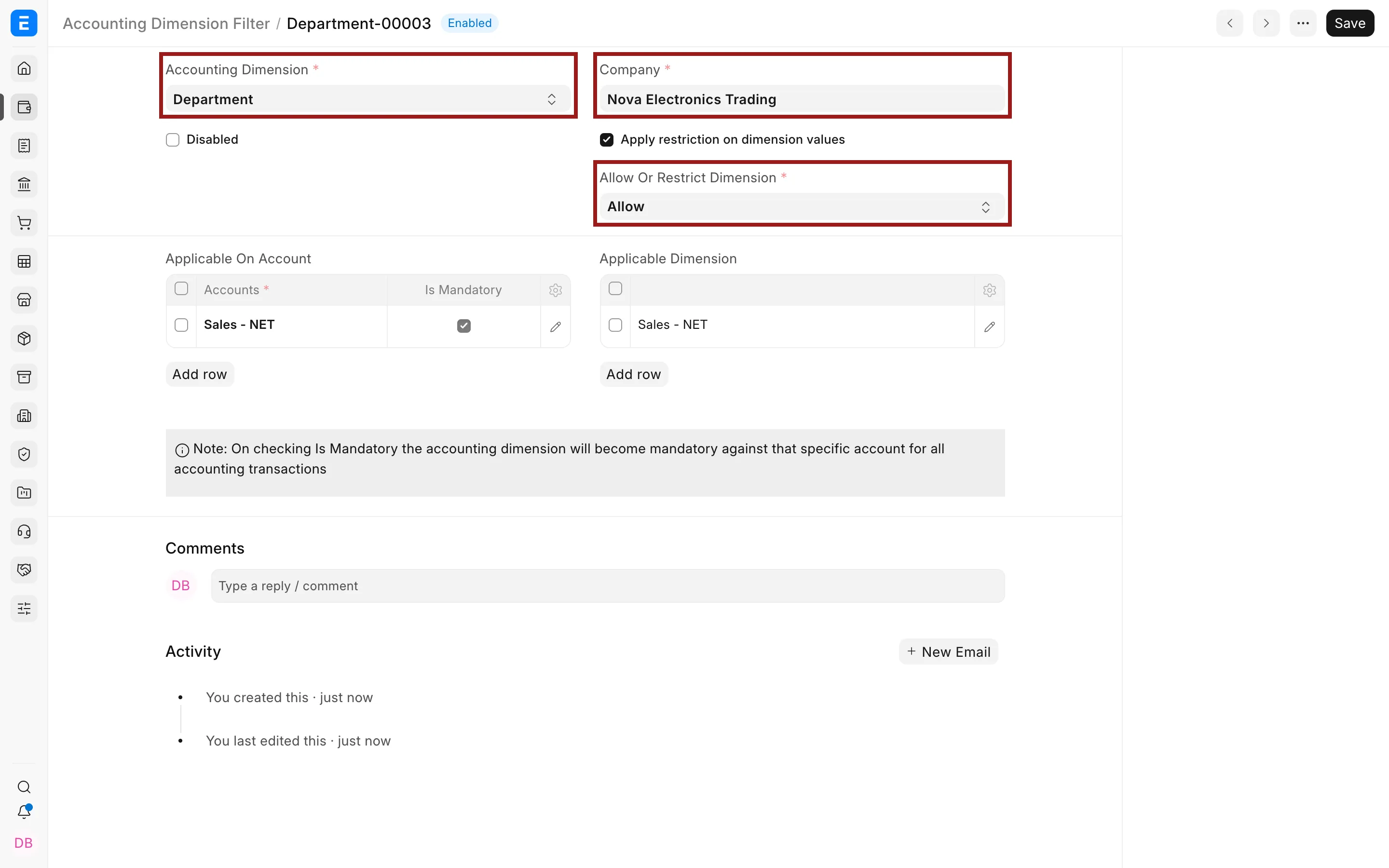
Select the accounts
In Applicable On Account, add every account to which the rule applies. Select Is Mandatory when the dimension must always be supplied for postings to that account.
In this example, Sales - NET is mandatory. Any transaction that posts to this income account must carry an accepted Department value.
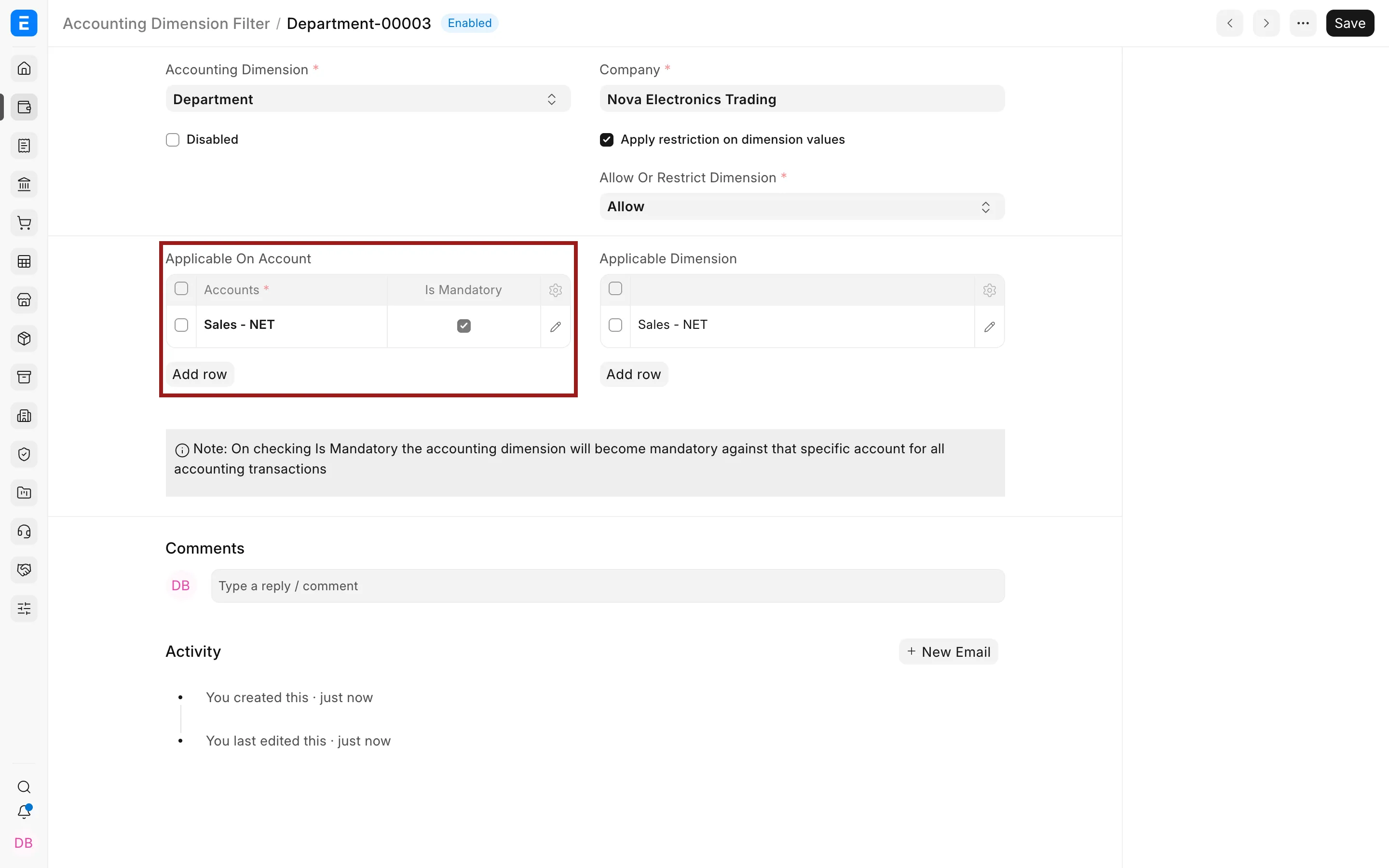
Select the dimension values
In Applicable Dimension, add the values that ERPNext should allow or restrict. The meaning of this list depends on the choice made in Allow Or Restrict Dimension.
Save the filter. Accounting Dimension Filters are configuration records, so they do not require submission.
How the filter works in transactions
When a transaction line uses an account covered by the filter, ERPNext checks its dimension value. With an Allow rule, values outside the permitted list are rejected. With a Restrict rule, values in the restricted list are rejected.
If Is Mandatory is selected, ERPNext also prevents submission when the dimension is blank. This check applies at the accounting line level, which matters for documents containing several income, expense, asset, or liability accounts.
The filter does not change the amount, tax, stock movement, or posting account. It validates the accounting classification attached to the posting.
Important fields and what they mean
| Field | What it controls |
|---|---|
| Accounting Dimension | The dimension whose values are checked, such as Department or Business Unit. |
| Company | The company in which the rule applies. |
| Disabled | Temporarily stops the filter without deleting it. |
| Apply restriction on dimension values | Enables value-level allow or restrict rules. |
| Allow Or Restrict Dimension | Determines whether listed values are permitted or blocked. |
| Accounts | The ledger accounts checked by the rule. |
| Is Mandatory | Requires a dimension value whenever the account is used. |
| Dimensions | The allowed or restricted dimension values. |
Design filters that remain manageable
Start with rules that protect important reporting boundaries. Income and expense accounts are common candidates because missing or incorrect dimensions can distort departmental profit and loss reports.
Avoid creating many overlapping filters for the same account until the expected result is clear. Test each rule using a draft transaction before rolling it out to a large user group. Document why the combination is controlled so finance administrators can maintain it later.
If a valid business combination changes, update the filter before users post the new type of transaction. Disabling the filter removes the validation, so use that option only as a temporary, deliberate exception.
Troubleshooting
ERPNext says the dimension is mandatory
The transaction uses an account whose filter has Is Mandatory enabled. Enter an allowed dimension value on the affected accounting line.
A valid value is not available
Check whether the filter uses Allow or Restrict, whether the correct company is selected, and whether the value exists in the Applicable Dimension table. Also confirm that the Accounting Dimension and its value are enabled.
The filter appears to have no effect
Confirm that the transaction actually posts to an account listed in the filter. Also check that the filter is not disabled and that value restrictions are enabled.
Frequently asked questions
Does a filter change existing ledger entries?
It validates new or amended transactions. Existing submitted ledger entries remain unchanged.
Can I create different rules for different companies?
Each filter is company-specific, which lets a multi-company setup use different accounting controls.
Should I use Allow or Restrict?
Use Allow when only a small set of values is correct. Use Restrict when most values are acceptable and only known exceptions must be blocked.
Can the dimension be optional for one account and mandatory for another?
The Is Mandatory setting is stored on each account row, so the requirement can vary by account.