

















Value Out of Sync Error: Stock Balance and Stock Account Balance Syncing
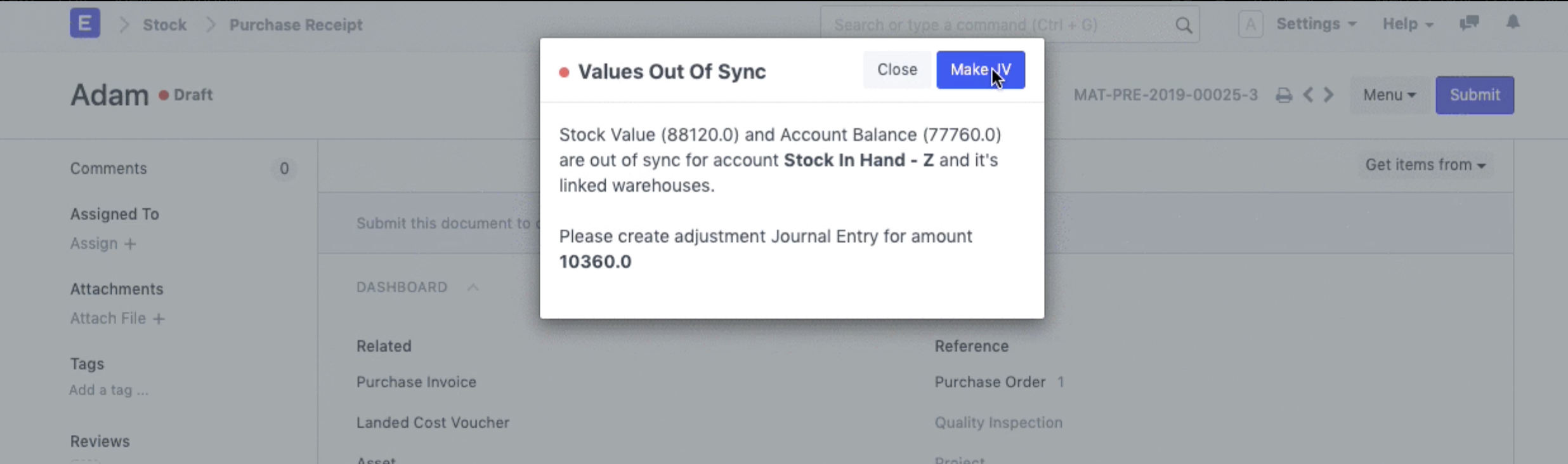
When Perpetual Inventory is enabled, ERPNext keeps the stock ledger and the accounting ledger in sync. If the stock balance and the stock account balance do not match for a company, account, or warehouse, ERPNext stops the transaction and shows a Value Out of Sync validation message.
This usually means that older stock or accounting entries created a difference between the stock value and the corresponding stock account balance. The mismatch must be corrected before you can continue posting transactions.
Why this happens
With Perpetual Inventory, every stock movement also affects accounting. For example, a Purchase Receipt, Delivery Note, Stock Entry, or Sales Invoice with stock impact can update both stock and accounts. If one side was changed, cancelled, reposted, or corrected without the other side matching exactly, the two balances can go out of sync.
ERPNext shows the validation message so that new transactions do not build on an incorrect stock valuation or stock account balance.
How to fix it
- Read the validation message carefully and identify the company, stock account, warehouse, and difference amount mentioned in the error.
- Click Create Journal Entry from the validation message.
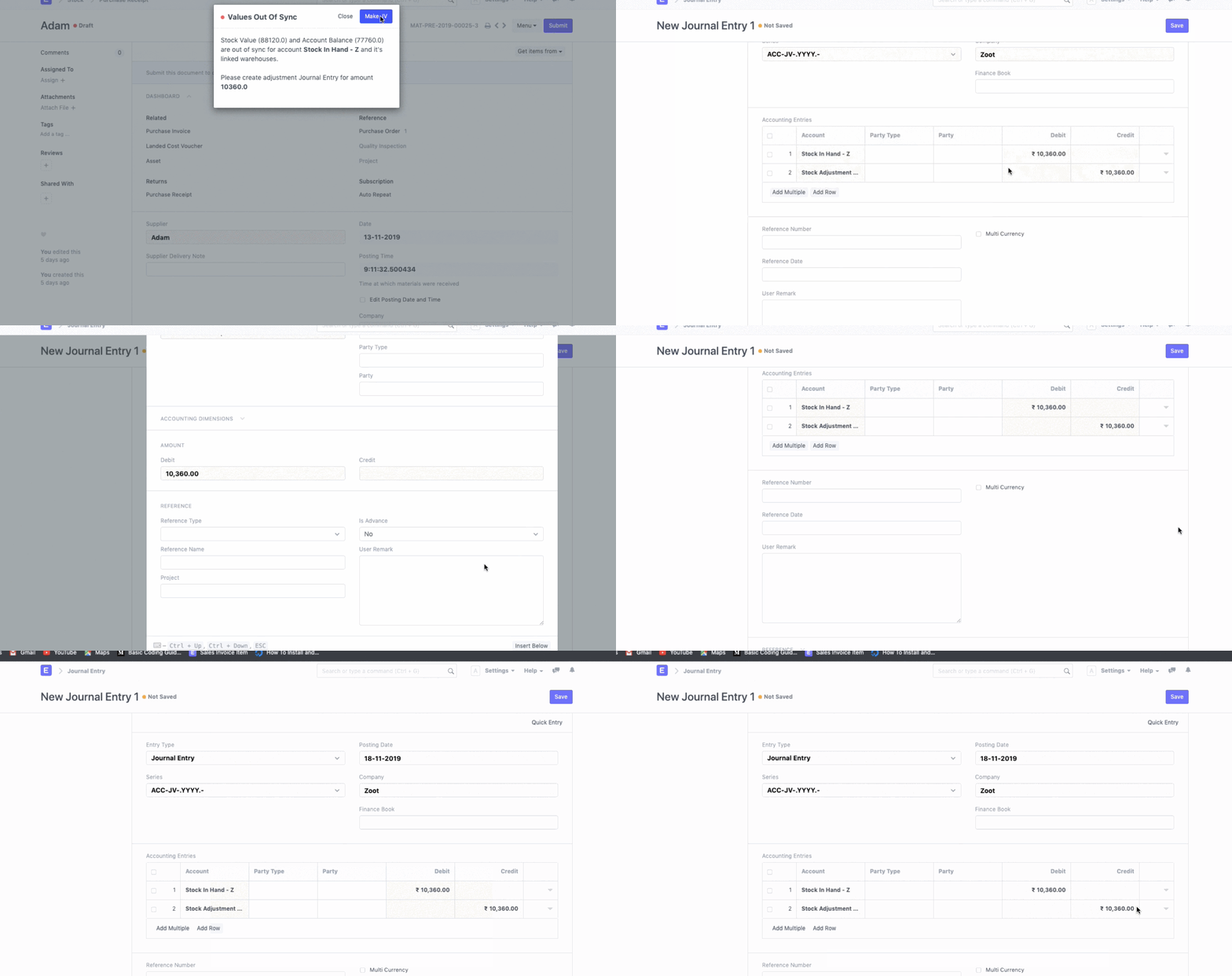
- Review the accounts and amounts in the Journal Entry created by ERPNext.
- Update any missing details, such as cost center or other mandatory accounting dimensions.
- Save and submit the Journal Entry.
- Retry the transaction that showed the validation message.
The Journal Entry adjusts the accounting balance so that it matches the stock ledger balance. After the correction is submitted, ERPNext should allow the transaction to proceed.
Before submitting the Journal Entry
- Check that the stock account selected in the Journal Entry is the same account mentioned in the validation message.
- Confirm whether the entry should be a debit or credit based on the difference shown in the error.
- Review accounting dimensions such as cost center, project, or finance book if they are enabled in your setup.
- If the difference is large or unexpected, review recent stock and accounting transactions before submitting the adjustment.
After the correction
Once the Journal Entry is submitted, open the original document again and try to save or submit it. If the same validation message appears for another account, warehouse, or company, repeat the correction for that specific difference.
If the mismatch keeps returning, check whether older stock reposting, cancelled documents, backdated transactions, or custom accounting entries are affecting the same stock account.