


















A Loyalty Program awards points from submitted sales and lets eligible Customers redeem those points on later Sales Invoices. Programs can use one tier or several tiers based on a Customer's cumulative eligible spend.
Before you begin
Confirm:
- Eligible Customers, Customer Groups, and Territories.
- The Company currency and loyalty expense account.
- A Cost Center for redemption when required.
- A policy for earning, redemption value, expiry, returns, and tier upgrades.
Test point creation and accounting on the demo Company before enrolling Customers.
Create a Loyalty Program
- Open the Loyalty Program list and select Add Loyalty Program.
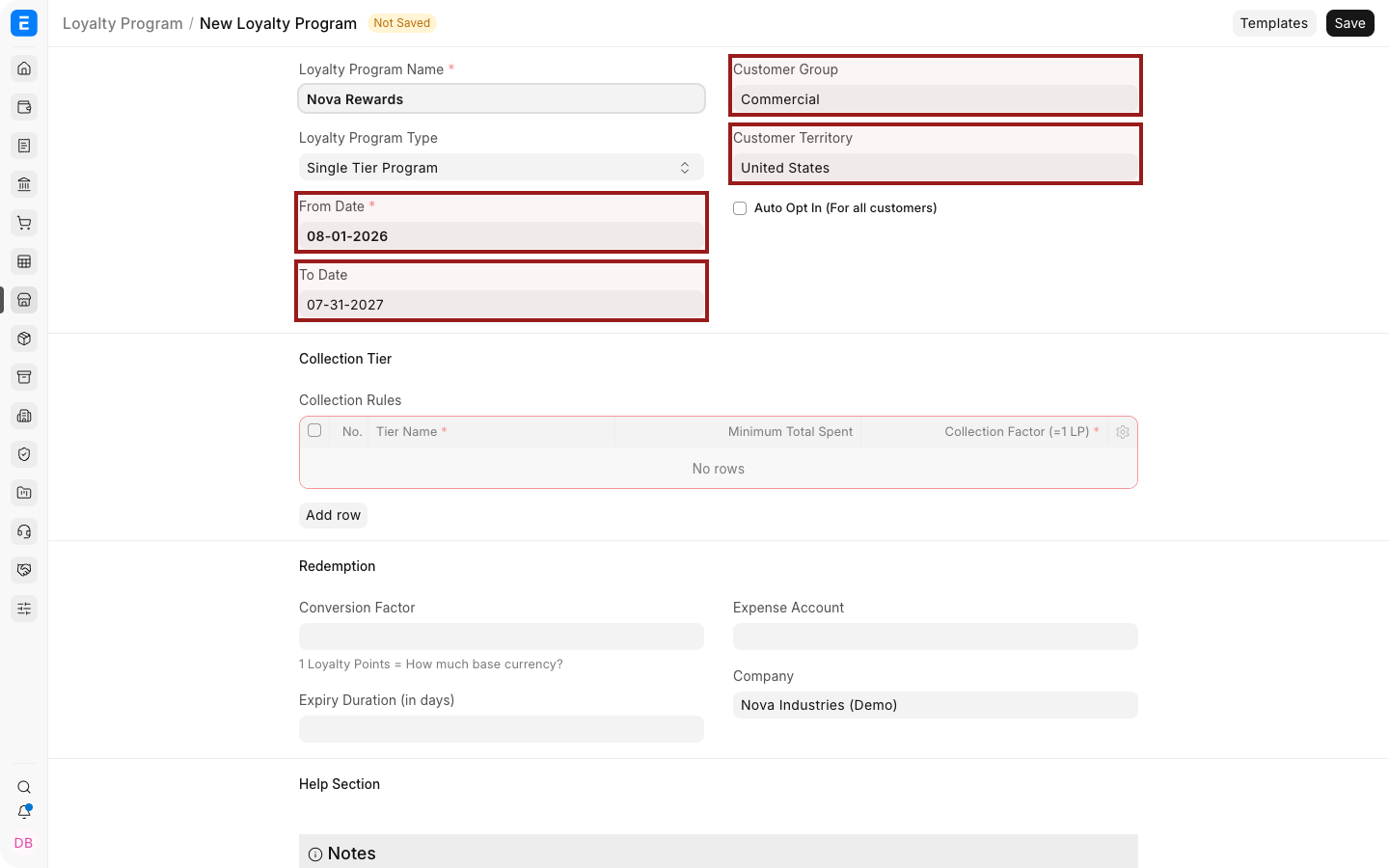
- Enter the Program Name.
- Select Single Tier or Multiple Tier.
- Set From Date and To Date.
- Restrict the Customer Group and Territory when required.
- Enable Auto Opt In only when all eligible Customers should join automatically.
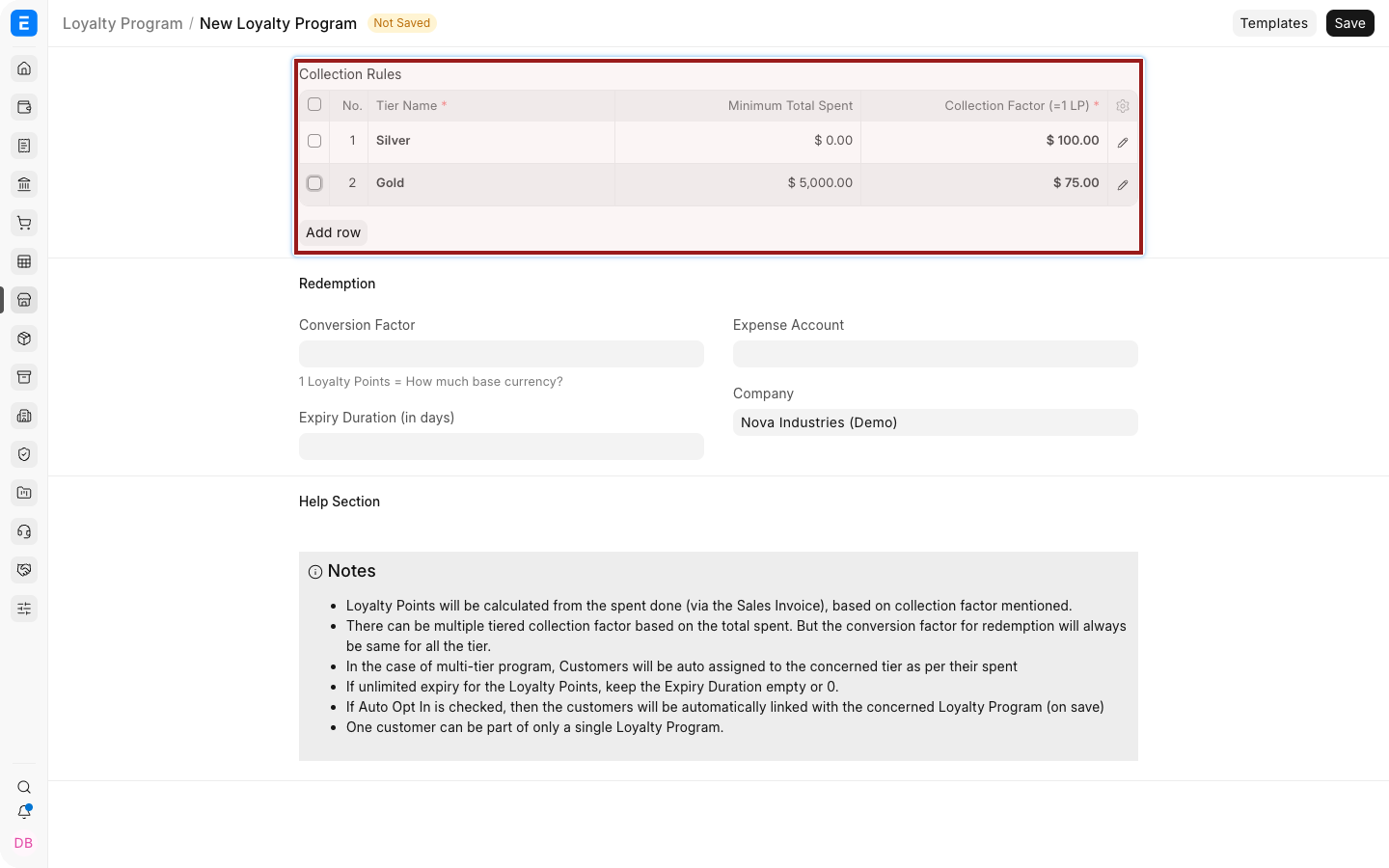
- Add the tier rows.
- Configure redemption and expiry.
- Save.
Configure tiers
| Field | What it means |
|---|---|
| Tier Name | Label assigned when the Customer reaches the threshold |
| Collection Factor | Eligible amount required to earn one point |
| Minimum Amount | Cumulative spend required for the tier |
| Auto Opt In | Enrolls all Customers that match the program conditions |
Example: with a Collection Factor of $100, an eligible $1,000 invoice earns 10 points.
Minimum Amount is evaluated from cumulative eligible sales for the Customer, not only the current invoice.
Configure redemption
Set:
- Conversion Factor for the monetary value of one point.
- Expense Account used for the loyalty benefit.
- Cost Center where required.
- Expiry Duration in days.
Keep earning and redemption factors distinct. A Customer might spend $100 to earn one point while each redeemed point is worth $1.
Enroll a Customer
If Auto Opt In is disabled:
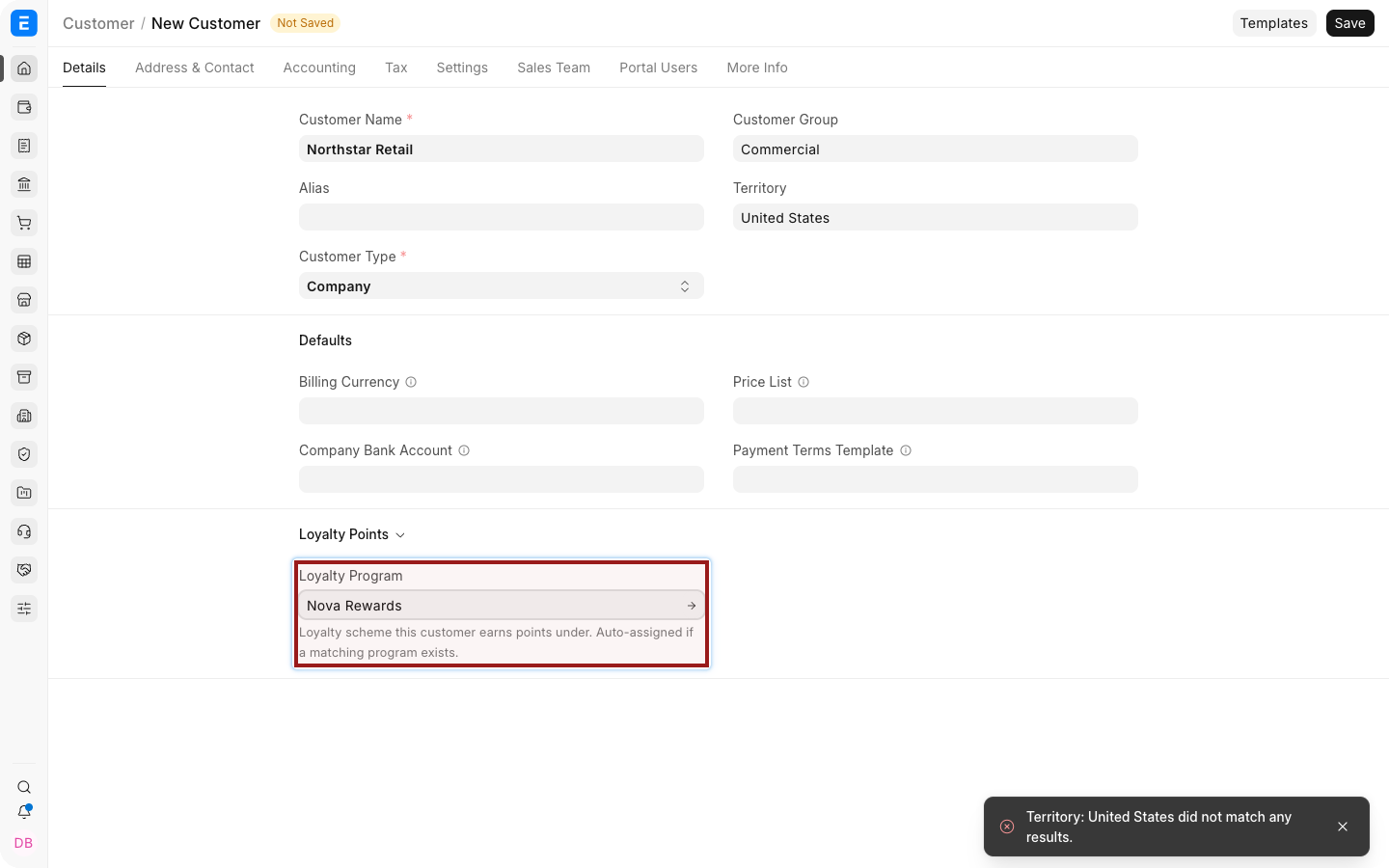
- Open the Customer.
- Select the Loyalty Program.
- Save.
Earn points
Create and submit an eligible Sales Invoice. ERPNext creates a Loyalty Point Entry linked to the Customer and invoice.
Open Loyalty Point Entry to audit earned and redeemed points. Returns and cancellations can affect the available balance, so use the ledger rather than a manually maintained total.
Redeem points
- Create a Sales Invoice for the enrolled Customer.
- Add the Items.
- Open the Loyalty Points section.
- Enable Redeem Loyalty Points.
- Enter the number of points.
- Confirm the Redemption Account and Cost Center.
- Review the invoice total and submit.
The dot before an Item Code shows stock availability at a glance: green means in stock and red means out of stock.
Troubleshooting
| Problem | What to check |
|---|---|
| No points are earned | Confirm enrollment, program dates, eligibility, submitted invoice, and tier factor |
| Redeem Loyalty Points is unavailable | Confirm that the Customer has a program and available points |
| The tier is unexpected | Review cumulative eligible spend and minimum thresholds |
| Points expired earlier than expected | Check Expiry Duration and the Loyalty Point Entry dates |
| Redemption accounting is incorrect | Review the program's Expense Account and Cost Center |
Frequently asked questions
Can a program have several tiers?
Yes. Use Multiple Tier and add each threshold in ascending order.
Are points awarded on draft invoices?
No. The earning workflow depends on submitted eligible invoices.
Can every Customer be enrolled automatically?
Yes. Enable Auto Opt In and define the eligible Customer Group and Territory.
Where can I audit a Customer's points?
Use Loyalty Point Entry and the Customer's linked records.