

















Auto Repeat Recurring Orders and Invoices
Nova Industries bills Northstar Retail, a customer with a monthly device-support contract, on the first day of every month. Recreating the same Sales Invoice by hand risks missed billing and inconsistent terms. Auto Repeat uses an approved source document as a template and creates new orders or invoices on a schedule.
Use Auto Repeat for stable recurring transactions. Use Subscription when the agreement is plan-driven and needs subscription dates, plan quantities, trials, or subscription lifecycle controls.
Before you begin
- Review the source party, company, items, rates, taxes, payment terms, dimensions, and addresses.
- Decide whether generated documents should stay in Draft for review or submit automatically.
- Confirm who should receive email and which print format should be attached.
Create the Auto Repeat
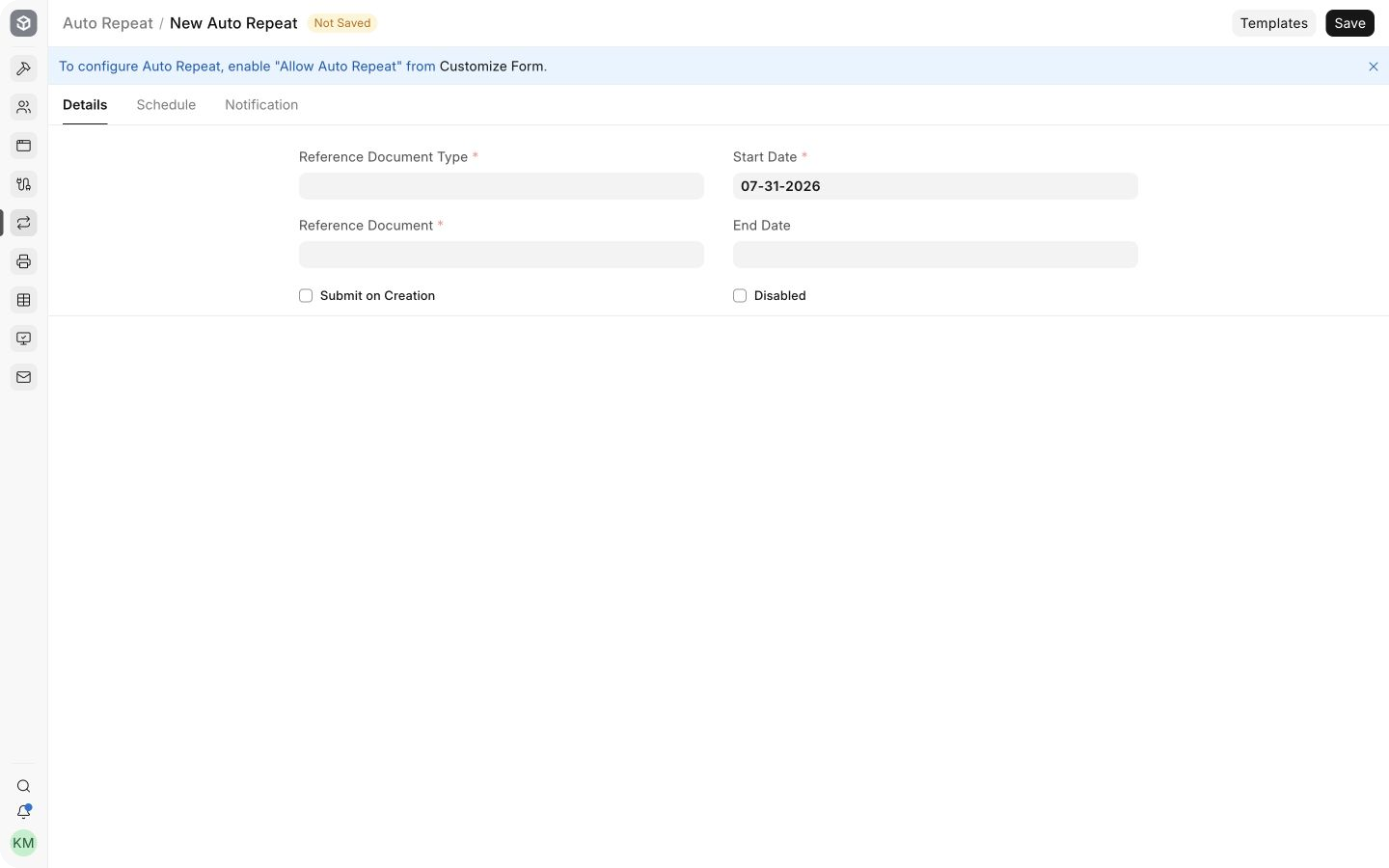
- Open Auto Repeat and create a new record.
- Select the Reference Document Type and the exact order or invoice to repeat.
- Set the start date and, when the agreement ends, an end date.
- Enable Submit on Creation only when the generated transaction needs no manual review.
Set the schedule
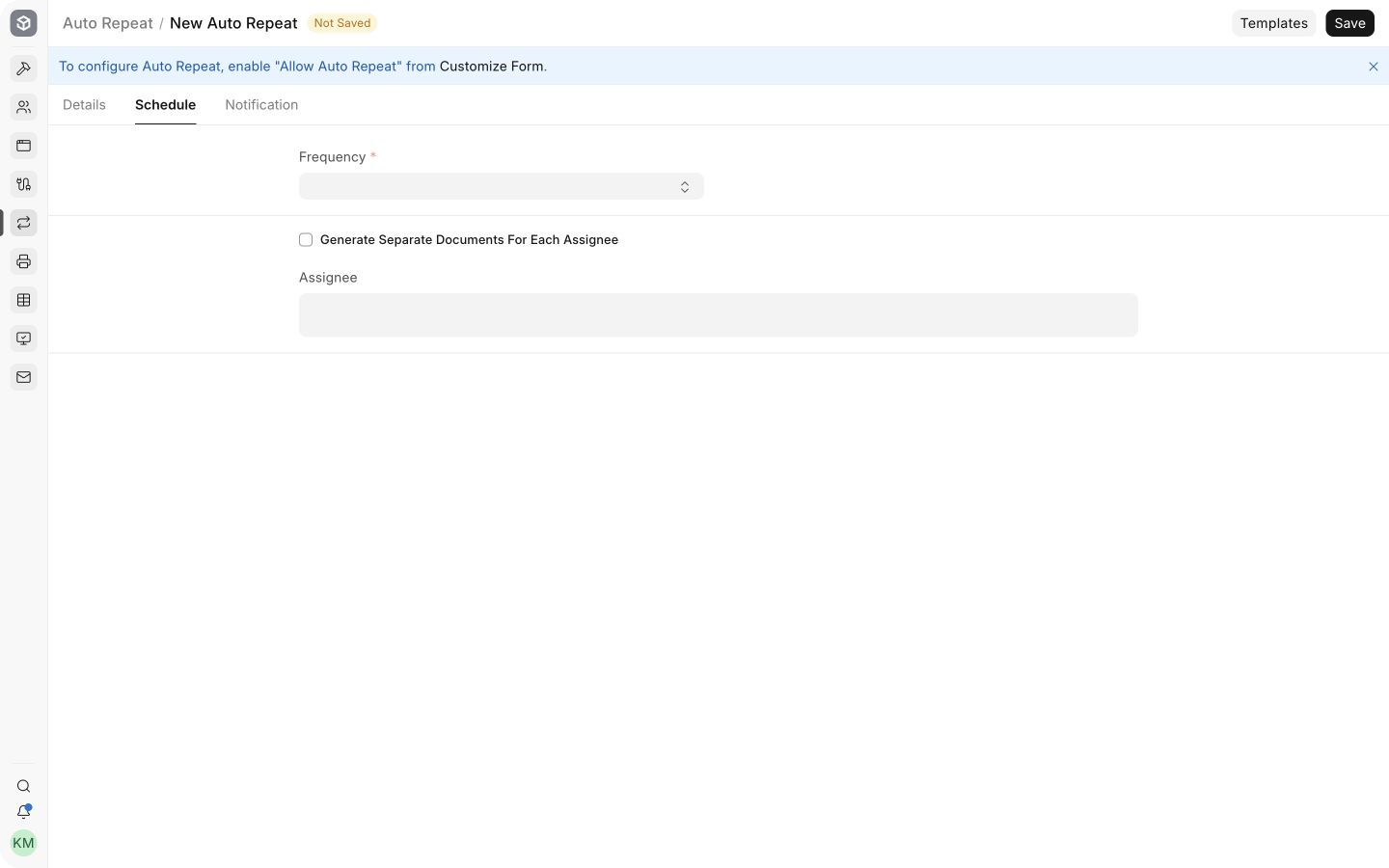
Choose the frequency and the relevant schedule options. For monthly billing, set the expected day or use the last day of the month when that matches the contract.
Monitor generated documents
Review the next scheduled date and the generated documents. Prices, taxes, addresses, and contract terms can change after the source was approved, so keep a review owner even when creation is automated.
Troubleshooting
No document was generated
Check that Auto Repeat is enabled, the start and end dates include today, the schedule is complete, the reference document is valid, and background jobs are running.
The generated document has old commercial terms
Update the reference document or create a new approved source and point Auto Repeat to it. Do not assume changes in related masters will safely update every copied field.
Frequently asked questions
Can it repeat both orders and invoices?
Use supported Sales Orders, Purchase Orders, Sales Invoices, and Purchase Invoices as reference documents. Verify the current DocType’s Auto Repeat support before relying on it.
Should I enable automatic submission?
Use it only for stable, low-risk transactions with tested taxes and controls. Draft creation is safer when a person must review each cycle.