

















How to Manage Material Transfers and Goods in Transit
Goods in Transit
Goods in Transit is used when stock has left one warehouse but has not yet been received at the destination warehouse. In ERPNext, this is handled through a Material Transfer Stock Entry. The outgoing entry moves stock out of the sending warehouse and into transit. The receiving entry later moves the same stock from transit into the receiving warehouse.
This is useful when goods physically travel between warehouses, branches, stores, or locations, and the transfer should not appear as completed until the receiving location confirms the stock.
How it works
- Send to Warehouse: records that goods have been sent out from the source warehouse and are now in transit.
- Receive at Warehouse: records that the goods have reached the destination warehouse and should be added to its stock.
- Goods in Transit: keeps the stock separate while it is between the two warehouses.
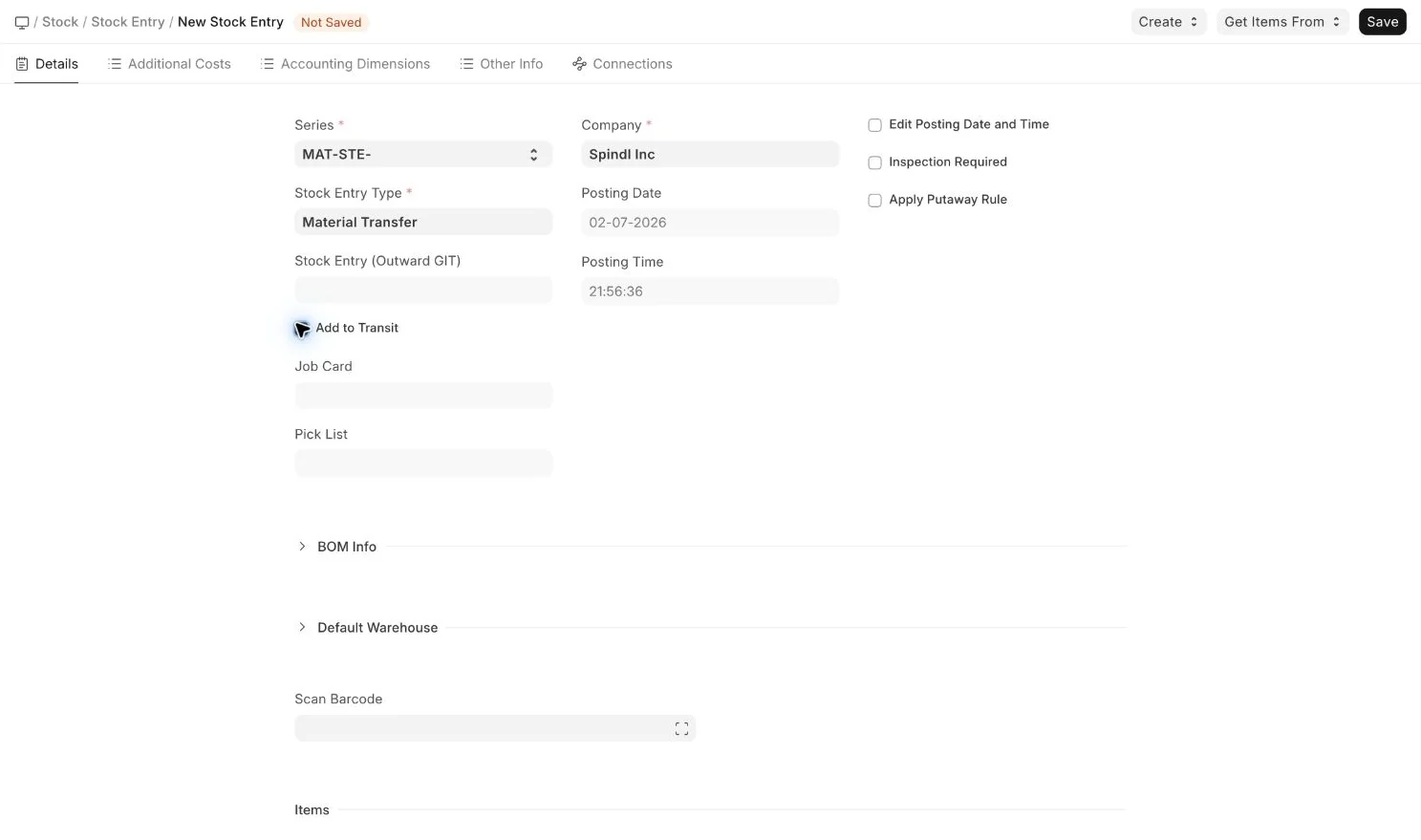
In the current ERPNext Stock Entry form, the Goods in Transit flow is visible on a Material Transfer entry through the Add to Transit checkbox and the Stock Entry (Outward GIT) reference field.
Create the outward transfer
- Go to Stock Entry and create a new Stock Entry.
- Set Stock Entry Type to Material Transfer.
- In the item table, select the Source Warehouse, item, and quantity to send.
- Enable Add to Transit.
- Save and submit the Stock Entry.
When Material Transfer is selected, ERPNext shows the Goods in Transit fields on the Stock Entry.
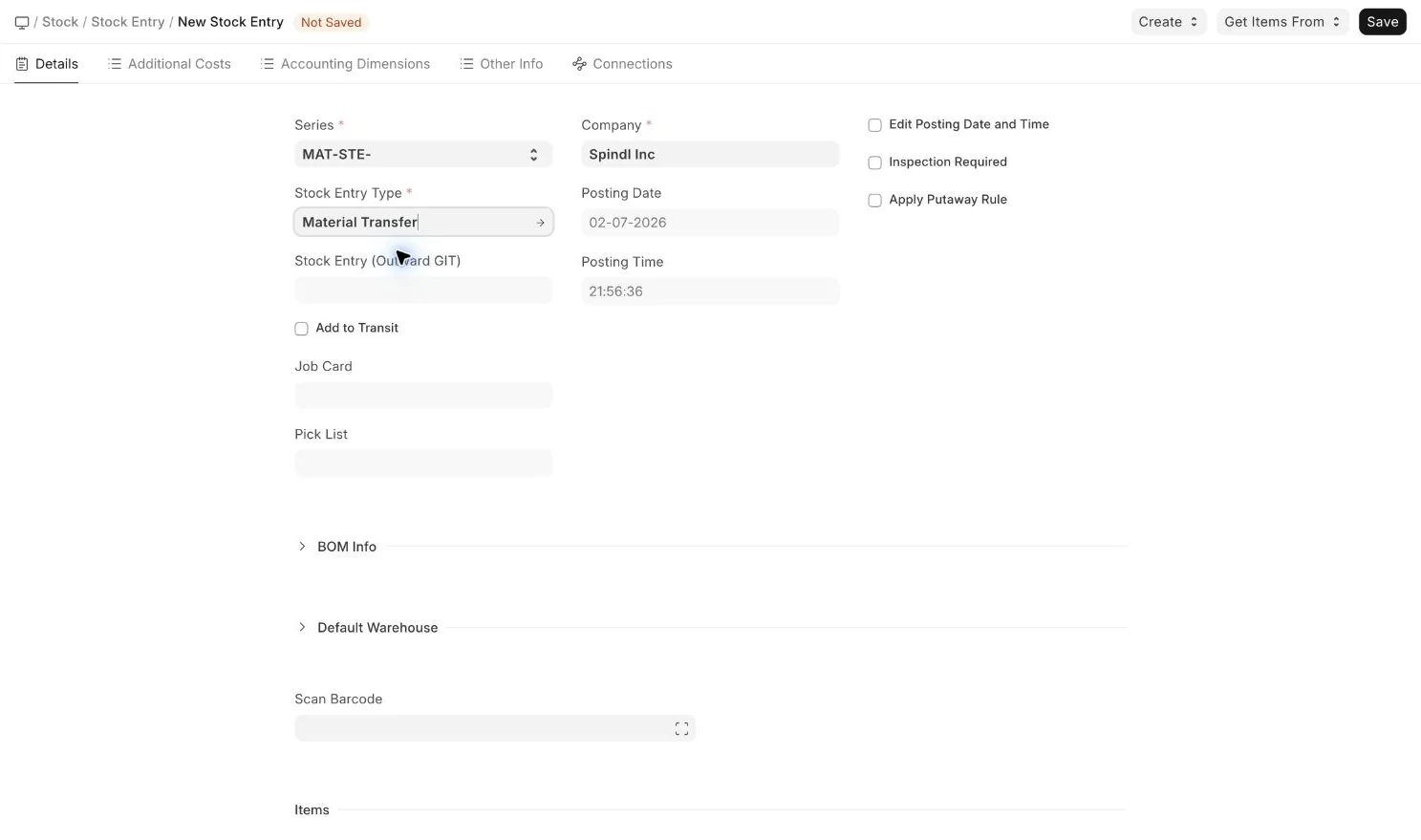
Enable Add to Transit when the transfer should first go into Goods in Transit instead of being received directly into the destination warehouse.
Create the inward transfer
- Create another Material Transfer Stock Entry.
- Use Stock Entry (Outward GIT) to select the outward Goods in Transit Stock Entry.
- Set the receiving warehouse in the item table.
- Save and submit the Stock Entry.
The inward entry completes the transfer. Stock is removed from Goods in Transit and added to the receiving warehouse.
Example
A company sends 10 units from Stores - Mumbai to Stores - Delhi.
- The Mumbai team creates an outward Material Transfer and enables Add to Transit.
- The stock is no longer available in the Mumbai warehouse and is shown as in transit.
- When the Delhi team receives the goods, they create the inward Material Transfer against the outward Goods in Transit entry.
- The stock is added to the Delhi warehouse.
When to use Goods in Transit
- Transfers between warehouses take time to complete.
- The sending and receiving locations are handled by different teams.
- You need visibility of stock that has been dispatched but not yet received.
- You want the receiving warehouse to confirm the receipt before stock is available there.
Important notes
- Use Goods in Transit only for warehouse-to-warehouse movement, not for sales delivery or purchase receipt.
- The outward and inward Stock Entries should use the same item and quantity unless there is a documented difference.
- Do not use the receiving entry until the goods have physically arrived at the destination warehouse.
- If the transfer is immediate and does not need an in-transit stage, use a normal Material Transfer without enabling Add to Transit.