

















Nova Electronics Trading plans to spend $120,000 on marketing this year. The finance team wants the marketing team to work freely within that amount, but it also wants to know before a purchase pushes spending beyond the approved plan.
A Budget turns that plan into an ERPNext control. Nova can set a $120,000 limit against its Marketing Cost Center and Advertising Account. ERPNext can warn the buyer or stop the transaction when a Material Request, Purchase Order, or posted expense exceeds the limit.
The Budget does not hold money in a bank account. It records what the company has approved, compares that plan with commitments and actual expenses, and helps managers act before overspending becomes visible at month-end.
Before you begin
Set up the Fiscal Year, ledger Account, and the segment you want to control. You can create a Budget against a Cost Center, Project, or supported Accounting Dimension.
Decide where ERPNext should intervene. Use Warn when the person submitting the transaction may continue after reviewing the overrun. Use Stop when exceeding the approved amount requires the Budget or transaction to be changed first.
Create a Budget
Open the Budget list and select Add Budget.
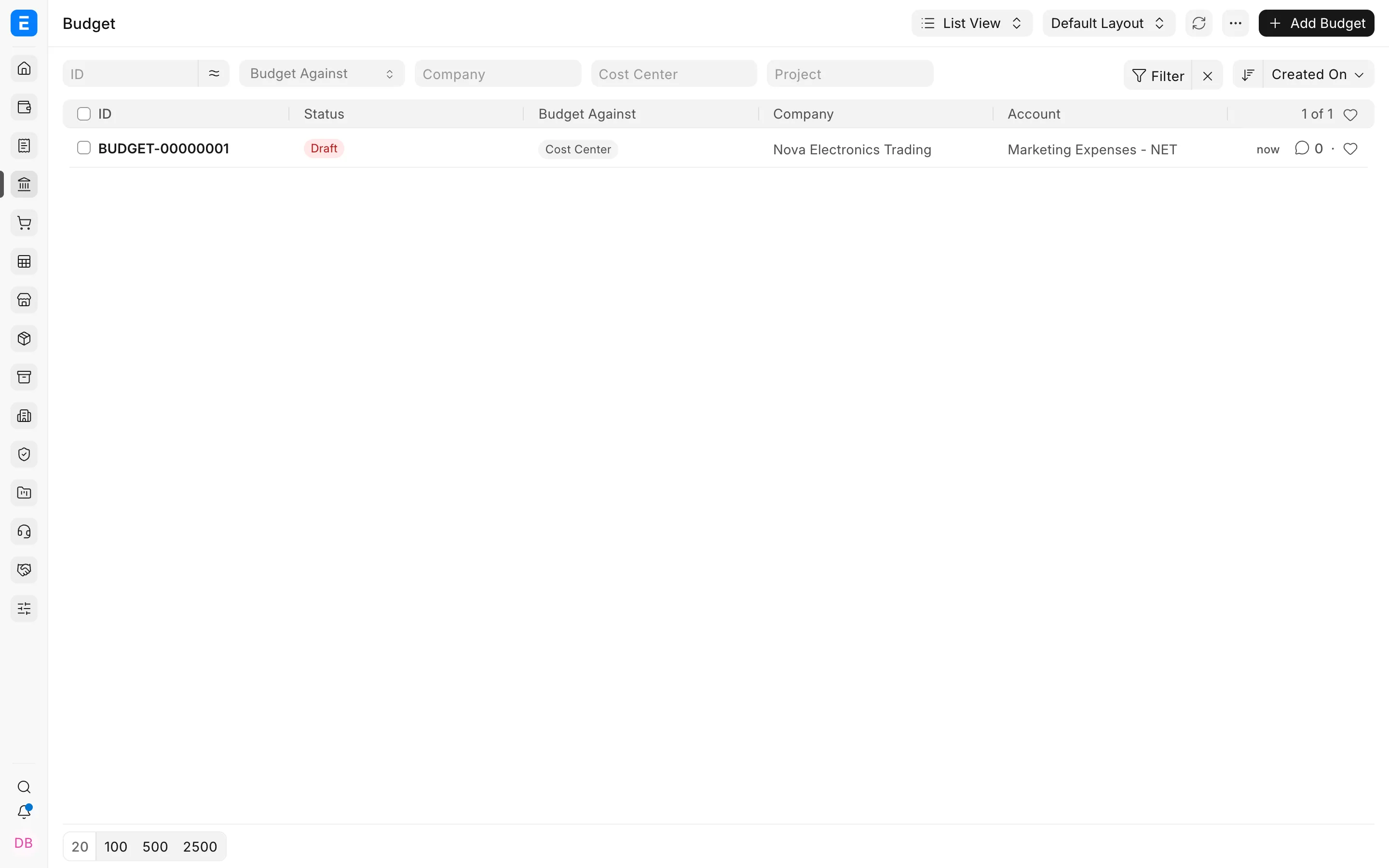
Select Budget Against, then choose the Cost Center, Project, or Accounting Dimension value. Select the Company and ledger Account whose activity should be measured.
Set From Fiscal Year and To Fiscal Year. A budget can cover one fiscal year or span several fiscal years when the organisation plans a longer initiative.
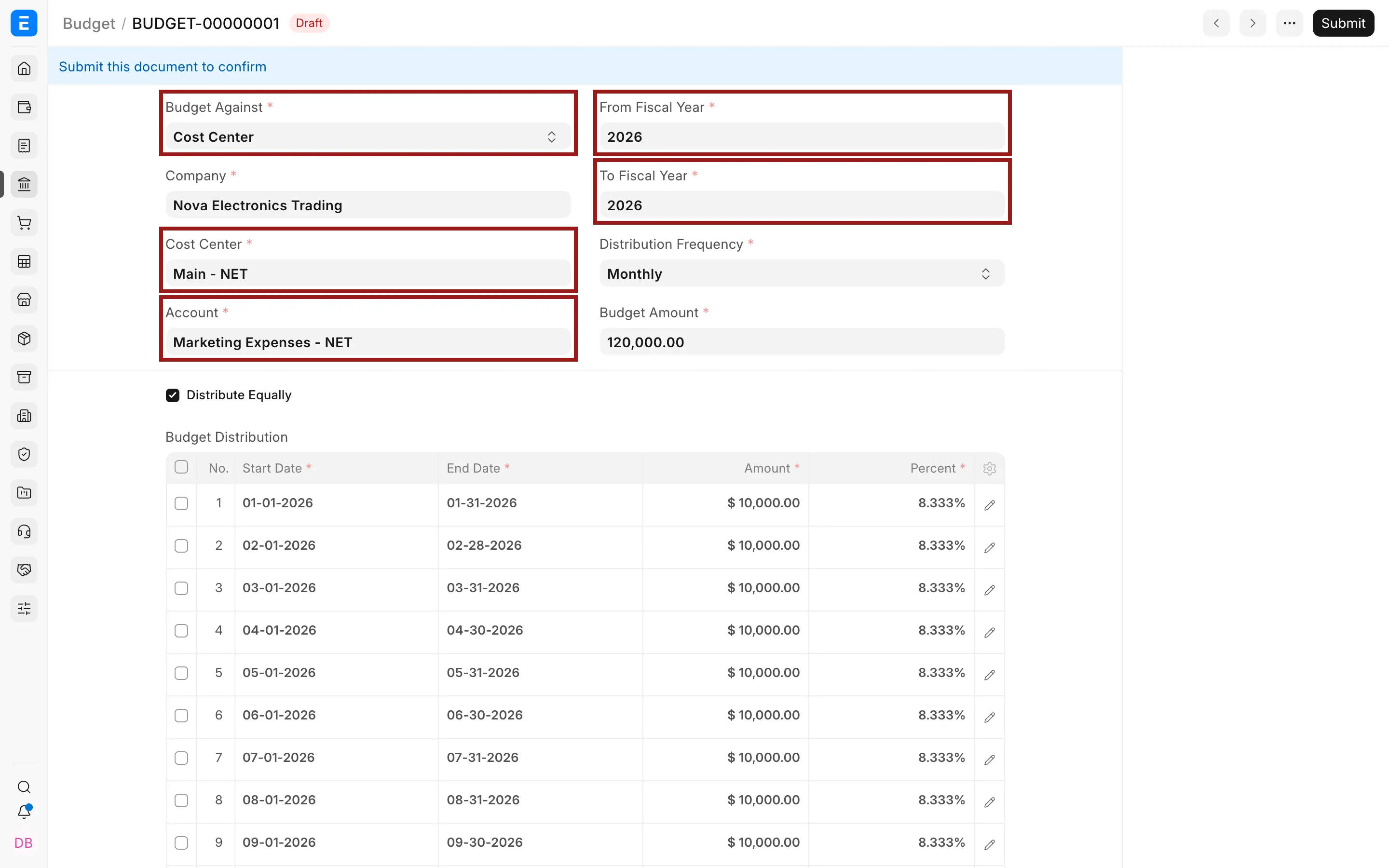
Enter the Budget Amount and choose a Distribution Frequency: Monthly, Quarterly, Half-Yearly, or Yearly.
Enable Distribute Equally when each period should receive the same share. Otherwise, adjust the generated Budget Distribution rows to reflect seasonality, campaign timing, or another planned pattern.
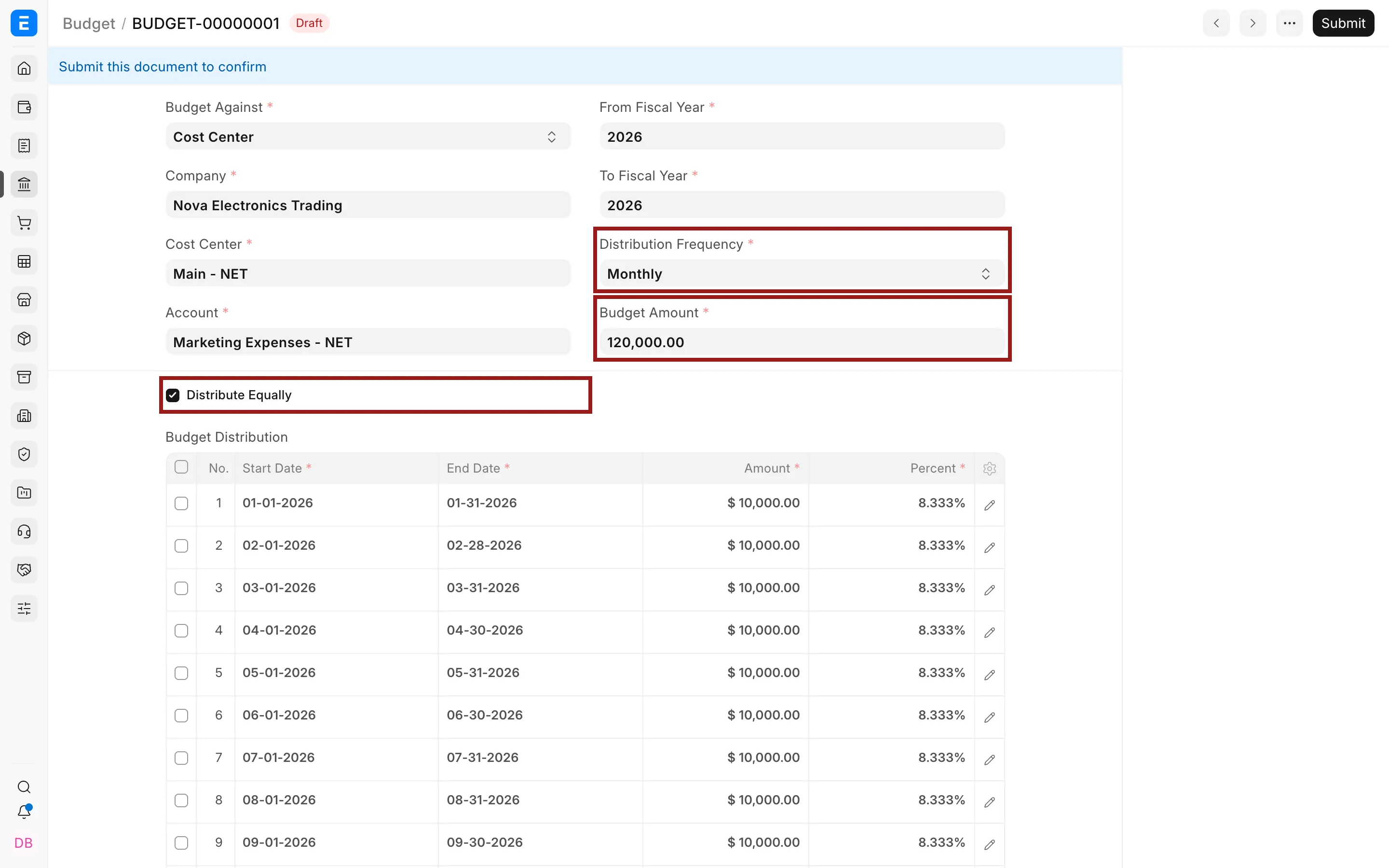
Choose budget control actions
ERPNext can check the same approved amount at different stages of the buying and accounting cycle. Enable the earliest stage where your company wants control. Checking a Purchase Order helps prevent an excessive commitment before the supplier invoice arrives.
| Stage | What ERPNext measures | Typical use |
|---|---|---|
| Material Request | Requested purchasing demand | Control spending before approval or ordering. |
| Purchase Order | Committed purchase value | Prevent commitments beyond an approved amount. |
| Actual expenses | Posted accounting expense | Control Purchase Invoices and Journal Entries. |
| Cumulative expense | Accumulated expense over the configured period | Apply a broader running control. |
For each enabled stage, choose an action for the annual limit and the accumulated periodic limit. The annual check protects the complete approved amount. The periodic check protects the amount planned for the current month, quarter, or other distribution period.
- Stop prevents submission when the limit is exceeded.
- Warn informs the user but allows submission.
- Ignore performs no warning or block for that check.
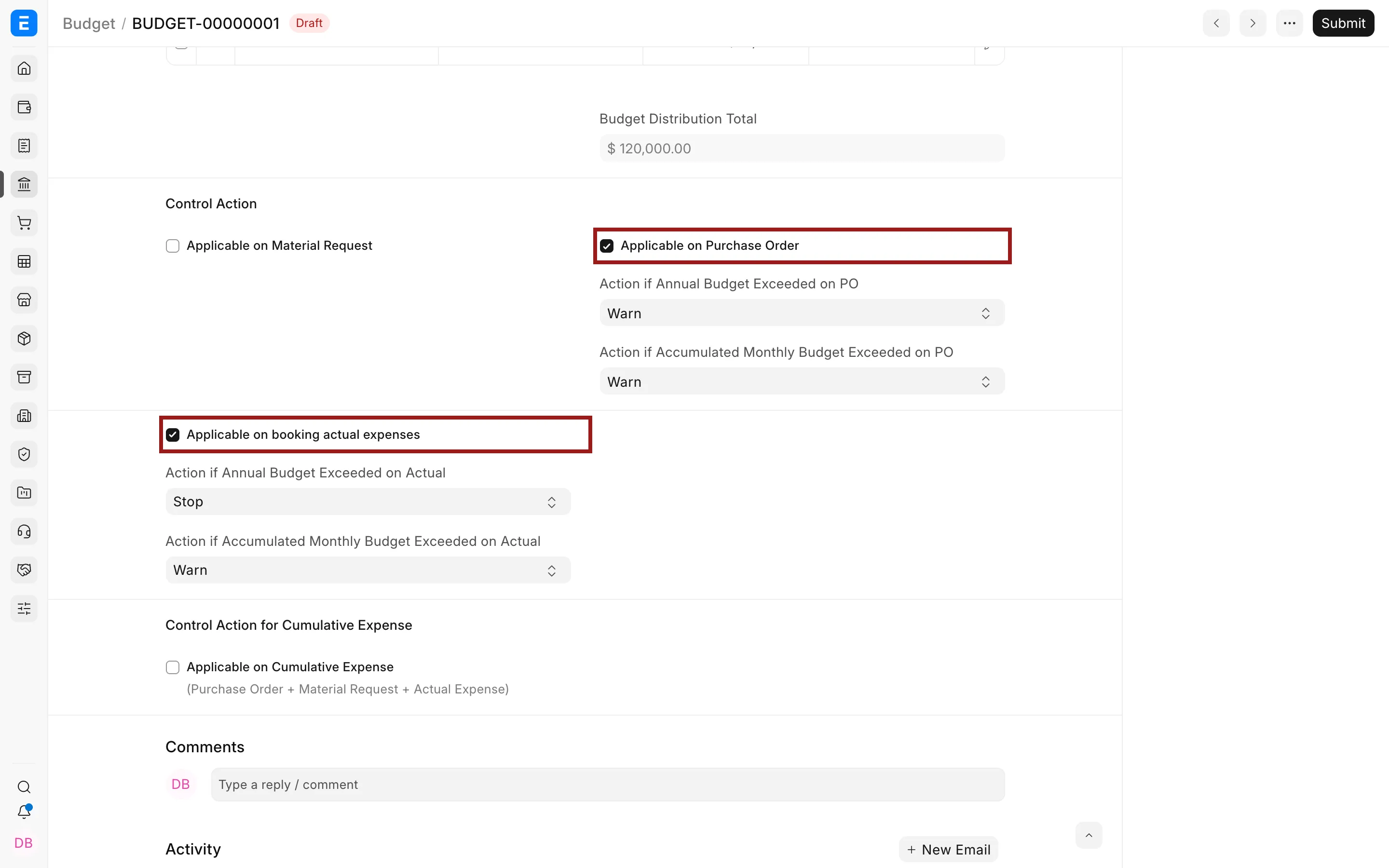
Save and submit the Budget. Draft budgets do not enforce controls.
Important fields and what they mean
| Field | Meaning |
|---|---|
| Budget Against | The reporting segment controlled by the budget. |
| Cost Center or Project | The specific segment value to which the budget applies. |
| Account | The ledger account whose amount is compared with the budget. |
| From Fiscal Year / To Fiscal Year | The fiscal-year range covered by the budget. |
| Distribution Frequency | The interval used to divide the budget over time. |
| Budget Amount | The approved amount for the full budget period. |
| Distribute Equally | Creates equal periodic amounts automatically. |
| Budget Distribution | The dates, percentages, and amounts assigned to individual periods. |
Review budget performance
Use the Budget Variance Report to compare the approved amount with actual spending. Filter by company, Fiscal Year, and budgeting segment. If a variance looks incorrect, open the General Ledger to inspect the transactions behind it.
A warning answers, “Should this transaction continue?” The variance report answers, “How is the complete plan performing?” Review both committed purchases and posted expenses because an approved order may consume the plan before it becomes an accounting expense through a Purchase Invoice.
Revise an approved budget
When management approves a genuine change to the amount or distribution, use Budget Revision. This preserves the relationship between the original plan and the revised plan. Do not change a Budget merely to make one blocked transaction pass.
What happens after submission
Submitting the Budget activates its checks. When you submit a covered transaction, ERPNext compares its amount with the applicable annual and periodic limits. It then applies the configured Stop, Warn, or Ignore action.
The Budget itself does not create a General Ledger entry, payable, or bank movement. Only the business transactions posted against the controlled Account affect the ledger.
Troubleshooting
No warning appears when spending exceeds the budget
Confirm that the Budget is submitted, the correct transaction stage is enabled, and the transaction uses the same company, account, fiscal period, and budget dimension value.
The budget is triggered for the wrong period
Review the fiscal-year range, posting date, distribution frequency, and Budget Distribution rows. If Distribute Equally is disabled, confirm the manual amounts and percentages.
ERPNext prevents an authorised exception
Review the configured action and your organisation's approval policy. An administrator can configure the Budget Approver role in Company settings for controlled exceptions.
Frequently asked questions
Does a Budget reserve cash?
A Budget does not reserve cash. It is a planning and control record and does not create a bank, payable, or General Ledger entry.
Can one Budget cover several accounts?
A Budget record is created for a specific account and budget dimension. Create separate records when different accounts require their own limits.
Can a Budget span multiple fiscal years?
You can span multiple fiscal years by selecting the appropriate From Fiscal Year and To Fiscal Year. Review the generated distribution carefully so that each period receives the intended amount.
What is the difference between Warn and Stop?
Warn shows the over-budget condition but permits submission. Stop blocks submission until the transaction or budget is changed by an authorised user.