


















A Sales Return records goods returned by a Customer after delivery or invoicing. Depending on how the original sale was processed, ERPNext records the return through a return Delivery Note, a return Sales Invoice (Credit Note), or both.
Use the original submitted transaction as the starting point. This preserves the link to the sale, fetches the original items and rates, and updates returned quantities correctly.
Before you begin
Confirm:
- the original Delivery Note or Sales Invoice is submitted;
- which Items and quantities the Customer is returning;
- whether the goods are physically returning to a Warehouse;
- whether the original invoice is unpaid, partially paid, or fully paid;
- whether the return is a refund, a credit for a future invoice, or only a stock correction; and
- the correct serial numbers or batch numbers for tracked Items.
If local law requires a Credit Note, do not cancel the original invoice merely because it is unpaid. Follow your accounting and tax policy.
Choose the correct return method
| Situation | Recommended document | Stock effect | Accounting effect |
|---|---|---|---|
| Goods were delivered using a Delivery Note, but the sale should not be credited yet | Return Delivery Note | Returned stock enters the selected Warehouse | No Customer credit from the Delivery Note |
| Goods and Customer credit must be recorded together | Return Sales Invoice with Update Stock | Returned stock enters the selected Warehouse | Creates a Credit Note |
| Goods already returned through a Delivery Note | Return Sales Invoice without Update Stock | No second stock movement | Creates a Credit Note |
| Price, tax, or billing value must be reduced without receiving goods | Return Sales Invoice without Update Stock | No stock movement | Creates a Credit Note |
Do not return the same stock through both documents. If a return Delivery Note has already received the goods, leave Update Stock cleared on the Credit Note.
Create a return from a Delivery Note
- Open the original submitted Delivery Note.
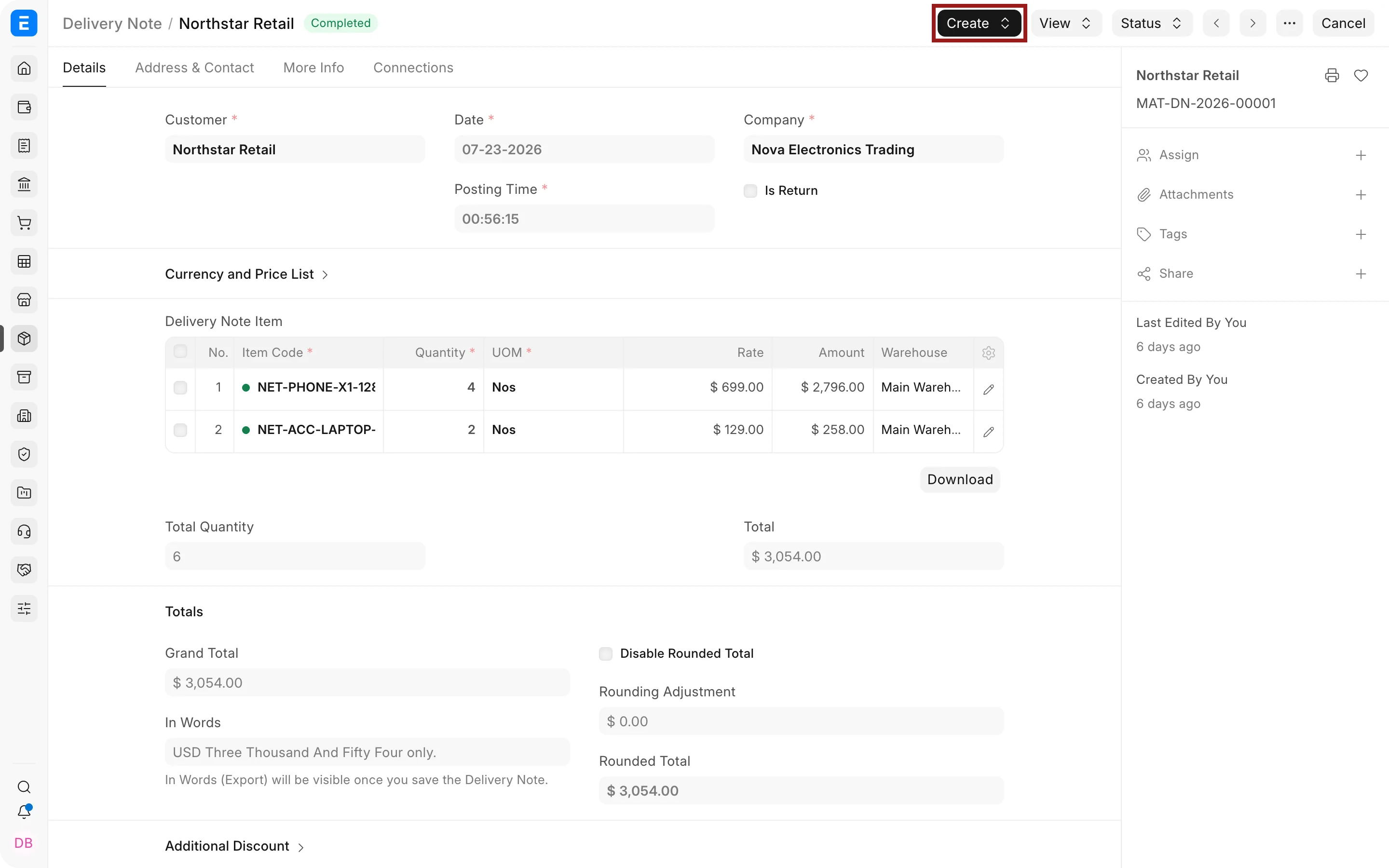
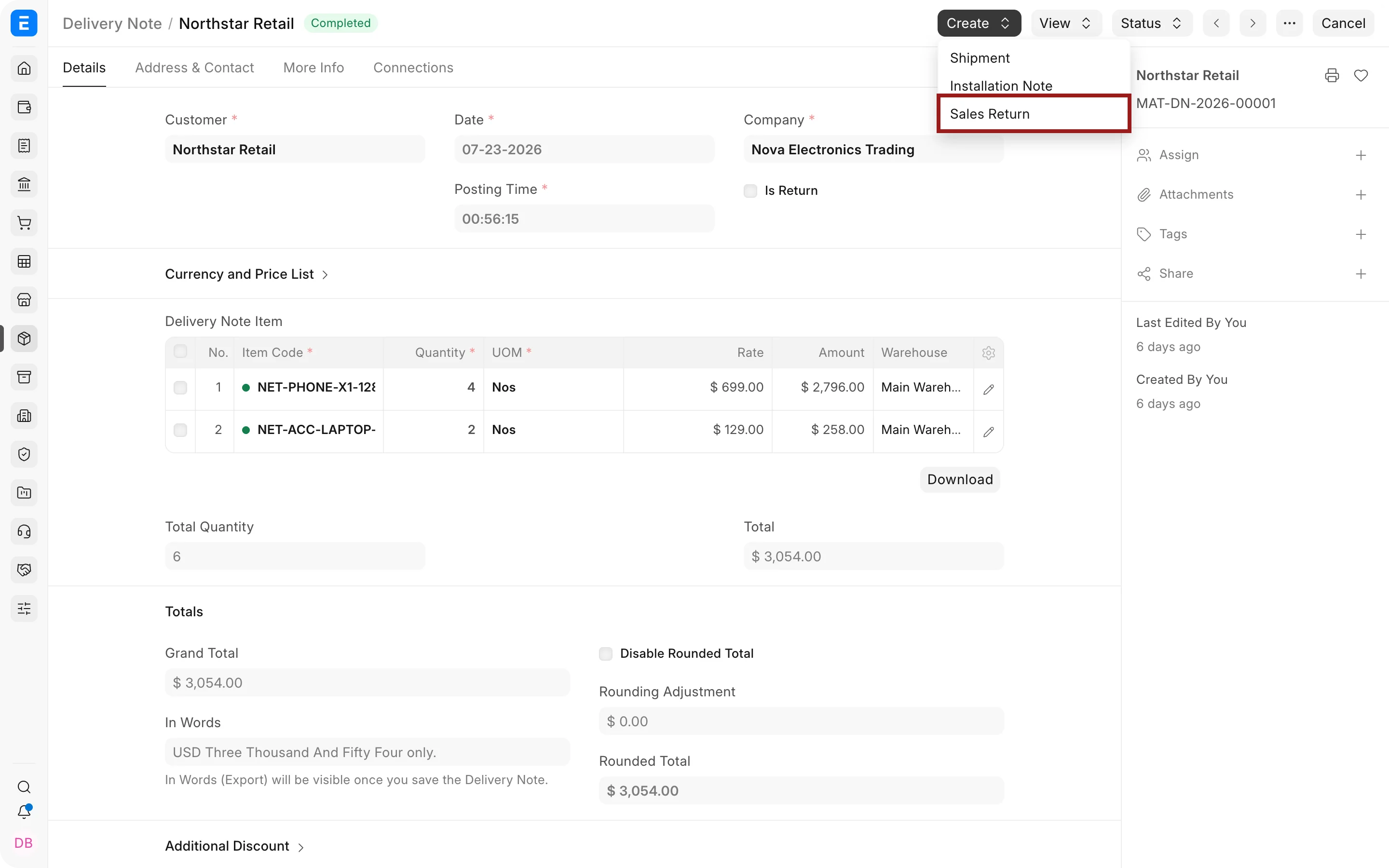
- Select Create > Sales Return.
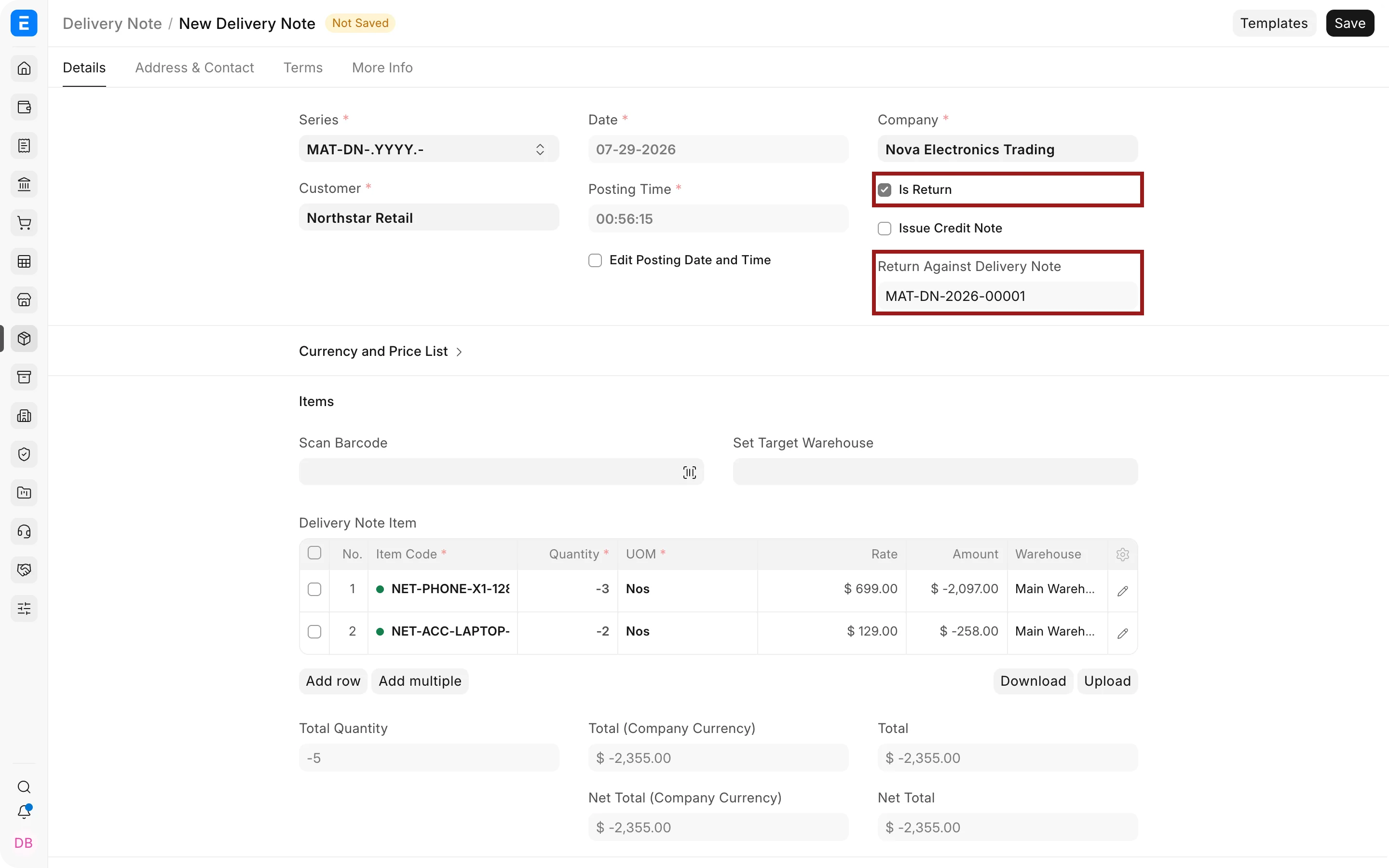
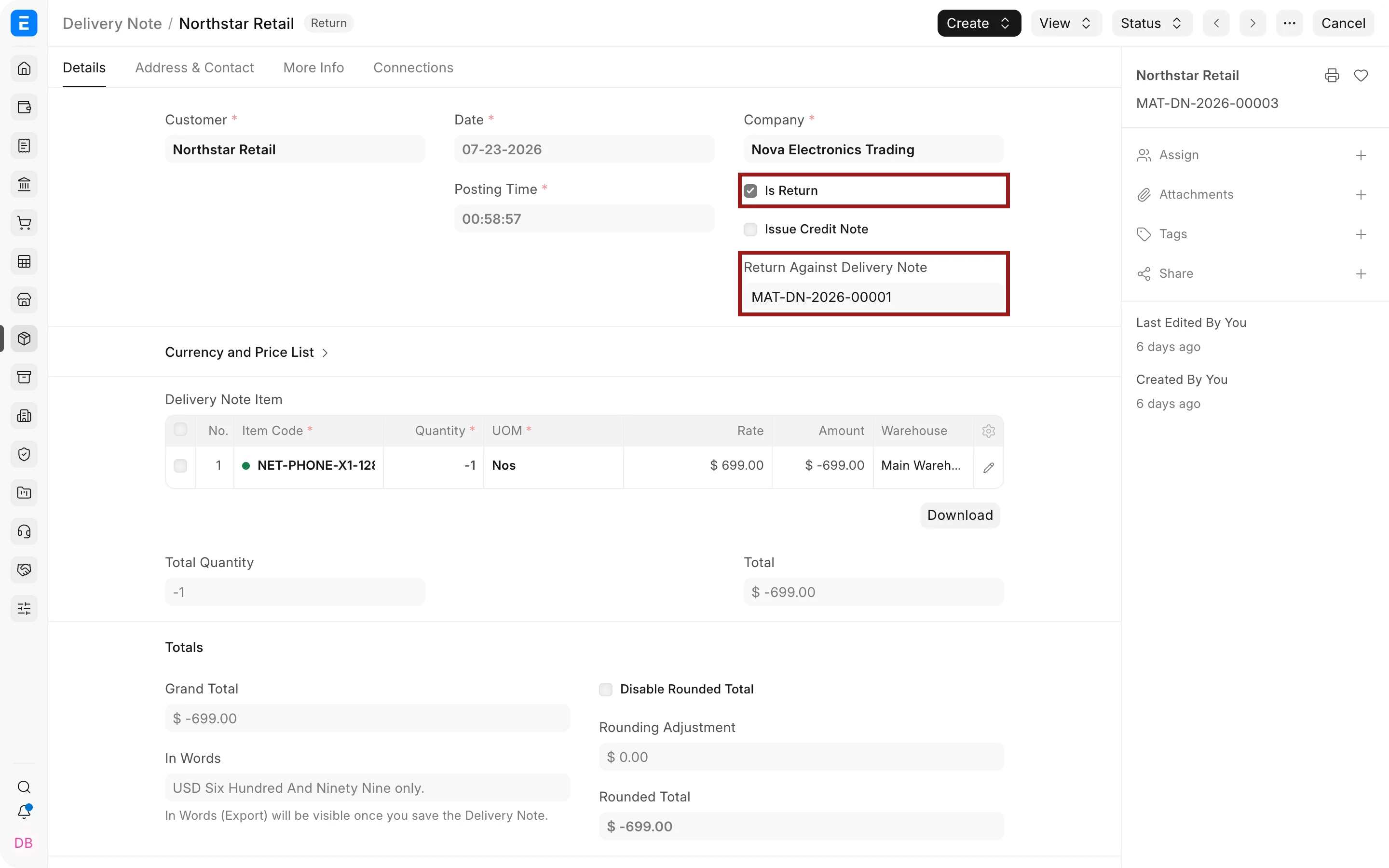
- Review the Customer, return warehouse, posting date, items, and rates fetched from the original document.
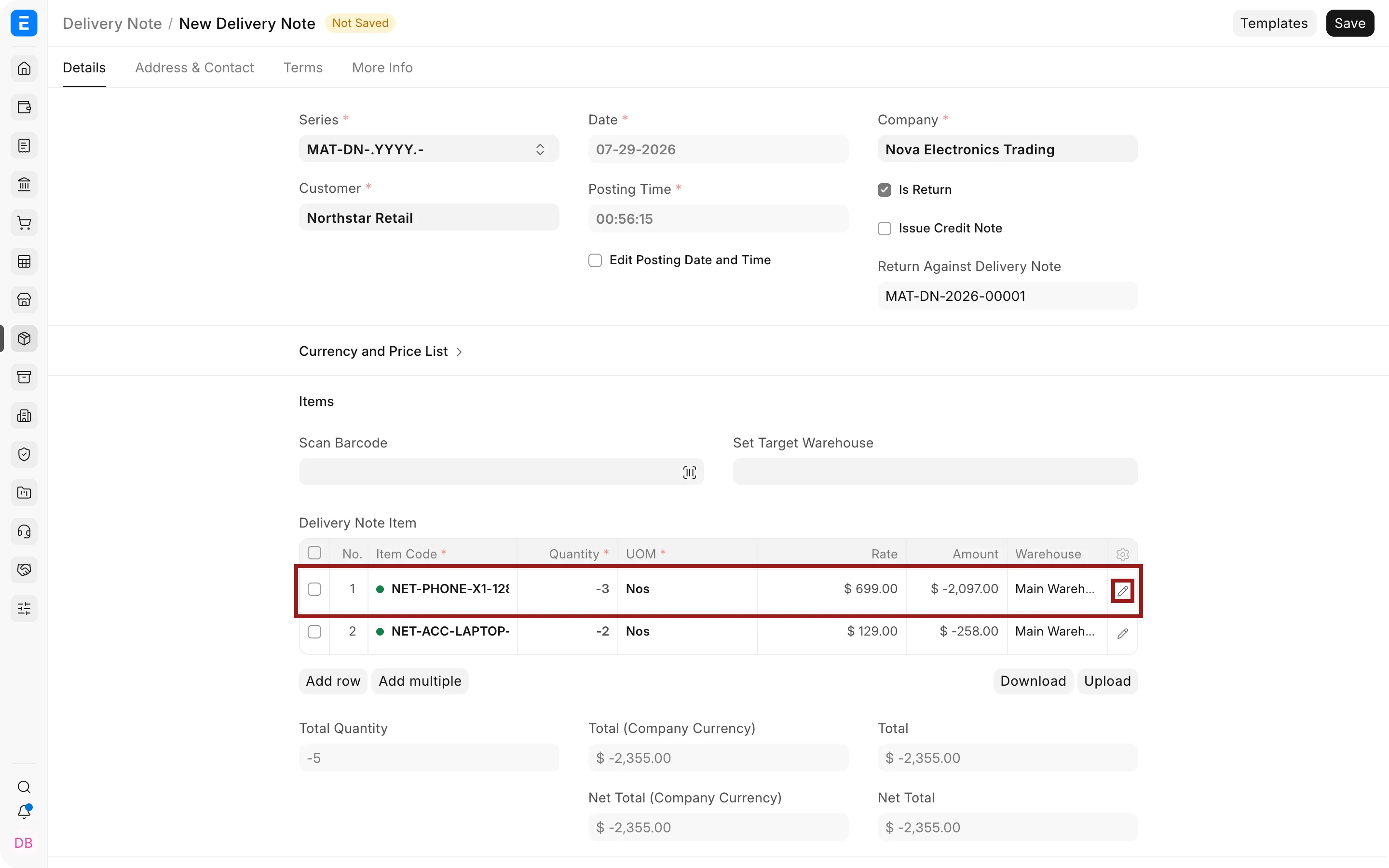
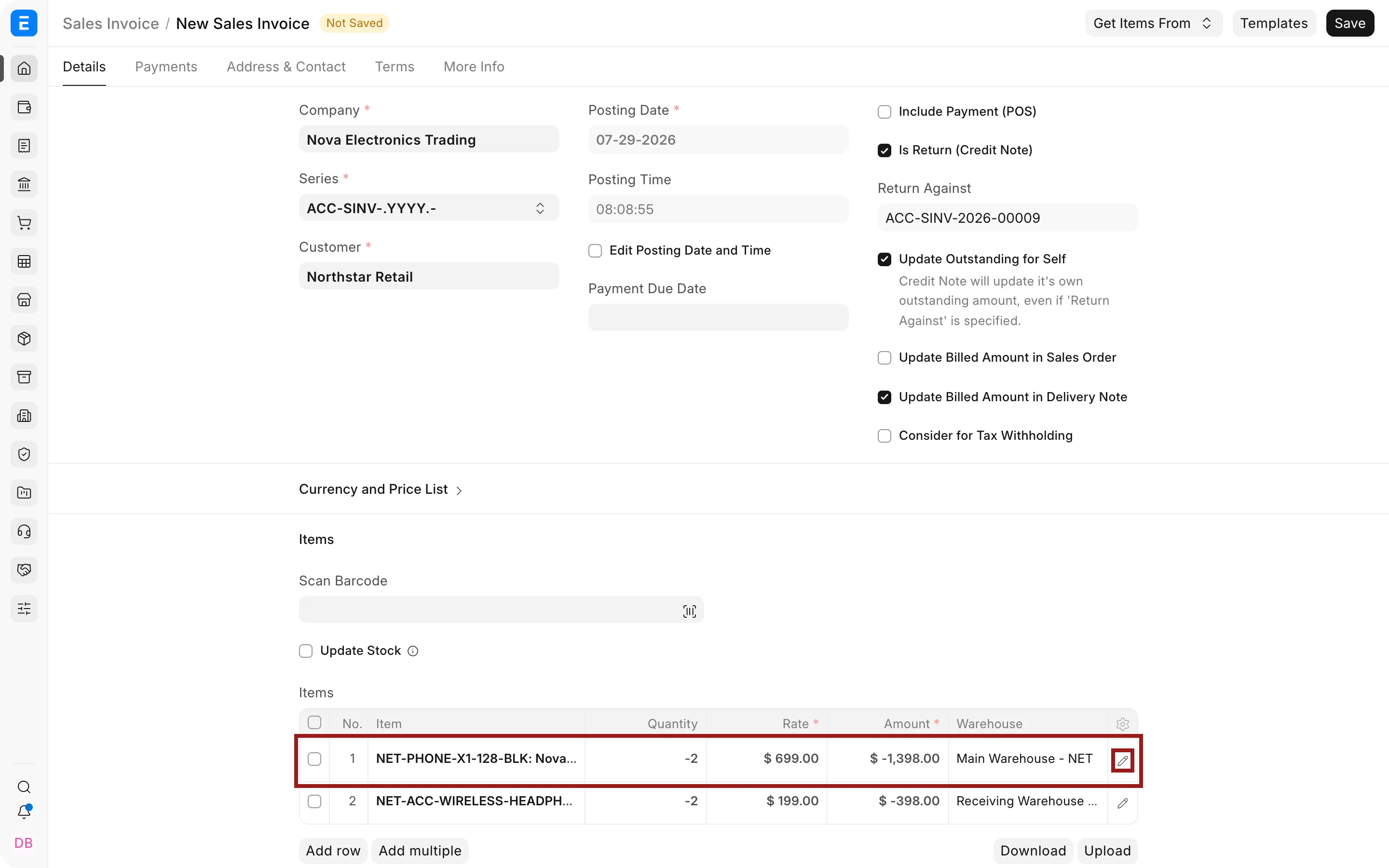
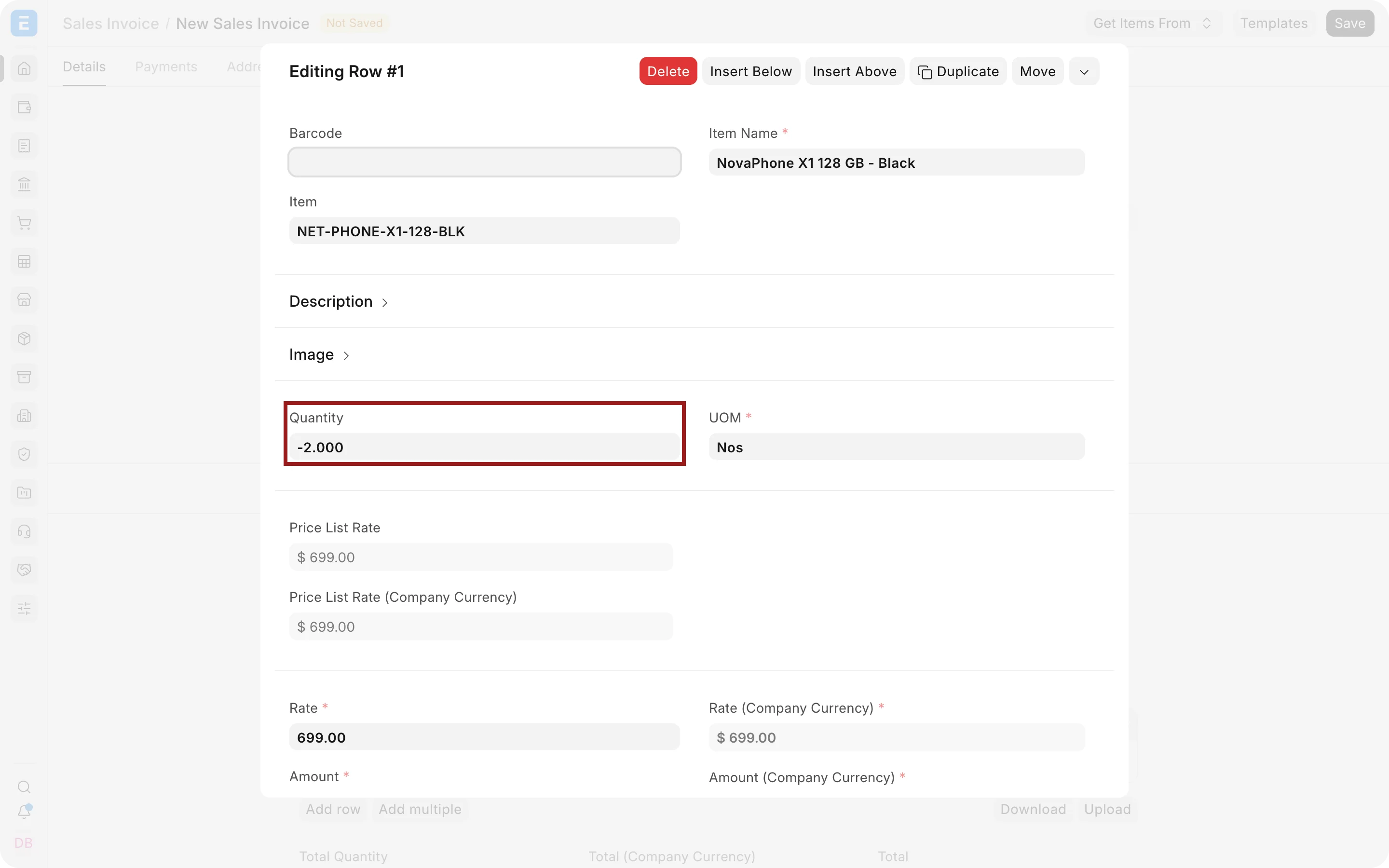
- Keep only the returned lines. Enter the returned quantity for each Item. ERPNext represents return quantities as negative values.
- For serialized or batched Items, select the returned Serial Numbers or Batch Numbers.
- Save and submit the return Delivery Note.
For a partial return, reduce the negative quantity to the amount actually received. For example, if the draft fetches -10 and the Customer returns 3 units, enter -3.
After submission, the stock balance increases in the selected Warehouse. ERPNext also updates the returned quantity against the original Delivery Note and any linked Sales Order. A fully returned Delivery Note can show Return Issued.
Create a return from a Sales Invoice
- Open the original submitted Sales Invoice.
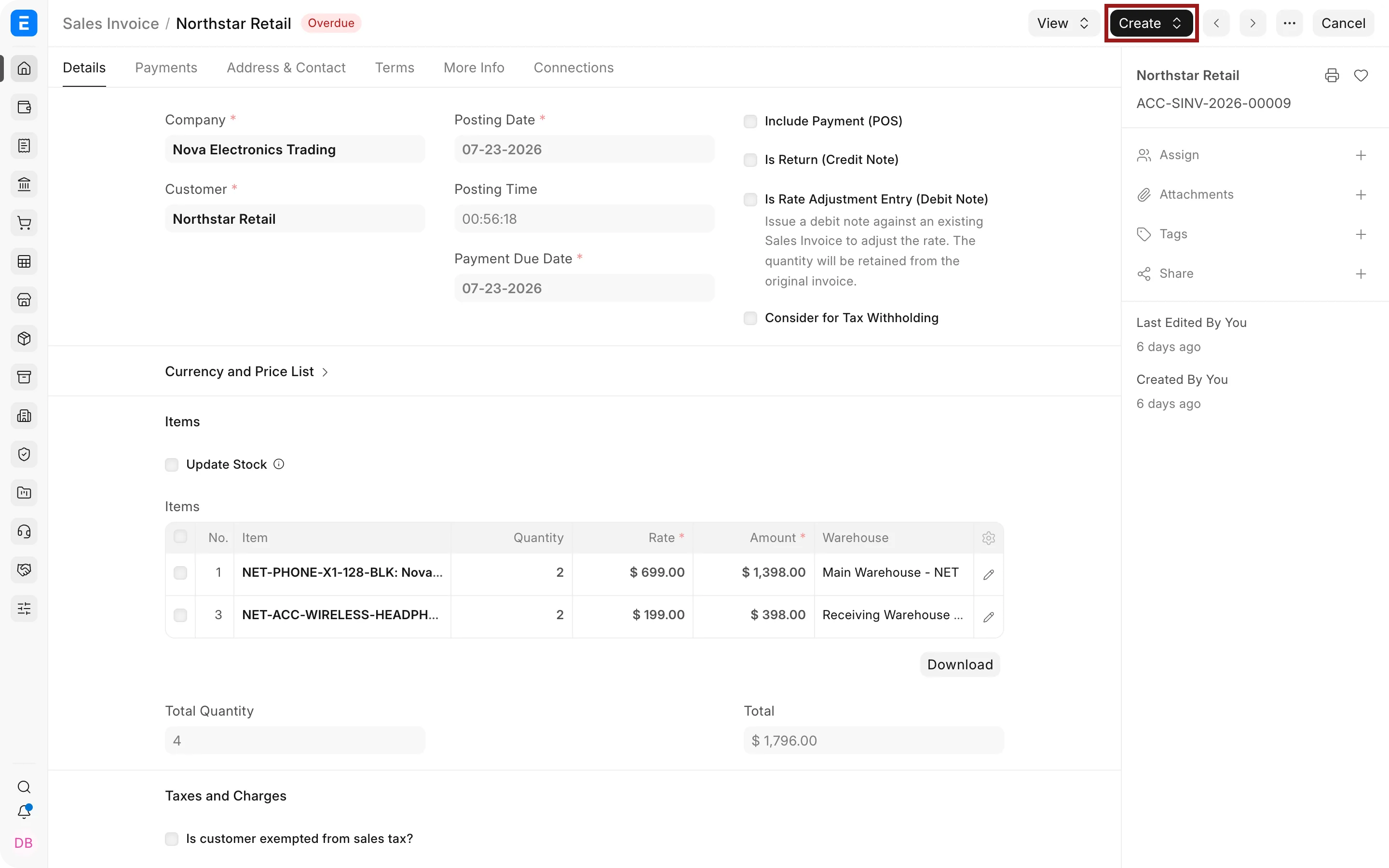
- Select Create > Return / Credit Note.
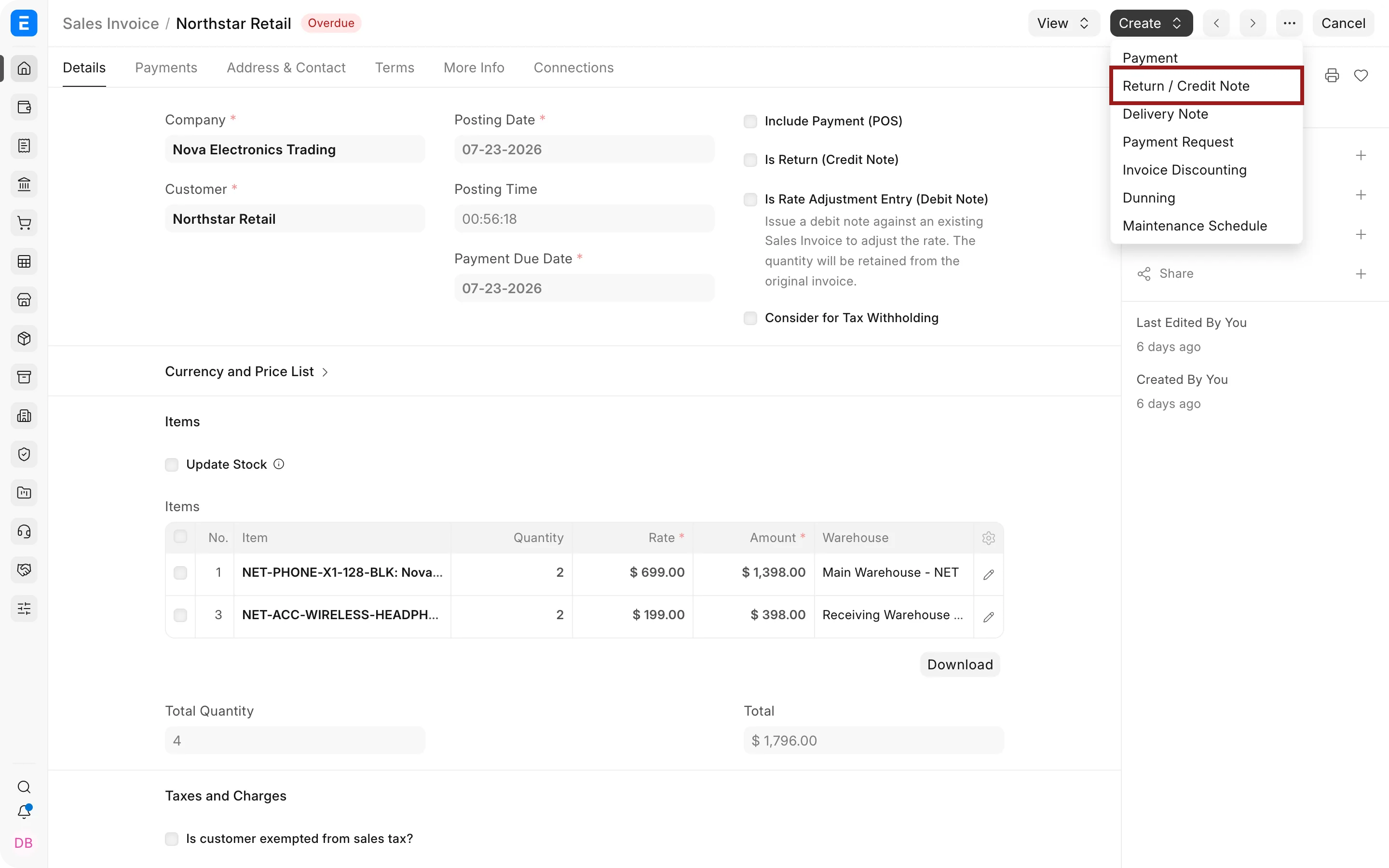
- Confirm that Is Return (Credit Note) and Return Against identify the return and its original invoice.
- Remove lines that are not being returned and enter negative quantities for the returned lines.
- Enable Update Stock only when the goods must be received into stock through this Credit Note.
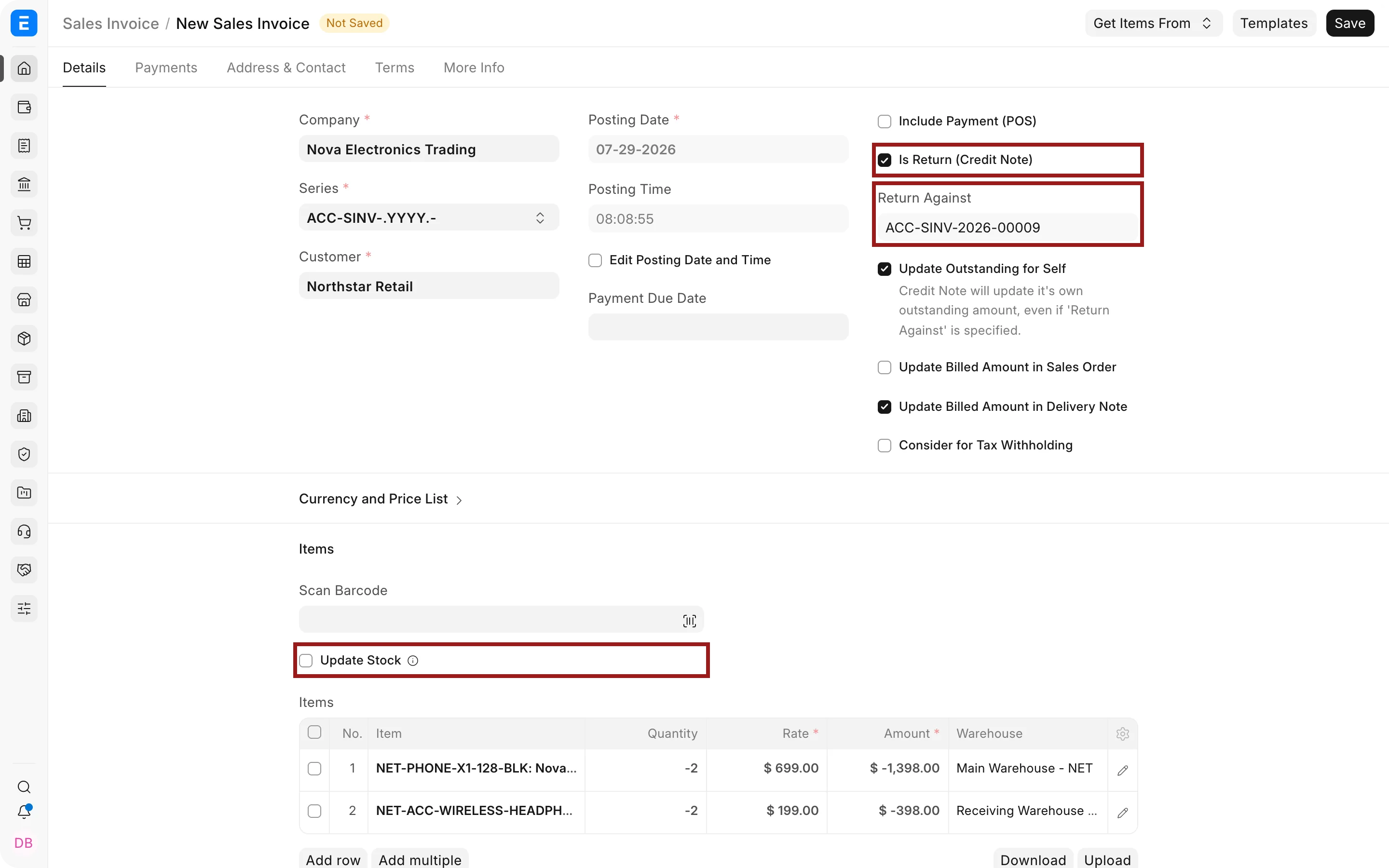
- When stock is updated, confirm the Warehouse and any required serial or batch information.
- Review the rates, taxes, posting date, and returned total.
- Save and submit the Credit Note.
The submitted Credit Note reverses the applicable receivable, income, and tax amounts. When Update Stock is enabled, it also receives the returned Items and creates the corresponding stock movement.
Important fields and what they mean
| Field | What it controls |
|---|---|
| Is Return (Credit Note) | Identifies a Sales Invoice as a return transaction |
| Return Against | Links the return to its original Delivery Note or Sales Invoice |
| Update Stock | Receives returned goods through a Credit Note; leave it cleared if a return Delivery Note already updated stock |
| Posting Date and Time | Determines when stock and accounting effects are recorded, subject to posting rules |
| Warehouse | Warehouse receiving the returned goods |
| Quantity | Negative quantity being returned; reduce its magnitude for a partial return |
| Rate | Original selling rate used to calculate the returned value |
| Serial and Batch Bundle | Identifies the exact serialized or batched stock returning to the Warehouse |
| Mode of Payment and Payment Account | Used when the return transaction itself records an immediate payment or refund |
In an Item table, the dot before an Item Code indicates stock availability: green means in stock and red means out of stock.
Handle unpaid, partially paid, and paid invoices
The Sales Invoice is unpaid
Create a Credit Note for the returned quantity or value. If the goods are physically returning, either enable Update Stock on the Credit Note or create a separate return Delivery Note.
Cancel the original Sales Invoice only when the entire transaction should be reversed, ERPNext permits cancellation, and your statutory and audit rules allow it. Use a Credit Note when the original invoice must remain in the audit trail or only part of the sale is being returned.
The Sales Invoice is partially or fully paid
Create the Credit Note against the original invoice. The resulting Customer credit can be:
- allocated against another outstanding Sales Invoice;
- retained for a future sale; or
- refunded through an outgoing Payment Entry, according to your accounting process.
Use Payment Reconciliation when invoices, payments, and credits need to be allocated or corrected. Confirm the Customer, references, and allocated amounts before submitting an adjustment.
The Customer exchanges an Item
Record the returned Item through the appropriate return document. Create a new Sales Invoice or sales transaction for the replacement Item. Allocate the Customer credit against the new invoice when applicable. Keeping the return and replacement as separate linked transactions makes stock and accounting effects easier to audit.
Stock and accounting impact
A submitted return Delivery Note increases stock and updates returned quantities, but it does not create a Customer credit.
A submitted Credit Note reverses the applicable receivable, income, and tax amounts. If Update Stock is enabled, it also increases stock. With Perpetual Inventory, ERPNext posts the related warehouse accounting entries so the stock ledger and warehouse account remain synchronized.
Use the Stock Ledger Report to verify the quantity and valuation movement. Use the General Ledger and Accounts Receivable report to verify the Customer credit and accounting entries.
Status
| Status | Meaning |
|---|---|
| Draft | Return has not affected stock or accounts |
| Return | Document is a submitted return transaction |
| Credit Note Issued | A Credit Note has been created against the original Sales Invoice |
| Return Issued | A return has been created against the original Delivery Note; a full return can produce this status |
| Cancelled | Submitted return was cancelled and its effects were reversed |
Troubleshooting
| Problem | What to check |
|---|---|
| Stock increased twice | Check whether both the return Delivery Note and Credit Note updated stock |
| Returned quantity is rejected | Confirm it does not exceed the quantity available to return against the original document |
| Serial or batch validation fails | Select serial or batch records from the original delivery and use the correct receiving Warehouse |
| Customer credit is not available | Confirm the Credit Note is submitted and review its outstanding amount and payment-ledger references |
| Return posts on the wrong date | Check posting date, posting time, closed accounting periods, and stock posting restrictions |
| Original document cannot be cancelled | Use a return document or Credit Note instead of forcing cancellation |
Frequently asked questions
Can I return only some items or part of an item quantity?
Y
es. Remove lines that are not being returned and change the negative quantity to the amount actually returned.
Should I use a Delivery Note return or a Credit Note?
Use a return Delivery Note for stock movement and a Credit Note for Customer accounting. Use a Credit Note with Update Stock when both effects should happen in one document.
Can I issue a credit without receiving goods?
Y
es. Create a Credit Note and leave Update Stock cleared.
Can a Customer credit be used on a future invoice?
Y
es. Allocate the submitted Credit Note through the appropriate payment or reconciliation workflow.
Can I refund a paid Customer?
Y
es. Record the Credit Note first, then process and reconcile the outgoing payment according to your accounting policy.