


















A Tax Rule automatically selects a Sales or Purchase Taxes and Charges Template when a transaction matches the rule's conditions. It prevents users from having to remember which tax template applies to each customer, supplier, item, location, or period.
The rule selects a template. The selected template contains the tax accounts, rates, and calculation types that calculate the transaction tax.
flowchart LR
    A["Transaction context"] --> B["Matching Tax Rule"]
    B --> C["Sales or Purchase Tax Template"]
    C --> D["Taxes and Charges rows"]
    D --> E["Transaction total and ledger posting"]
Transaction context can include a party, party group, item, item group, billing or shipping location, Tax Category, date, company, and priority.
Before you begin
Create the reusable Sales Taxes and Charges Template or Purchase Taxes and Charges Template that the rule should select. Verify its company, accounts, rates, and calculation types with a representative draft transaction.
Create Tax Categories when the tax treatment depends on a party or address classification. A category is especially helpful when the same tax treatment is shared by many customers, suppliers, or locations.
Plan rules before entering them. List each tax treatment and the smallest set of conditions that makes it unique. Broad, overlapping rules are harder to troubleshoot than a few mutually exclusive rules.
Create a Tax Rule
Go to Accounting > Taxes > Tax Rule and select Add Tax Rule.
- Set Tax Type to Sales or Purchase.
- Select the corresponding Sales Tax Template or Purchase Tax Template.
- Enable Use for Shopping Cart only when the rule must also apply to website checkout transactions.
- Add the conditions that identify the intended transaction.
- Set validity dates when the rule is temporary or changes by tax period.
- Set the priority and company.
- Save.
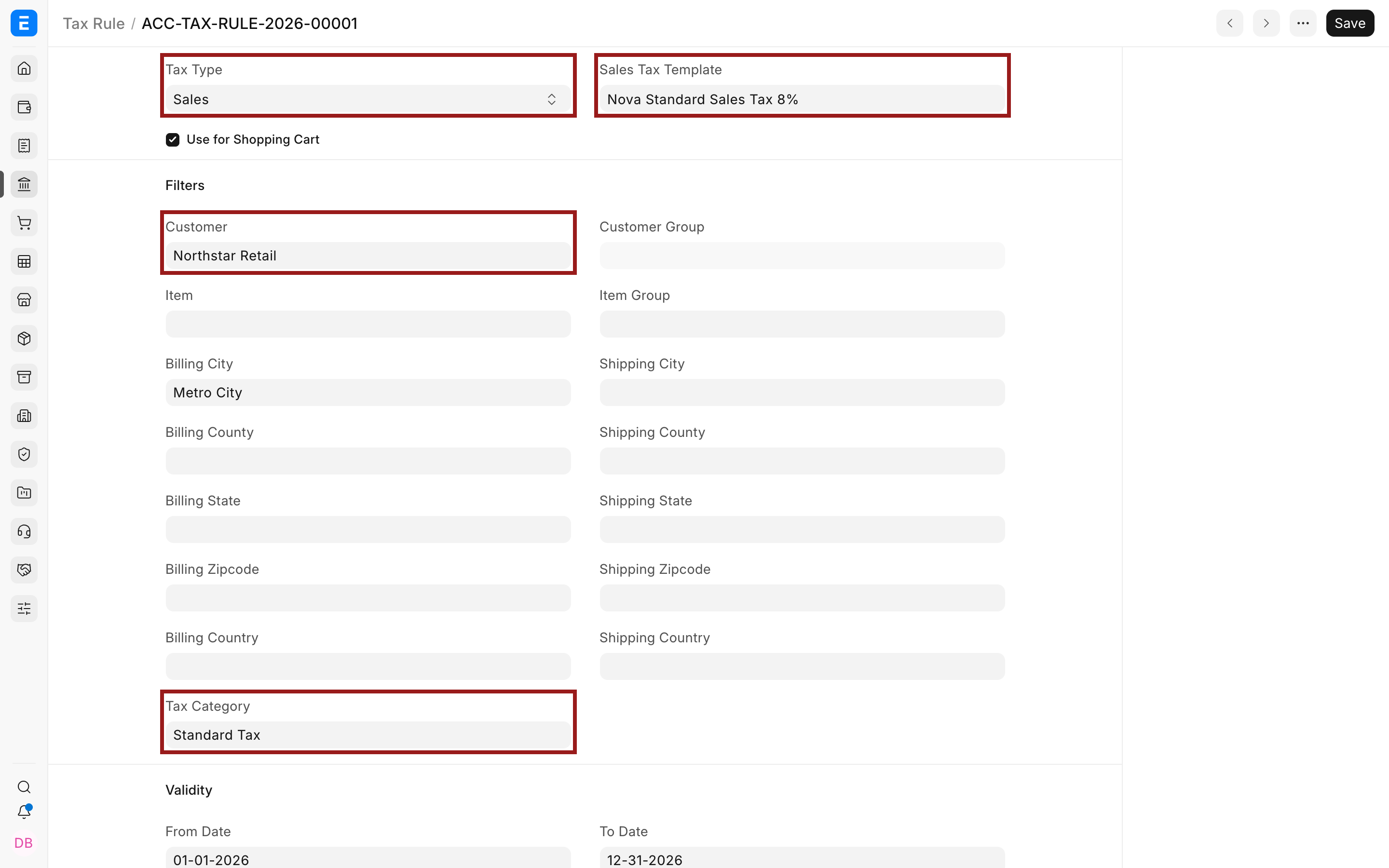
The example rule selects Nova Standard Sales Tax 8% for Northstar Retail under the Standard Tax category.
Important fields and what they mean
| Field | What it controls |
|---|---|
| Tax Type | Whether the rule applies to selling or buying transactions |
| Sales Tax Template | The sales template selected by a Sales rule |
| Purchase Tax Template | The purchase template selected by a Purchase rule |
| Use for Shopping Cart | Extends a Sales rule to applicable website checkout transactions |
| Customer or Supplier | Restricts the rule to one party |
| Customer Group or Supplier Group | Applies the rule to parties in a group |
| Item or Item Group | Restricts the rule using transaction item context |
| Billing or Shipping location | Matches city, county, state, postal code, or country information |
| Tax Category | Matches the treatment resolved from the party, Address, or transaction |
| From Date and To Date | Limits the period during which the rule can apply |
| Priority | Decides which similar matching rule is considered first; 1 is highest |
| Company | Restricts the rule to one company |
Leave a filter blank when it is not needed. Every populated condition narrows the match, so a rule with Customer, Billing City, and Tax Category applies only when all three conditions match.
Apply a rule to a Customer or Supplier
Select a specific Customer or Supplier when the treatment is unique to that party. Use Customer Group or Supplier Group when several parties share the treatment.
When a party is selected, ERPNext can use its linked billing and shipping addresses as transaction context. The relevant Address can also supply the Tax Category according to Accounts Settings.
If the rule should apply broadly, leave the specific party blank and use a meaningful group or category. Test a broad rule carefully so it does not select tax for exempt or out-of-scope parties.
Apply a rule by item or item group
Use Item or Item Group conditions when the entire transaction template depends on the goods or services being sold or purchased.
If individual items within the same transaction use different rates, use an Item Tax Template for the rate overrides. The Sales or Purchase Taxes and Charges Template must still contain the matching tax account row.
Keep the responsibilities clear:
- A Tax Rule selects the transaction-level tax template.
- The transaction template supplies tax rows and accounts.
- An Item Tax Template can override the rate for a matching item.
Avoid creating overlapping transaction and item logic without testing the combined result. Use distinct, descriptive names for transaction templates and item templates so users can tell them apart.
Apply a rule by location
A rule can match billing or shipping city, county, state, postal code, or country. Use the side that determines tax in your jurisdiction.
This example requires the Billing City to be Metro City in addition to matching Northstar Retail and Standard Tax.
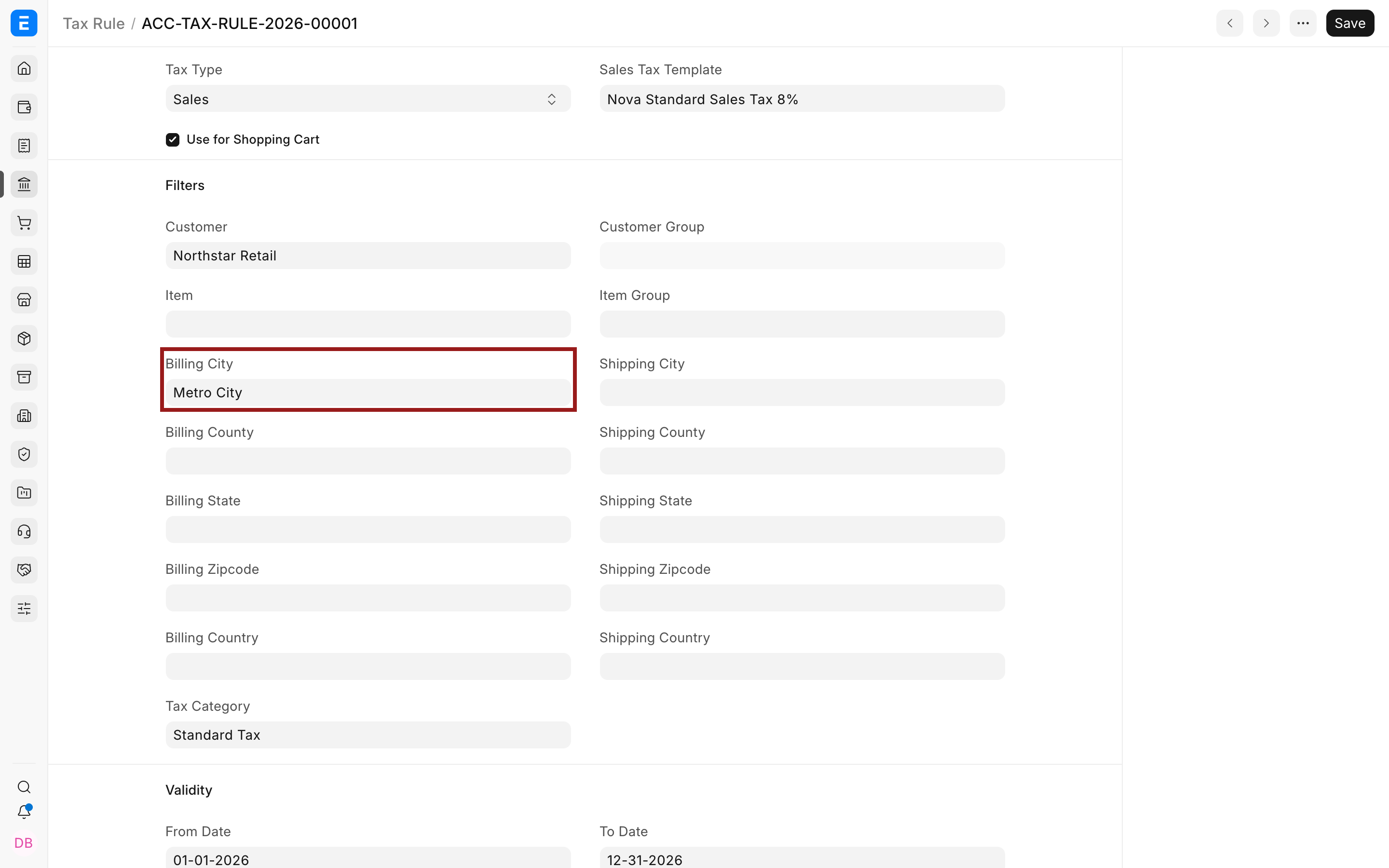
The location value comes from the Address selected on the transaction. If a rule does not match, check the actual transaction Address rather than only the party master.
Location filters are useful for destination-based sales tax, export treatment, and regional rates. Keep address data standardized so values match the rule exactly.
Use Tax Category with a rule
A Tax Category identifies a tax treatment such as Standard Tax, Export, or Tax Exempt. Assign it to a Customer, Supplier, or Address, then use it as a Tax Rule condition.
One category can appear in multiple rules. For example, Standard Tax can have one Sales rule and one Purchase rule, or separate rules for different companies and periods. The additional conditions determine which rule is relevant to the transaction.
The category itself does not contain a rate. If a category is present but the tax table is empty, check whether a matching rule exists and whether its template contains valid rows.
Set validity and priority
Use From Date and To Date when a rate or treatment is valid for a defined period. Leave both blank only when the rule has no time limit.
When rules change at the start of a tax period, create the future rule in advance with a later From Date. Give the older rule an appropriate To Date so their active periods do not overlap unnecessarily.
If multiple rules have similar conditions, Priority determines their order. Priority 1 is highest, 2 is lower, and so on.
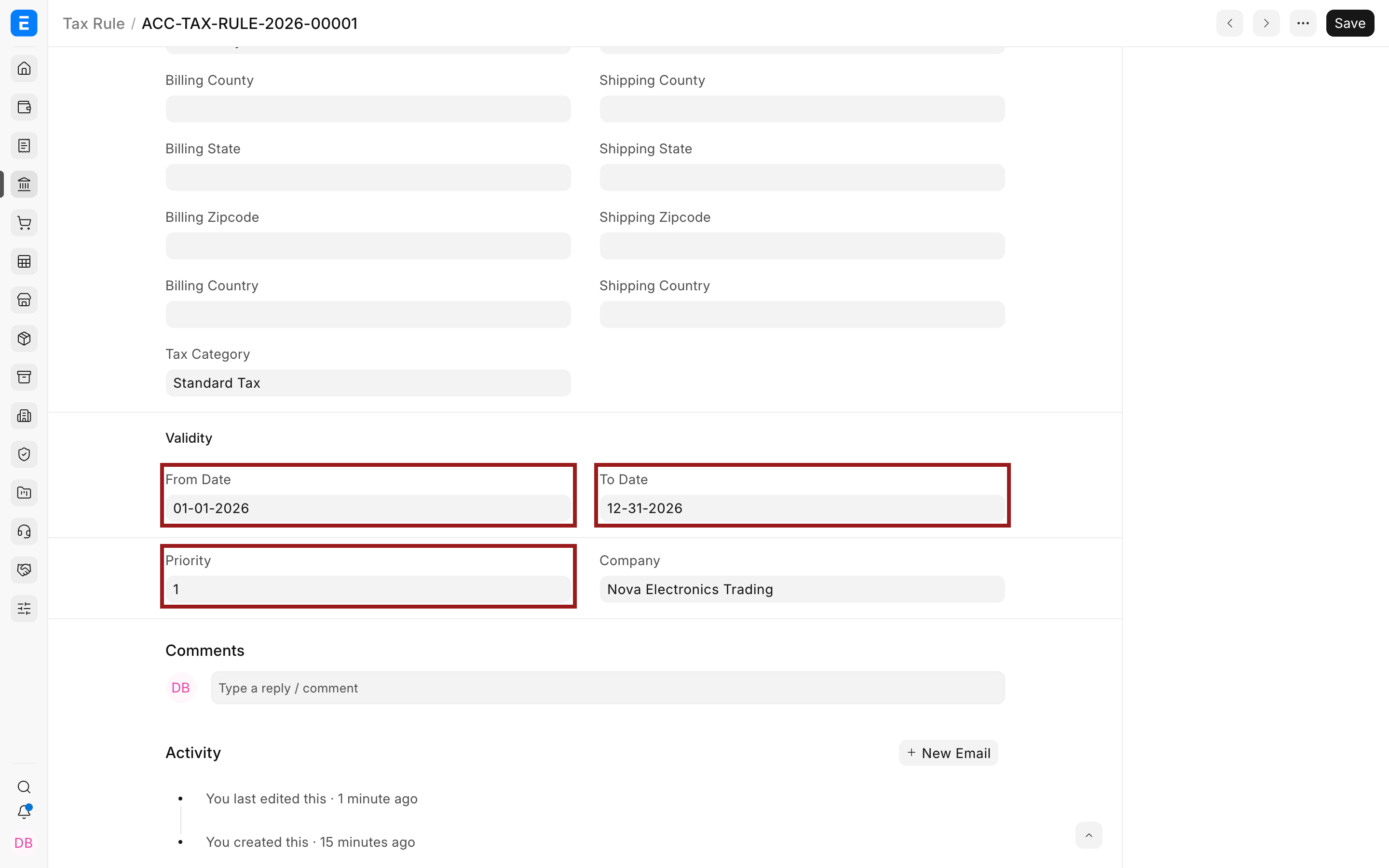
Priority does not repair contradictory configuration. Make conditions as distinct as possible and use priority only where a real hierarchy exists, such as a specific-customer exception above a general category rule.
Check the result on a transaction
Create a draft Sales Invoice, Purchase Invoice, Quotation, or Order that should match the rule.
- Select the company, party, and billing or shipping Address.
- Confirm the Tax Category.
- Add representative items.
- Check the selected Taxes and Charges Template.
- Review each tax row, tax amount, and Grand Total.
For the example rule, selecting Northstar Retail with its Metro City billing address and Standard Tax category selects the 8% sales template.
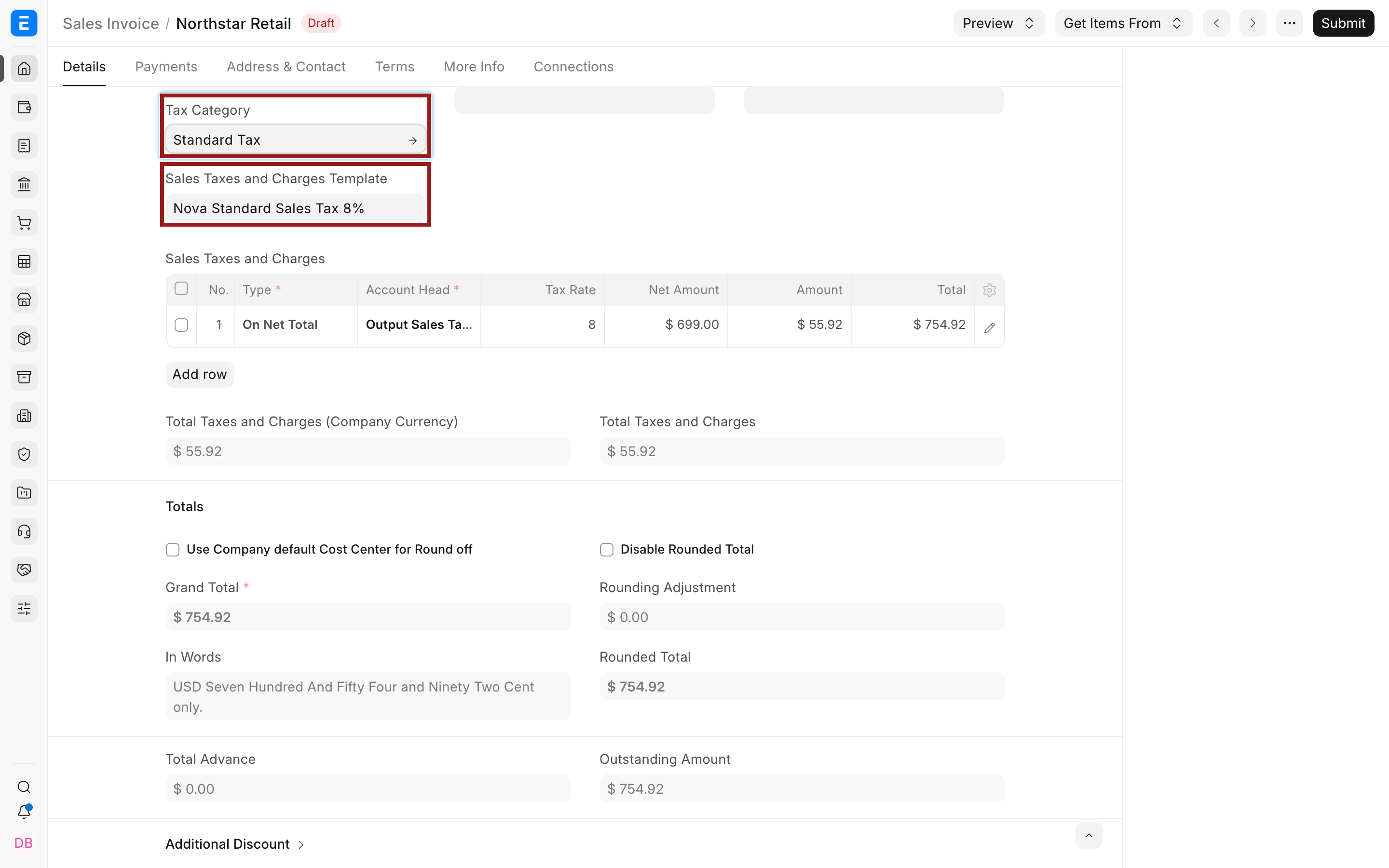
Always test each rule with both a transaction that should match and one that should not. This detects filters that are too broad, missing location data, and unintended priority conflicts.
Shopping Cart rules
Enable Use for Shopping Cart only for Sales rules intended to calculate website checkout tax. The customer's website context, address, and available item data must satisfy the rule conditions.
Test checkout separately from Desk transactions. A rule that works after a Desk user selects or edits an Address may not have the same data available at an earlier stage of website checkout. See Shopping Cart for the complete website flow.
Troubleshooting
No tax template is selected
Confirm that Tax Type matches the transaction, the rule and template belong to the correct company, and the transaction date is within the validity period. Compare every populated rule filter with the actual Customer, Supplier, items, groups, Address, and Tax Category on the draft transaction.
The wrong rule wins
Look for another active rule with overlapping conditions. Compare their priorities and validity dates. Give a specific exception a higher priority than a broad rule, or make the conditions mutually exclusive.
A location rule does not match
Open the billing or shipping Address selected on the transaction and compare its city, county, state, postal code, and country with the rule. Confirm in Accounts Settings which Address supplies Tax Category when category is also a condition.
Item-specific rates are not applied
Check the Item or Item Group assignment, the Item Tax Template's category, and the tax account rows in the selected transaction template. If the category or item setup changed after adding items, review or re-add the affected rows.
Frequently asked questions
Does a Tax Rule create tax rows without a template?
- The rule selects a Sales or Purchase Taxes and Charges Template. That template supplies the rows, accounts, rates, and calculation types used by the transaction.
Can more than one Tax Rule apply to the same category?
Y
es. Rules can differ by Sales or Purchase, company, party, location, item context, validity dates, and priority. Design them so ERPNext can identify the intended template for a given transaction.
Is Priority 1 higher or lower than Priority 2?
Priority 1 is higher. Use it for the most specific rule that should take precedence when comparable rules can match.
Why did the rule work for one customer but not another in the same group?
Compare the parties' Addresses, Tax Categories, company, and transaction dates. A populated location or category condition may differ even when both Customers belong to the same group.
Should I use a Tax Rule or an Item Tax Template for different item rates?
Use a Tax Rule to select the transaction-level template. Use Item Tax Templates when individual items need rate overrides within that tax context. Both require consistent categories and matching tax accounts.